Chats
Chats Calendar
 Meetings
 Contacts
 Mail
Mail Docs
Docs Drive
Drive AI Table
 AI Minutes
 Attendance
 Approval
 YiDA
YiDA Admin Console
Get a System-Generated Link
Follow these steps to get the app URL in a browser.- Sign in to the YiDA workbench and click My Apps.
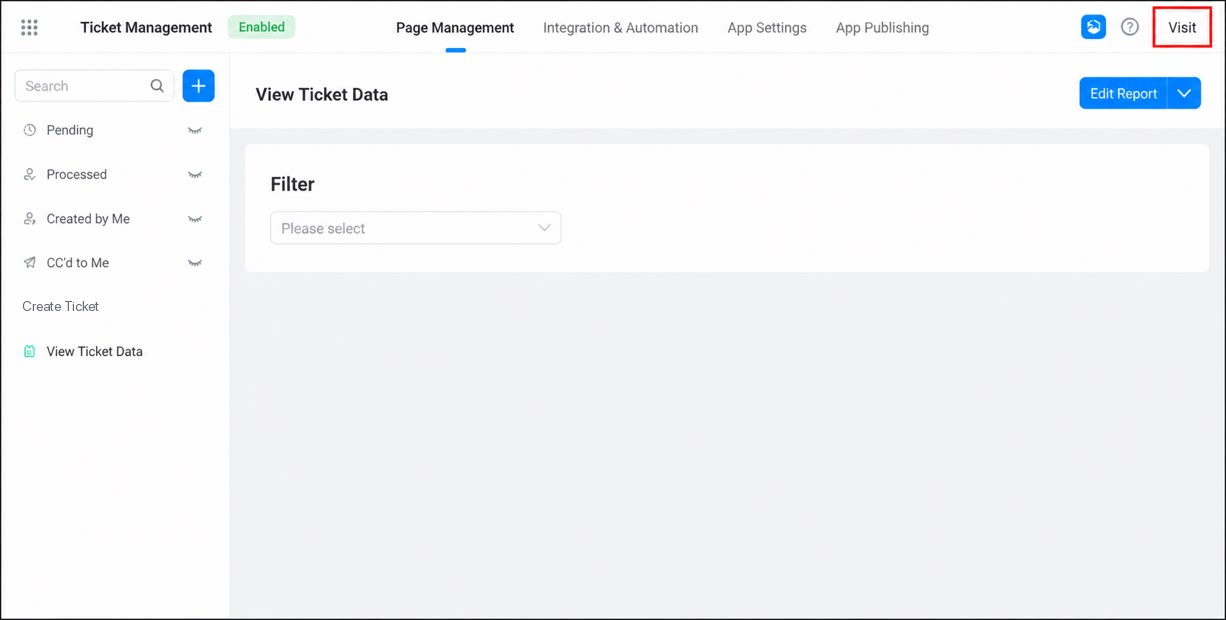
- Select the target app and click it to enter the app editor. Then click Visit in the upper-right corner.
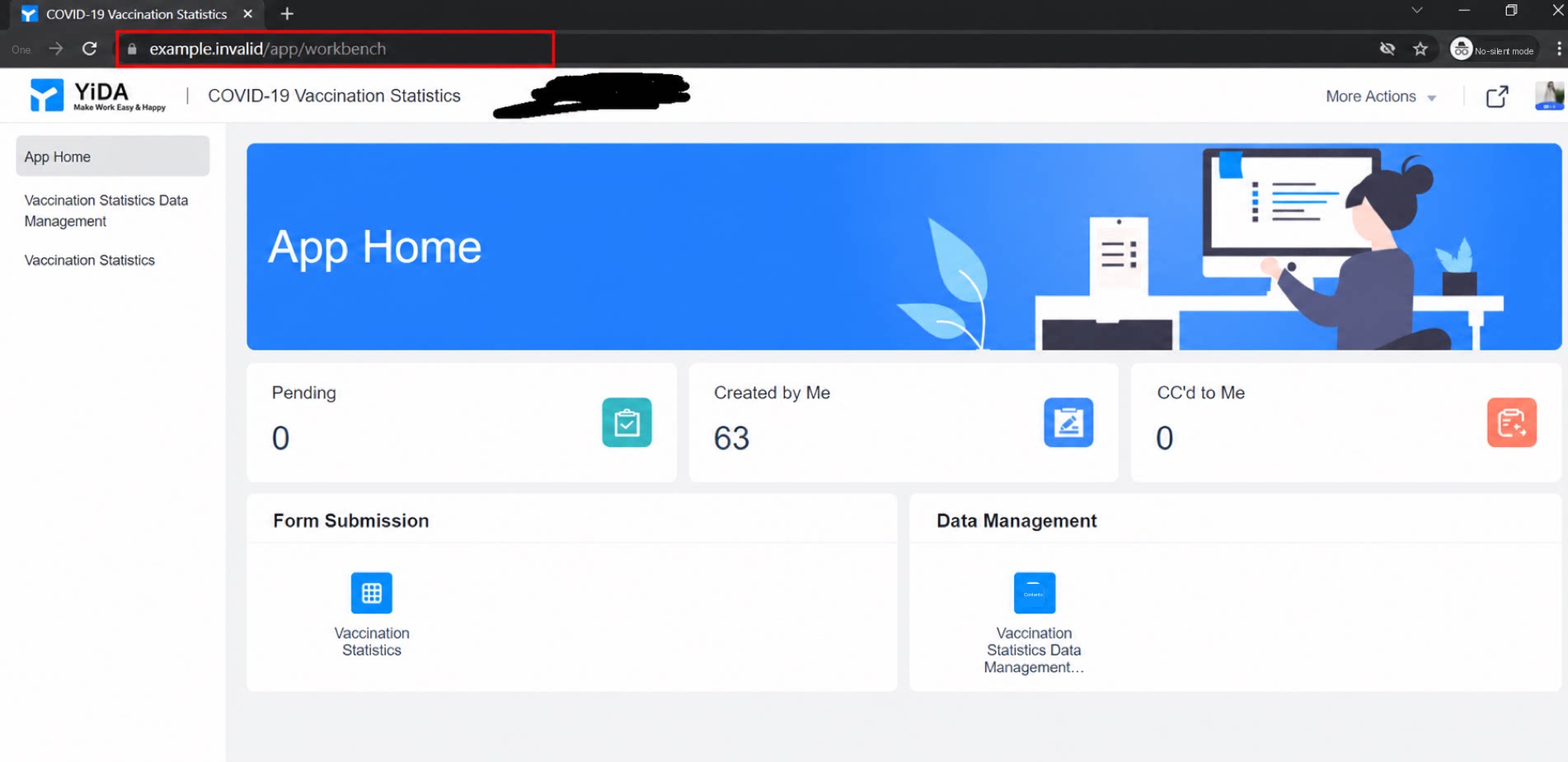
- On the app access page, copy the browser URL of the page.
Get a Custom Link
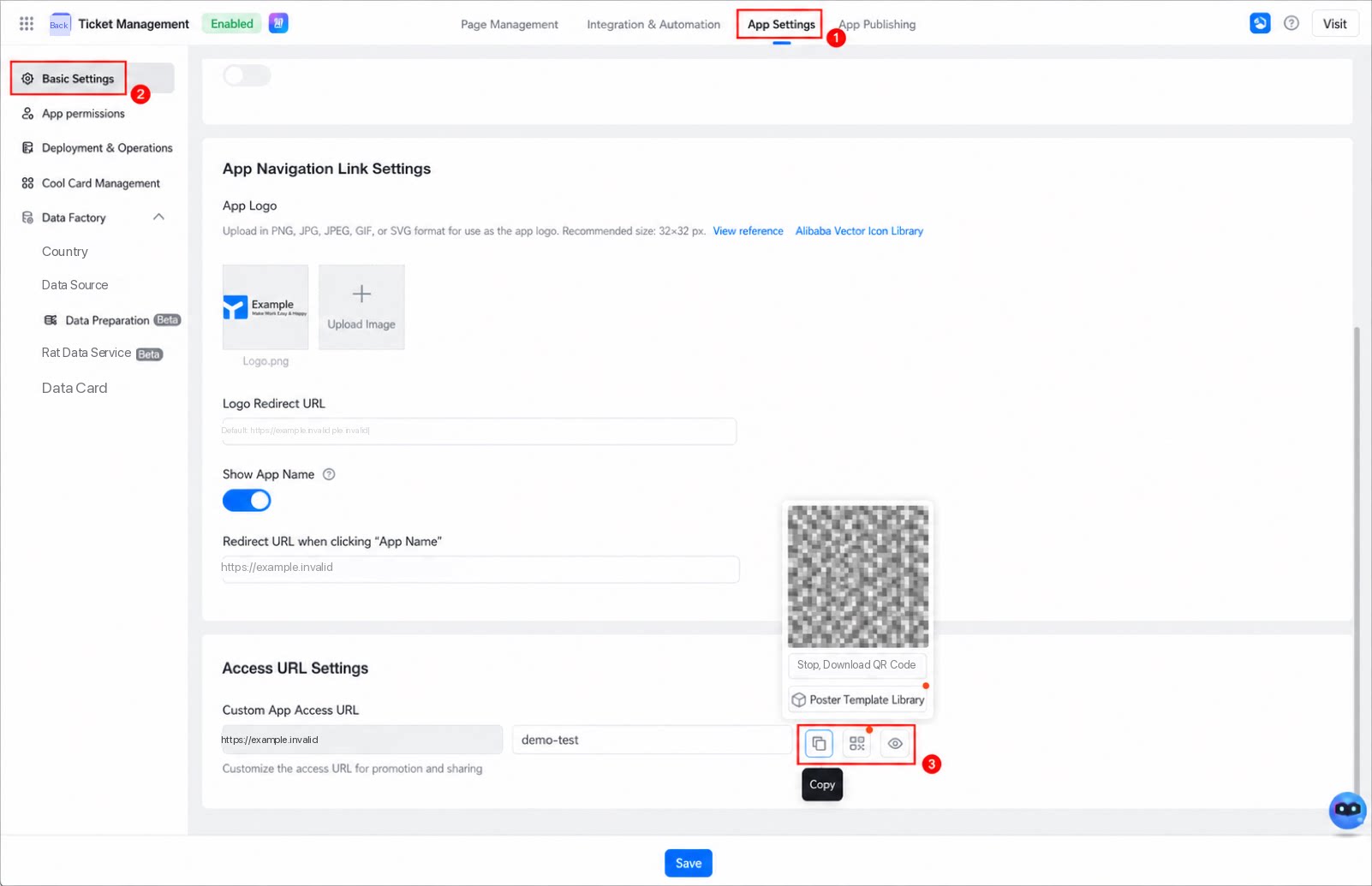
Follow these steps to get a custom URL for the app.- Sign in to the YiDA workbench and click My Apps.
- Select the target app and click it to enter the app editor.
- Click App settings to open the settings page.
- On the Basic settings page, in the URL settings section, select Copy app link or Download app QR Code as needed.
Get the App Link in the DingTalk Client
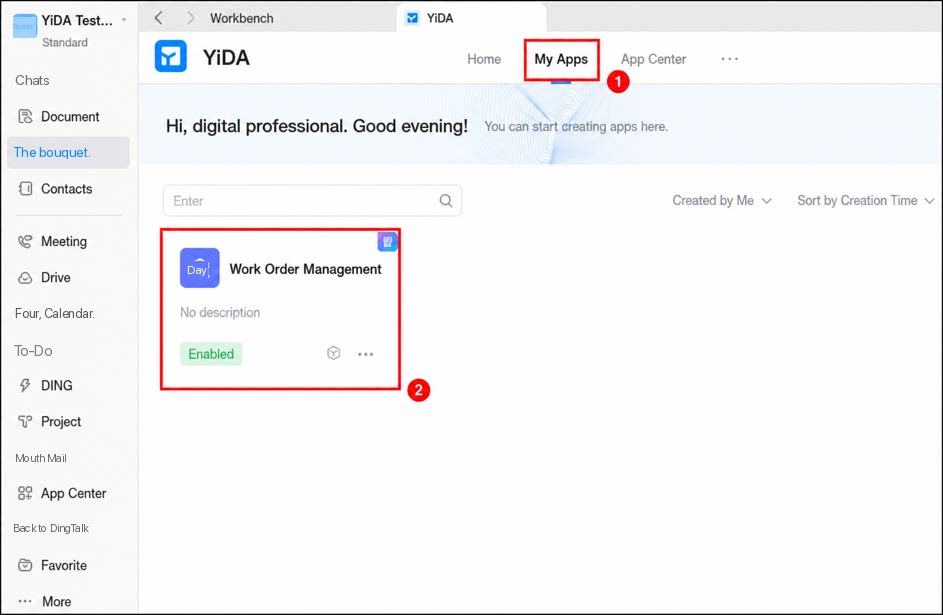
Getting the app link in the DingTalk client is similar to getting it in a browser — you need to open the app details page first. Follow these steps to get the app URL from the DingTalk workbench.- Open the DingTalk workbench and select YiDA to open the YiDA home page.
- Click My Apps, then select the target app to open the app details page.
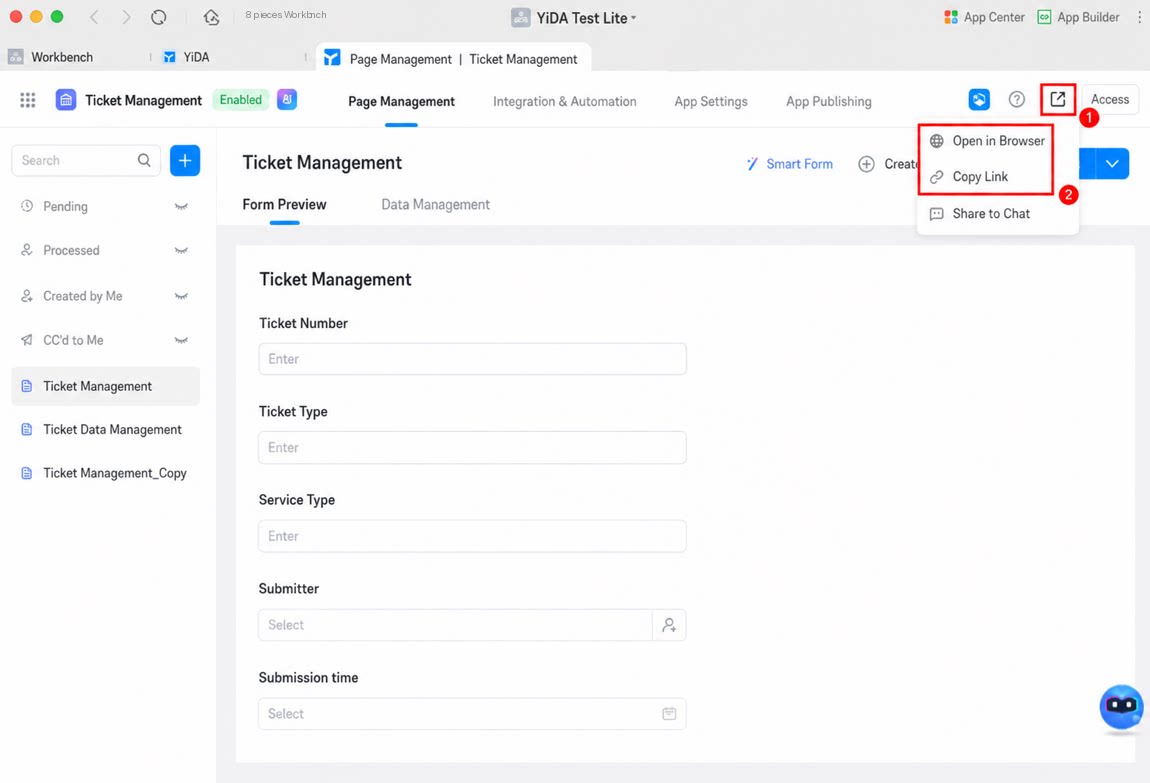
- Click Share in the upper-right corner, then select Open in browser or Copy link.
Share a Link to a Single Record from the Data Management Page
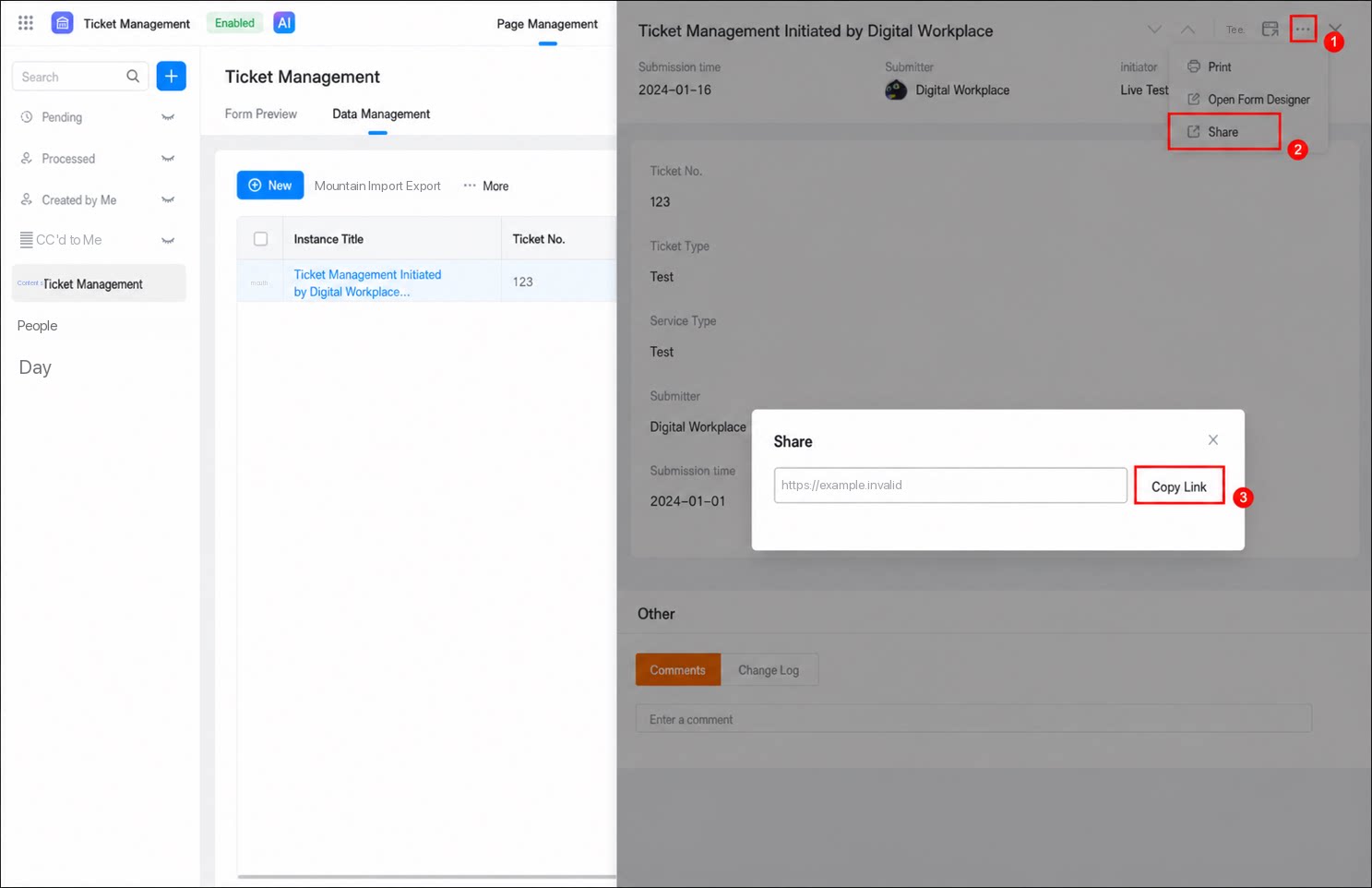
To share a single record from a form, follow the steps below. My Apps > select the app > select the page > Data management > select a single record > right-click to copy the link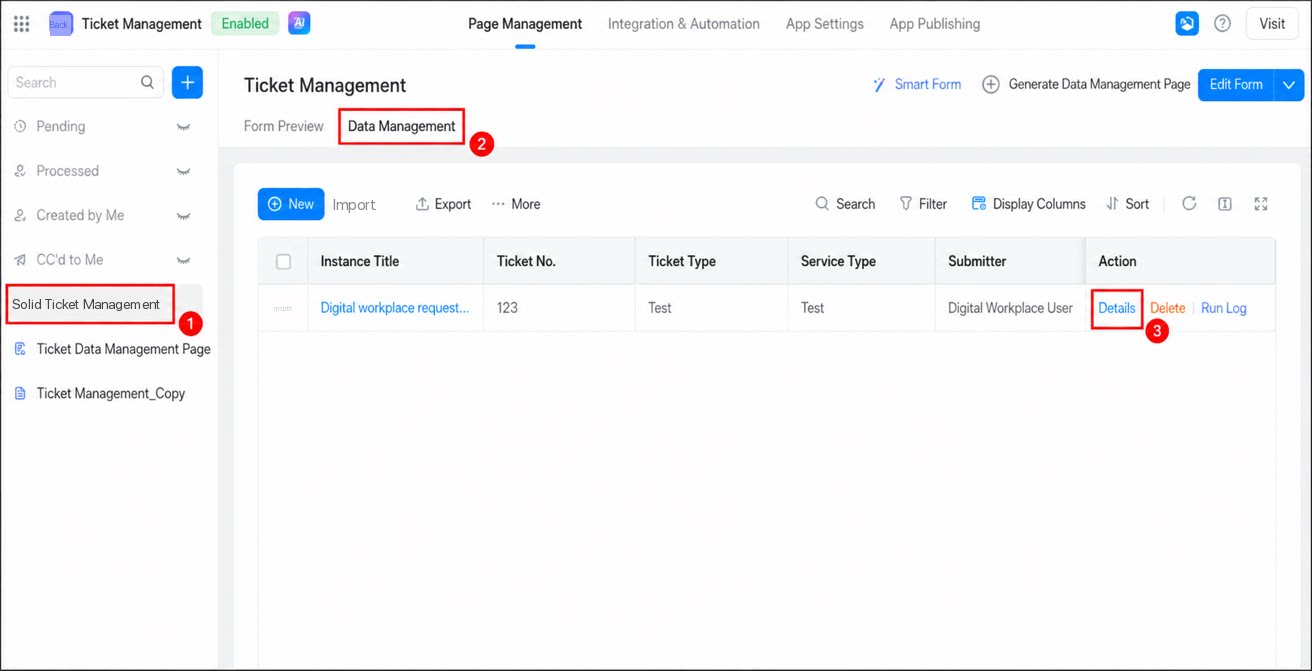
- Sign in to the YiDA workbench and click My Apps.
- Select the target app and click it to enter the app editor.
- Select the form whose data you want to share, and click Data management.
- Select the record you want to share, and click Details in the Action column.
- In the Source records sidebar, click ··· > Share in the upper-right corner, then click Copy link in the share dialog to get the link to the current record.