

 Chats
Chats Calendar
 Meetings
 Contacts
 Mail
Mail Docs
Docs Drive
Drive AI Table
 AI Minutes
 Attendance
 Approval
 YiDA
YiDA Admin Console
1. Validation Rules
1.1 Use Cases for Form Validation Rules
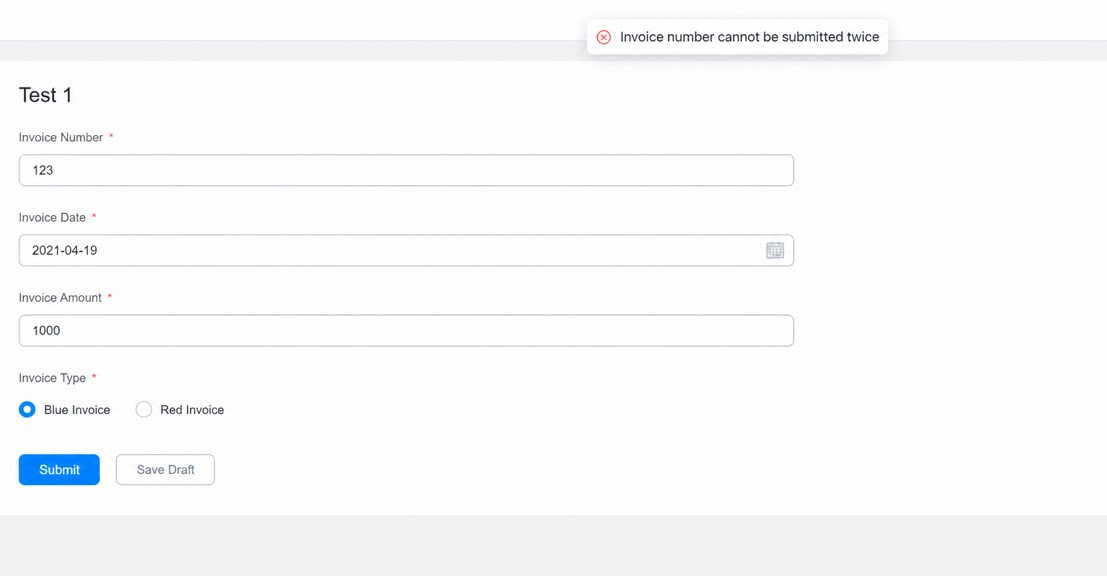
(1) Check whether the data in the form meets the rules. When the validation rule is triggered, the data cannot be submitted; when it is not triggered, submission is allowed. (2) The prompt text for blocking submission appears when the validation rule is triggered. (3) Validation rules are written with YiDA formulas. Path to set validation rules: Form edit page >> click Form Settings in the upper-right corner >> Formula validation. Note: This validation does not currently take effect in the integration & automation or business association rules of a regular form.2. Case Scenario and Operation Steps
2.1 Case Scenario
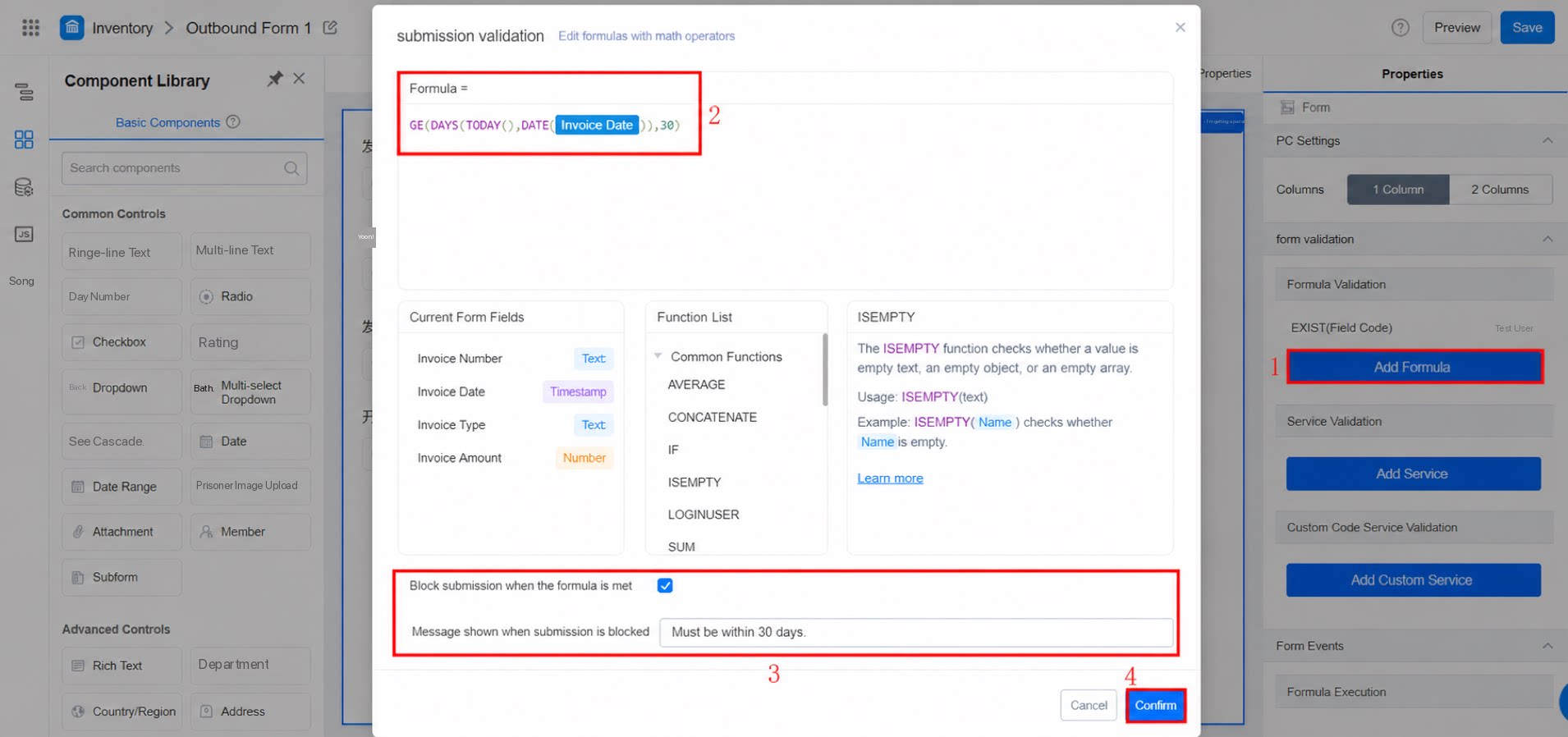
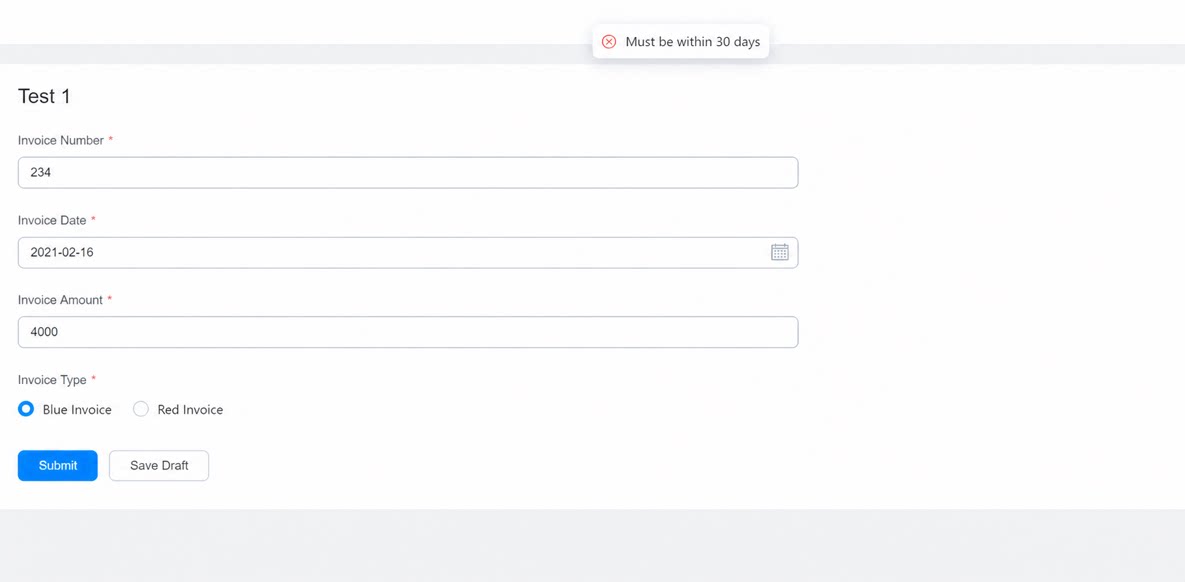
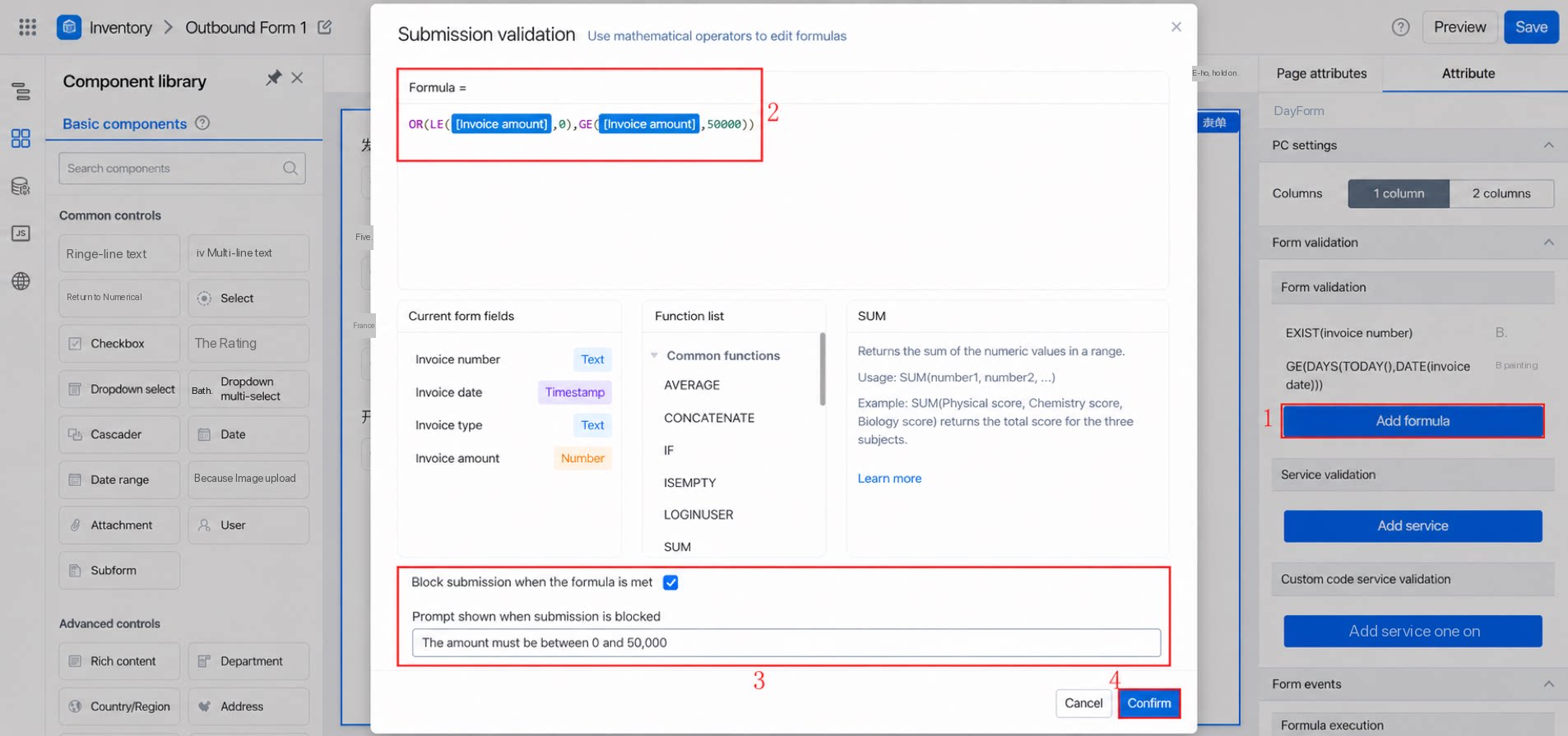
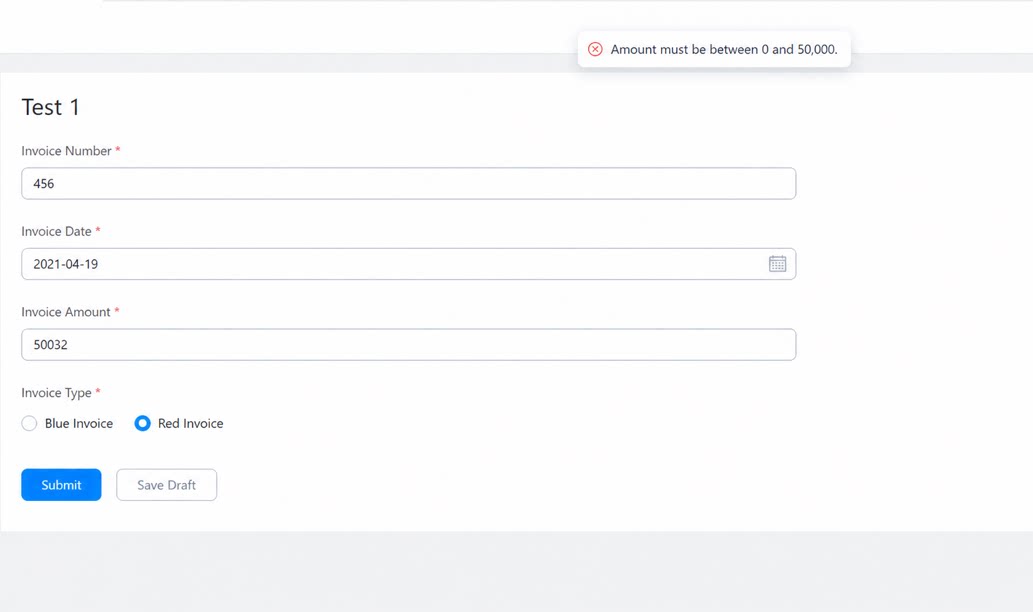
An invoice information entry form contains four fields: invoice number, invoice date, invoice type, and invoice amount. Data can only be submitted when all of the following validation conditions are met: (1) Invoice number: validate uniqueness. (2) Invoice date is within 30 days. (3) Invoice amount is between 0 and 50,000.2.2 Operation Steps
(1) Go to Form Settings >> Attribute on the right >> Add formula.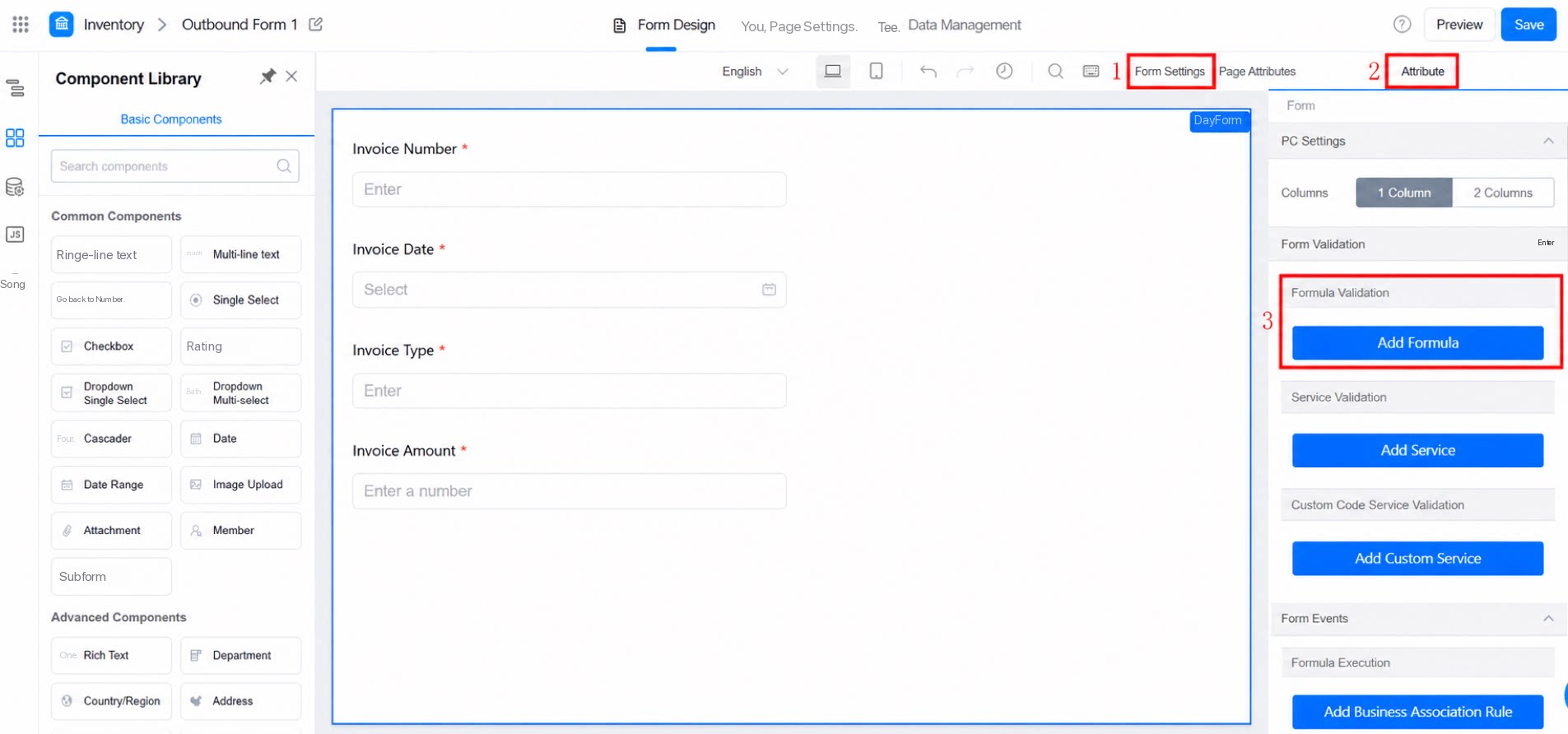
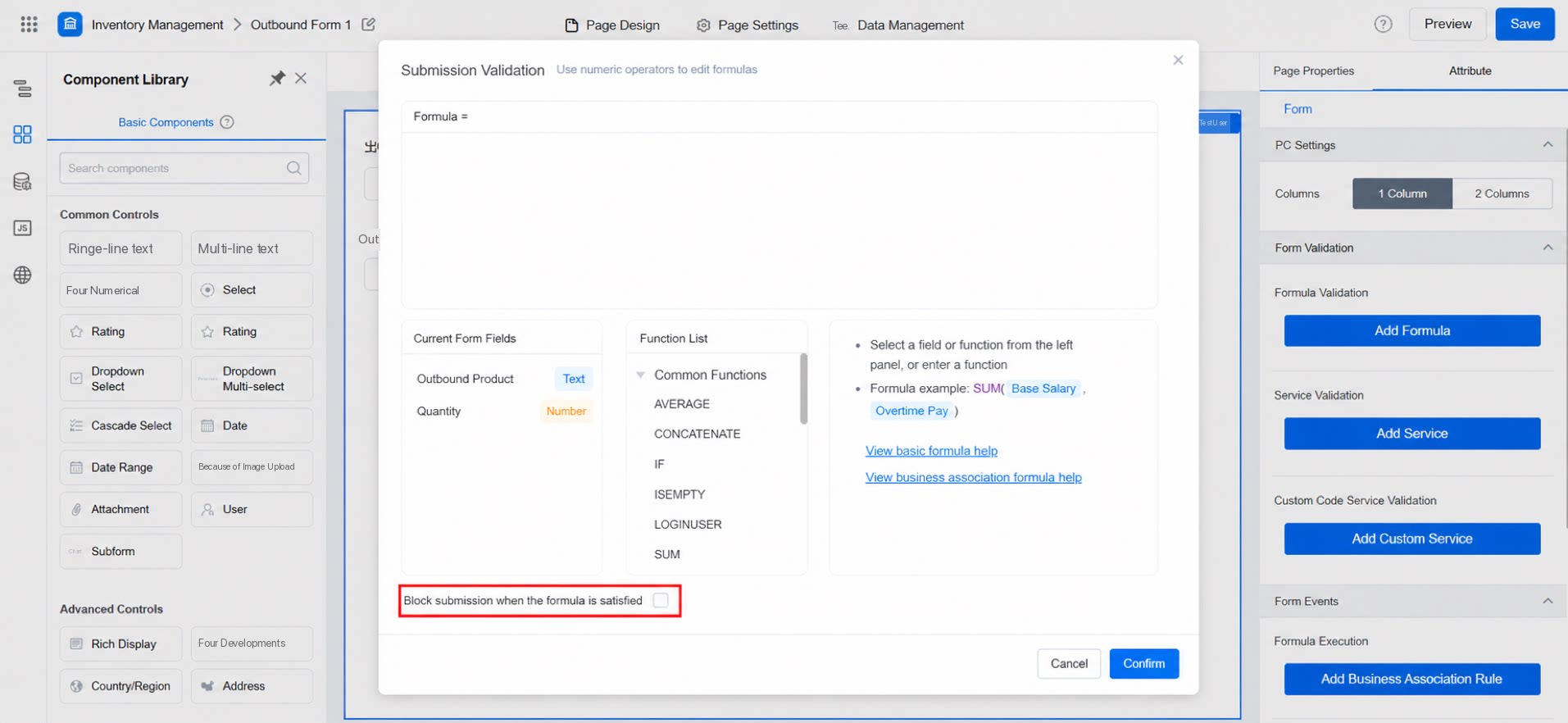
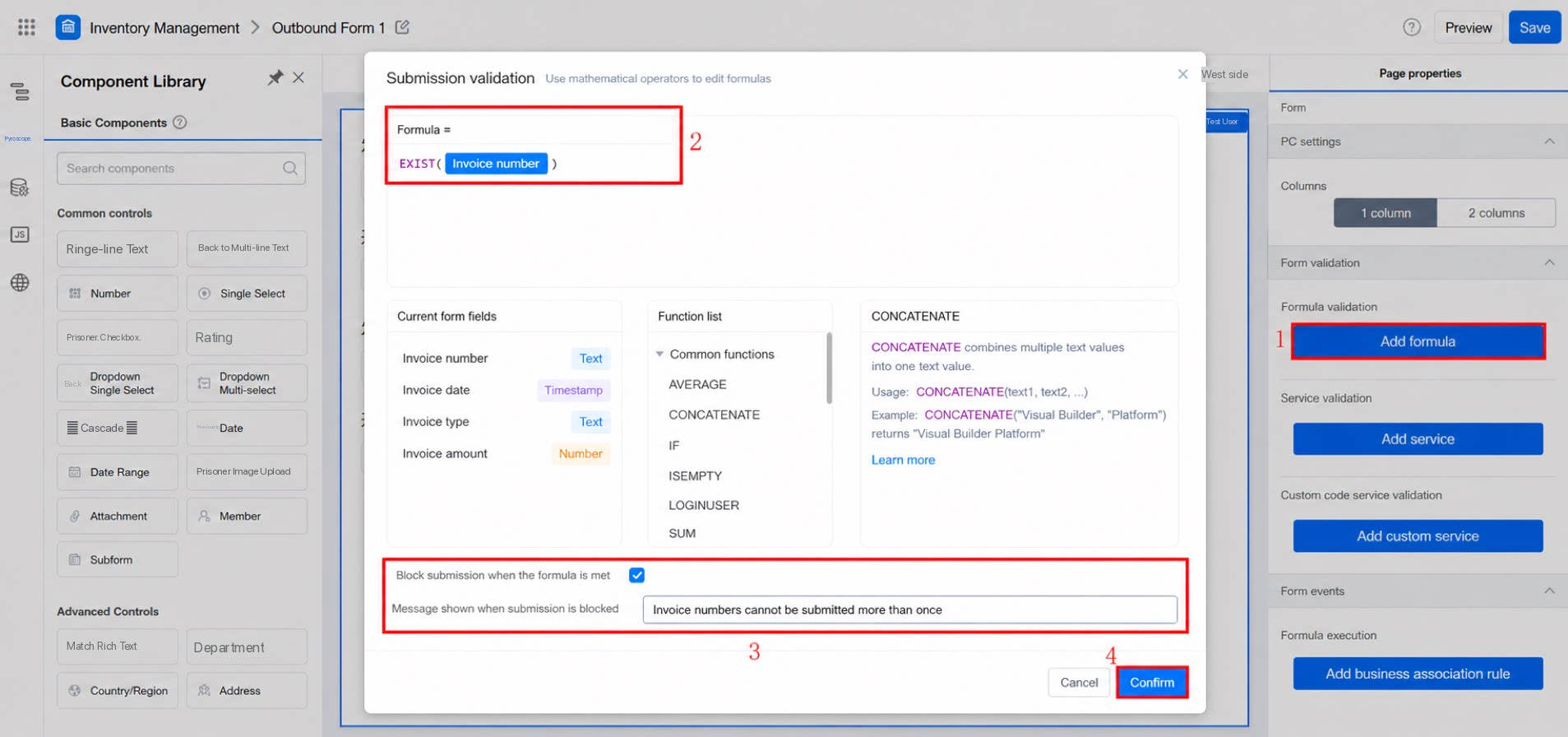
EXIST(Invoice Number). This checks whether the invoice number being submitted already exists in the submitted data. If it exists, submission is blocked; if not, submission is allowed.
As shown below:
GE(DAYS(TODAY(),DATE(Invoice Date)),30).
For details on function usage, see Logical function usage and Date function usage.
OR(LE(Invoice Amount,0),GE(Invoice Amount,50000)). This means submission is not allowed when the invoice amount is less than or equal to 0 or greater than or equal to 50,000. For function usage, see Logical function usage.
3. Common Scenarios
3.1 How Do I Set Deduplication Validation for a Form?
Method: Configure theEXIST(Product Category) function in the form validation area.
- Deduplication validation for regular forms.
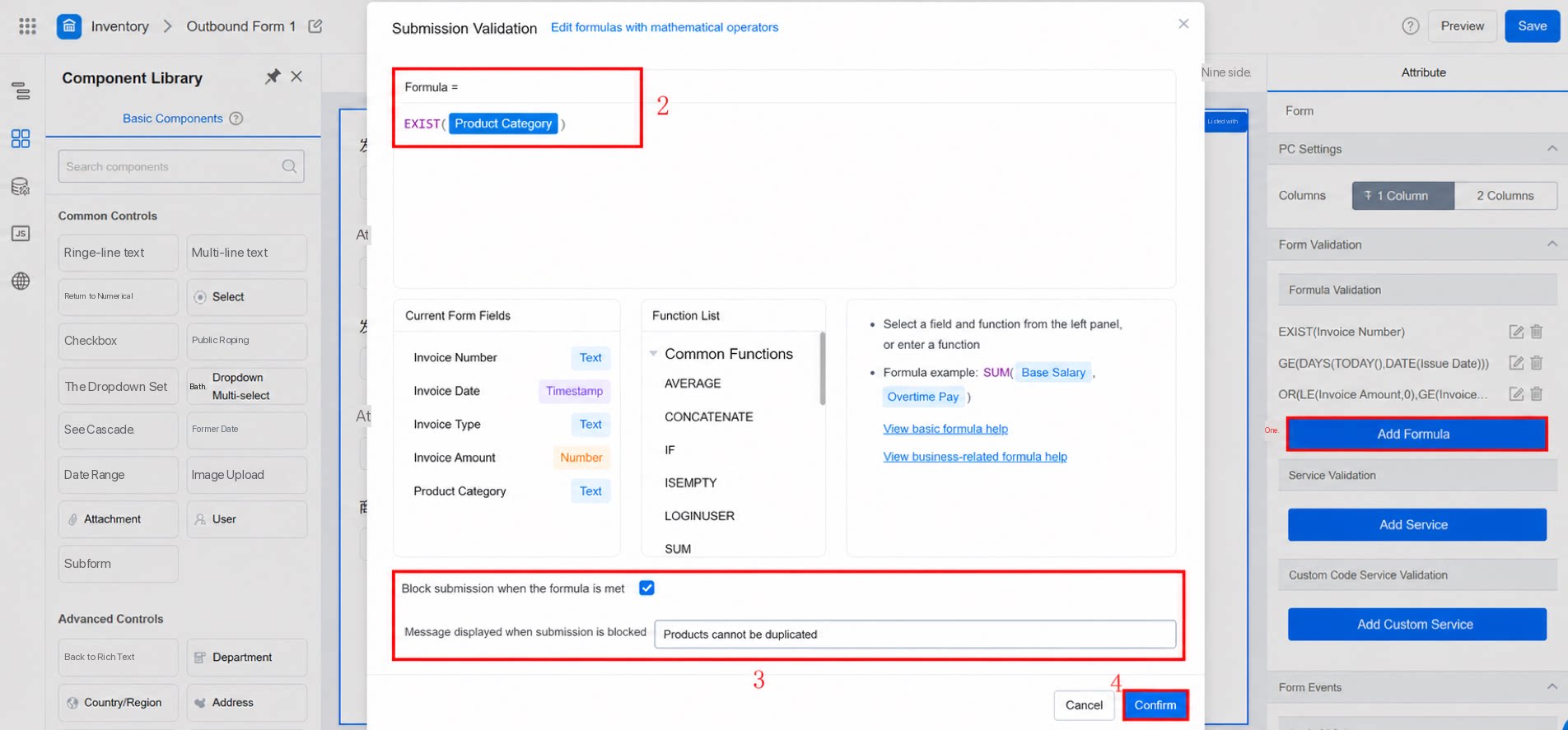
- Deduplication validation for workflow forms.