Chats
Chats Calendar
 Meetings
 Contacts
 Mail
Mail Docs
Docs Drive
Drive AI Table
 AI Minutes
 Attendance
 Approval
 YiDA
YiDA Admin Console
Use Cases
- When filling in or editing form data, component values can be calculated automatically based on formulas instead of being entered manually, which improves efficiency and reduces errors.
- When a user submits form data, formulas can define validation rules. If the input does not meet the rules, submission is blocked and an error message is displayed.
- After form data is submitted, formulas can apply business rules to add, update, or delete data in other forms.
Use a Formula
Follow the steps below to use a YiDA formula.- Open the formula editor dialog in YiDA.
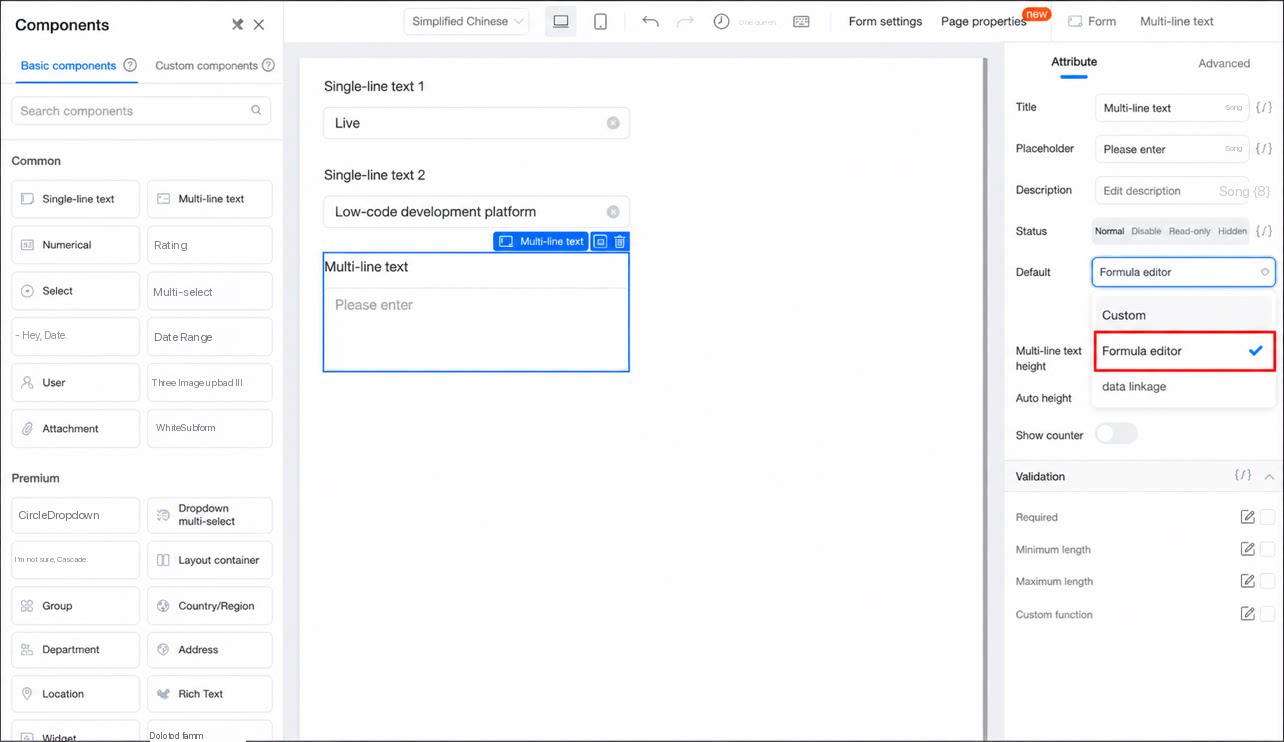
- In the formula editor dialog, click Function list and select the function you need.
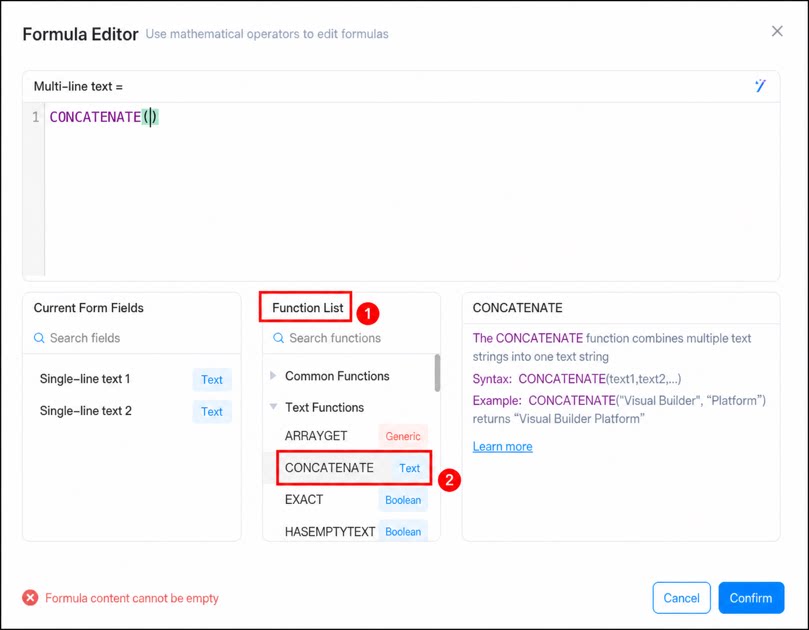
- On the left, select the form fields you want to use.
- After configuring the function, click Confirm in the lower-right corner to complete the setup.
Notes on Using Formulas
- Selecting fields from current or all form fields
- Operators
- Use uppercase for functions.
- Fields selected from the current form are shown in blue, and fields selected from all form fields are shown in green (only business association rules use all form fields).
- Enter function names in all uppercase letters.
- All commas, parentheses, and other symbols in a formula must be in half-width (English) form.
- Hidden fields participate in calculations only when Always submit is turned on.
FAQ
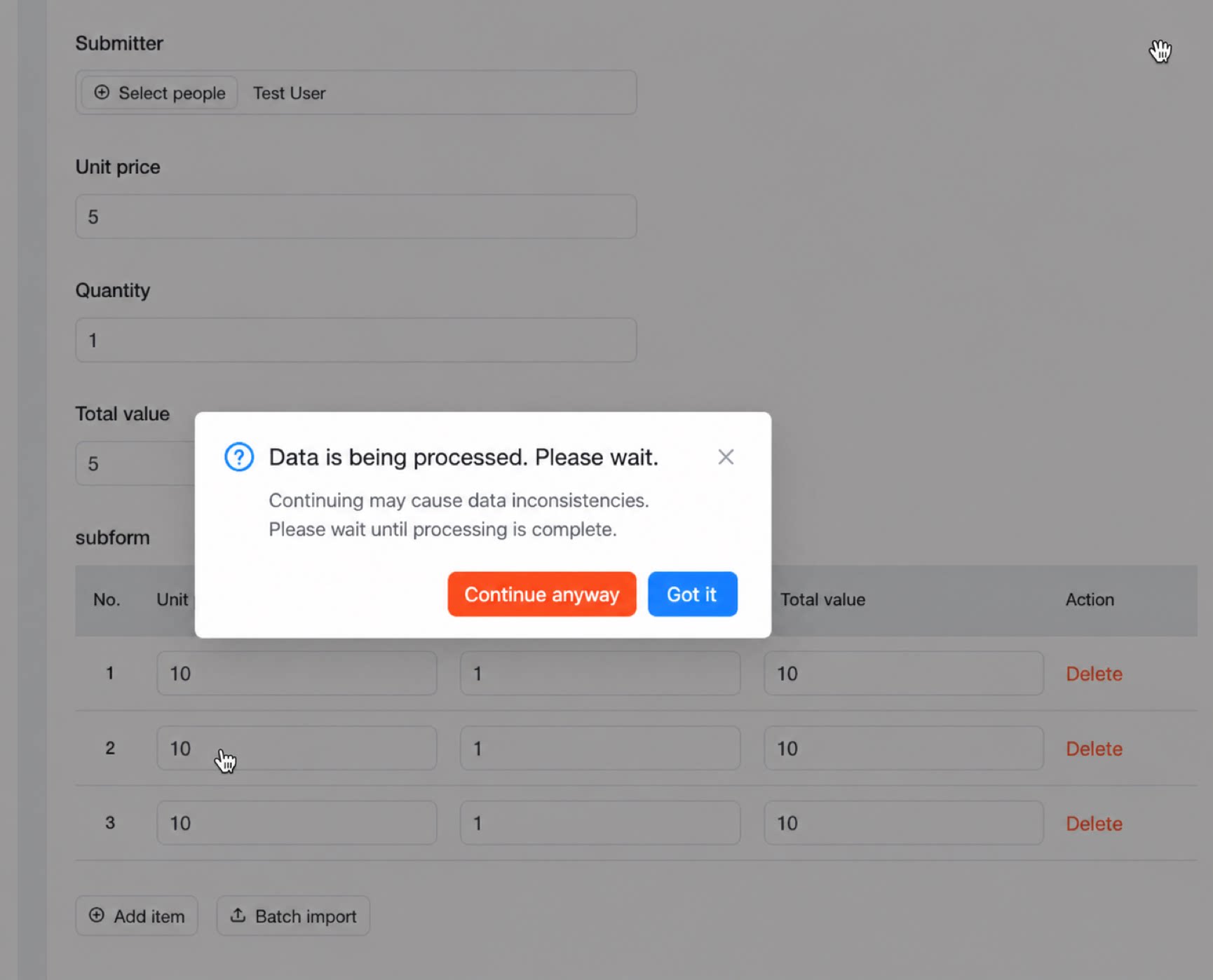
Q: Why can’t I manually edit a value after setting a formula on the component? If a component uses a formula to set its default value—for example, the formulauser() is configured and the component state is normal—but the value cannot be edited when submitting the form, check whether the component is referenced by a formula on another component. Manual editing is not supported if the component is referenced by another component’s formula.
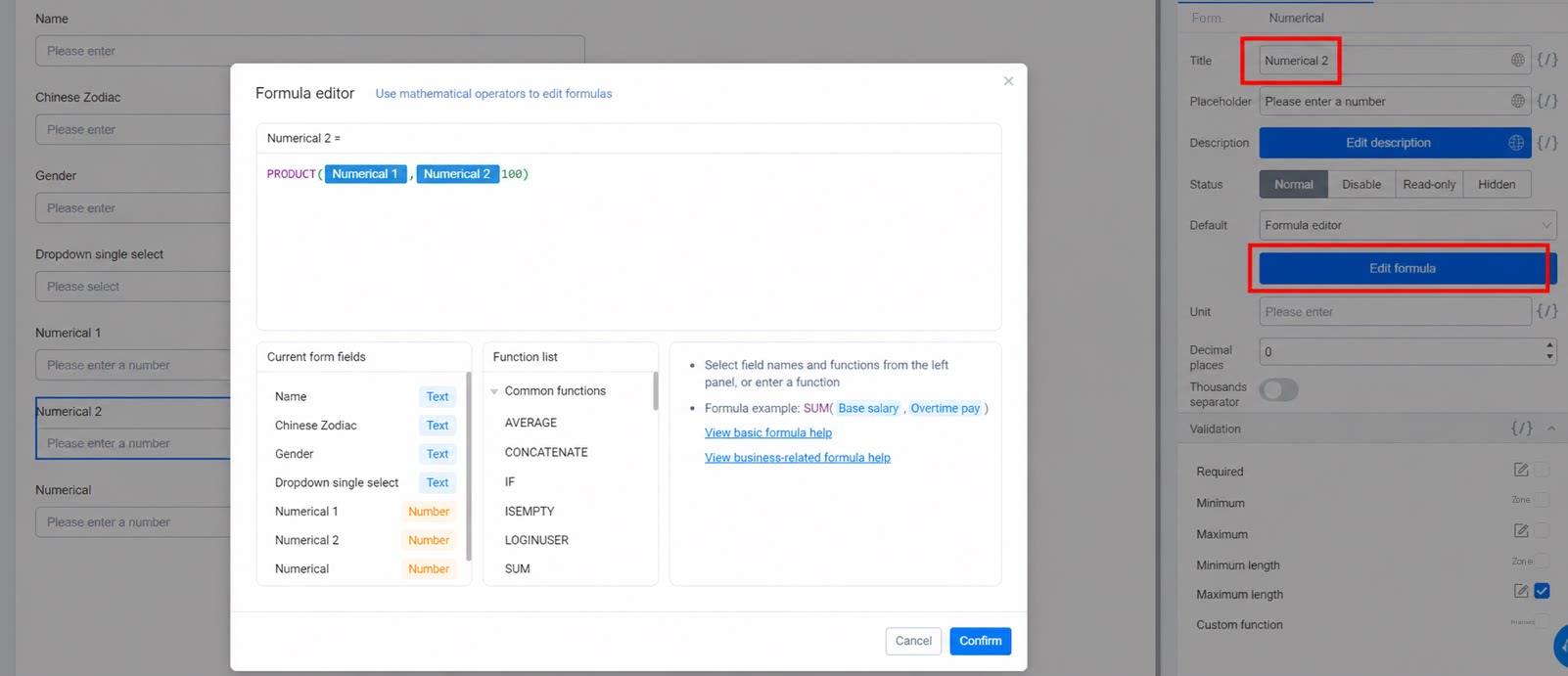
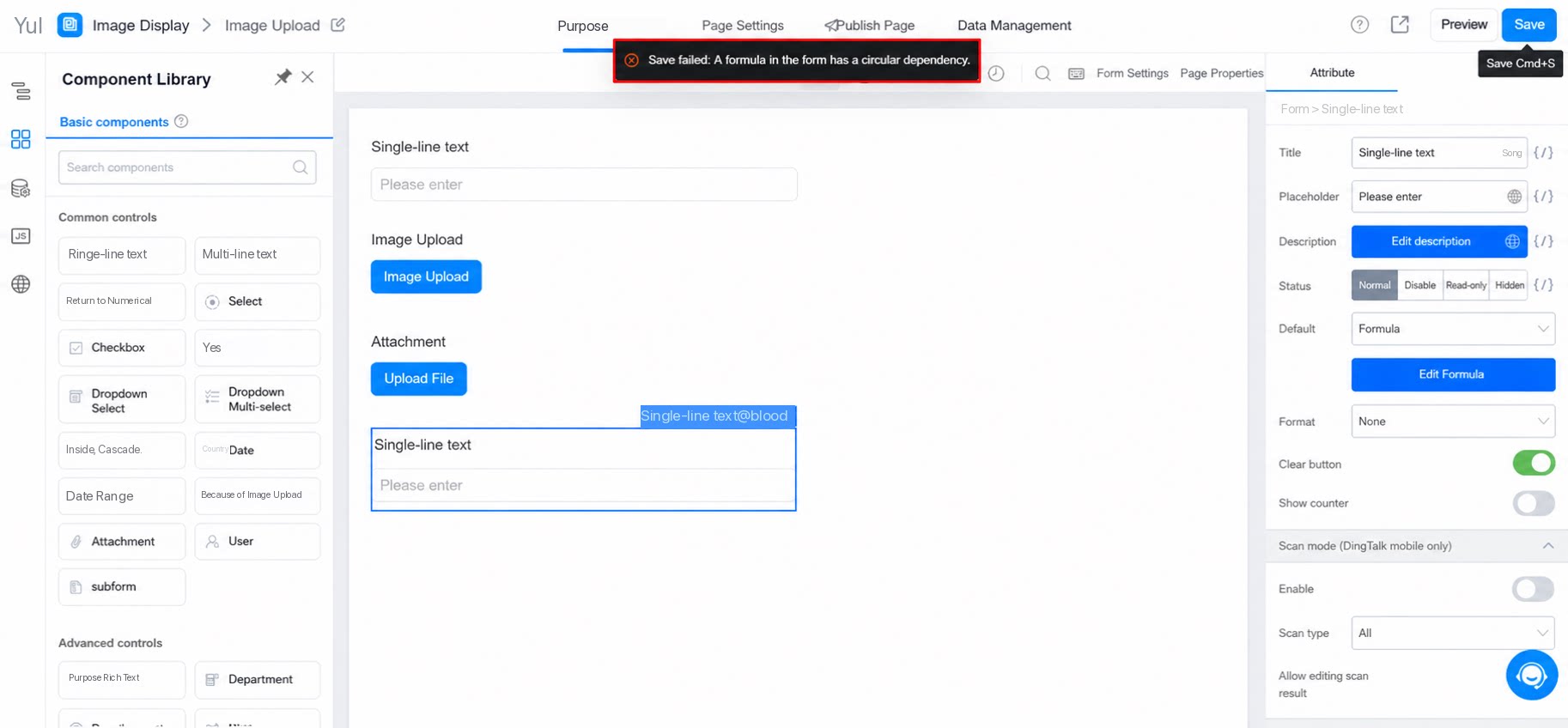
Q: Save failed: the form contains a circular formula dependency.
If the error message shown below appears, it means the formula configuration references the same component being edited.