The following tables organize these formulas by category, such as text, time, array, logical, math, and user functions, so you can quickly find the right one for forms, reports, or data preparation.

Text Functions

Time Functions

Array Functions

Logical Functions

Math Functions

Set Functions

Validation Functions

User Functions

Advanced Formula Functions

FAQs About Formulas

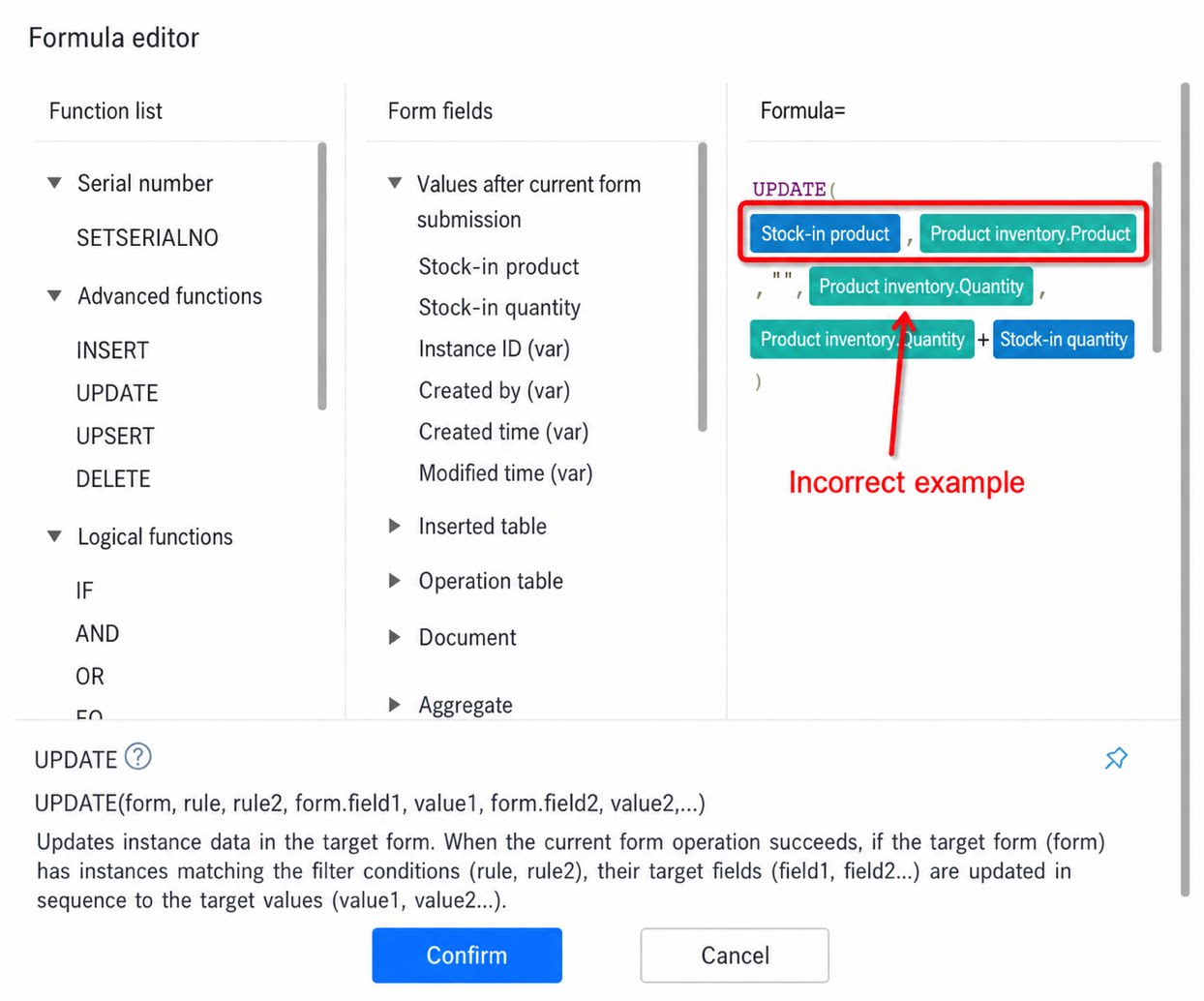
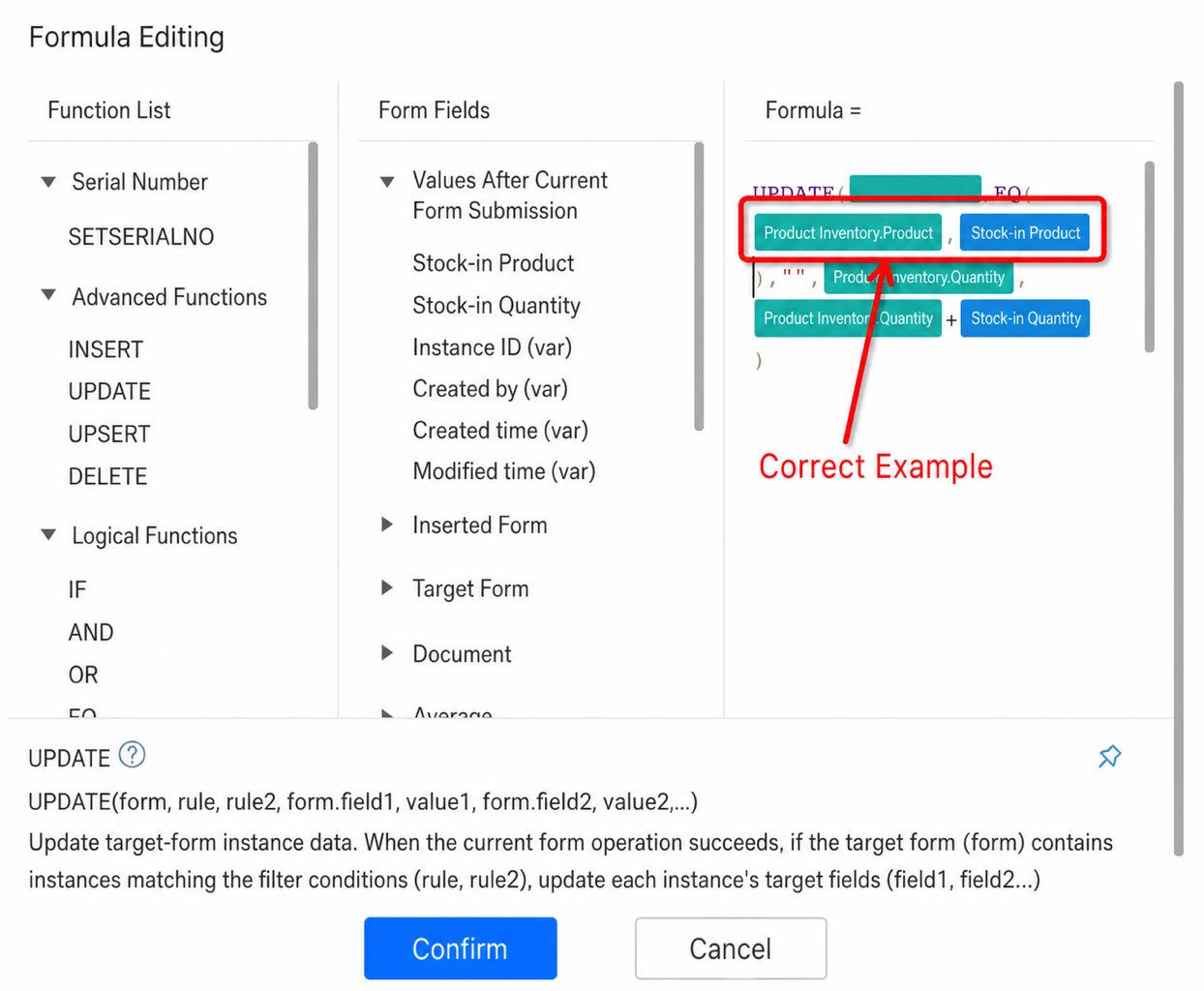
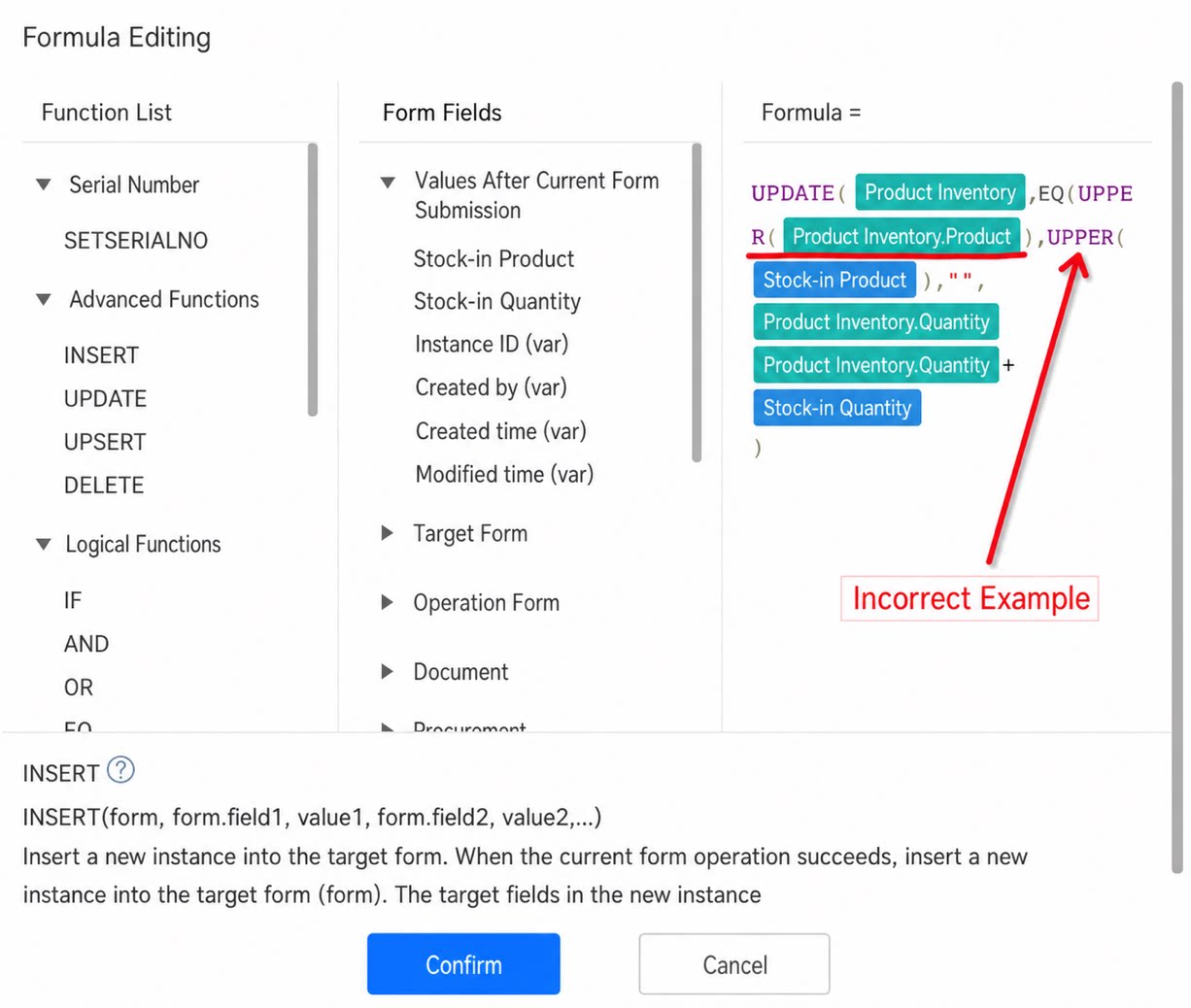
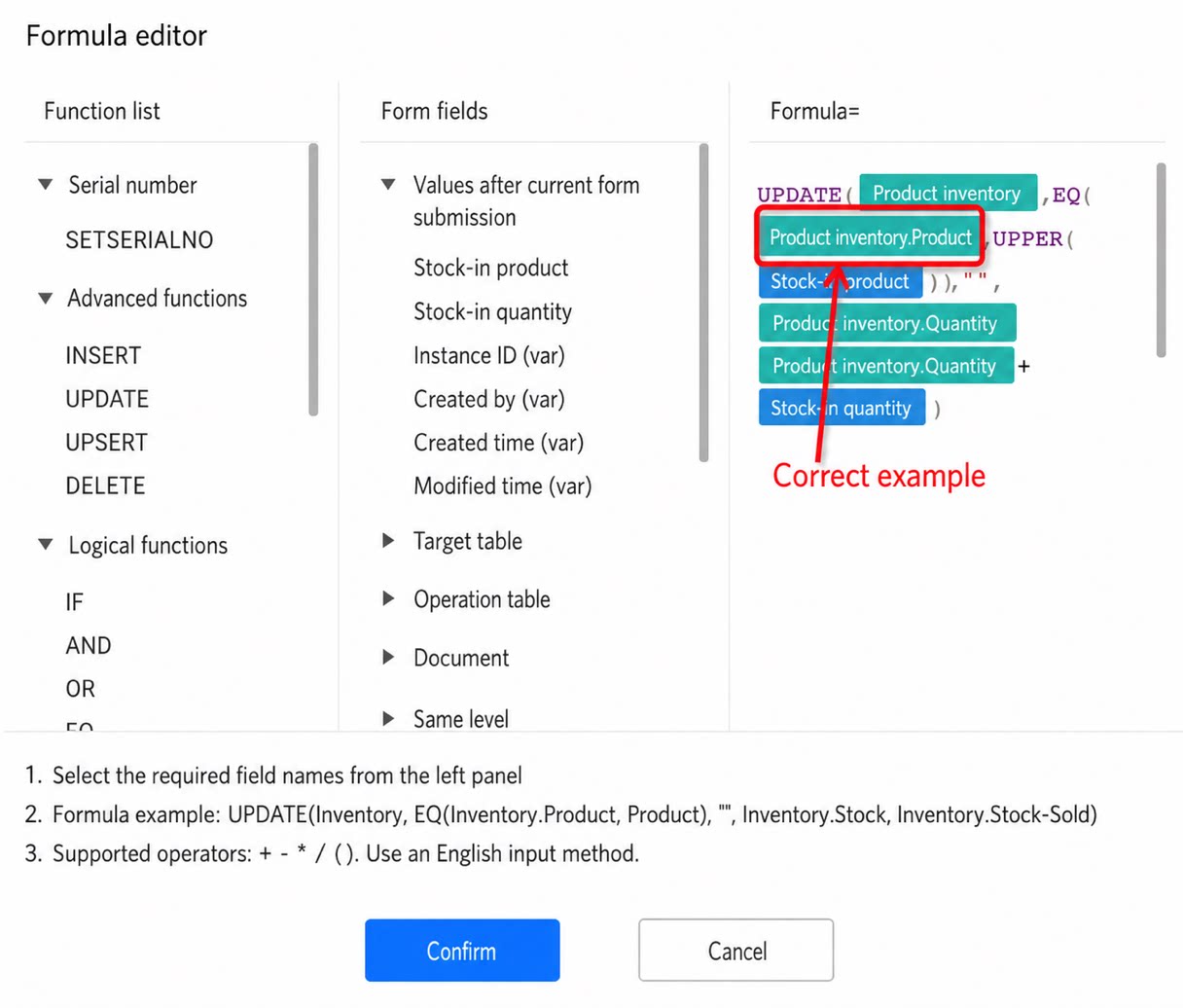
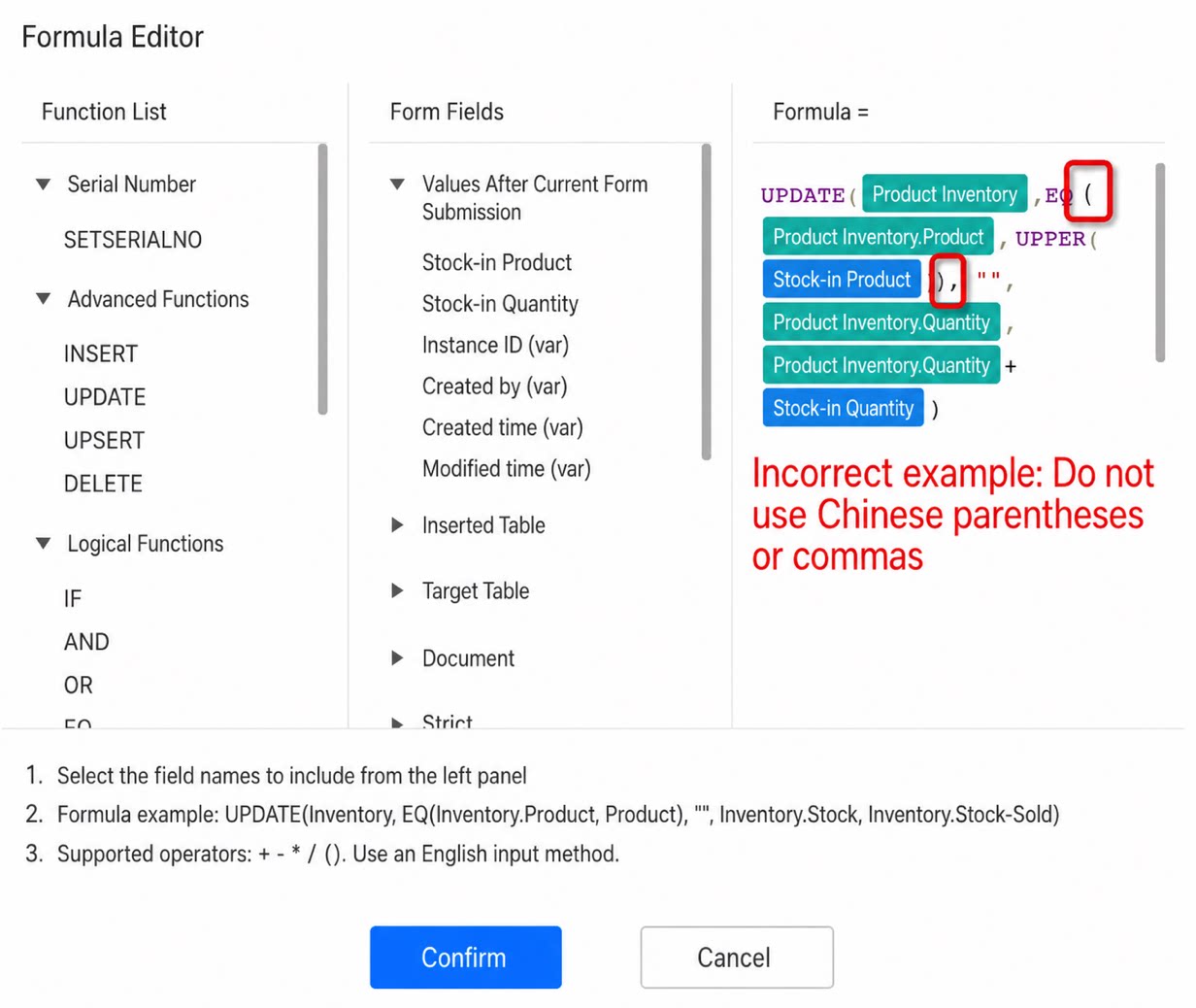
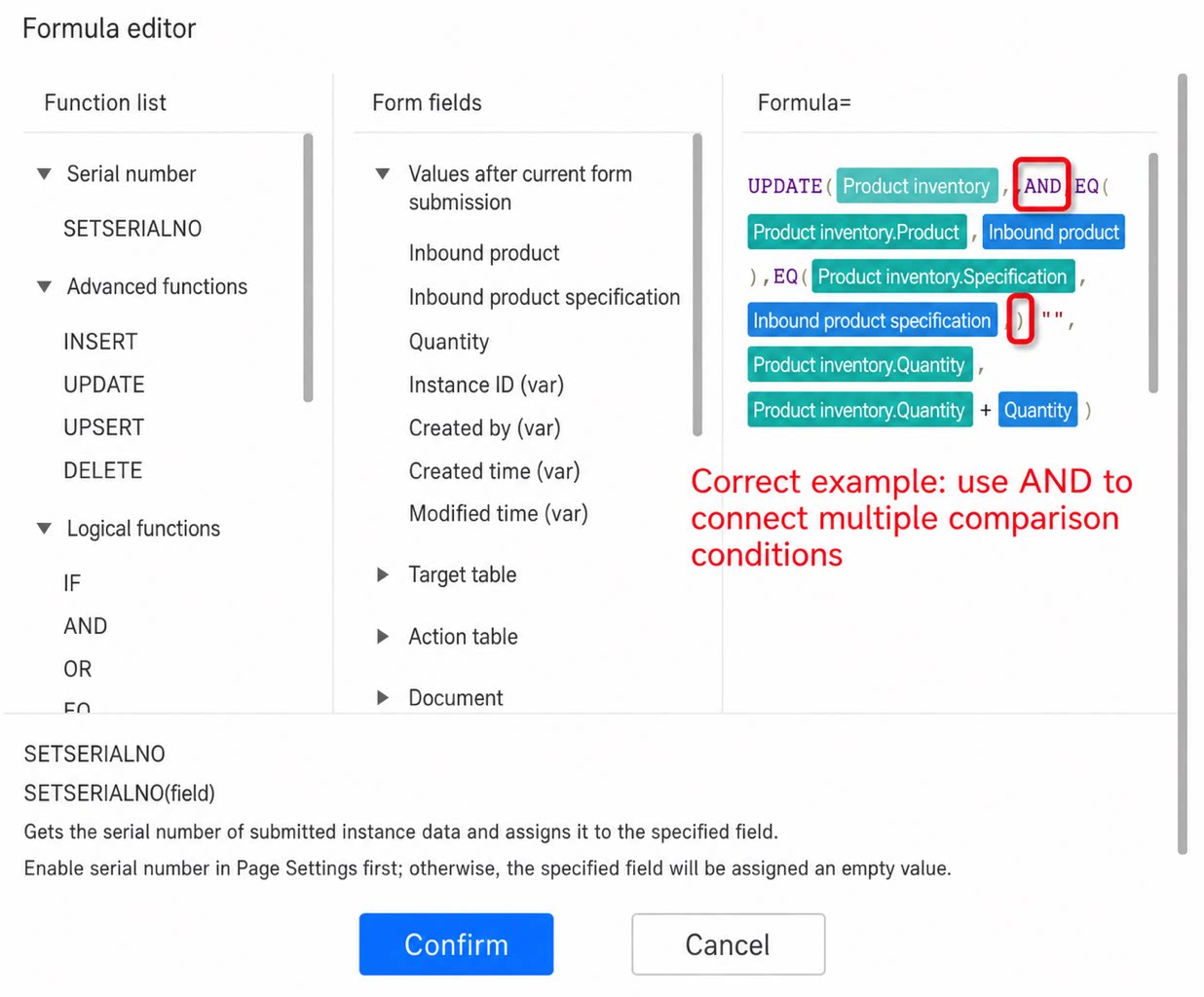
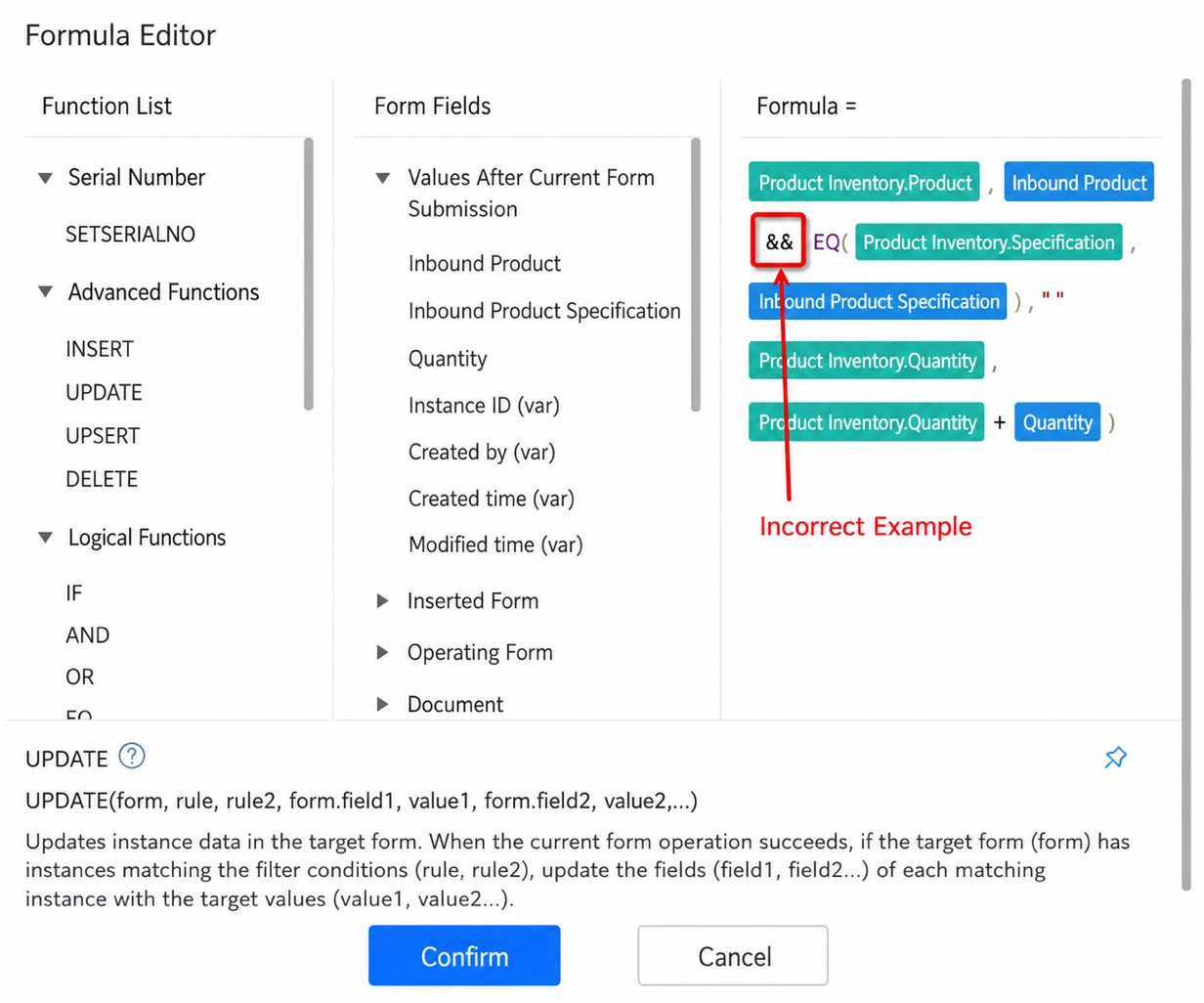
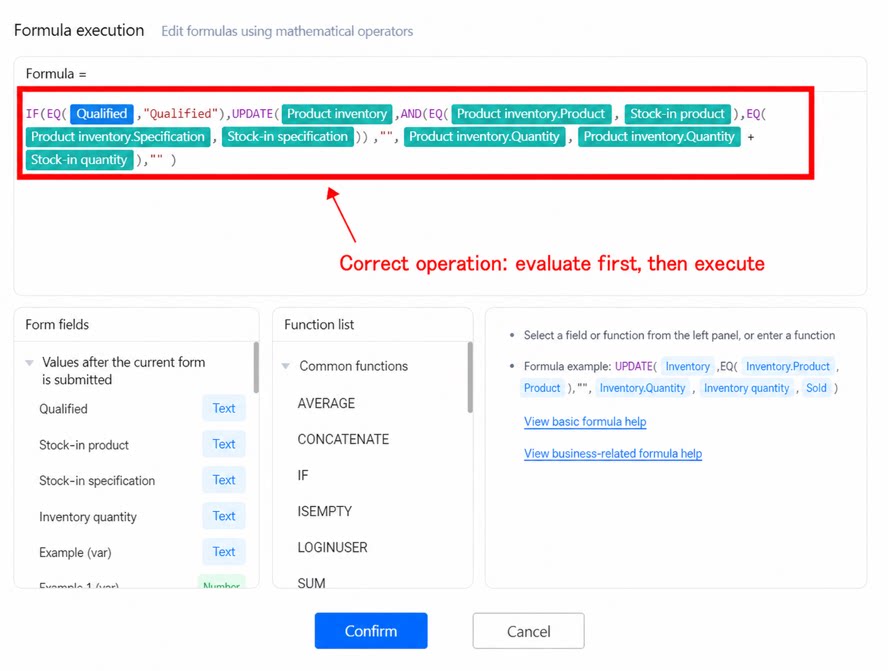
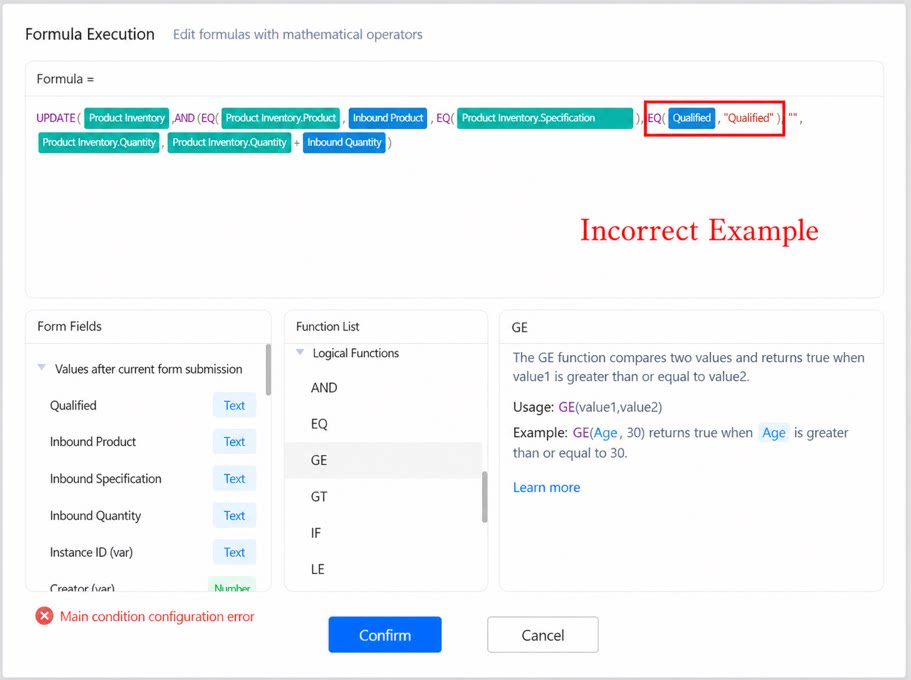
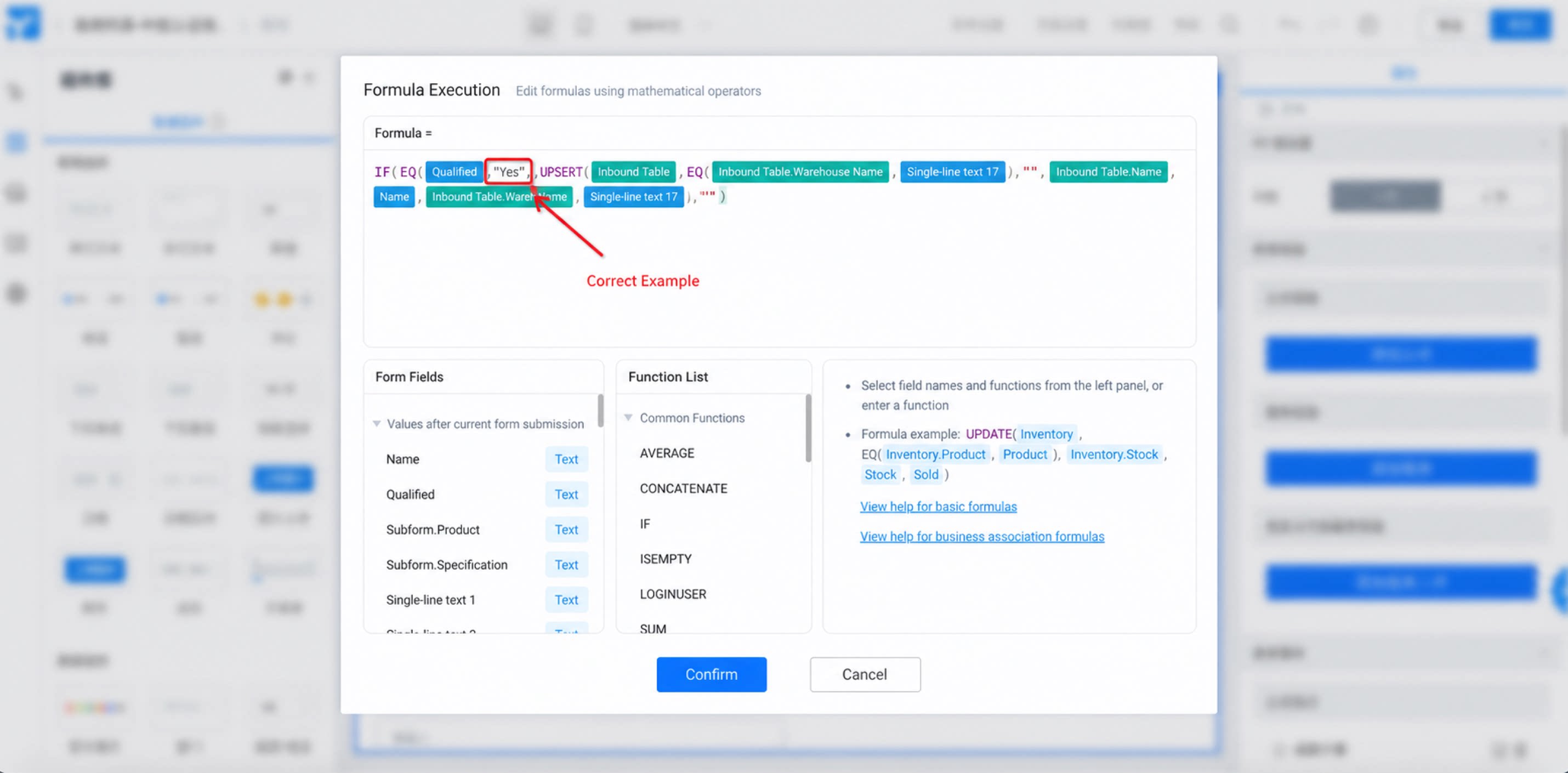
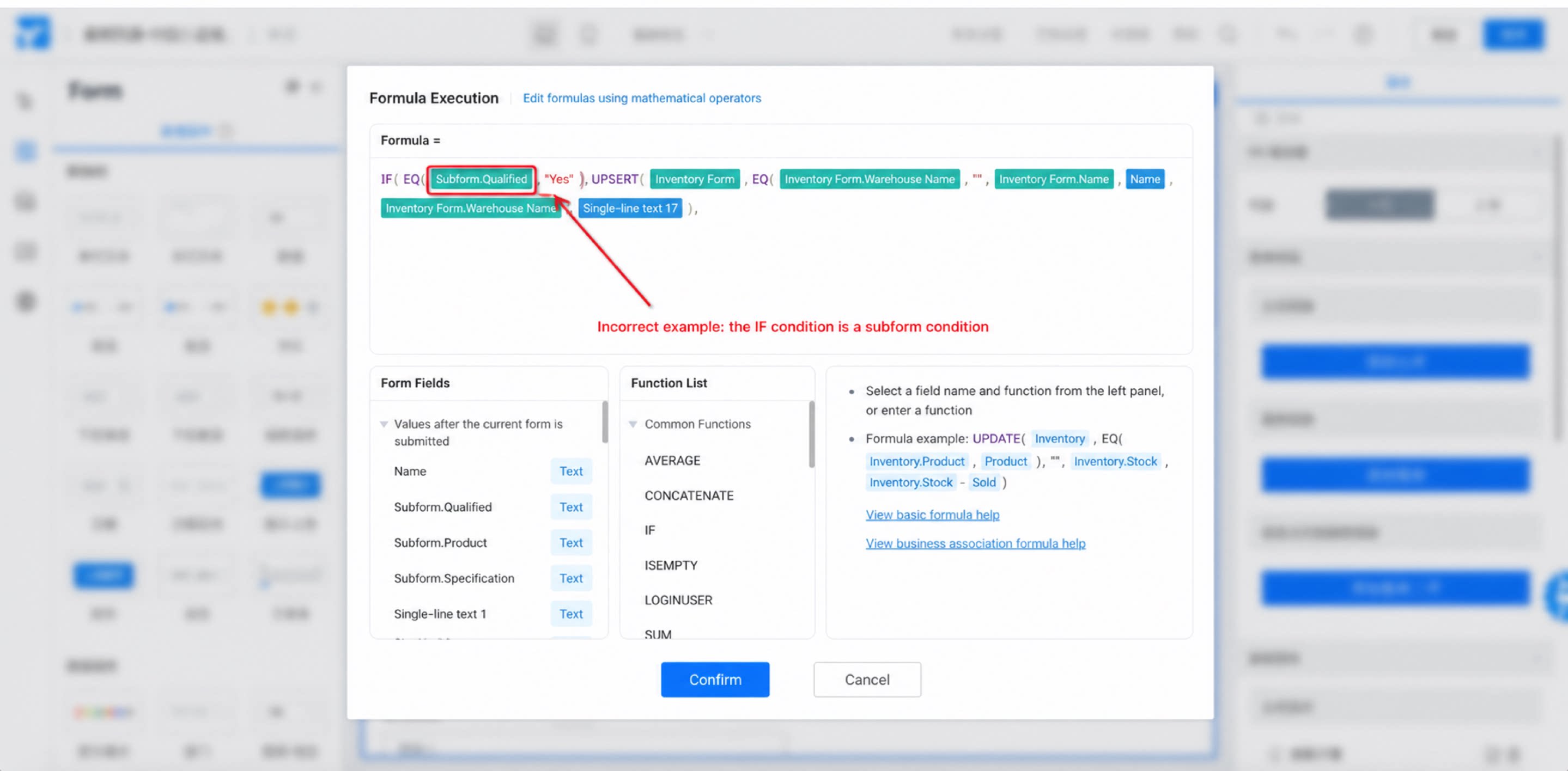
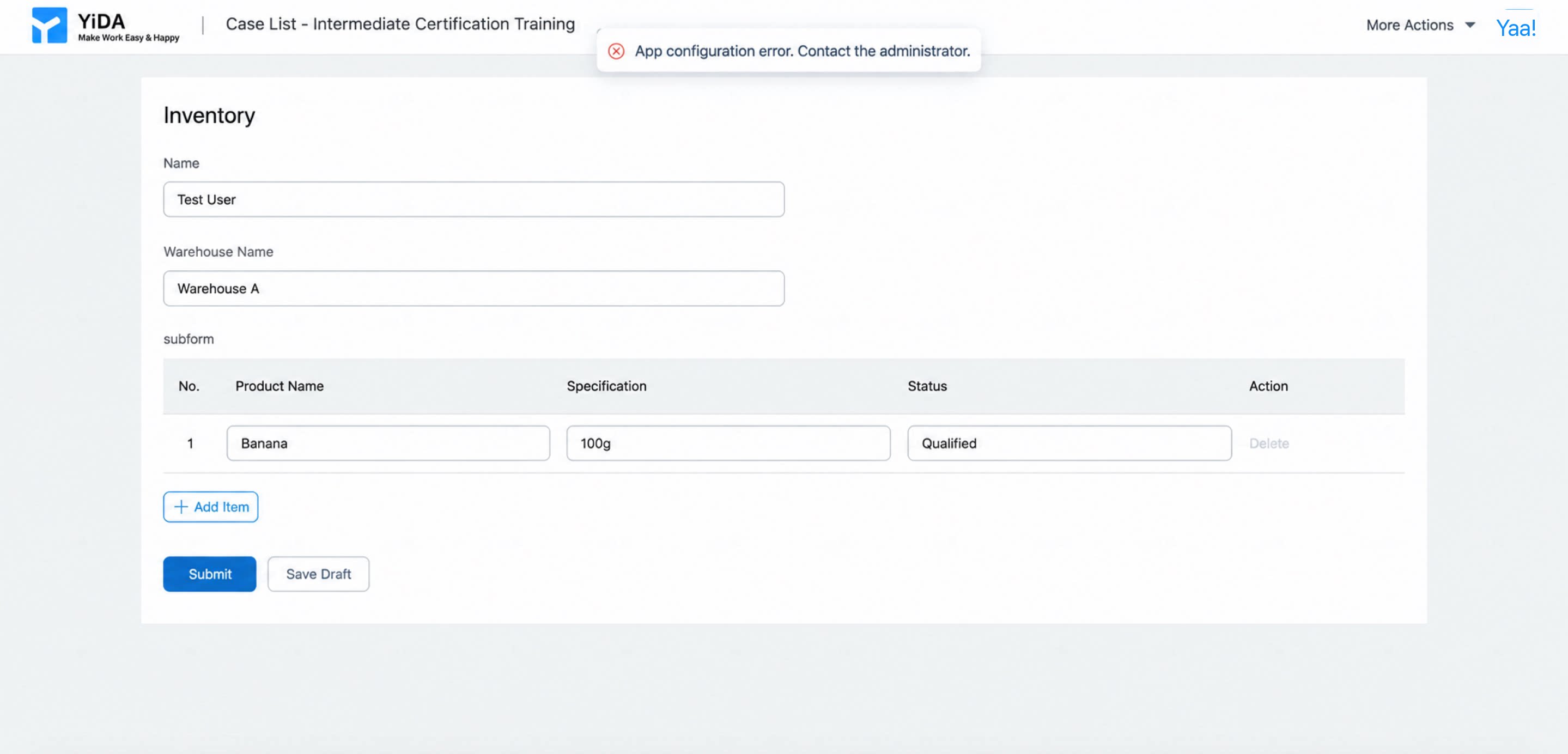
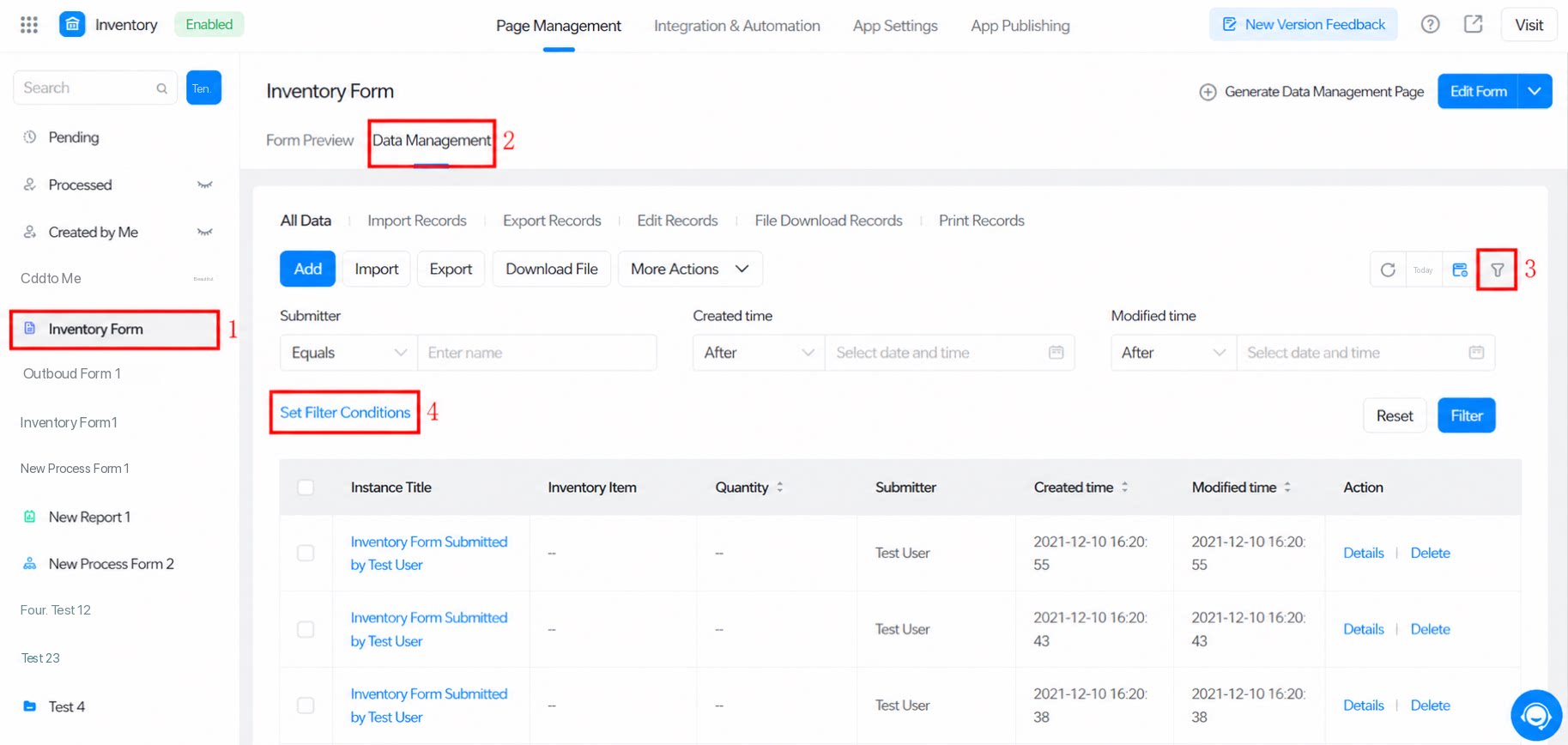
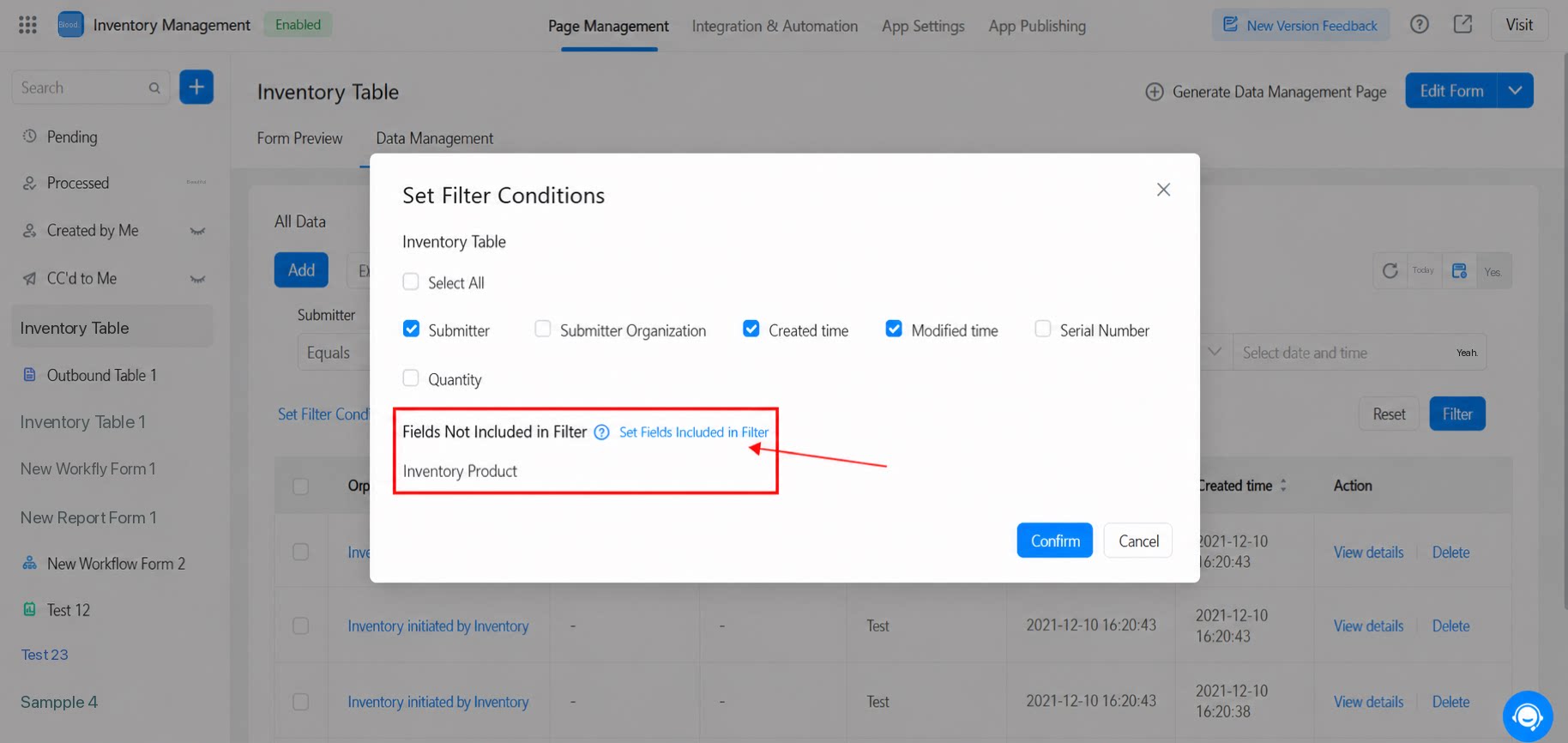
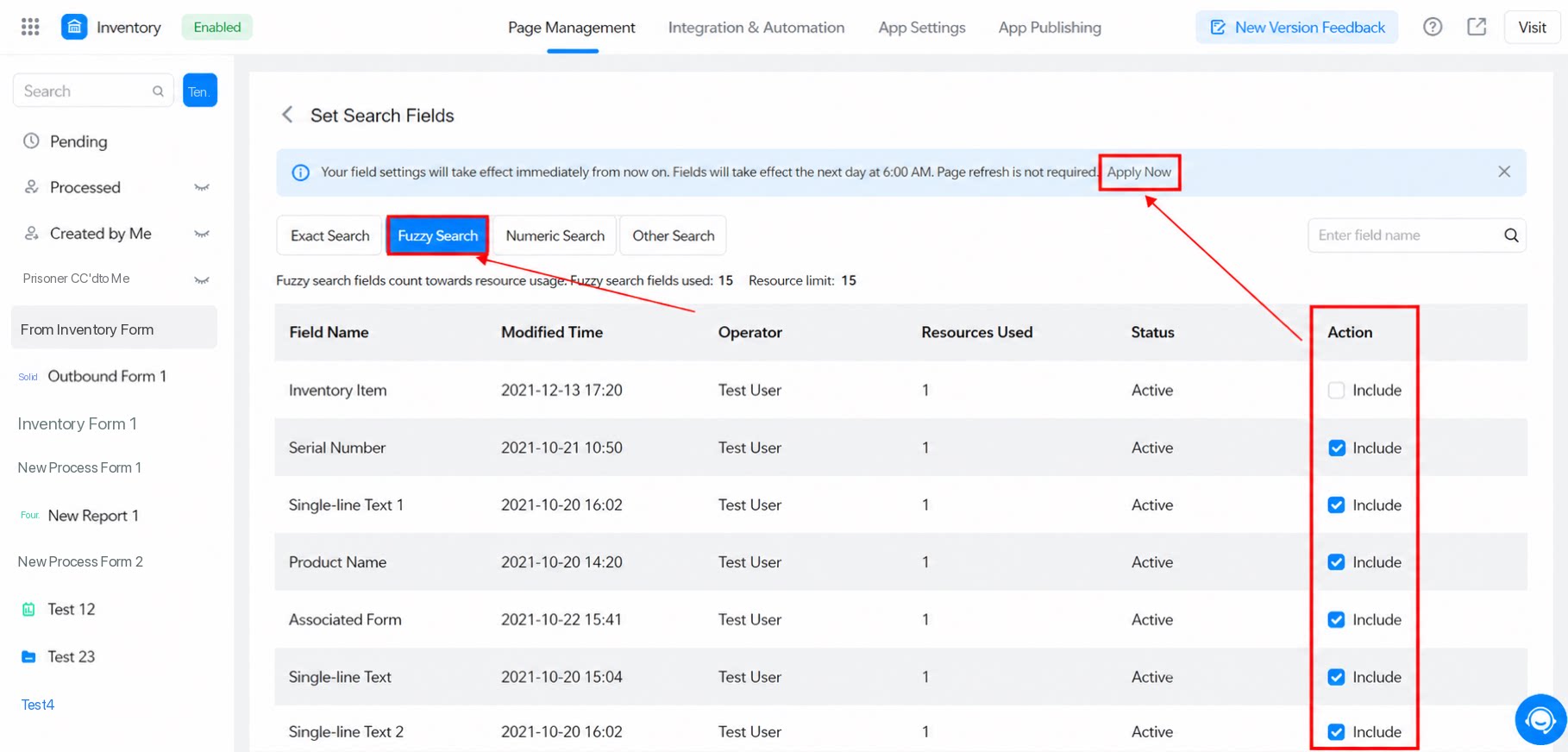
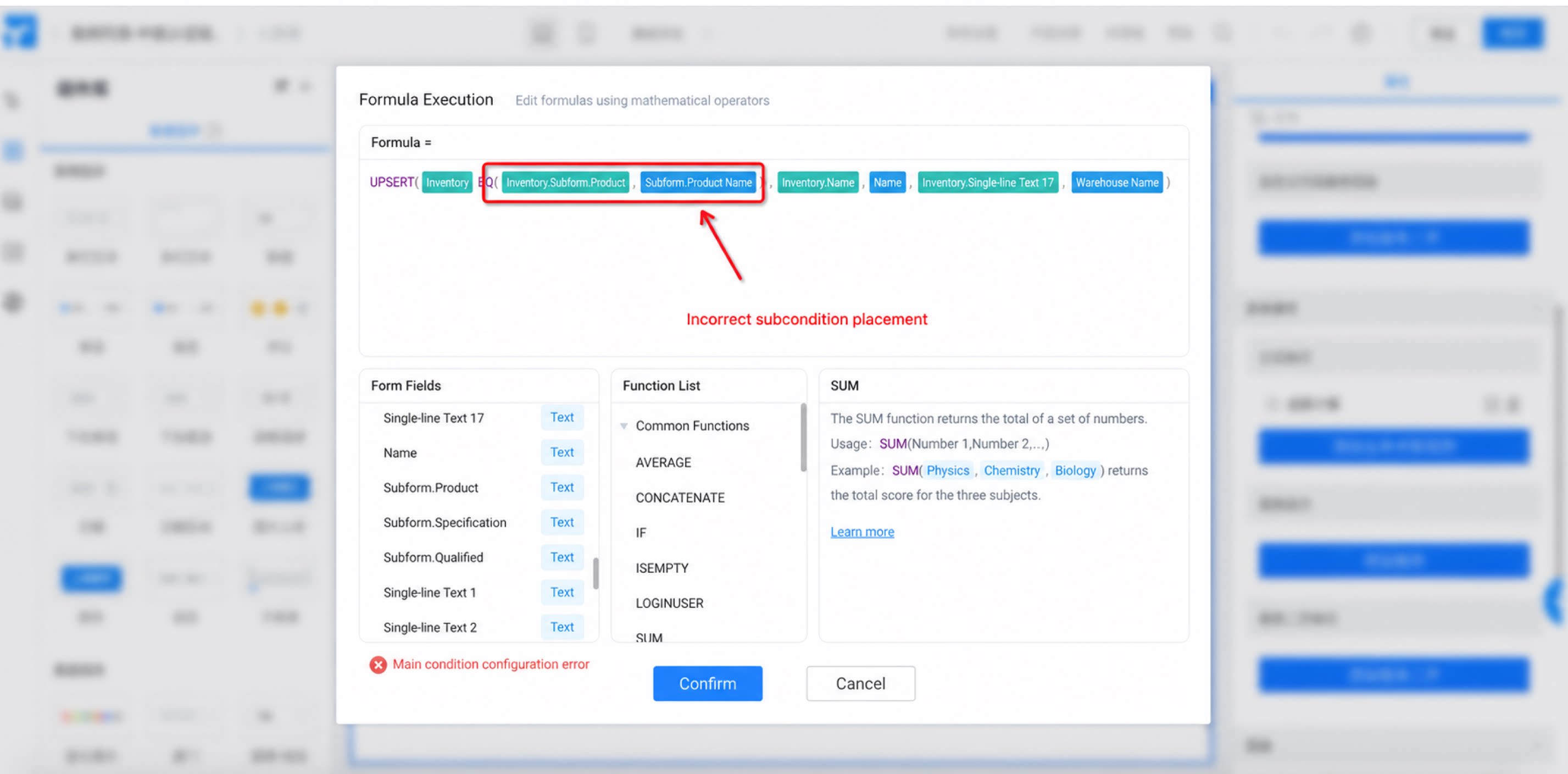
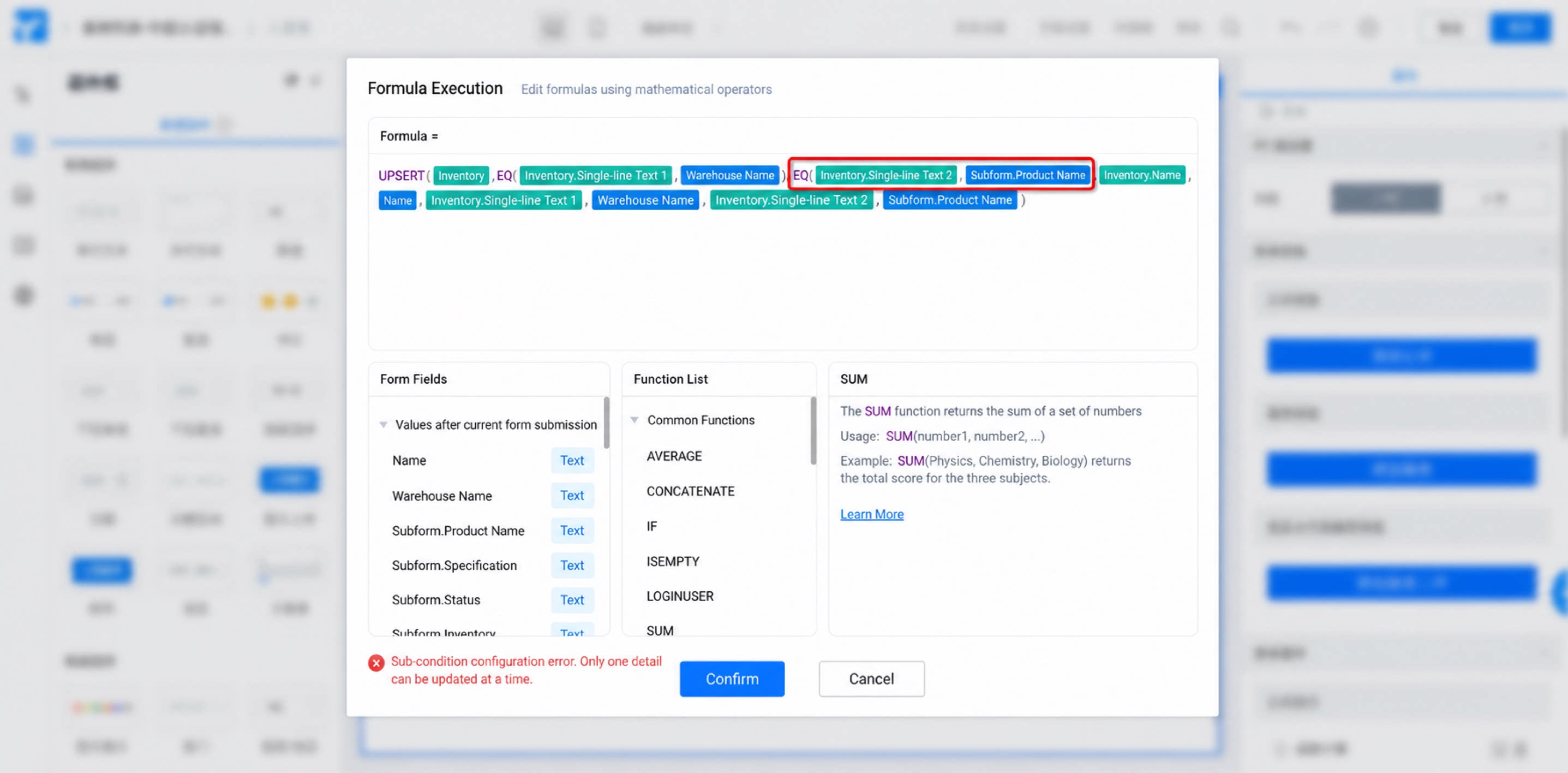
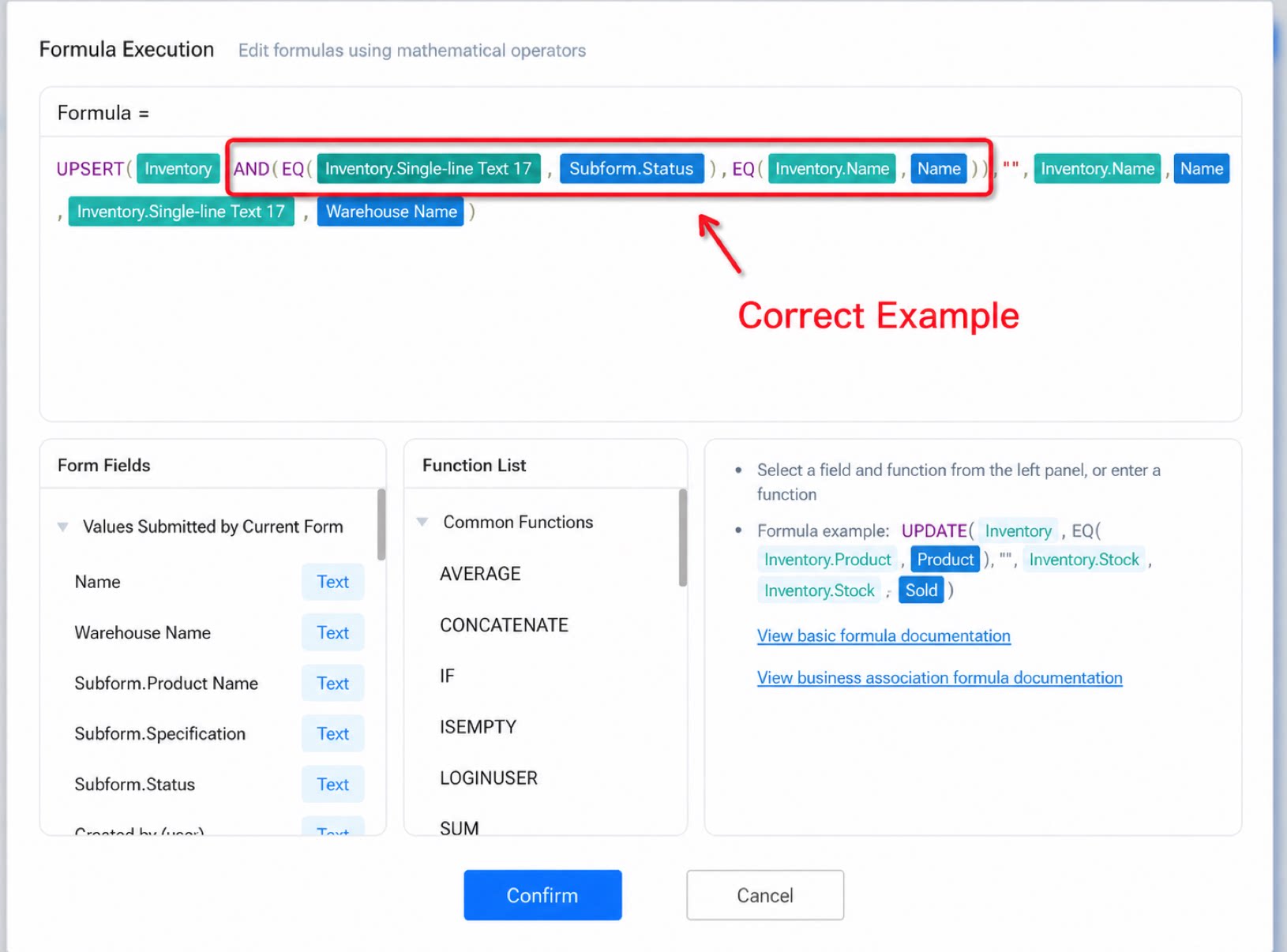
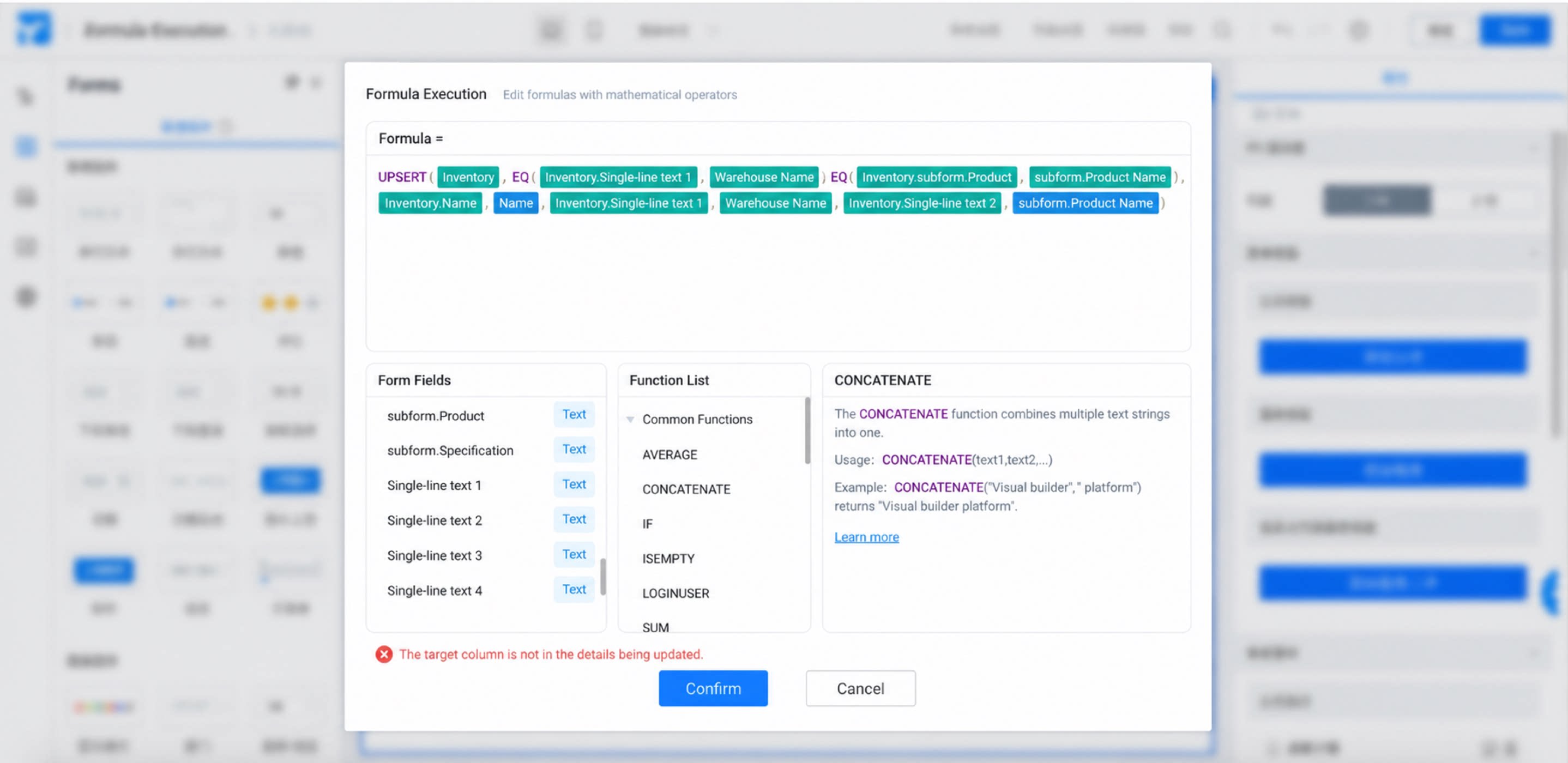
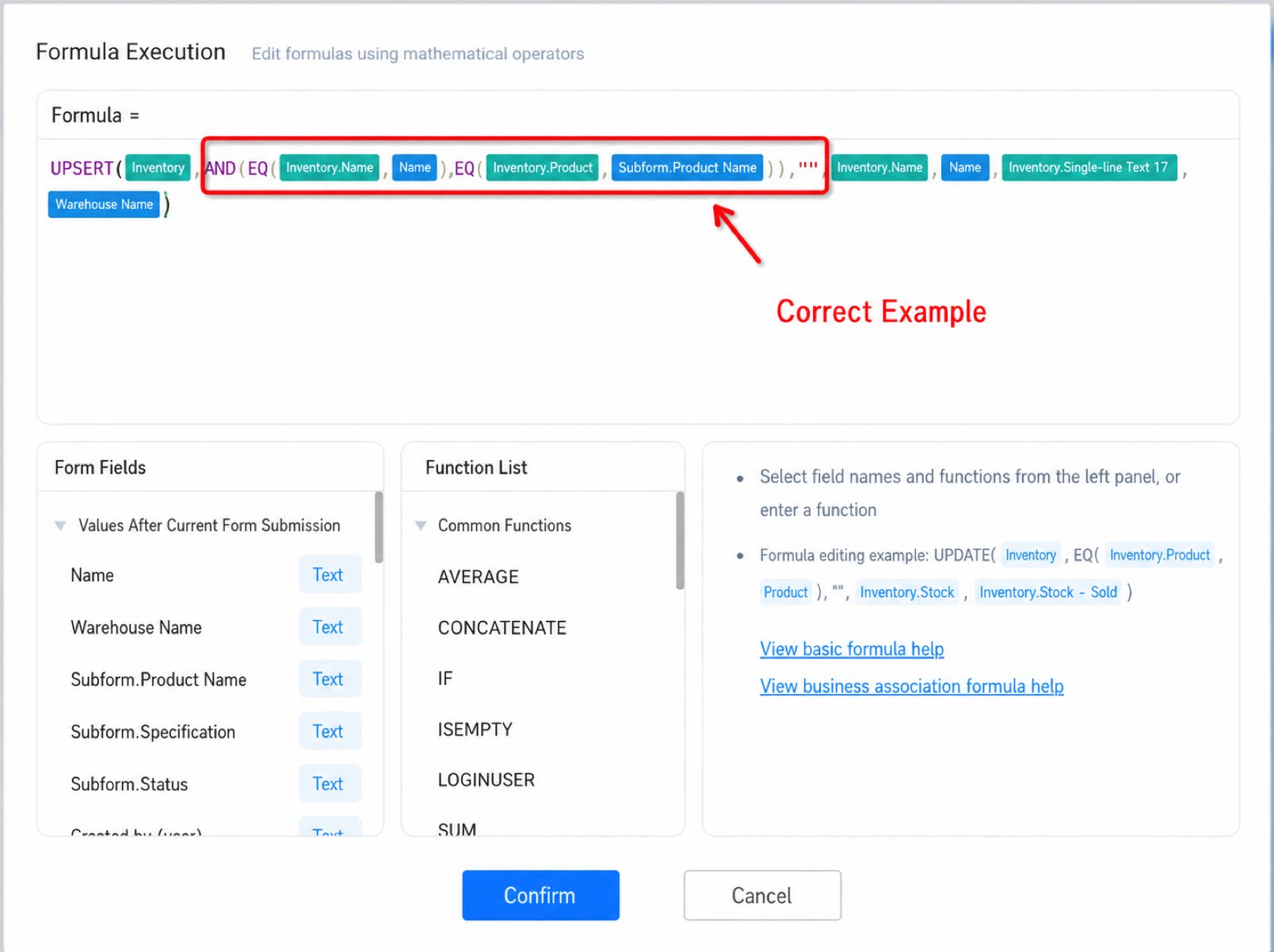
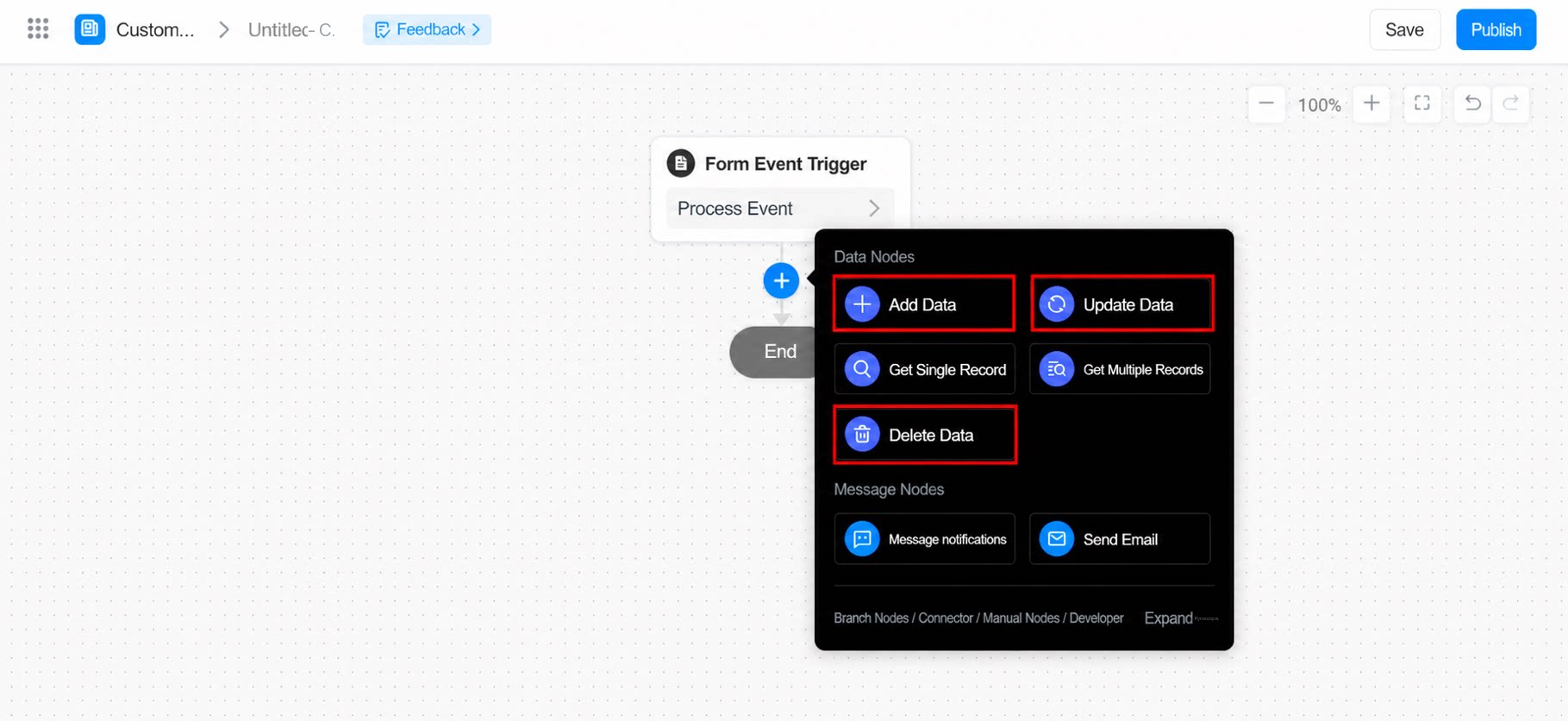
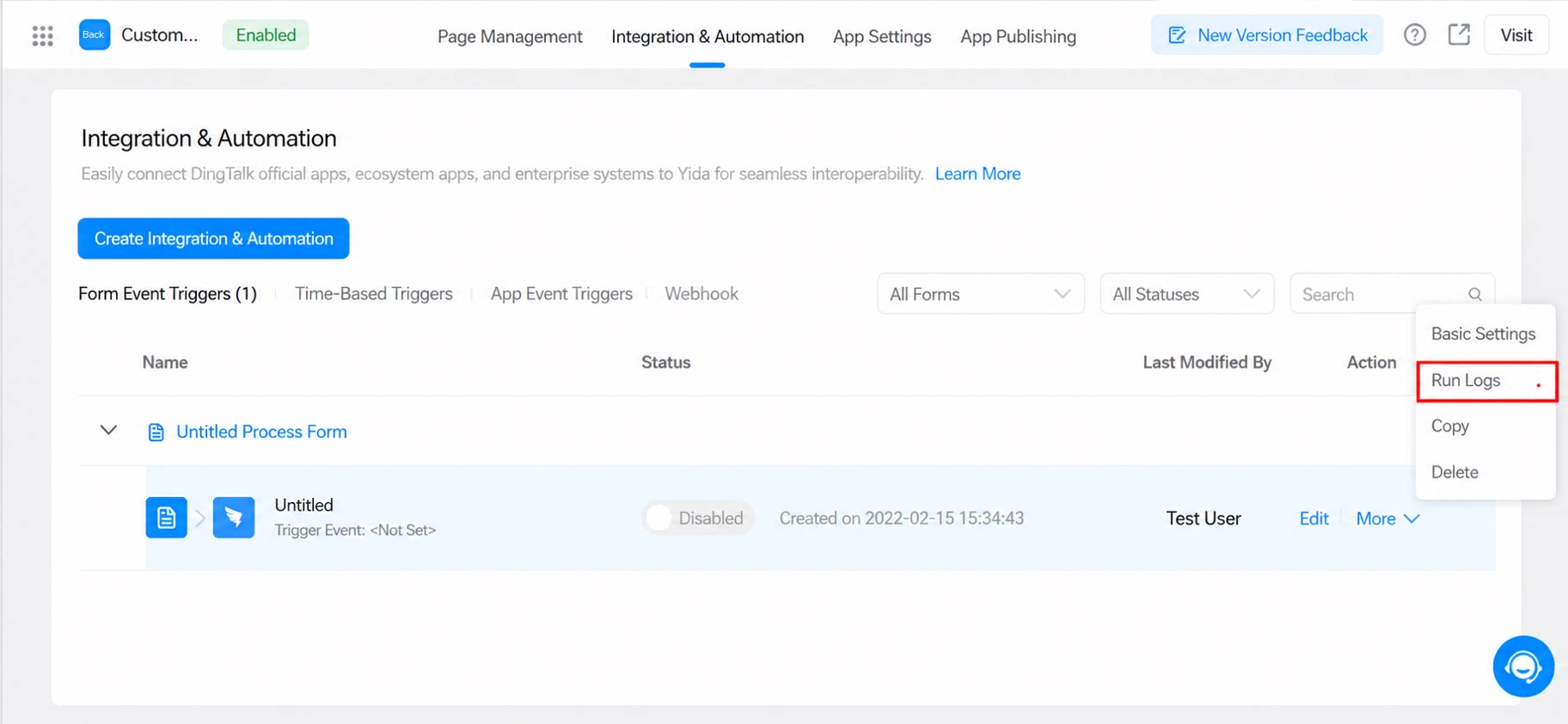
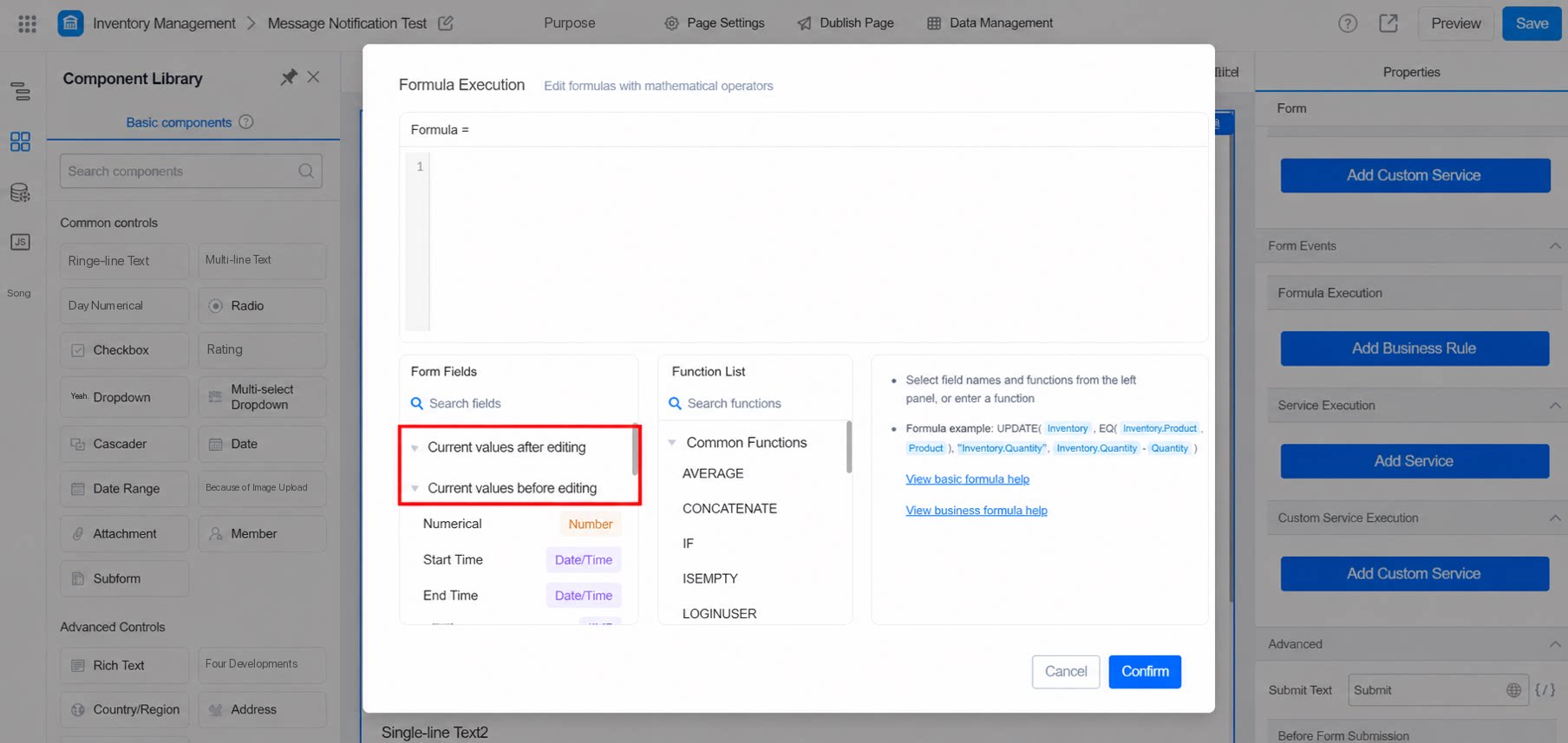
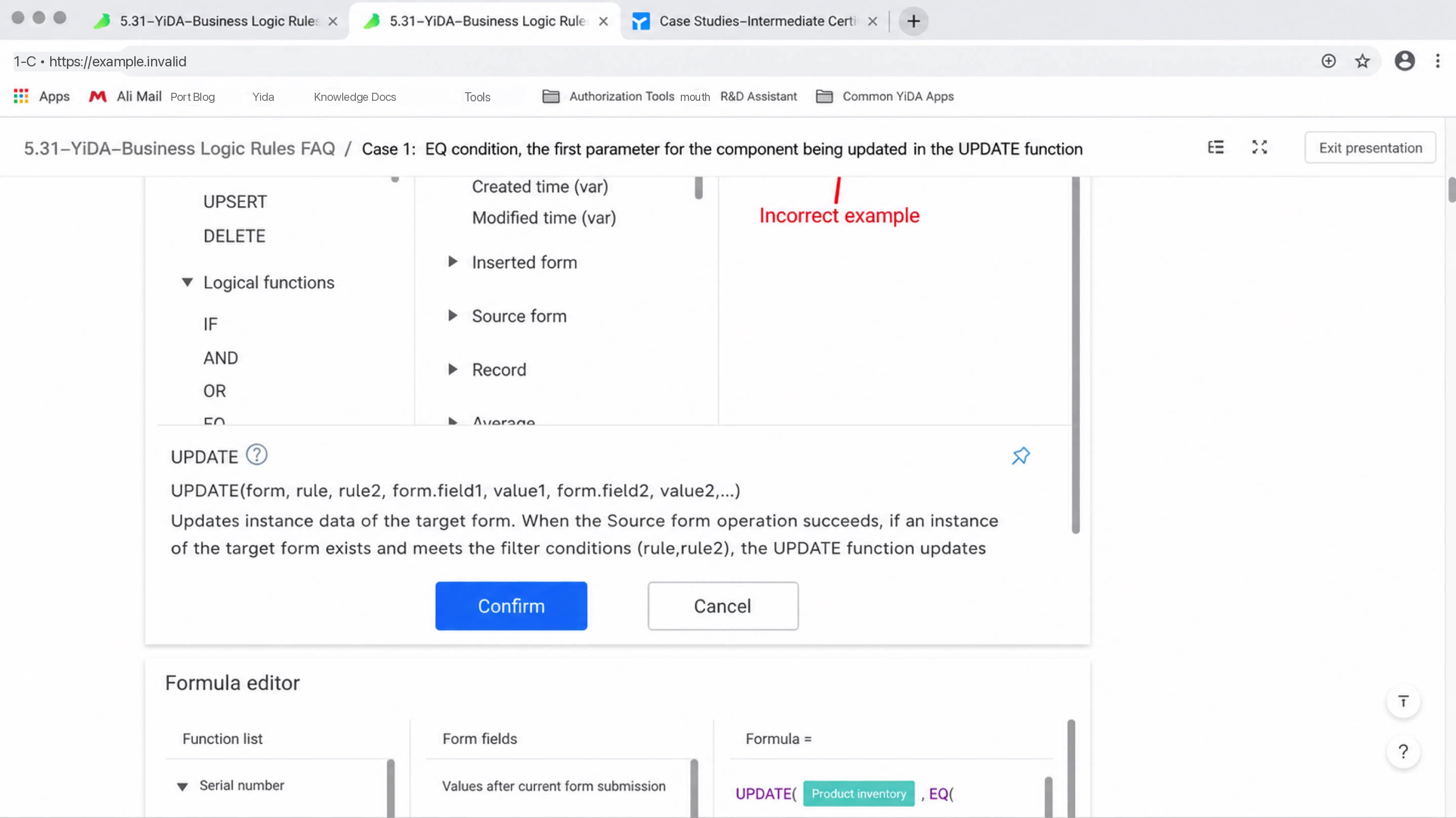
1. In an EQ condition, the component used for comparison in the target form must be the first argument of EQ. EQ is used as a comparison condition. The component used for comparison in the target form must be placed as the first argument of EQ. 2. In an EQ condition, the component used for comparison in the target form cannot be wrapped in another formula. Note: EQ must be followed by the component being compared, not by a formula directly. If needed, add a formula after the component used for comparison. 3. Commas, parentheses, and other punctuation must be in English. 4. Only supported components can be used as comparison conditions. Components that can be used as evaluation conditions: Single-line text, Multi-line text, Select, Dropdown select, and Date. Other components are not supported at this time. 5. Values cannot be assigned to unsupported components. Components that support assignment: Only components of the same type can be assigned to each other. Supported components include Single-line text, Multi-line text, Numerical, Select, Dropdown select, Checkbox, Dropdown checkbox, Cascading select, Date, Date range, Image upload, Attachment, User, and Address. Other components are not supported at this time. 6. Components of different types cannot be assigned to each other. Note: Only components of the same type can be assigned to each other. For example, a Numerical component cannot assign a value to an Image upload component. See the table below for details: 7. Use AND for the (and) logic in comparison conditions. The (or) logic is not supported at this time. 8. Business association formulas do not currently support string comparisons in conditions. Use the IF formula to evaluate first, then apply the business association formula. 9. Why does a business rule using an IF condition not take effect? When configuring a business association formula, if you use the IF formula for evaluation first, the IF condition must reference a main-table field. Note: The IF must be placed as the outermost evaluation; otherwise, it will not take effect. 10. “App configuration error, please contact the Admin” After configuring a business association formula, if the error “App configuration error, please contact the Admin” appears when submitting data, it means the target columns used for comparison and for value population have not been added as search fields. Add the target or comparison field to the search fields on the data management page of the target form. 10.1 Steps: 10.1.1 Locate the query condition settings on the data management page of the target form. 10.1.2 Check whether the target form fields are included in the search. If not, add them via the participating search fields settings. 10.1.3 On the settings page, add the target column as a search field under fuzzy search, then click Execute now. 11. Main condition configuration error This error occurs when the sub-condition is placed incorrectly. You must first match on a field from the main table. 12. Sub-condition configuration error. Only one detail record can be updated at a time. If the data matched in the target form is main-table data, place it in the main condition and connect it with AND. 13. When the target column in the matching condition is subform data, the error “The target column is not in the details being updated” appears after configuring the formula. Change the target column to a main-table field. 14. Parameter format mismatch When configuring a business association rule formula, the “Parameter format mismatch” prompt appears. Check whether the component title has been modified via code to include a line break. If the component title contains a line break, the field will display on multiple lines when configuring the formula and will trigger an error. 15. Issues related to the execution order of business association rules and integration & automation 15.1 How is execution ordered when business association rules and integration & automation are used together? Currently, business association rules and integration & automation follow independent execution logic. Each runs in its own execution order, and the overall order is not controllable. If mixed, the same target form may be updated by two task scheduling systems in an unexpected order, leading to incorrect business results — especially for complex processes such as inventory management with both increases and decreases. We recommend using YiDA’s integration & automation for syncing between business processes. 15.2 How is execution ordered when an integration & automation node contains multiple business association rules? Business association rules currently support multiple rule entries, but due to product limitations, the execution order between rules cannot be selected. To control the execution order, use Create, Update, Delete, and other [data nodes] in integration & automation instead. These nodes support ordering and let you view execution records in [Run logs]. Refer to the screenshots below for detailed settings. 16. What is the difference between the pre-edit value and the post-edit value of a form? When you configure a business association rule for a form in edit state, both a pre-edit value and a post-edit value are available. The difference is as follows: If the value of Form Field A is [Watermelon] and you change it to [Peach], the pre-edit value is [Watermelon] and the post-edit value is [Peach]. This is typically used when you need to modify the original target form value after editing. 17. What are the usage limits for advanced functions? YiDA business rule functions currently support the following usage limits: 18. Why does a business rule not execute after a new field is added to the form? When a new field is added to the target form, existing historical records do not yet contain the new field, so they cannot be updated. Edit and save each historical record so the new field is loaded, then it can be updated normally. Batch import or update can also resolve this. 19. Why does a formula fail to run when a Date component is used as the evaluation condition? Using a Date component as an evaluation condition is not recommended. The current value returned is a Unix timestamp, which is inaccurate for use as an evaluation condition. You can assign the value of the Date component to a Single-line text field and use that Single-line text as the evaluation condition instead. 20. When are business rules triggered? Data created by integration & automation does not currently trigger business rules.