

 Chats
Chats Calendar
 Meetings
 Contacts
 Mail
Mail Docs
Docs Drive
Drive AI Table
 AI Minutes
 Attendance
 Approval
 YiDA
YiDA Admin Console
Format
The format of the UPDATE() function is:- Target form: The target form whose data will be updated.
- Main condition: Locates the form records to update in the target form. The main condition is constructed with logical functions.
- Sub-condition: Used when the form record to update has been identified, but the value to update belongs to a subform within that record. The sub-condition locates which subform records to update. It is constructed with logical functions. If no subform value needs to be updated, enter "" — this argument cannot be omitted.
- Target column:
- Target value: The value that the target column will be updated to. The target value can be the value of a component in the current input form, a component value from the target form to be updated, a fixed value, or a value composed of other functions.
Use Cases
Update Standard Component Data in the Target Form from Standard Component Data in the Input Form
Forms used- Inventory form: Product Name (Single-line text), Stock Quantity (Numerical component)
- Shipment form: Product Name (Select dropdown), Current Stock (Numerical component), Shipment Quantity (Numerical component)
- The Inventory form stores the stock quantities of a batch of products. Products are shipped out through the Shipment form.
- Product names in the Shipment form come from the products in the Inventory form.
- In the Shipment form, when a product is selected, its current stock quantity is displayed.
- When shipping, the shipment quantity cannot exceed the stock quantity.
- After shipment, the stock quantity of the corresponding product in the Inventory form must be deducted accordingly.
- Requirement description:
- Formula configuration: Configure the formula in the business association rule of the Shipment form as shown below:
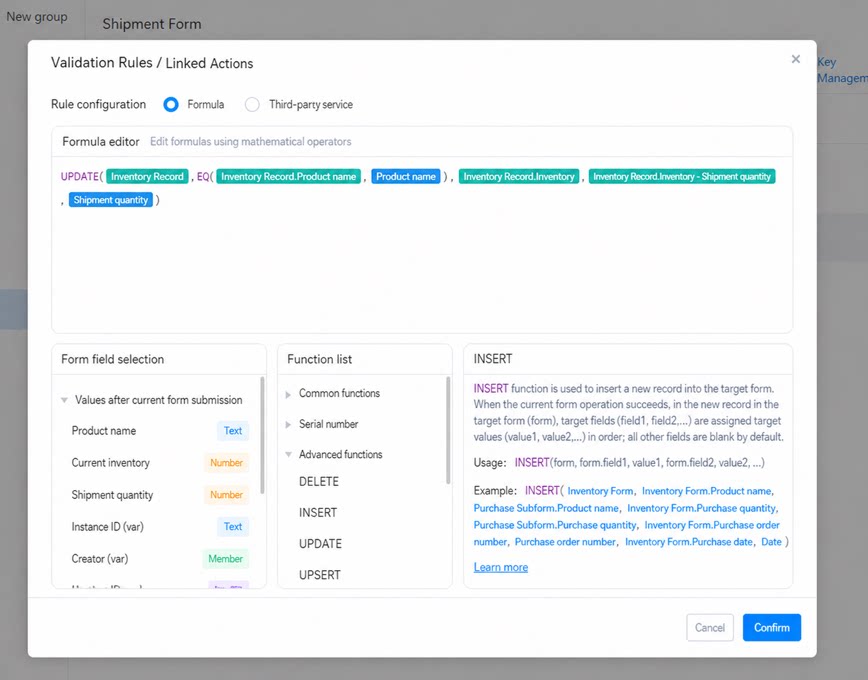
- Formula explanation:
Update Standard Component Data in the Target Form from Subform Component Data in the Input Form
Forms used- Shipment form: Product Category (Select dropdown), Shipment Subform (subform component). The Shipment Subform contains: Product Name (Select dropdown), Current Stock (Numerical component), Shipment Quantity (Numerical component).
- Inventory form: Product Category (Select dropdown), Product Name (Single-line text), Stock Quantity (Numerical component)
- Requirement description: The Shipment form includes shipment details, allowing multiple products to be shipped at once. For each shipped product, deduct the corresponding stock quantity in the Inventory form.
- Formula configuration: Configure the formula in the business association rule of the Shipment form as shown below:
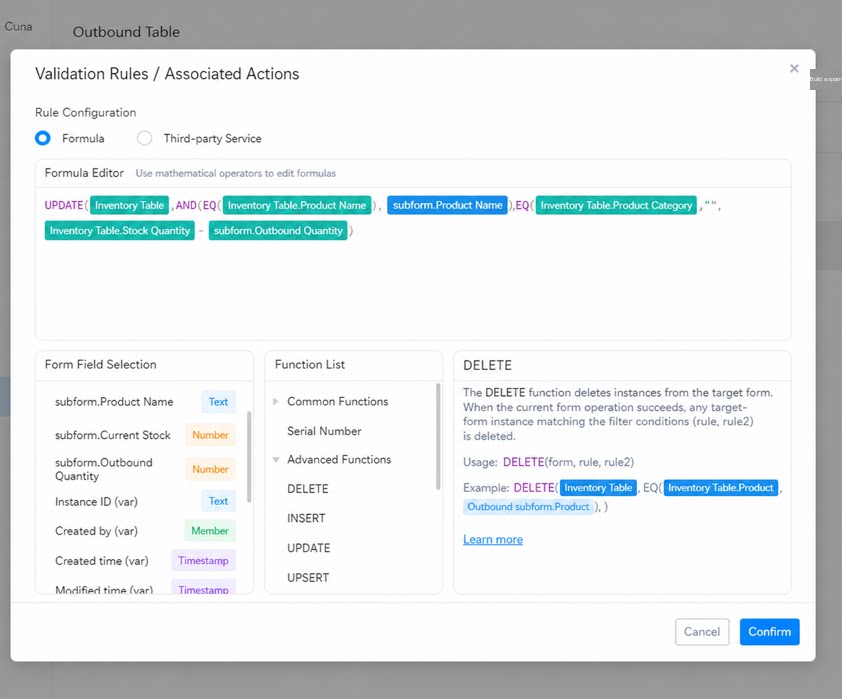
- Formula explanation:
Update Subform Component Data in the Target Form from Standard Component Data in the Input Form
Forms used- Inventory form: Product Category (Select dropdown), Inventory Subform (subform component). The Inventory Subform contains Product Name (Single-line text) and Stock Quantity (Numerical component). Shipment form: Product Category (Select dropdown), Product Name (Single-line text), Shipment Quantity (Numerical component)
- Requirement description: The Inventory form records stock quantities for multiple products. Each time a record is submitted in the Shipment form, if the corresponding product data can be found in the Inventory form’s subform, the shipment quantity is deducted from the stock quantity of the matching product.
- Formula configuration: Configure the formula in the business association rule of the Shipment form as shown below:
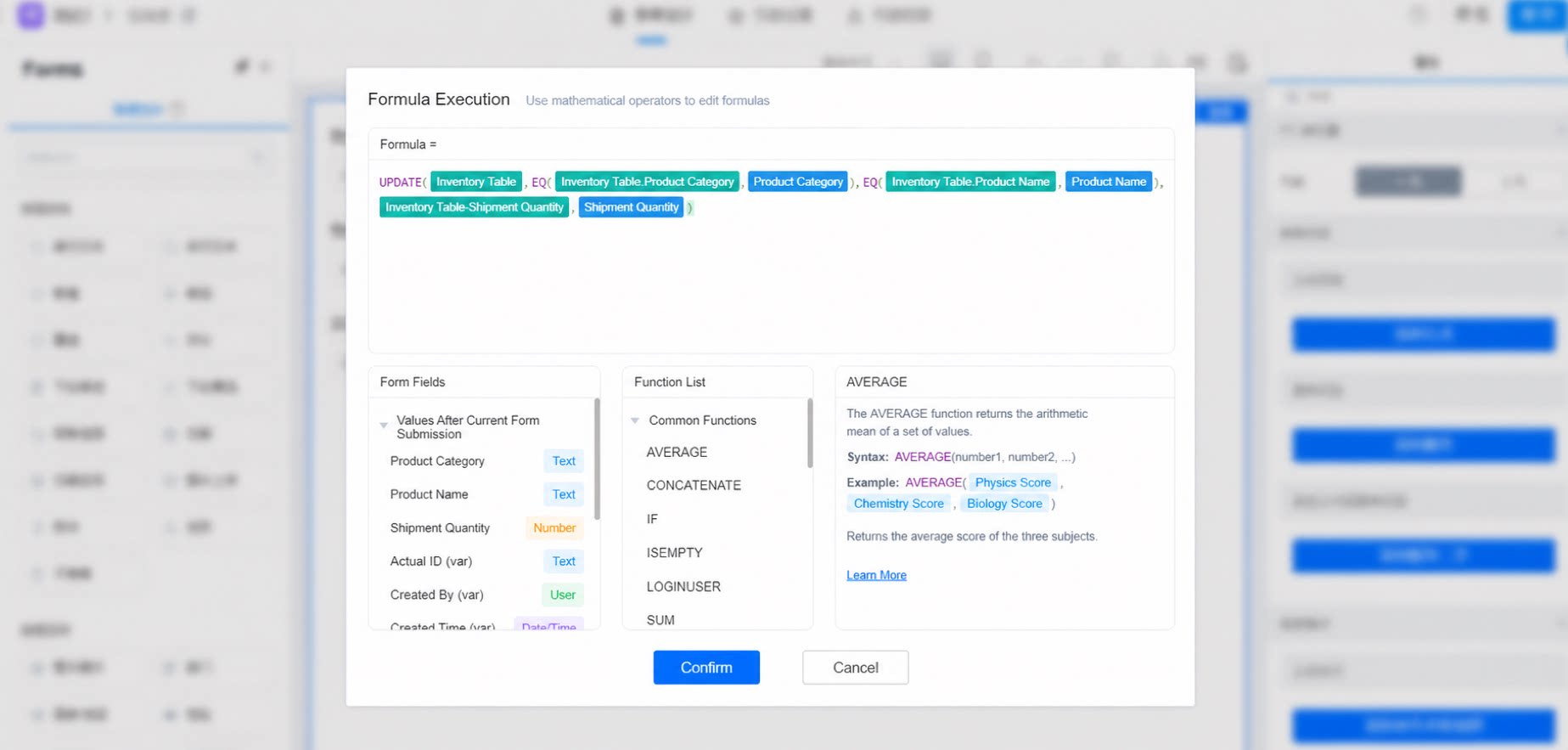
- Formula explanation:
Notes
- When updating a main form field in the target form, the UPDATE function supports updating up to 100 records. When updating subform details of a record in the target form, the Free plan supports up to 50 detail records, while the Basic edition and Professional edition support up to 500 records (the default is 50; set the subform record limit to 500 on the form edit page).
- The UPDATE function can operate on data in only one subform component per execution. To operate on data in multiple subform components, configure multiple UPDATE functions.
- The main condition and sub-condition are constructed with logical functions. Except for AND and OR, the first argument of other logical functions must be a component in the target form, and the order of the two arguments cannot be swapped.
- The supported scope of Premium formula components is as follows:
- When configuring a formula, the error “Execution failed, please check the business rule configuration” appears. What should I do?