Chats
Chats Calendar
 Meetings
 Contacts
 Mail
Mail Docs
Docs Drive
Drive AI Table
 AI Minutes
 Attendance
 Approval
 YiDA
YiDA Admin Console
1. Main Form Inserts or Updates Main Form
1.1 Use Case
Sync data between a main form and another main form. This scenario does not involve subform data sync.Function Example
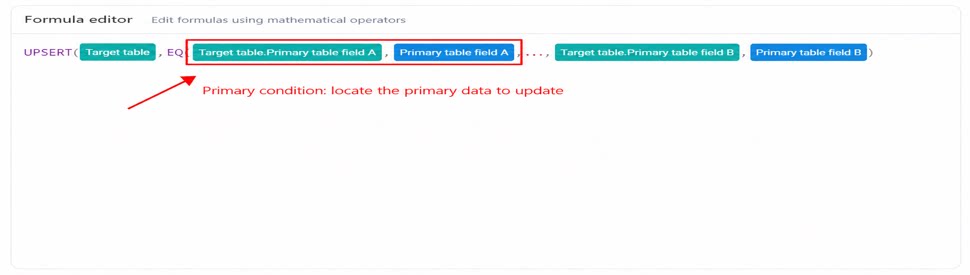
2. Main Form Inserts or Updates Subform
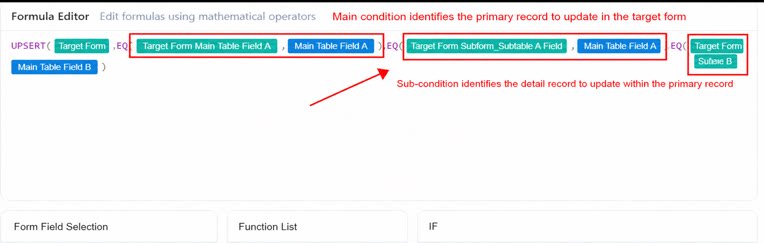
2.1 Use Case
Sync data between a main form and the subform of another main form. For example, after a user submits check-in information in the check-in form, the information must sync to the check-in record subform in another user health information form.Function Example
3. Subform Inserts or Updates Main Form
3.1 Use Case
Insert or update multiple detail records from the subform of the current form into the main form Data of the Target form.Function Example
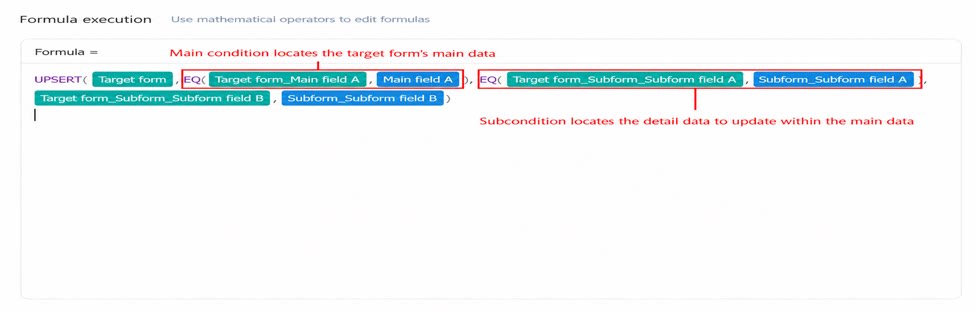
Main condition: EQ(Target form.Main form field, Current form.Subform.Subform field). Locates the main record (also called instance data) in the Target form whose subform data needs to be updated. Subcondition: Not required.4. Subform Updates Subform
4.1 Use Case
Sync subform data between one main form and the subform of another main form.Function Example
5. FAQs
5.1 When do I need to add a subcondition? Add a subcondition to locate the sub-record whenever subform data in the Target form must be updated or inserted. 5.2 Why does the business rule fail to run after new fields are added to the form? When a new field is added to the Target form, historical records do not contain that field and cannot be updated. Edit and save the historical records so that the new field is loaded before it can be updated normally. Bulk import or update can also resolve this. 5.3 Why does the formula fail to run when a Date component is used as a condition? Avoid using a Date component as a condition. The value it returns is a timestamp, which is not accurate enough for condition matching. Instead, store the value from the Date component in a Single-line text field, and then use that Single-line text field as the condition. 5.4 What are the trigger scenarios for business rules? Data created through integration & automation does not currently trigger business rules. Video tutorial: