Chats
Chats Calendar
 Meetings
 Contacts
 Mail
Mail Docs
Docs Drive
Drive AI Table
 AI Minutes
 Attendance
 Approval
 YiDA
YiDA Admin Console
Format
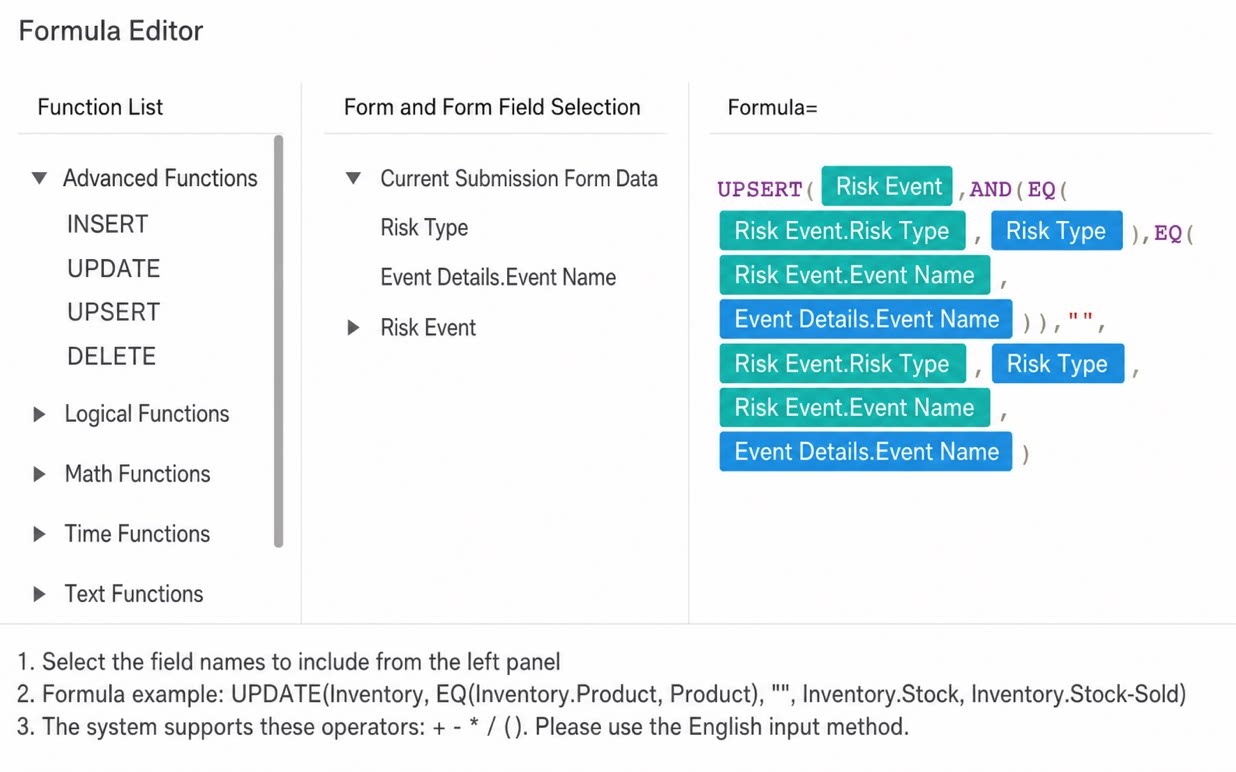
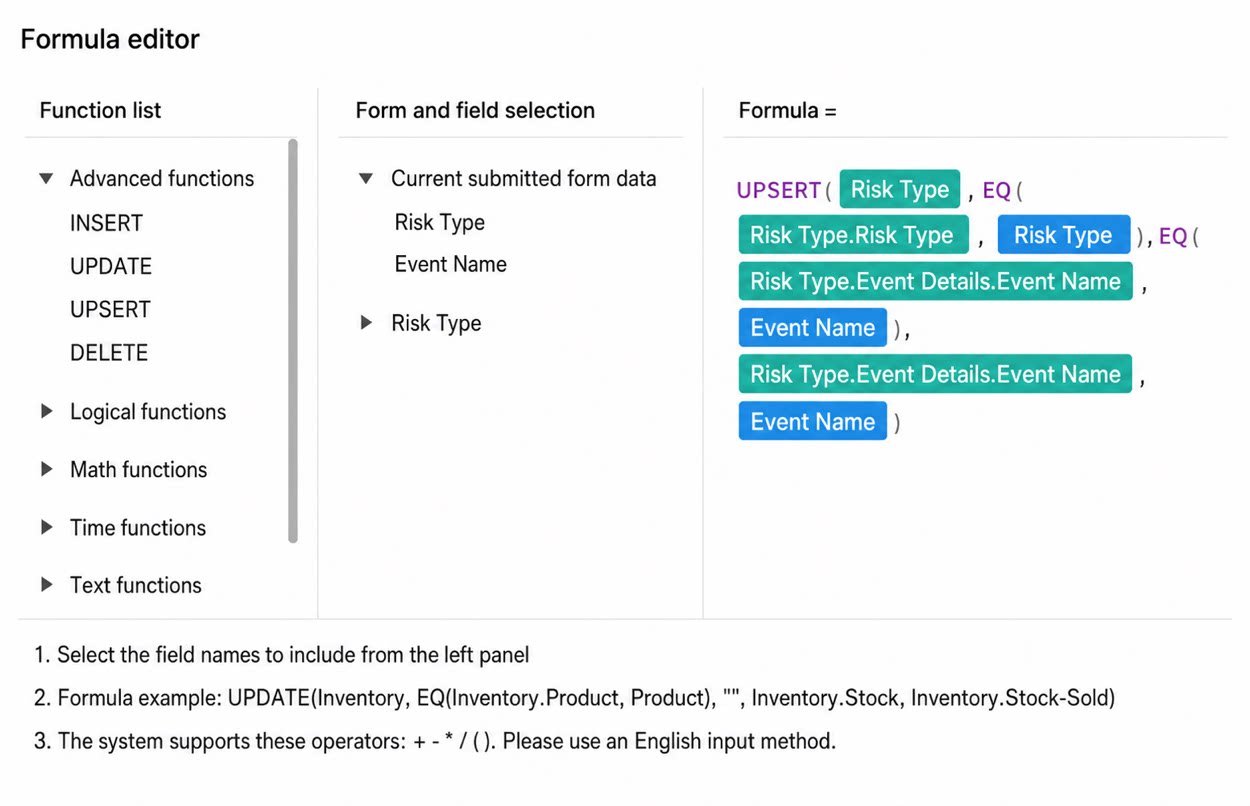
The format of theUPSERT() Function is:
- Target Table: the Target form into which Data is inserted or updated.
- Main Condition: identifies which Record to update. The main condition is built from logical Functions:
- Sub Condition:
- Target Column:
- Target Value: the value that the Target Column is updated to. The Target Value can be a Component value from the current entry Form, a Component value from the Target form to be updated, a fixed value, or a value composed from other Functions.
Case 1: Update Regular Component Data in the Target Form When Inserting Regular Component Data
- Forms used
- Requirement
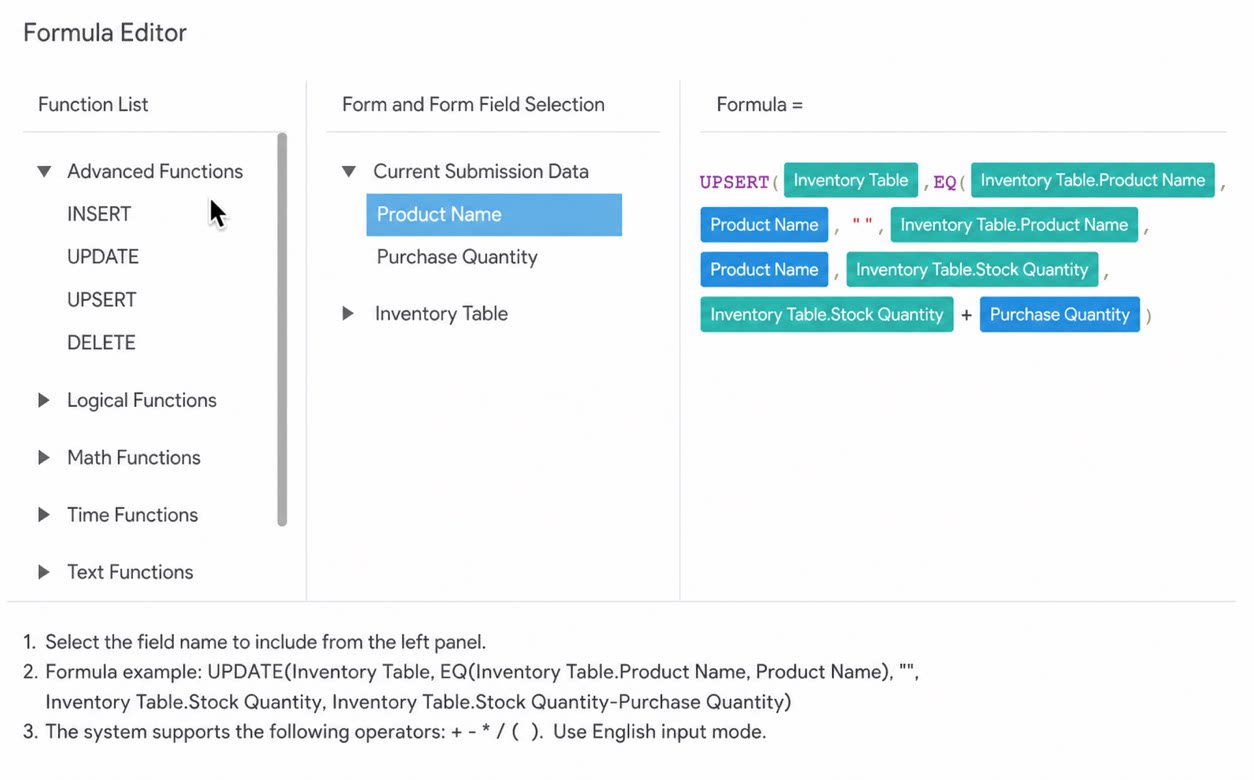
- Formula configuration details and Formula analysis
- Target Table: Inventory Table.
- Main Condition: EQ(Inventory Table.Product Name, Product Name). The Record to update is the one in the Inventory Table whose product name equals the product name entered in the entry Form.
- Sub Condition: because the updates target regular Components in the “Inventory Table” (product name and stock quantity) and do not involve details, leave the Sub Condition as ""
- Target Column: Inventory Table.Product Name.
- Target Value: Product Name. If the Data cannot be found, the product name value inserted into the Inventory Table is taken from the product name value in the Purchase Table.
- Target Column: Inventory Table.Stock Quantity
- Target Value: Inventory Table.Stock Quantity + Purchase Quantity. After the matching inventory product is found, add the current purchase quantity to the original stock quantity.
Case 2: Update Regular Component Data in the Target Form When Inserting Subform Component Data
- Forms used
- Requirement
- Formula configuration details and Formula analysis
Case 3: Update Subform Component Data in the Target Form When Inserting Regular Component Data
- Forms used
- Requirement
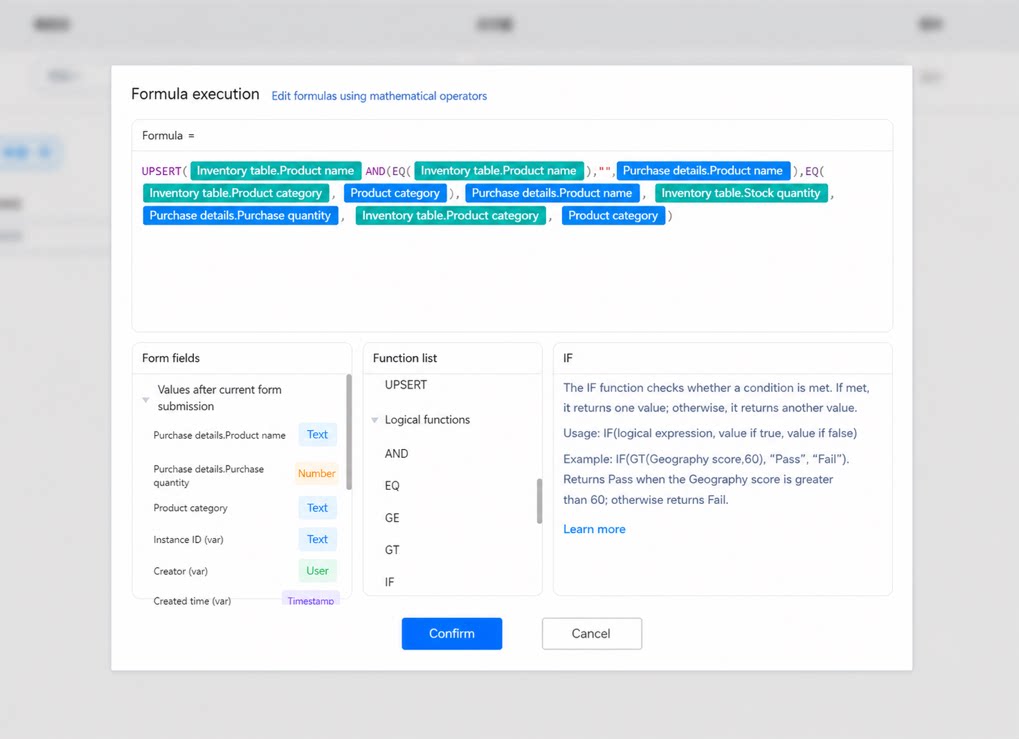
- Formula configuration details and Formula analysis
Notes
- You cannot update both regular Components and values under a detail at the same time. If your scenario requires this, split the logic into two UPSERT Functions: one to update the regular Components, and another to update the Data under the detail.
- In the product purchase and inventory scenario above, when Form Data is deleted, the stock quantity must be deducted accordingly. To handle this, configure the UPDATE Function on the “Form Delete” event to deduct the Data and keep Data consistent.
- The UPSERT Function can Update at most 100 Records of main Form Data at a time. Exceeding this limit causes an error and results in Submit failure. The Free plan can insert at most 50 detail Data entries under a single Form Data at a time. The Basic edition and Professional edition can update and insert 500 detail Data entries at a time (the default is 50 entries; raise the maximum to 500 on the Form Edit Page). Exceeding this limit also causes an error and prompts “Submit Failed”.
- The UPSERT Function can operate on the Data of only one detail component under a Form at a time. To operate on multiple detail components, Configure multiple UPSERT Functions.
- The Main Condition and Sub Condition are built from logical Functions. Except for AND and OR, the first parameter of every other logical Function must be a Component in the Target Table, and the two parameters cannot be swapped.
- When you configure the UPSERT Function to insert or update detail Data in another Table, if two Records under the detail both match the same condition, two Records are inserted into the other Table rather than the first detail Record being inserted and the second being updated.
- The Premium Formula component support scope is as follows