Chats
Chats Calendar
 Meetings
 Contacts
 Mail
Mail Docs
Docs Drive
Drive AI Table
 AI Minutes
 Attendance
 Approval
 YiDA
YiDA Admin Console
1. Form Business Association Rules
1.1 What Are Business Rules
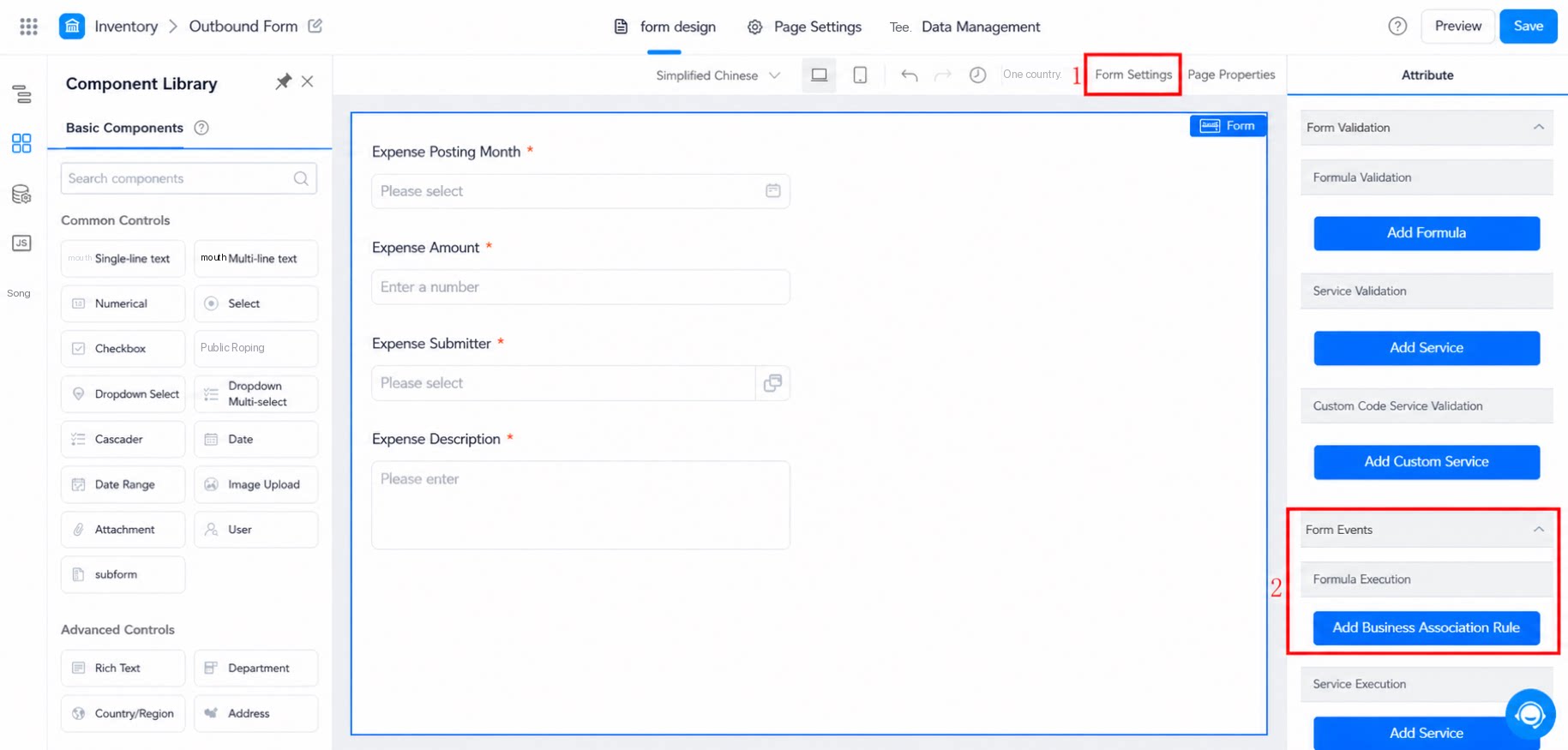
Business rules handle the relationships between Forms — a change in the Data of one Form must synchronously affect the Data of another Form (Add, Update, or Delete). Path: open the Form Edit Page >> click a blank area of the Form >> the Form event panel appears on the right >> Add a business Association rule.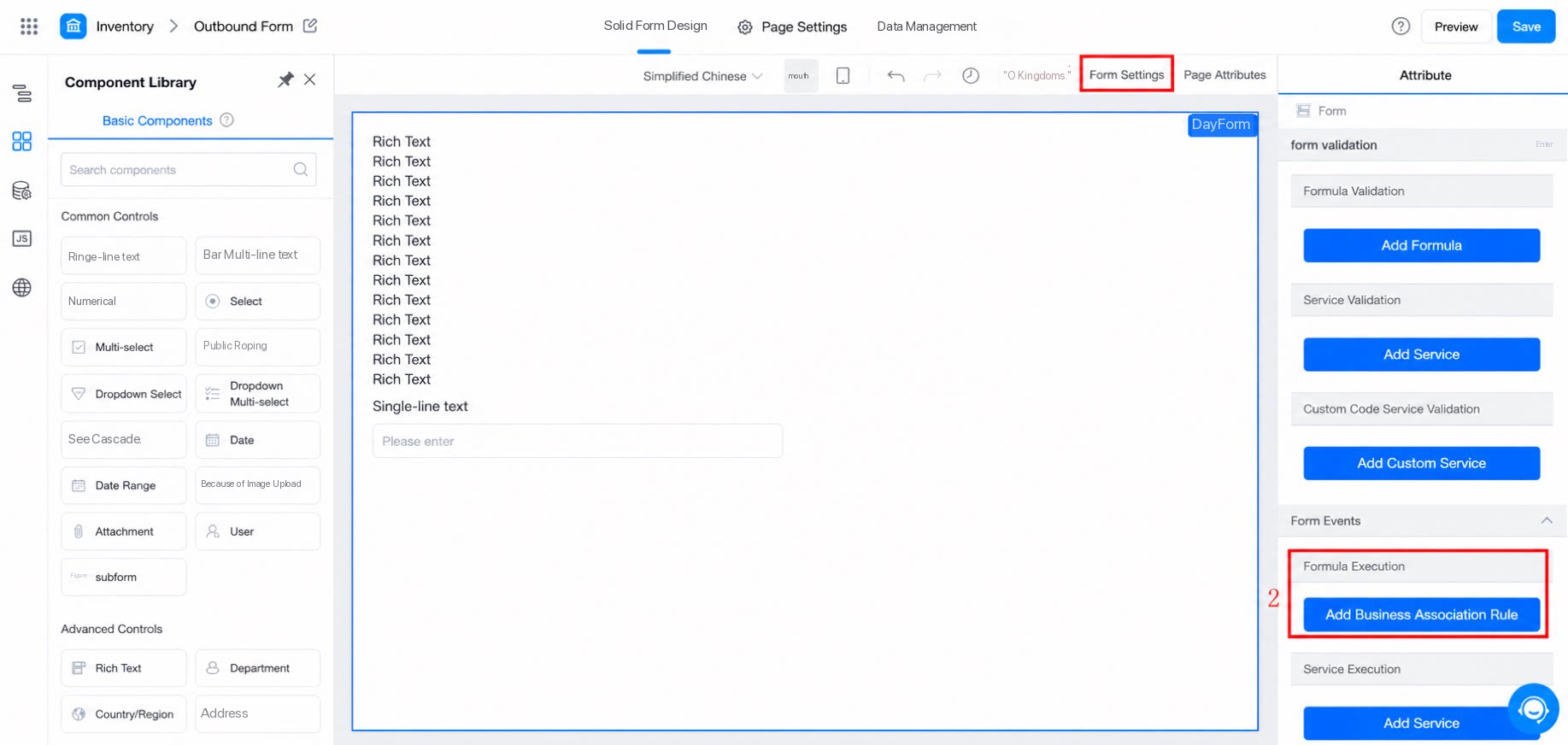
1.2 Use Cases
For example, use business rules to Calculate outbound, inbound, and final inventory. When items are received into inventory, the corresponding item stock in the inventory Table increases. When items are checked out, or the inbound Form is deleted, the stock of the corresponding item in the inventory Table decreases.2. Business Association Rule Functionality
2.1 Form Events
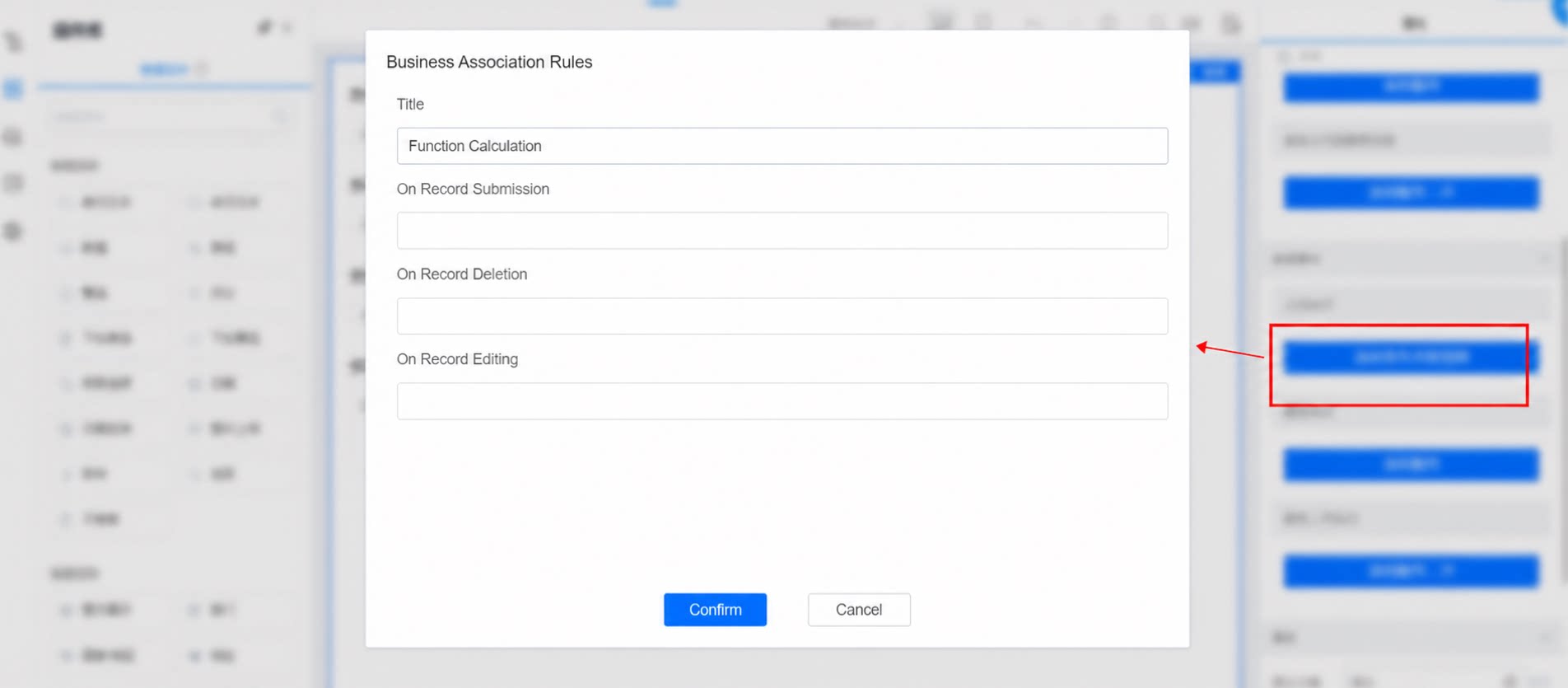
- Business Association rules can be triggered on all three events (Form Submit, Form Delete, and Form Edit).
- Business Association rules rely on the following four Premium Functions to create, read, update, or delete Data in other Forms within the app.
2.1.1 INSERT
Format: INSERT(form, form.field1, value1, form.field2, value2, …) Use INSERT to add Data from the current Form to the Target form as a new instance. When the current Form’s Action succeeds, a new instance is inserted into the Target form (form), with the target fields (field1, field2, …) set in order to the target values (value1, value2, …). The remaining fields default to empty.2.2.2 UPDATE
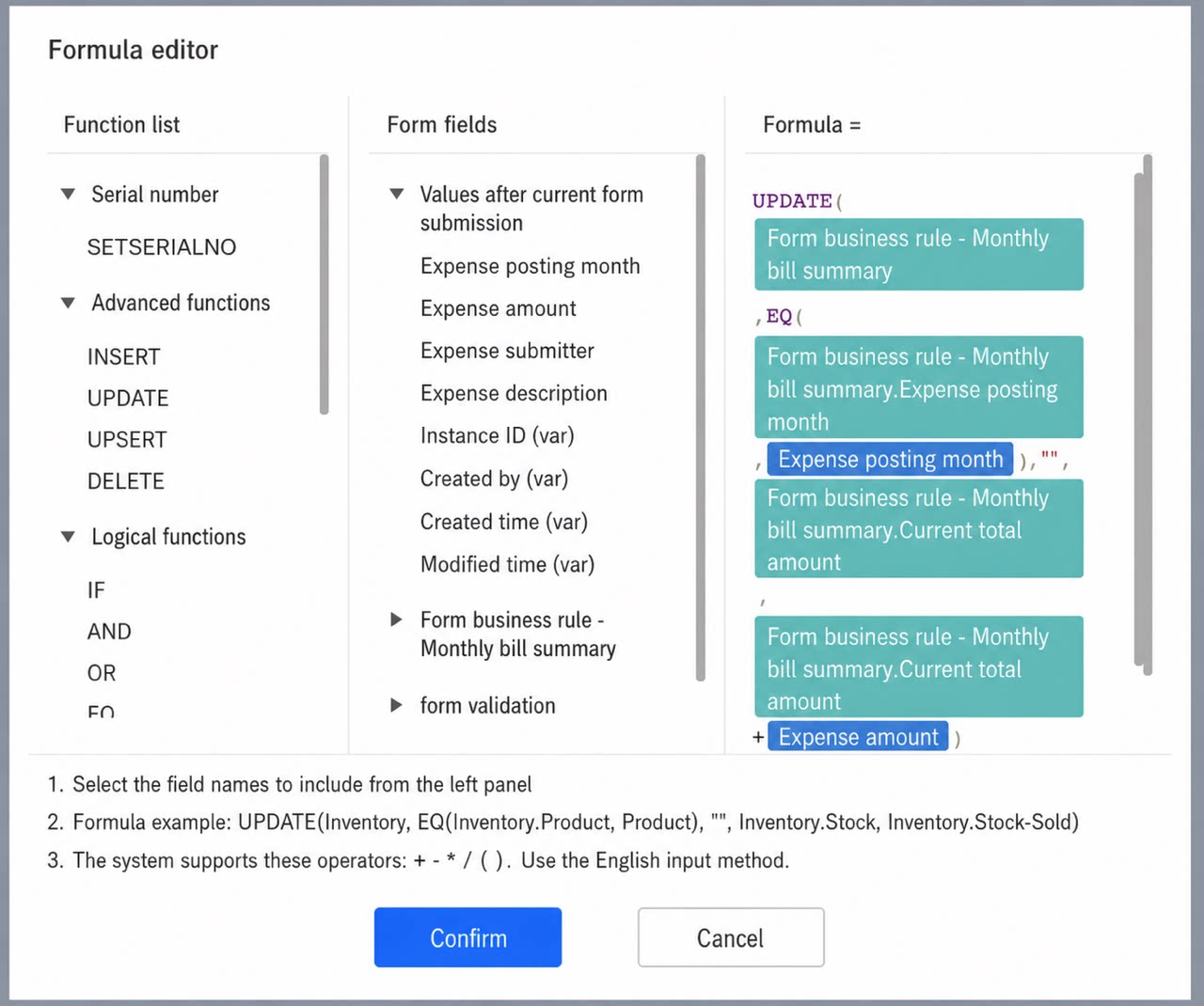
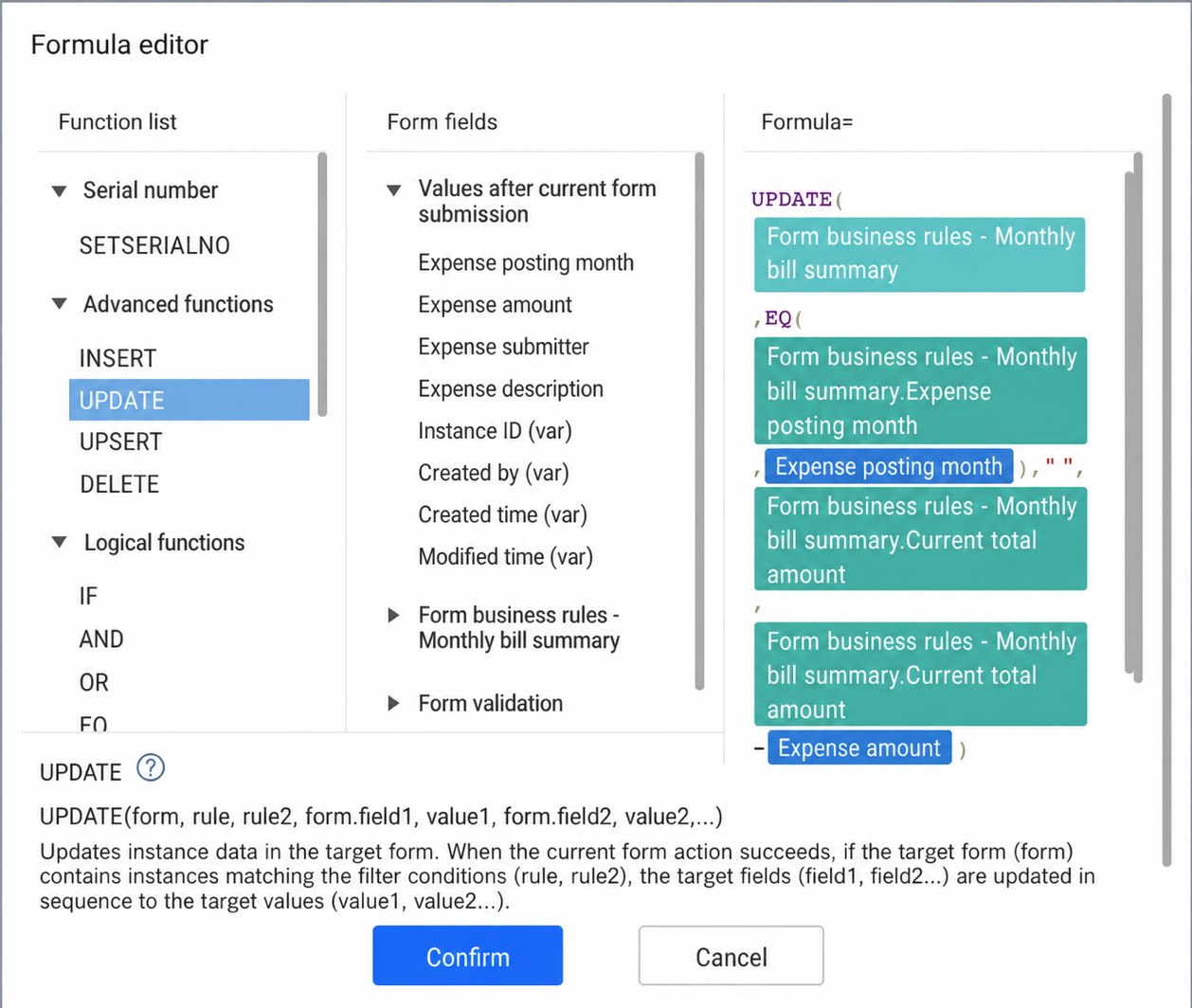
Format: UPDATE(form, rule, rule2, form.field1, value1, form.field2, value2, …) Use UPDATE to modify Data in the Target form that meets the specified conditions. When the current Form’s Action succeeds, if an instance in the Target form (form) meets the filter conditions (rule, rule2), the target fields (field1, field2, …) of that instance are updated in order to the target values (value1, value2, …).2.2.3 UPSERT
Format: UPSERT(form, rule, rule2, form.field1, value1, form.field2, value2, …) Use UPSERT to insert or update Data in the Target form. When the current Form’s Action succeeds, if an instance in the Target form (form) meets the filter conditions (rule, rule2), the instance is updated in the same way as UPDATE. Otherwise, a new instance is inserted in the same way as INSERT.2.2.4 DELETE
Format: DELETE(form, rule, rule2) Use DELETE to remove Data from the Target form. When the current Form’s Action succeeds, if an instance in the Target form (form) meets the filter conditions (rule, rule2), that instance is deleted.2.2 Case Description
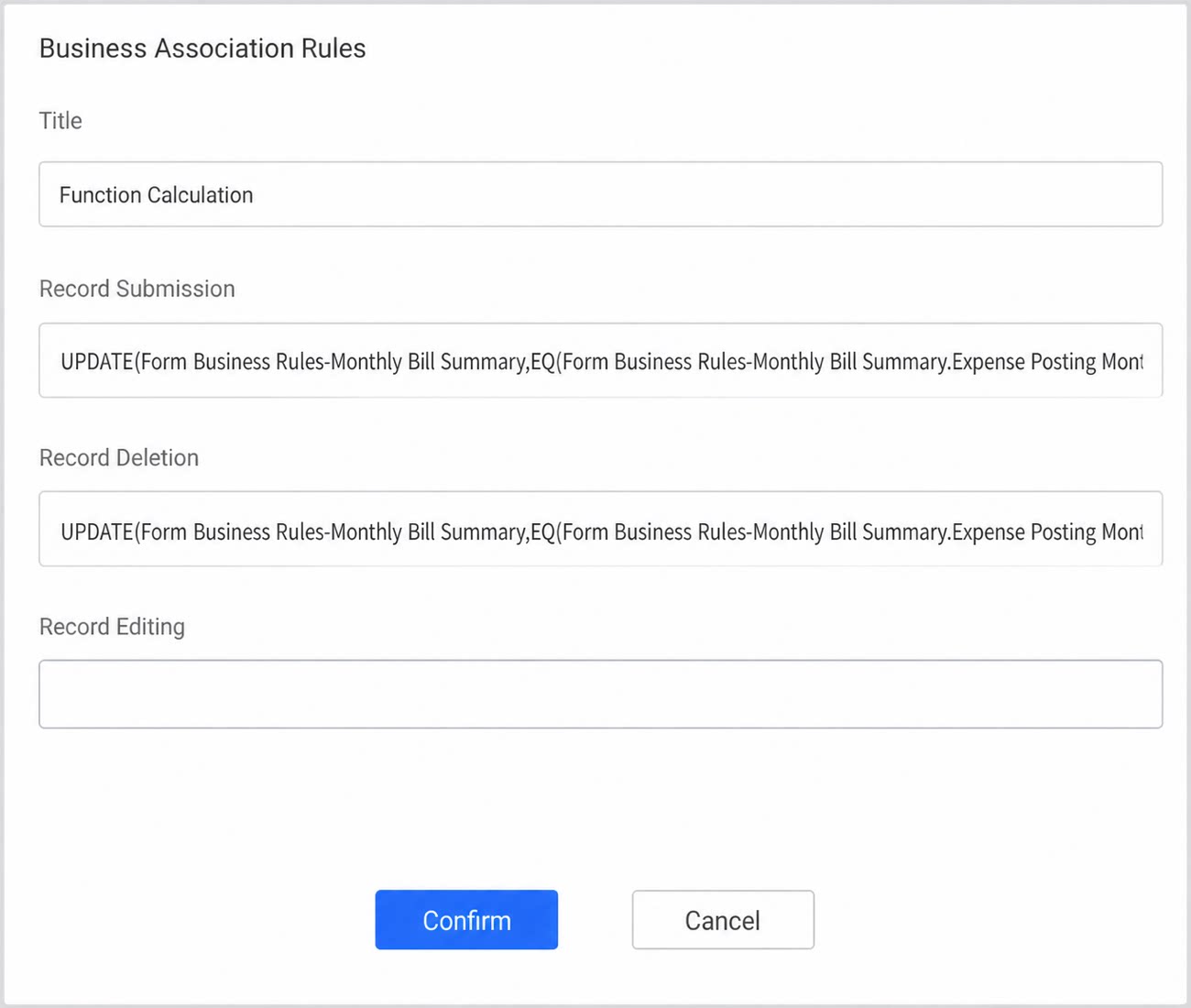
Let’s build an accounting-book feature. The accounting book contains two Forms: a bill Details table and a monthly bill summary Table. Key features:- When a bill detail Record is submitted, add the new bill amount to that month’s summarized expense.
- When a bill detail Record is deleted, subtract the bill amount from that month’s summarized expense.
- Steps