Chats
Chats Calendar
 Meetings
 Contacts
 Mail
Mail Docs
Docs Drive
Drive AI Table
 AI Minutes
 Attendance
 Approval
 YiDA
YiDA Admin Console
1. Use Cases
Sometimes raw form data must be processed with custom logic before it can be displayed. For example:- Form data is submitted by individual employees, but the report needs to show how many employees submit the form each day. This requires the COUNT() function to calculate the result before display.
- Users want to add custom fields to a form and link them to hyperlinks for page navigation. This scenario also benefits from custom formula fields.
- Logical
- String processing
- Aggregate
- Array
3. Where to Set Formulas
Path: Create report >> Report design page >> Select dataset >> Select display column field >> FX >> Configure the formula Watch the following video to see how to configure it:4. Logical
CASEWHEN
Usage 1: CASEWHEN(<condition>,<value>,<condition>,<value>…), equivalent to the CASE WHEN syntax in SQL. Example: CASEWHEN(<Gender field>=“Male”,“male”,<Gender field>=“Female”,“female”). Values of “Male” are replaced with “male”, and values of “Female” are replaced with “female”. Usage 2: CASEWHEN(<condition>,<value>,<condition>,<value>…<value>), equivalent to the CASE WHEN syntax in SQL. Example: CASEWHEN(<Gender field>=“Male”,“male”,“female”). Values of “Male” are replaced with “male”, and any other value is replaced with “female”.5. String Processing
LEN
Usage: LEN([String field]). Returns the length of the string. Example: LEN(“test”) returns 4. LEN(“测试”) returns 2, since each Chinese character counts as one character, just like an English character.LEFT
Usage: LEFT(<Measure field>,< n >). Returns a string of length n starting from the first character on the left of the <field> value. Example: LEFT(Field1,3). If Field1 is “ABCDEF”, the return value is “ABC”.RIGHT
Usage: RIGHT(<Measure field>,< n >). Returns a string of length n counted from the right of the <field> value. Example: RIGHT(Field1,3) returns “DEF” when Field1 is “ABCDEF”.MID
Usage: MID(<Measure field>, < start >, < n >). Returns a string of length n starting from the start-th character on the left of the <field> value. Example: MID(Field1, 3, 3) returns “CDE” when Field1 is “ABCDEF”.POS
Usage: POS(<Measure field>,<Substring>). Returns the position of <substring> in <text>. Returns 0 if there is no match. Example: POS(Field1,“DE”) returns 4 when Field1 is “ABCDEF”.UPPER
Usage: UPPER(<Measure field>). Converts the <field> value to uppercase. Example: UPPER(Field1) returns “ABCDEF” when Field1 is “AbcdeF”.LOWER
Usage: LOWER(<Measure field>). Converts the <field> value to lowercase. Example: LOWER(Field1) returns “abcdef” when Field1 is “AbcdeF”.VAL
Usage: VAL(<Measure field>). Converts the <field> value from text to numerical type. Example: VAL(Field1) returns 123 when Field1 is “123”.LEFTTRIM
Usage: LEFTTRIM(<Measure field>). Removes leading spaces from the <field> value. Example: LEFTTRIM(Field1) returns “ABC” when Field1 is ” ABC”.RIGHTTRIM
Usage: RIGHTTRIM(<Measure field>). Removes trailing spaces from the <field> value. Example: RIGTTRIM(Field1) returns “ABC” when Field1 is “ABC ”.NUMBERTOSTRING
Usage: NUMBERTOSTRING(<Numerical>). Converts numerical data to a string. Example: NUMBERTOSTRING(Field1) returns “12345” when Field1 is “12345 ”.SPLITPART
Usage: SPLITPART(<String field>, delimiter, substring position). Splits a string by the “delimiter” into N substrings (N equals the number of delimiters plus 1). The substring position is counted from 1 (left to right) or from -1 (right to left). Example: SPLITPART(<Field1>,A,2) returns “BCD” when Field1 is “ABCDABHABC”. Setting the substring position to -5 also returns “BCD”.CONCAT
Usage: CONCAT(<field>,<field>,…). Joins multiple fields into a single string. The input parameters must be string-type fields. Example: CONCAT(<Field1>,<Field2>) returns “ABCD” when Field1 is “A” and Field2 is “BCD”.REPLACE
Usage: REPLACE([string], [search string], [replacement string]). Returns the replaced string. Example: REPLACE([Field1], [Field2], [Field3]) returns “a12345efg” when Field1 is “abcdefg”, Field2 is “bcd”, and Field3 is “12345”.STRINGTONUMBER
The new string-processing report formulaSTRINGTONUMBER() converts text-type numbers into numerical type.
This formula is currently supported only on report pages. Use it as follows:
6. Aggregate
To demonstrate how aggregate fields work, the following section uses two practical example datasets. Assume the following two datasets, “Sample dataset 1” and “Sample dataset 2”, are collected through multiple forms. Sample dataset 1 Dataset
Spreadsheet
Sample dataset 2
Dataset
Spreadsheet
SUM
Usage: SUM(<Measure field>,[condition],[excluded field]). Returns the sum of <field> values that match [condition]. The [excluded field] does not participate in the cross-calculation of the sum. Example: Using Sample dataset 1 Department team-building expense = SUM(Expense, Budget type=“Team building”): Spreadsheet result
BU team-building expense = SUM(Expense, Budget type=“Team building”, Department):
Spreadsheet result
AVG
Usage: AVG(<Measure field>,[condition],[excluded field]) Description: Returns the average of <field> values that match [condition]. The [excluded field] does not participate in the cross-calculation of the sum. Example: Using Sample dataset 1- Calculate the average team-building expense per BU
- Calculate the overall average team-building expense
MAX
Usage: MAX(<Measure field>,[condition],[excluded field]). Returns the maximum value of <field> under [condition]. The [excluded field] does not participate in the cross-calculation of the sum. Example: Using Sample dataset 1 Department maximum team-building expense = MAX(Expense, Budget type=‘Team building’): Spreadsheet result
BU maximum team-building expense = MAX(Expense, Budget type=“Team building”, Department):
Spreadsheet result
MIN
Usage: MIN(<Measure field>,[condition],[excluded field]). Returns the minimum value of <field> under [condition]. The [excluded field] does not participate in the cross-calculation of the sum. Example: Using Sample dataset 1 Department minimum team-building expense = MIN(Expense, Budget type=“Team building”): Spreadsheet result
BU minimum team-building expense = MIN(Expense, Budget type=“Team building”, Department):
Spreadsheet result
COUNTDISTINCT
Usage: COUNTDISTINCT(<Measure field>,[condition],[excluded field]). Returns the count of unique values of <field> under [condition]. The [excluded field] does not participate in the cross-calculation of the sum. Example: Using Sample dataset 2 BU department count = COUNTDISTINCT(Department, Expense>0, Budget type) Spreadsheet resultCOUNT
Usage: COUNT(<Measure field>,[condition],[excluded field]). Returns the count of <field> values under [condition]. The [excluded field] does not participate in the cross-calculation of the sum. Example: Using Sample dataset 2 Department budget records = COUNT(Department, Expense>0, Budget type) Spreadsheet result7. Date and Time
NOW
Usage: NOW(). Returns the current time, accurate to the second. Example: Omitted.STRINGTODATE
Usage: STRINGTODATE(<field>,<format>). Converts a string to a date/time value. Example: STRINGTODATE(“1989-09-27”,“yyyy-MM”) returns “198909”. The format for the two functions above follows Java formatting conventions. The supported format types are: yyyy: Year MM: Month dd: Day hh: 12-hour clock (1-12) HH: 24-hour clock (0-23) mm: Minute ss: SecondDATEADD
Usage:DATEADD(<Date field>,<offset>,<time granularity>). Adds an <offset> of the specified <time granularity> to the <date field>.
- Time granularity values:
- The offset is a specific number to add or subtract. A positive value adds; a negative value subtracts.
DATEADD(Date component,10,"DAY") = 20200911.
Example 2:
If the value of the date component in the form is “20200901”, then DATEADD(Date component,-1,"DAY") = 20200831.
The default date display format is
yyyyMMdd. To change the date display format, refer to the example in the DATEFORMAT function.DATEDIFF
Usage: DATEDIFF(<Time field 1>,<Time field 2>,<time granularity>). Returns the difference between time field 1 and time field 2 at the specified time granularity. Time granularity options:- YEAR Year
- MONTH Month
- DAY Day
- HOUR Hour
- MINUTE Minute
- SECOND Second
DATEFORMAT
Usage: DATEFORMAT(<Date field>,<time format>). Formats a date into a string. The format for the two functions above follows Java formatting conventions. The supported format types are:- yyyy: Year
- MM: Month
- dd: Day
- hh: 12-hour clock (1-12)
- HH: 24-hour clock (0-23)
- mm: Minute
- ss: Second
FROMUNIXTIME
Usage: Converts a numeric Unix time value to a date value. Function declaration:- unixtime: Bigint type, in seconds, a Unix-format date/time value. If the input is string, double, or decimal type, it is implicitly converted to bigint before the calculation.
- Return value: A Datetime-type date value. Returns NULL when unixtime is NULL.
WEEK
Usage: WEEK([date], [start day (optional)]). Calculates which week of the year the date falls in. If the start day is not specified, the first day of the week defaults to Monday. Start day values 1-7 indicate that Monday through Sunday, respectively, is the first day of the week. Example: WEEK([Date],) returns “20202” when the field value is “2020-01-08”. The start day is optional and defaults to empty.QUARTER
Usage: QUARTER([date], [fiscal year (optional)]). Calculates which quarter of the year the date falls in. Fiscal year: 1 uses fiscal-year statistics (starting in April); 0 uses the calendar year. Example: QUARTER([Field1], 0) returns “1” when Field1 is “2020-02-02”.8. Array
ArrayToString
Usage: ArrayToString(<Array field>,[delimiter (optional)]). Converts an array to a string. Example: ArrayToString(<Field1>,<Field2>) returns “Product-Engineering-Business” when Field1 is “[Product, Engineering, Business]” and Field2 is ”-”. If Field2 is empty, it returns “Product,Engineering,Business”. The result is shown below:StringToArray
Usage: StringToArray(<string>,[delimiter (optional)]). Parses a string into an array.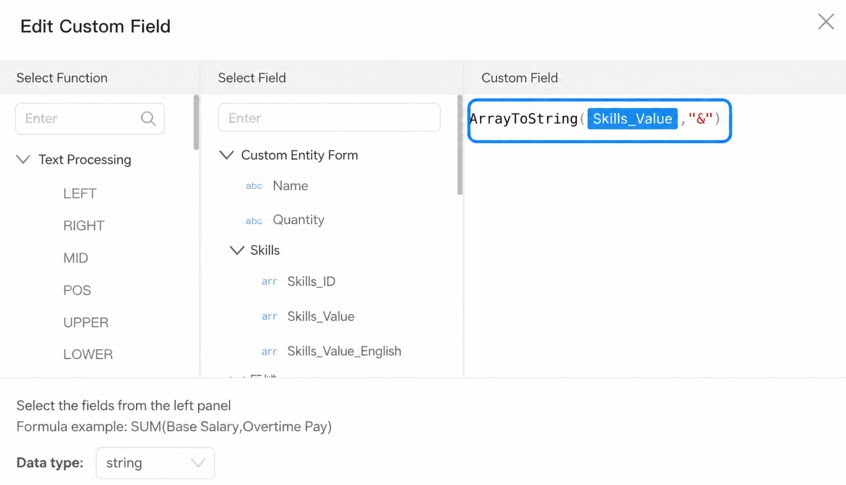
ArrayLength
Usage: ArrayLength(<Array field>). Returns the length of an array. Example: ArrayLength(<Multiselect or other array field>) returns “3” when the field is “Department” with the options “Product, Engineering, Business”.ArrayCat
Usage: ArrayCat(<Array field 1>,<Array field 2>,…). Returns the result of concatenating multiple arrays. Example: ArrayCat(<Multiselect or other array field 1>,<Multiselect or other array field 2>,…) returns “Product, Engineering, Business, Product staff, Engineering staff, Business staff” when Field1 is “Product, Engineering, Business” and Field2 is “Product staff, Engineering staff, Business staff”.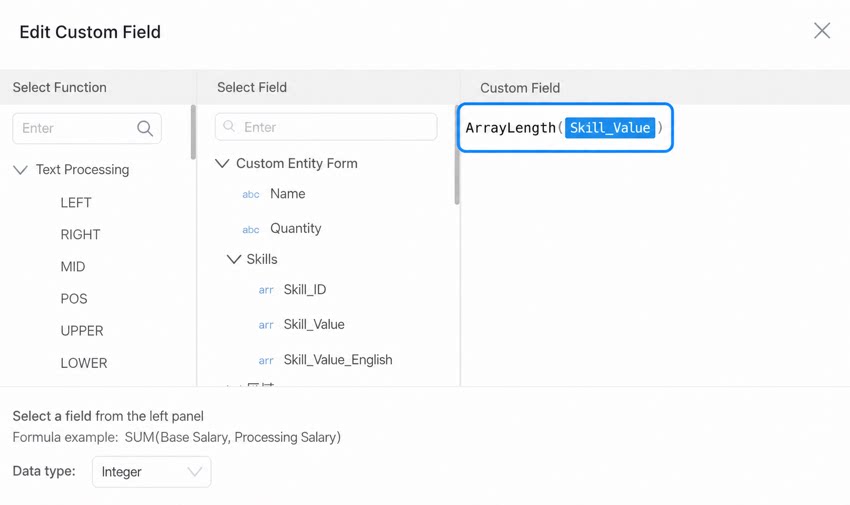
9. Statistical
ROUND
Usage: ROUND(<field>,<precision>). Rounds the field to the specified number of decimal places. Example: ROUND(<Field1>,<precision>). If Field1 is “12.33333” and the precision is 2, the return value is “12.33”.MOD
Usage: MOD(<field>,<field>). Modulo (remainder) operation. Returns the modulo (or remainder) value. Note: To obtain the quotient of division, use the / arithmetic operator. For example, 6/4 returns a quotient of 1 with a remainder of 2. Example: MOD(<Field1>,<Field2>). If Field1 is “6” and Field2 is “4”, the return value is “2”.ParseDouble
Usage: ParseDouble(<field>). Converts a string or integer to a floating-point number. Example: ParseDouble(<field>). If the field value is 3 or “3”, the result is 3.0.ParseInt
Usage: ParseInt(<field>). Converts a string or floating-point number to an integer. Example: ParseInt(<field>). If the field value is 3.2 or “3.2”, the result is 3.10. FAQ
How Do I Use COUNT() in a Report?
COUNT is a function used for counting. Refer to the video below for a detailed explanation.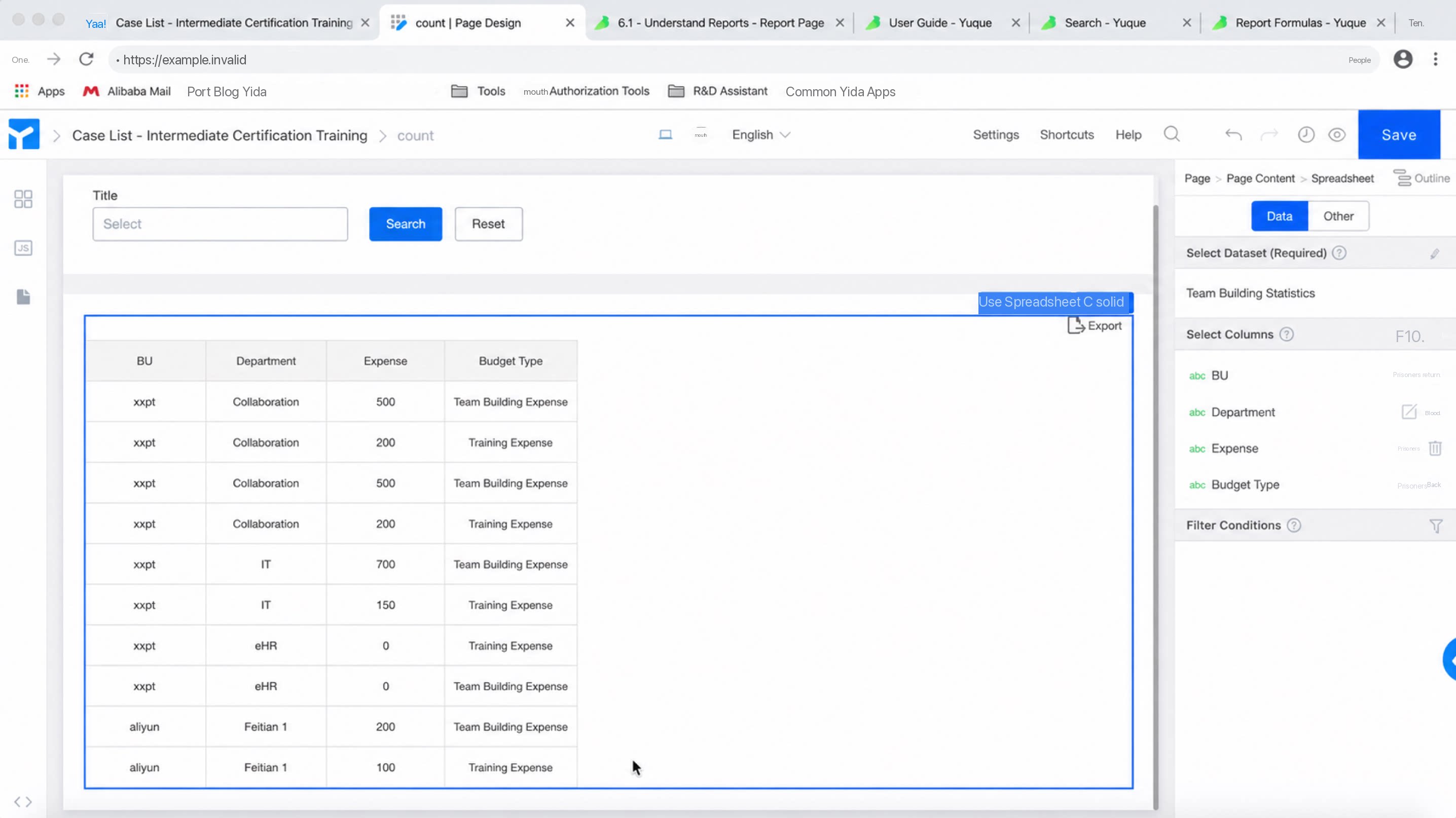
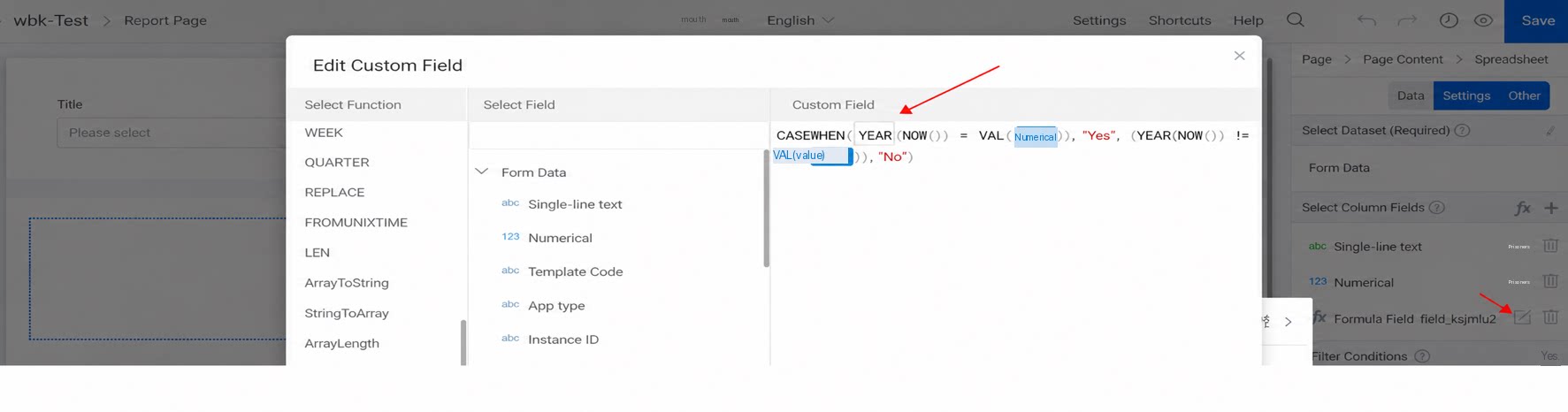
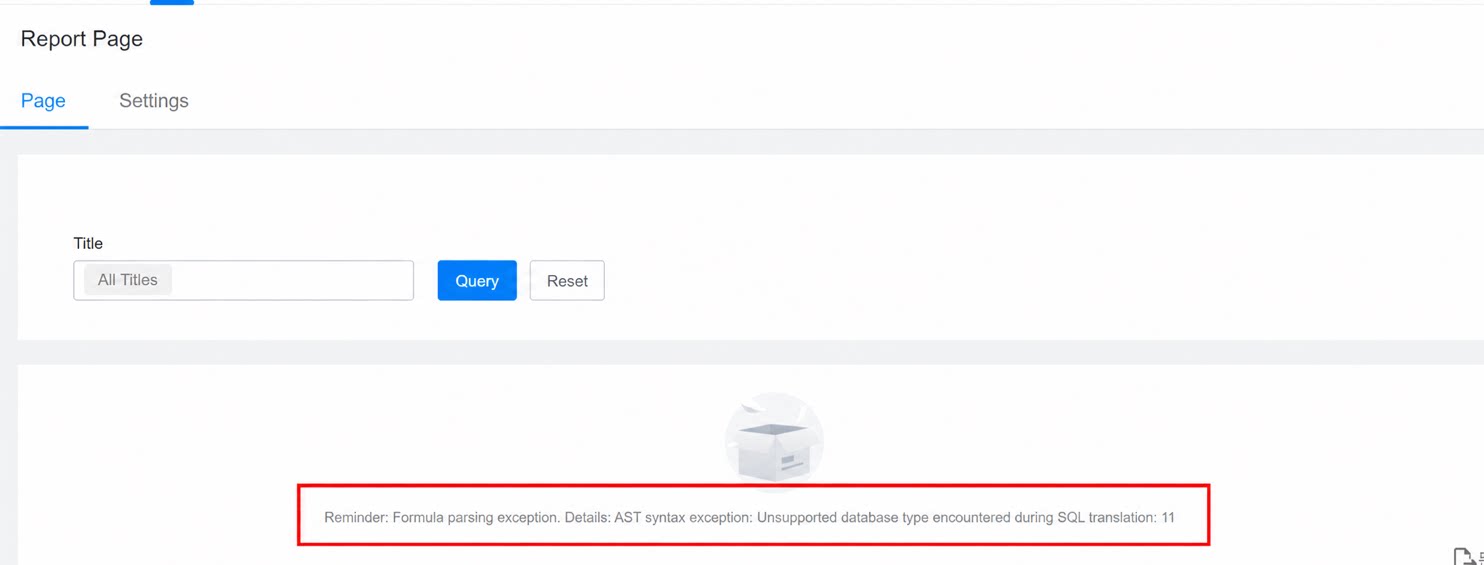
Why Does the Report Show the Error “Formula Parsing Error. Details: AST Syntax Error: Unsupported Database Type Encountered During SQL Translation: 11”?
Report formula fields can use only a limited set of supported functions. Using unsupported functions triggers an error. See the following error screenshot:The CASEWHEN Function Does Not Work When Checking Whether a Component Is Empty.
When checking for empty data in a formula, only theData IS NULL syntax is supported. The Data="" syntax is not supported.