Chats
Chats Calendar
 Meetings
 Contacts
 Mail
Mail Docs
Docs Drive
Drive AI Table
 AI Minutes
 Attendance
 Approval
 YiDA
YiDA Admin Console
Procedure
Follow the steps below to create an Integration & Automation flow with the trigger type set to app event trigger.- Sign in to the YiDA workbench and click My apps.
- Select the app for which you want to create an Integration & Automation flow, and go to the App settings page.
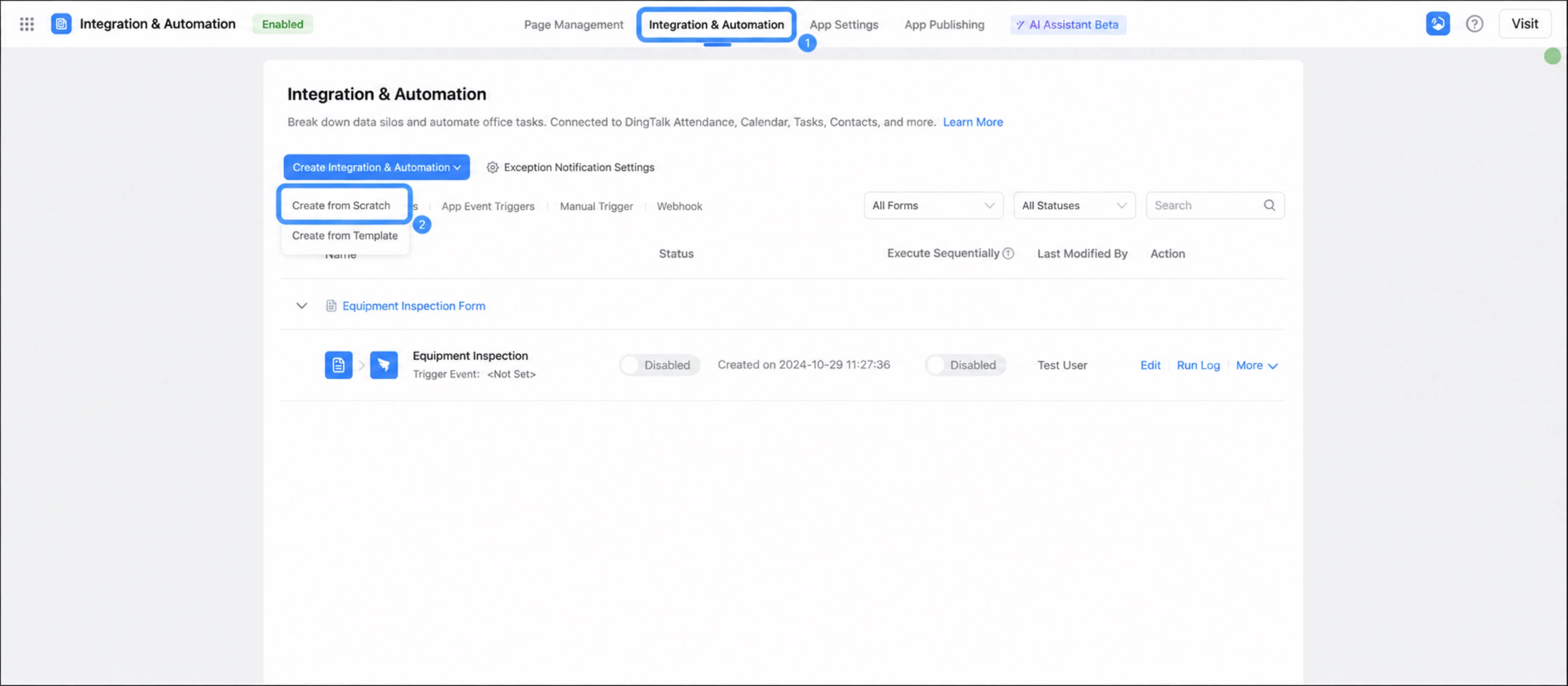
- Click Integration & Automation, then select Create Integration & Automation > Create from blank.
1
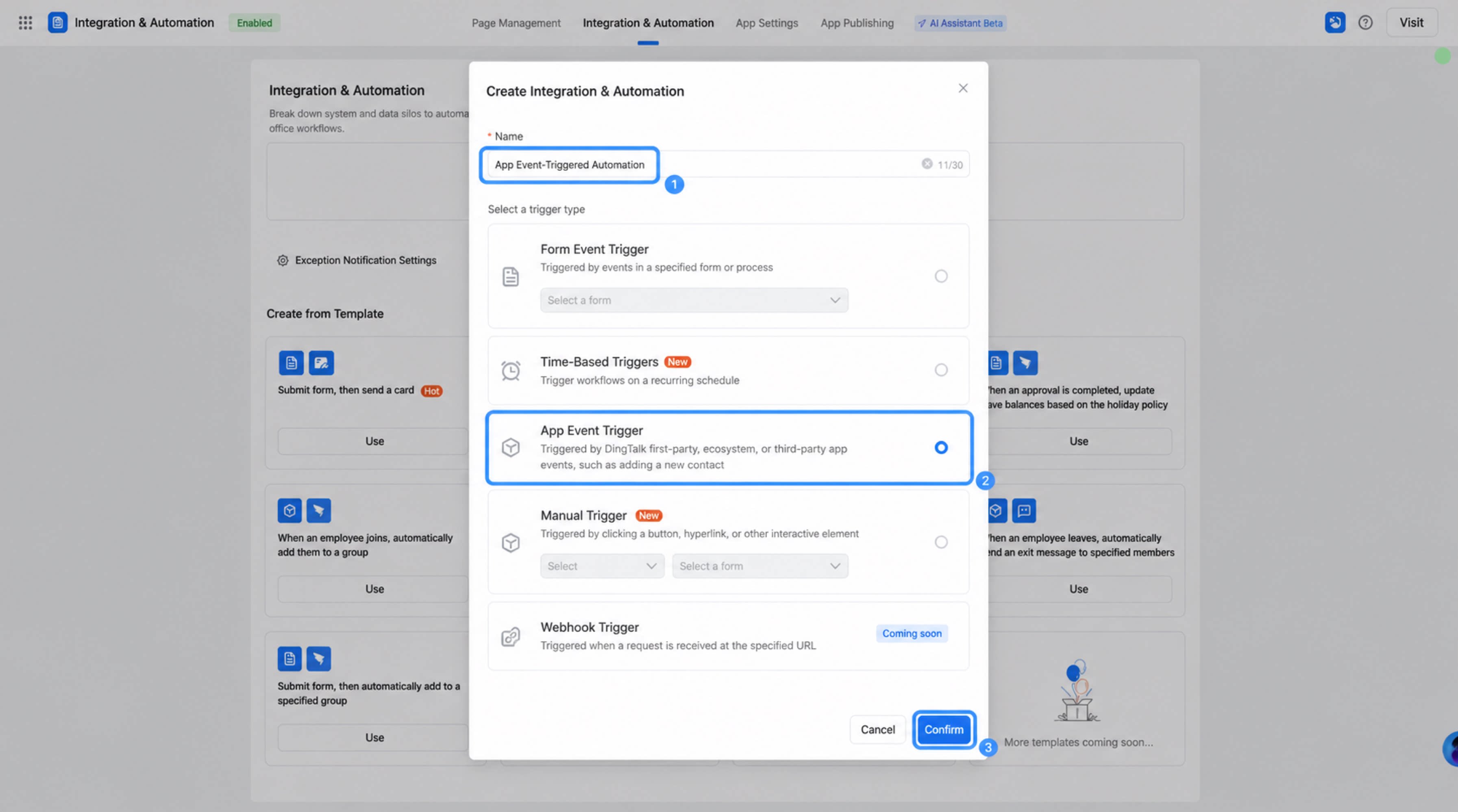
In the dialog box, enter a name for the Integration & Automation flow, select App event trigger as the trigger event, and click Confirm.
2
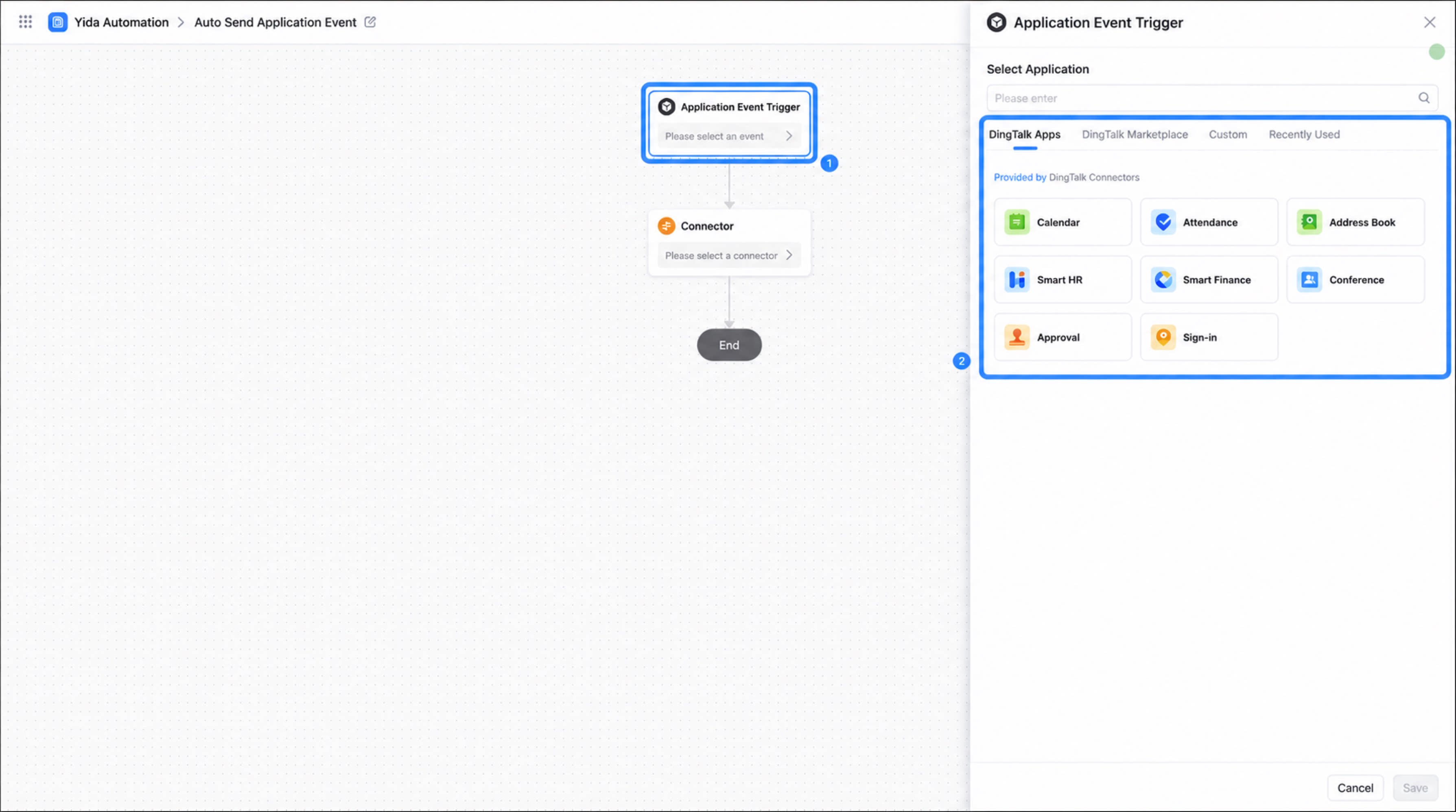
On the Integration & Automation editor page, click App event trigger, and then select the target app in the pop-up window.
3
After the configuration is complete, click Save.