

 Chats
Chats Calendar
 Meetings
 Contacts
 Mail
Mail Docs
Docs Drive
Drive AI Table
 AI Minutes
 Attendance
 Approval
 YiDA
YiDA Admin Console
1. Overview
Upload image-text materials and display them as a news list.2. Feature Entry
[Select any app] — [Edit portal] — [News List component]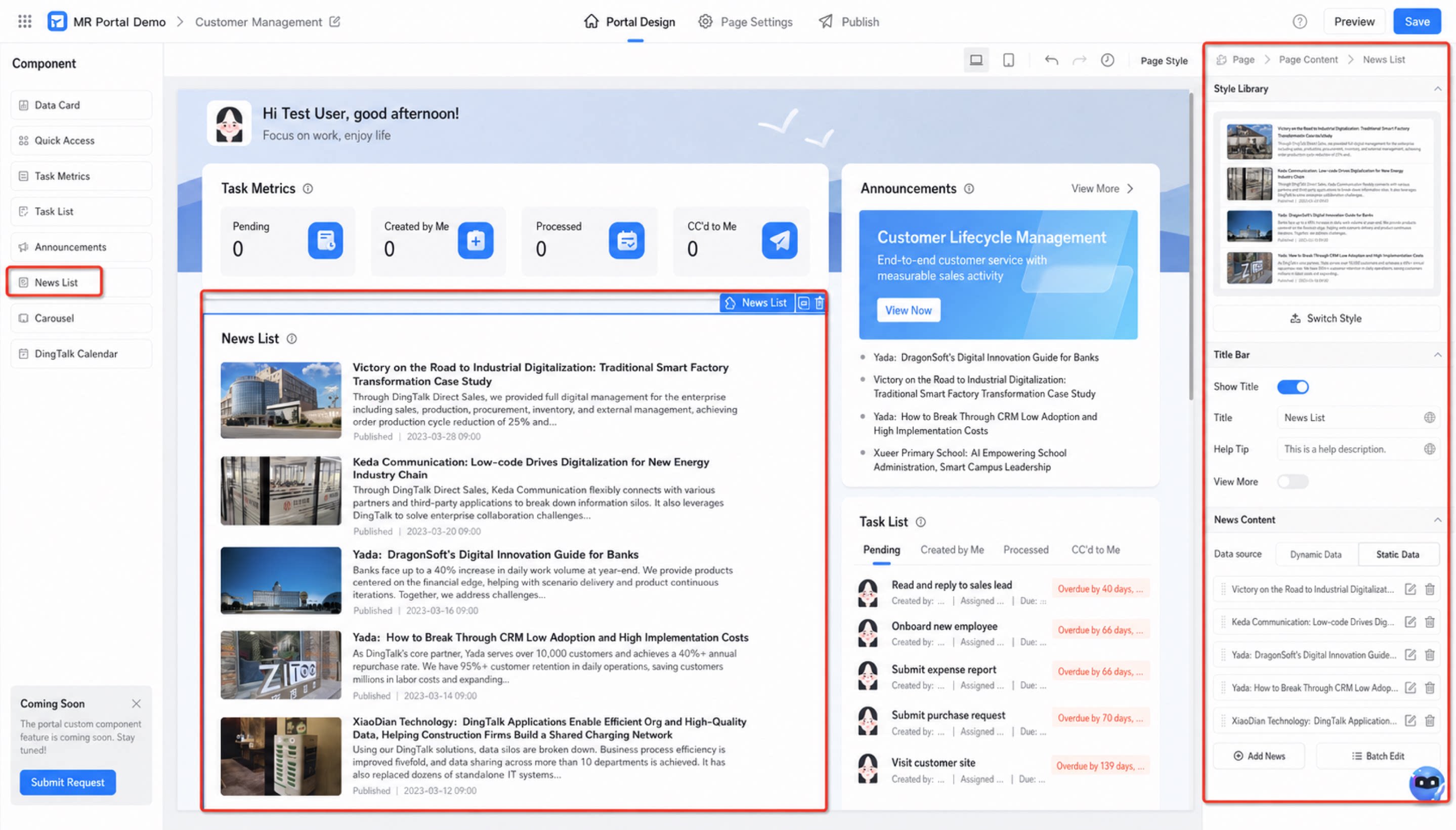
3. Setup Steps
Configure the following component attributes to adjust how the component looks and behaves. After adding a news list to your portal, you can:3.1 Switch Component Style
Click Switch appearance style to change the component style as needed. Two display styles are currently supported.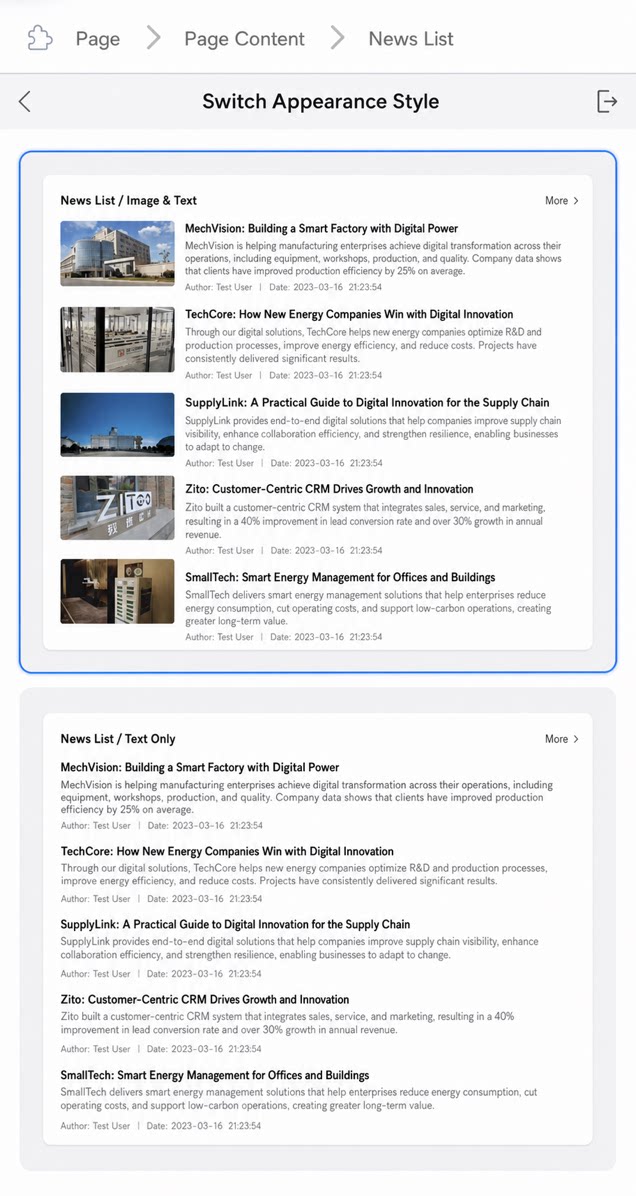
3.2 Adjust the Title Bar
Control whether to show the title, change the title name, set help tips, and toggle the View more option. Once enabled, you must set the redirect URL for View more.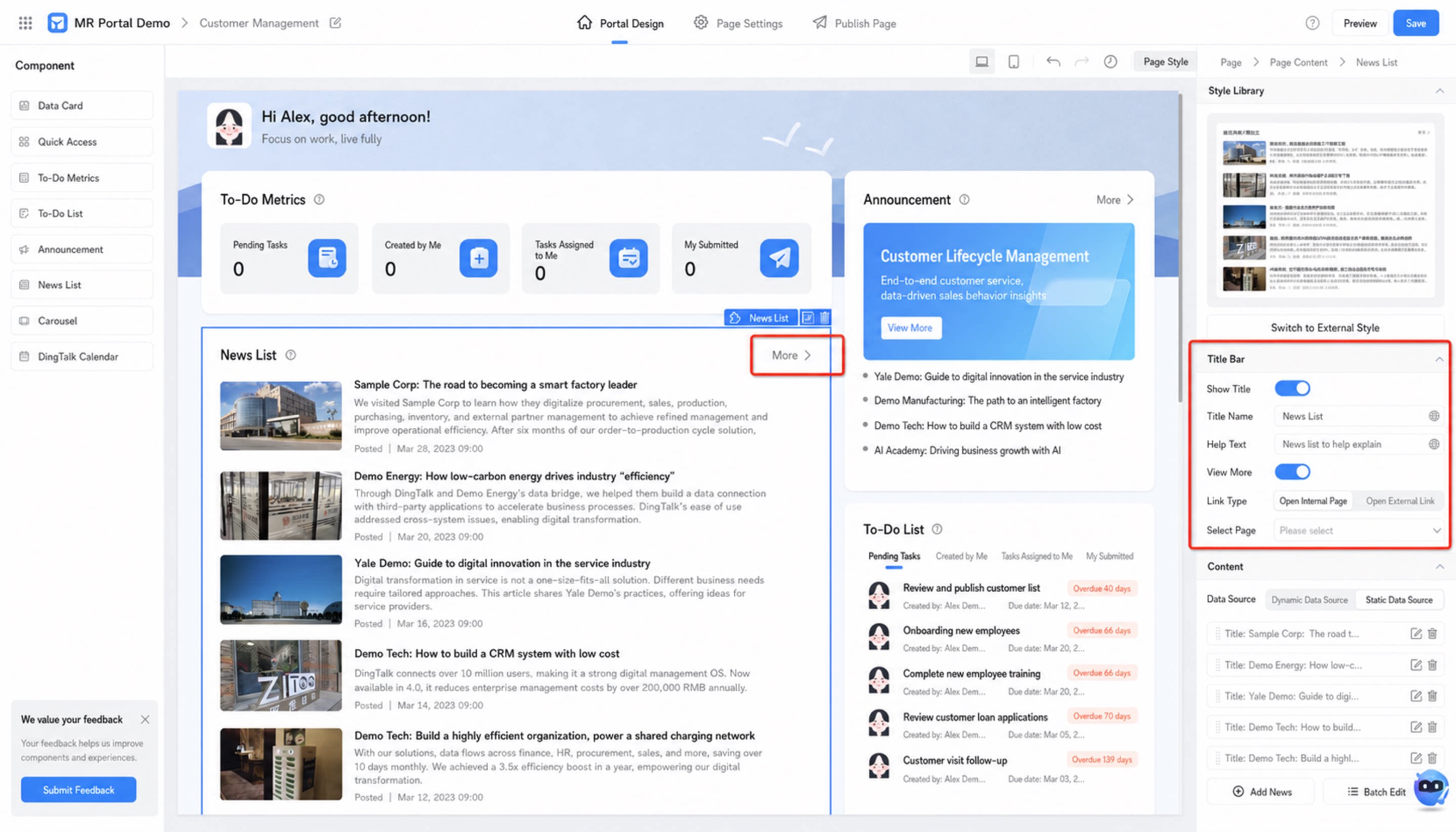
3.3 Configure Content
Configure the data source for the news list. Two data source types are supported: dynamic and static.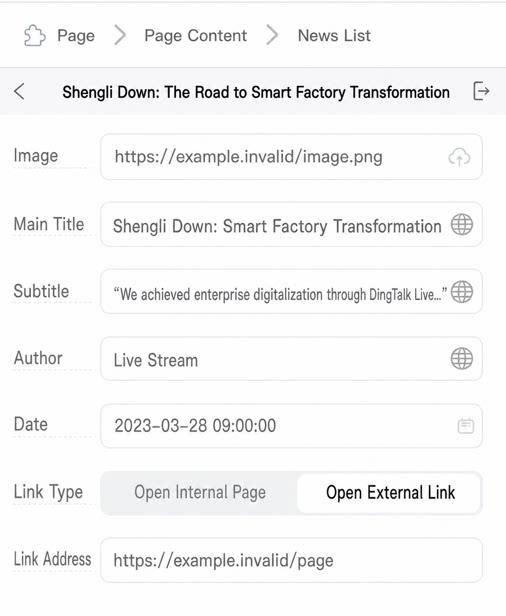 Dynamic data source Dynamic data source |
|
| |
| |
| |
| |
| |
| |
| |
| |
| Static data source |
|
| |
| |
| |
| |
|