Chats
Chats Calendar
 Meetings
 Contacts
 Mail
Mail Docs
Docs Drive
Drive AI Table
 AI Minutes
 Attendance
 Approval
 YiDA
YiDA Admin Console
1. Overview
Quickly view your To-Do list across different workflow statuses. Data is read from the YiDA Task Center by default.2. Entry Point
[Select any app] → [Edit portal] → [To-Do list component]3. Configuration Steps
Adjust the component’s final behavior by configuring the following attributes. After adding the To-Do list component to the portal, you can:3.1 Switch Component Style
Click the “Switch appearance style” button to change the component style as needed. Two display styles are currently supported.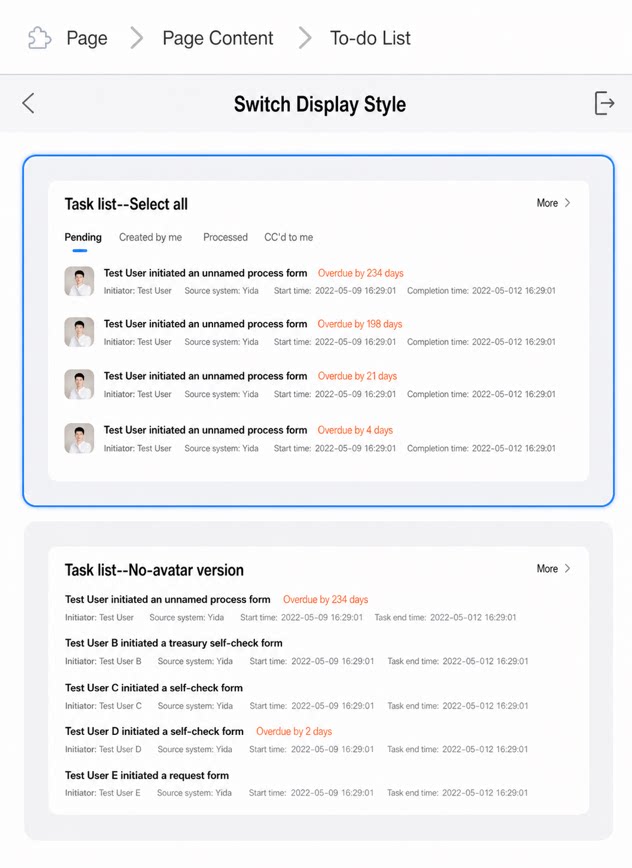
3.2 Adjust the Title Bar
Toggle “Show title”, change the “Title name”, set “Help tips”, and toggle “View more”. When enabled, “View more” redirects to the YiDA Task Center by default.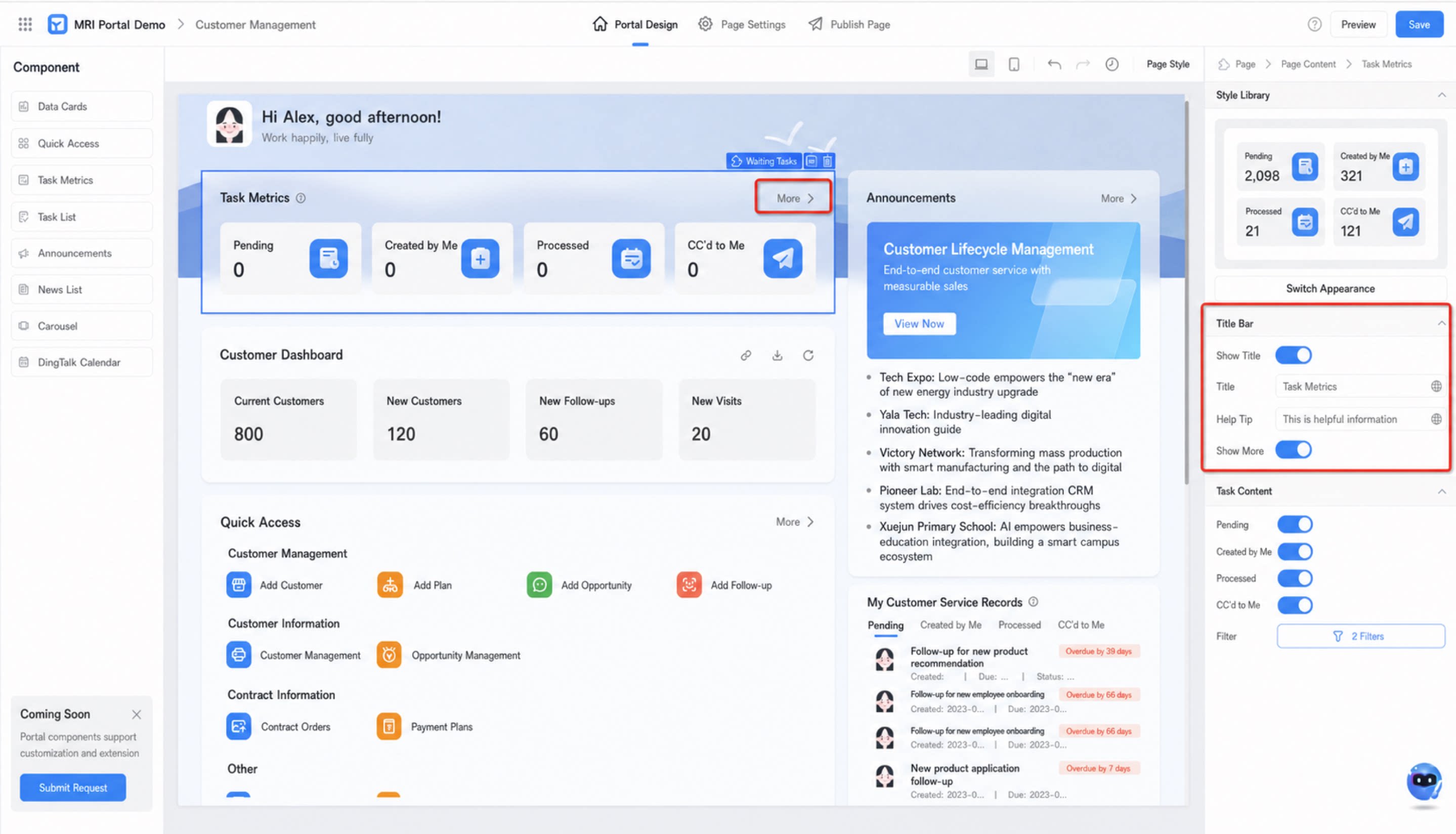
3.3 Configure Content
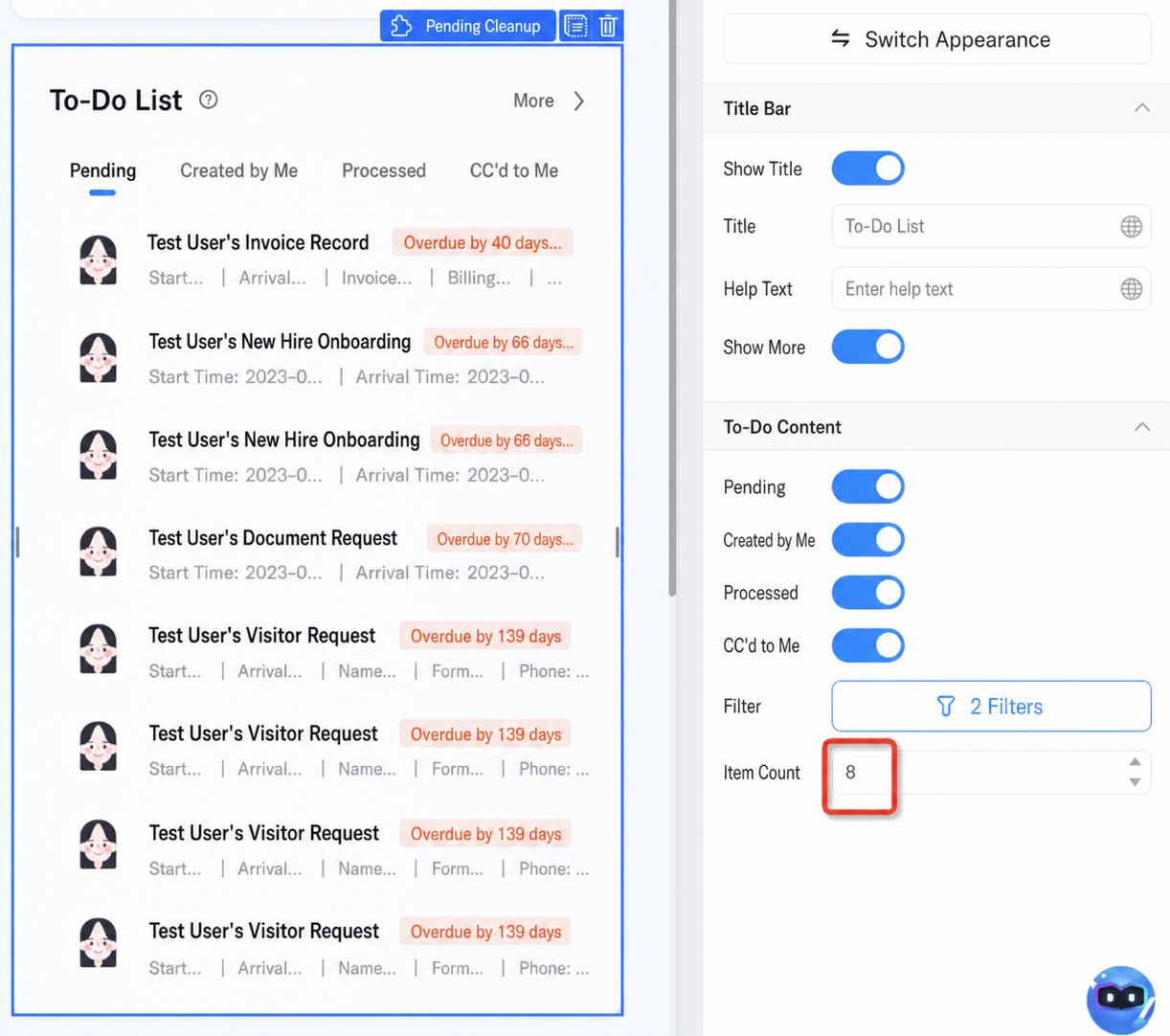
The To-Do metric Data Source reads filtered data from each category in the YiDA Task Center by default. You can also configure the following attributes:- Toggle the visibility of specific task statuses (To be handled by me, Created by me, Handled by me, CC’d to me) as needed.
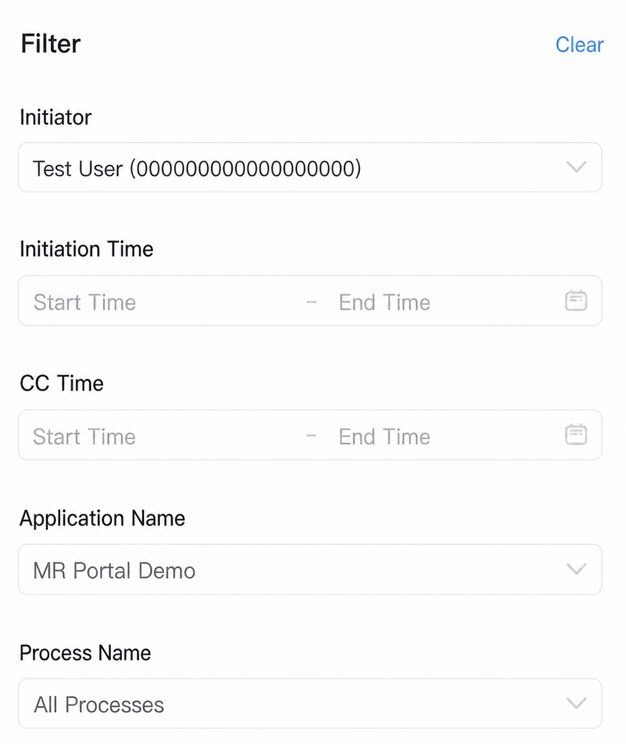
- Configure filter conditions for To-Do data by “Initiator, Initiation time, CC time, App name, Workflow name”.
- Set the “Number of items” to control the maximum number of To-Dos displayed in real time. To view the full list, click “More” to go to the YiDA Task Center.