

 Chats
Chats Calendar
 Meetings
 Contacts
 Mail
Mail Docs
Docs Drive
Drive AI Table
 AI Minutes
 Attendance
 Approval
 YiDA
YiDA Admin Console
1. Overview
Upload multiple images and embed links in them. The images are displayed in a continuous loop.2. Entry Point
Select any app → Edit portal → Carousel component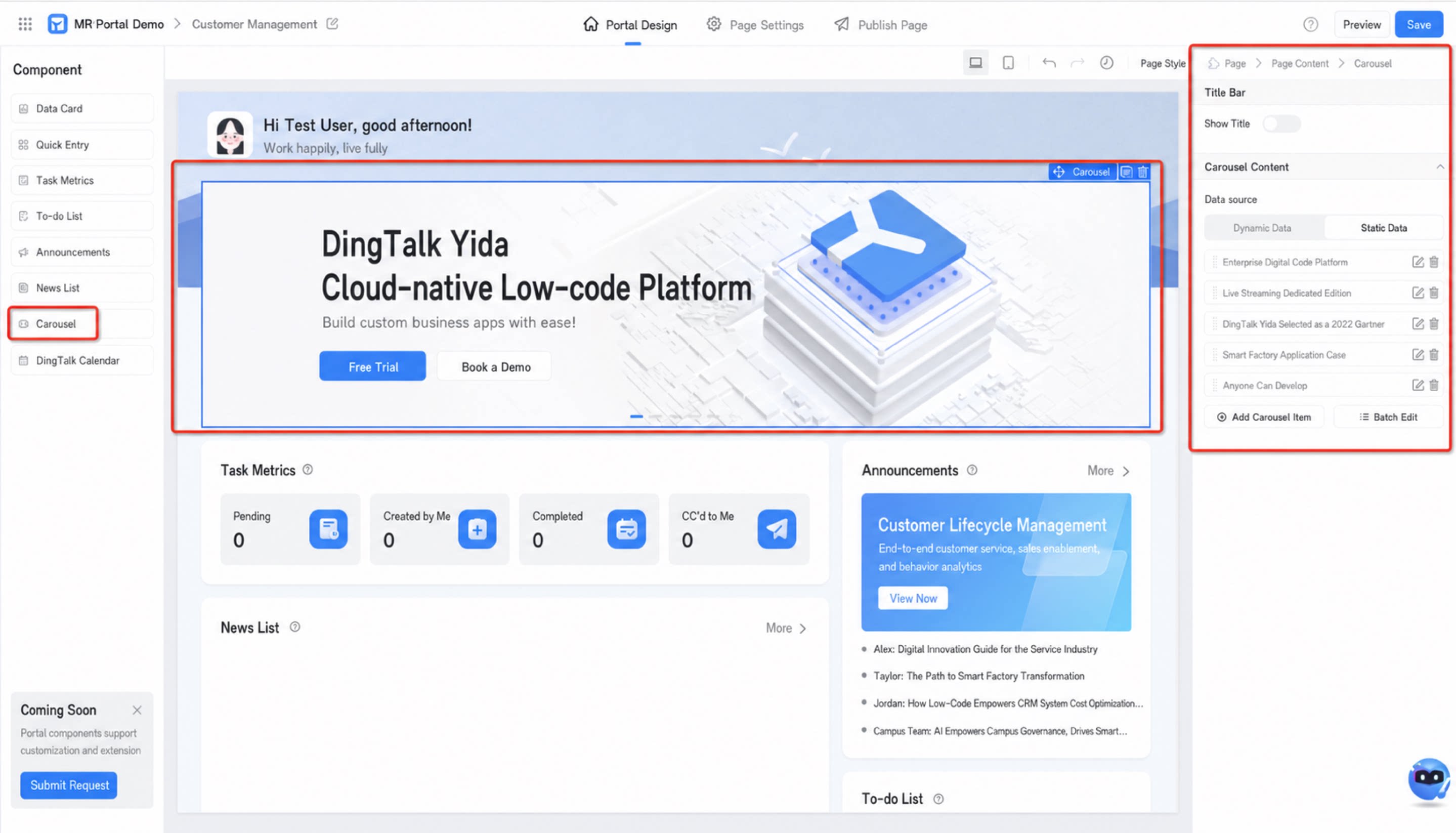
3. Configuration Steps
After adding a carousel to the portal, configure the following attributes to adjust how the component behaves:3.1 Adjust the Title Bar
Turn the “Show title” option on or off.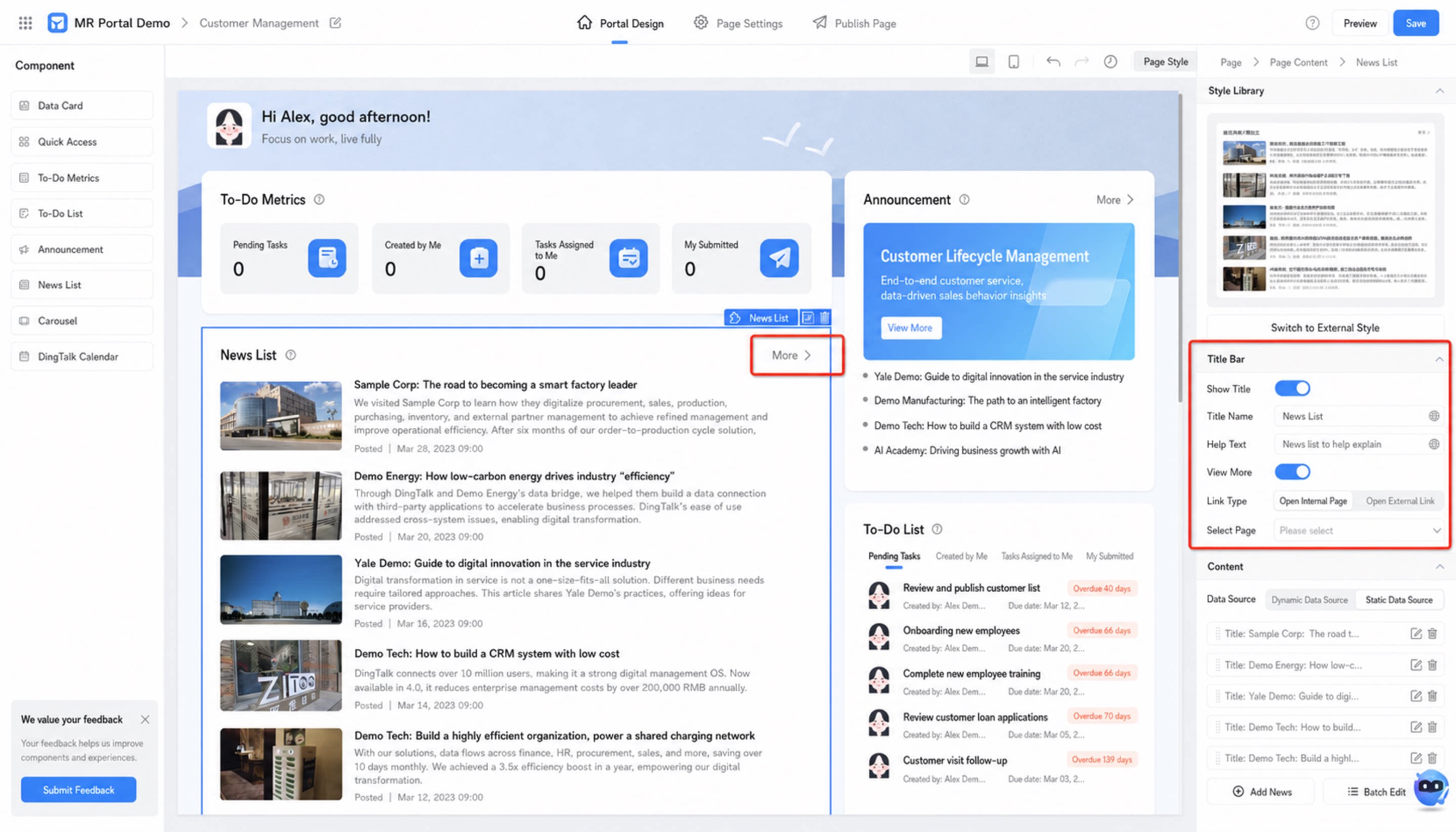
3.2 Configure Content
Configure the data source of the carousel. Two types of data sources are supported: dynamic and static.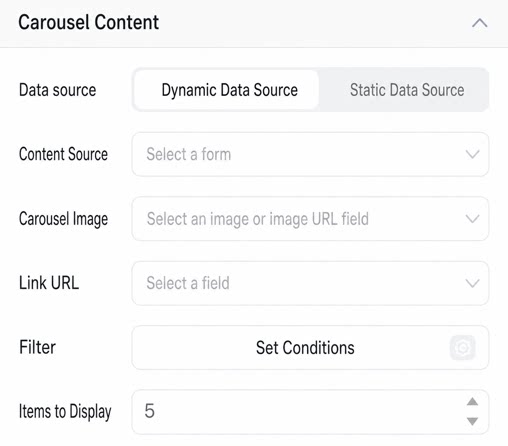 Dynamic Data Source Dynamic Data Source |
|
| |
| |
| |
| |
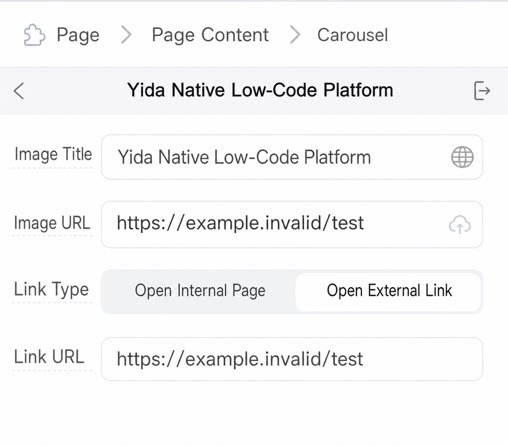 Static Data Source Static Data Source |
|
| |
|