Chats
Chats Calendar
 Meetings
 Contacts
 Mail
Mail Docs
Docs Drive
Drive AI Table
 AI Minutes
 Attendance
 Approval
 YiDA
YiDA Admin Console
Configure Signature
1
Step 1
Sign in to the YiDA workbench. Select the target app and go to the app’s Page Management page.
2
Step 2
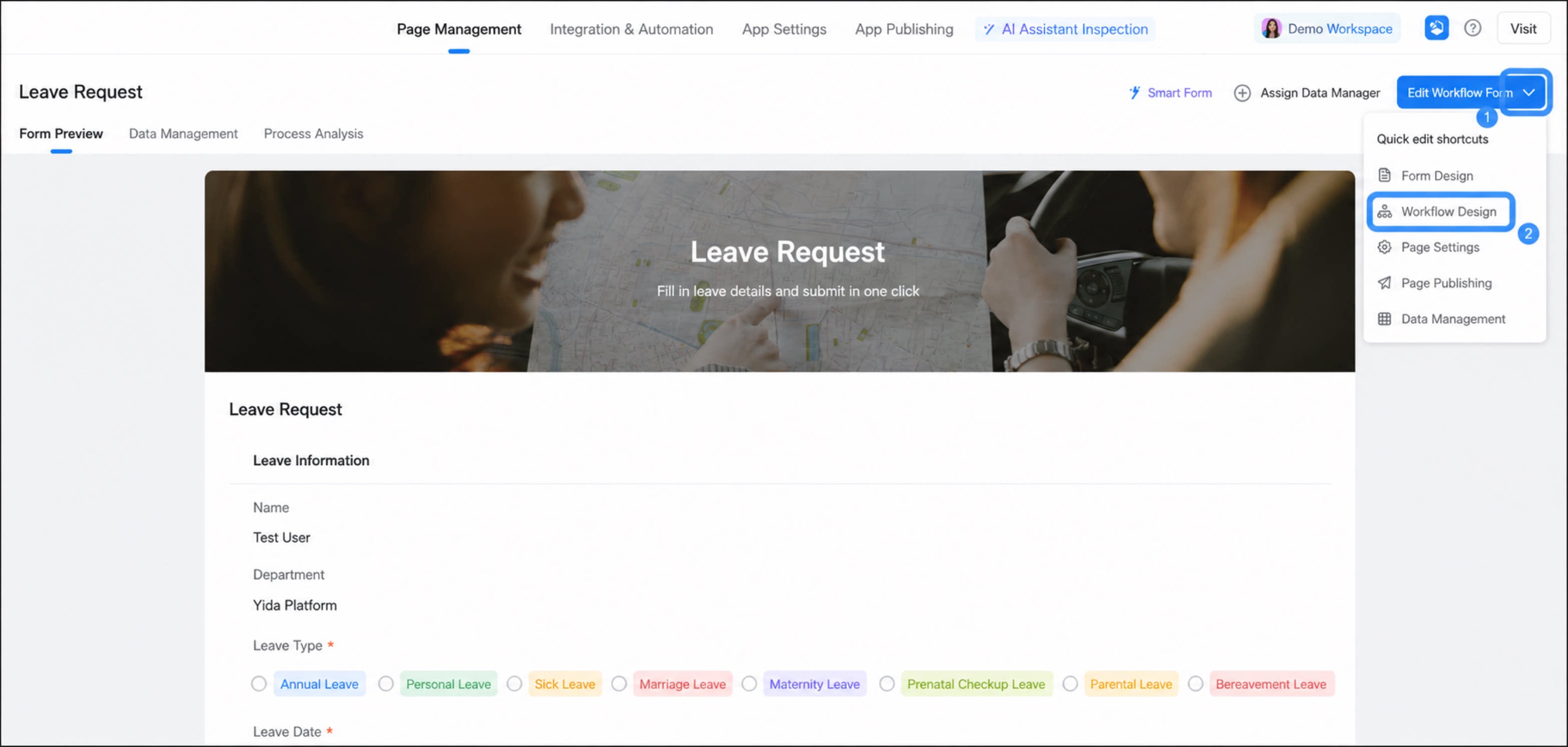
Select a workflow form, click the inverted triangle next to the edit option, and click Workflow Design. 
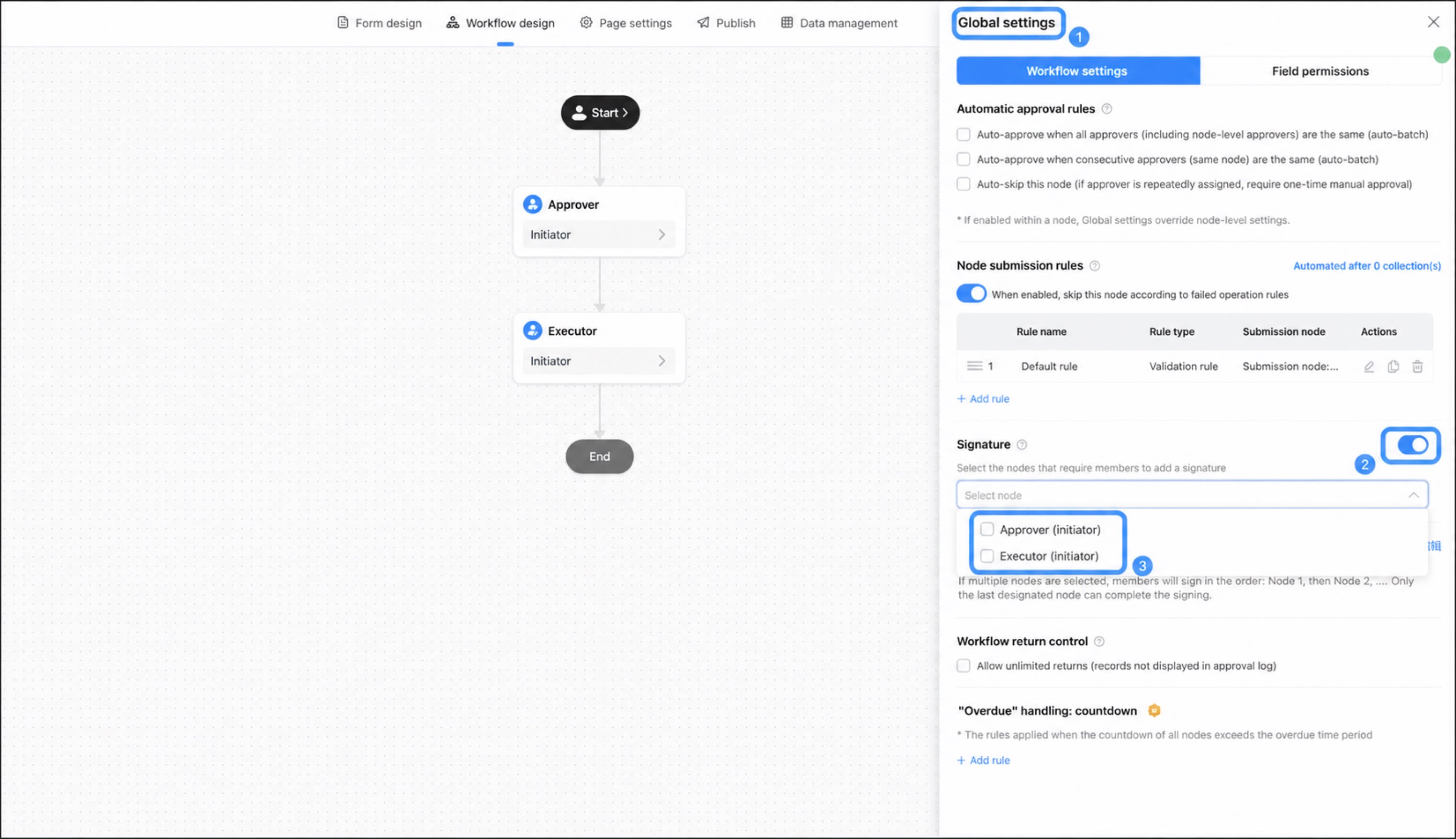
- Click Global Settings, select Signature, and turn on the Signature feature.
- Select the steps where you want to enable the signature.
Use Signature
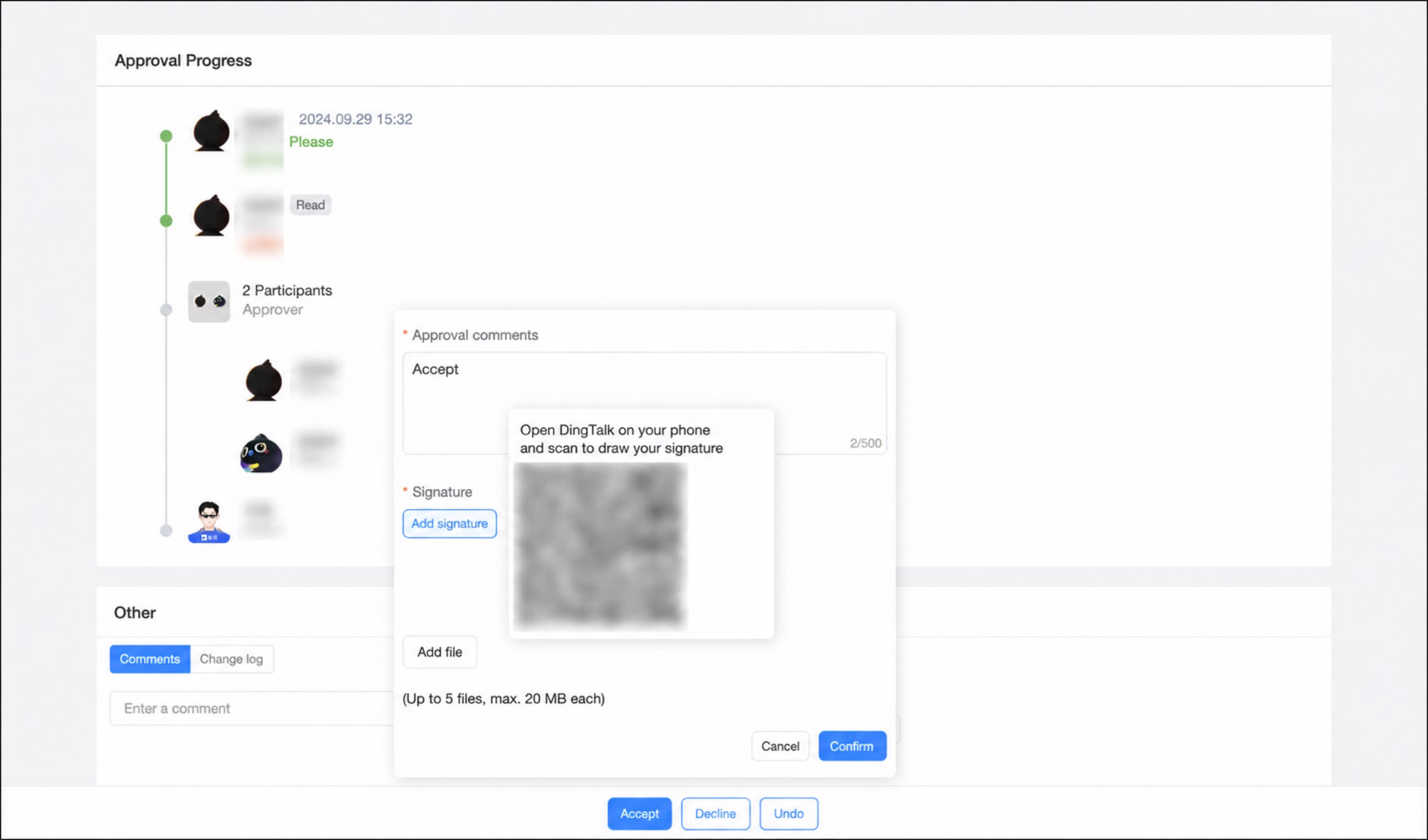
Signature is currently supported only on mobile, not on PC. If you operate on a PC, you are prompted to scan a QR code with your phone to sign. After your first signature, subsequent approvals use it by default. To sign again, tap Reset Signature on the signing screen.