

 Chats
Chats Calendar
 Meetings
 Contacts
 Mail
Mail Docs
Docs Drive
Drive AI Table
 AI Minutes
 Attendance
 Approval
 YiDA
YiDA Admin Console
Overview
Timeout handling rules are one of the premium settings for the approver Step and the executor Step in workflow design. When a process reaches an approver or executor step, and the approver or executor does not respond within the configured time, the system automatically performs the execution action selected in the rule. With five execution actions, four time dimensions, and two reminder methods, timeout handling reduces approval process duration from multiple angles. It also ensures effective delivery of information, lowers process operation costs, and better meets the approval needs of organizations.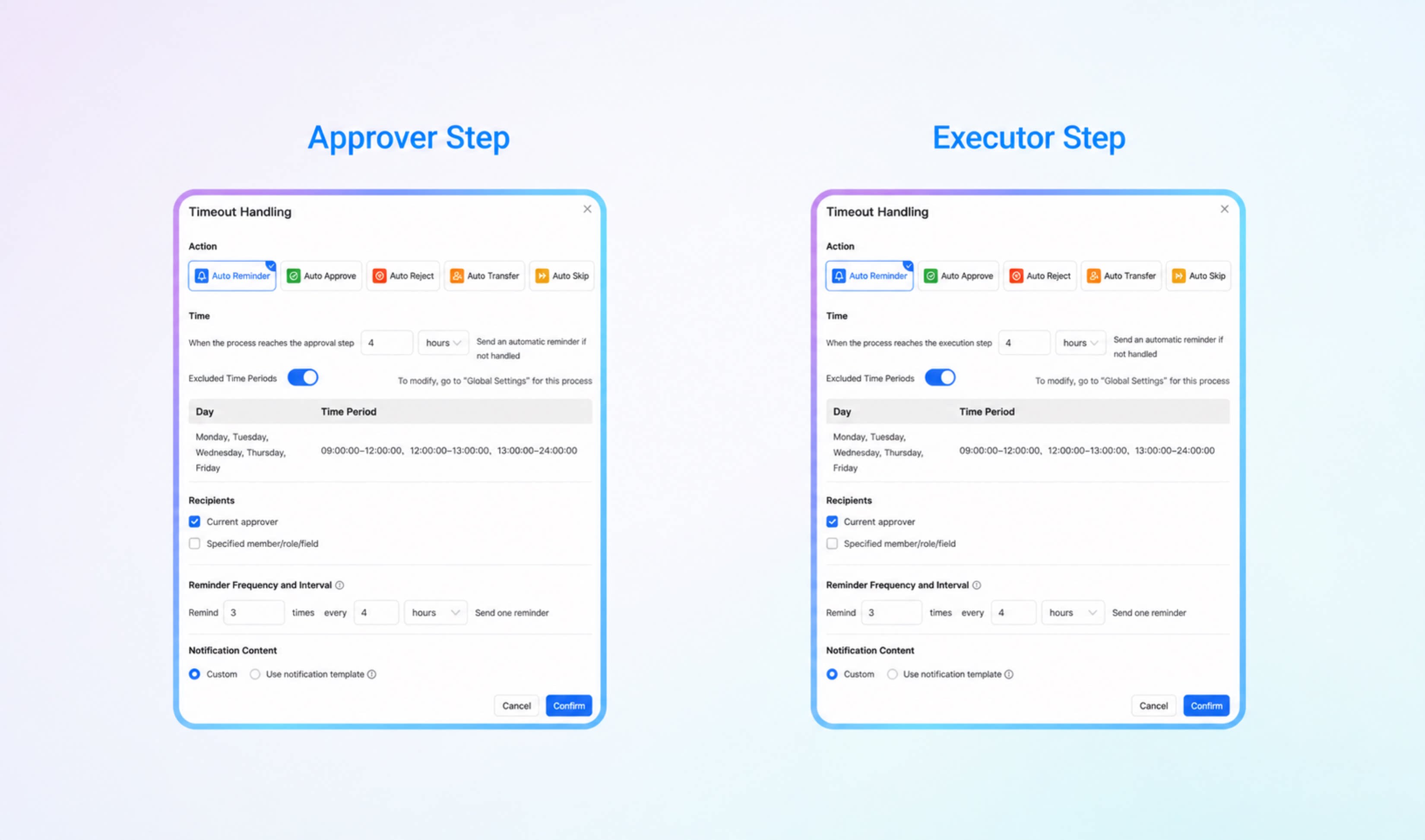
Instructions
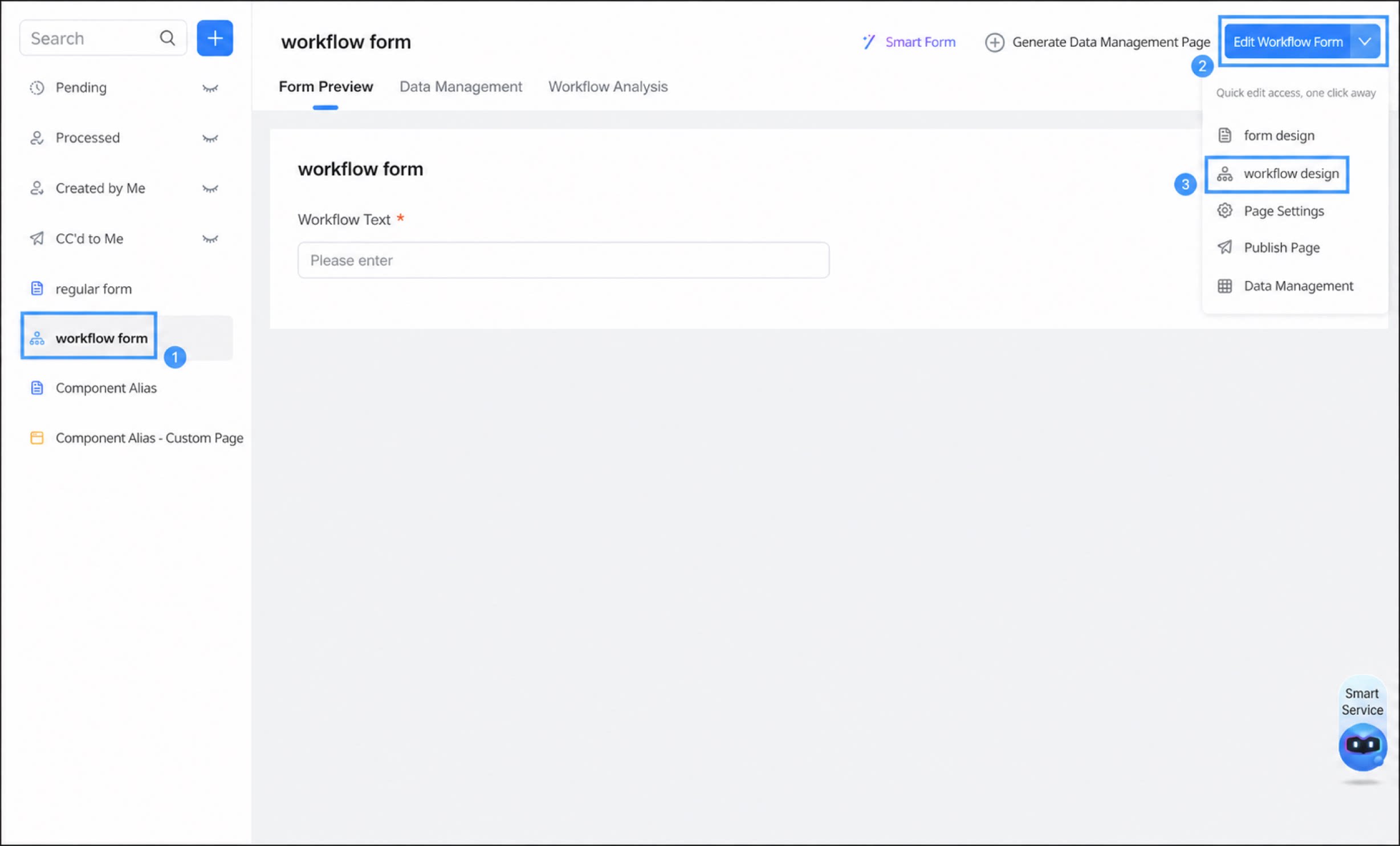
- Sign in to the YiDA workbench, open the app editing page, and select the form for which you want to configure timeout rules.
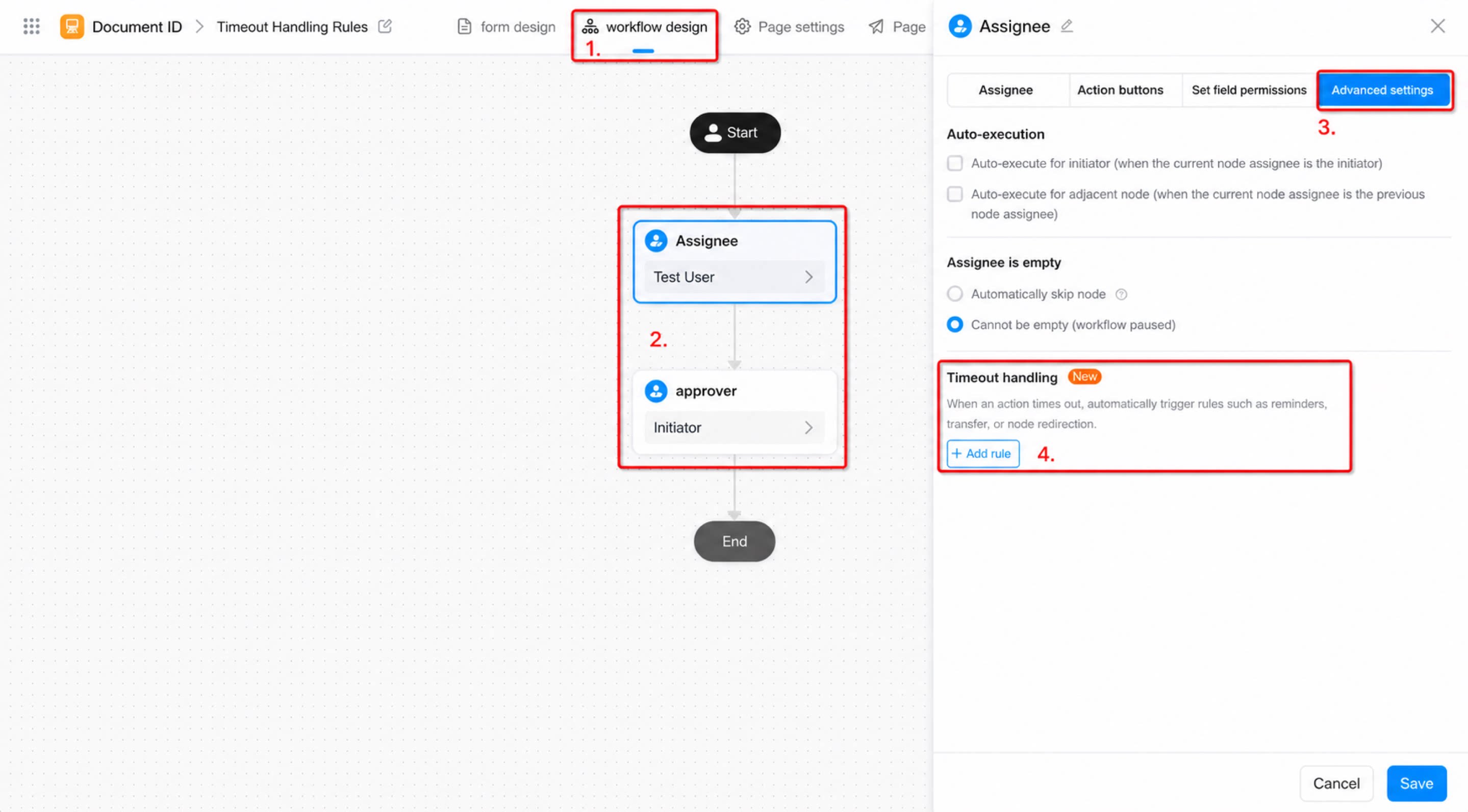
- In the upper-right corner of the page, choose Edit workflow form > Form design.
- Select the approver step or executor step, click Premium settings, and choose Timeout handling.
Configuration Items
Execution Action
The timeout handling rule configuration includes five execution actions:- Auto-remind: The system sends a DingTalk Work Notification and a To-Do message notification to the specified users.
- Auto-transfer: The system transfers the process to the specified users.
- Auto-redirect: The system redirects the process to a step in the workflow other than the current step.
- Auto-accept (approver step only): The system automatically sets the approval status of the current step to “Accept”.
- Auto-decline (approver step only): The system automatically sets the approval status of the current step to “Decline”.
Time
The time configuration items for timeout handling rules include the following dimensions:- Statutory workdays: Counts workdays only, excluding statutory holidays and weekends. This meets the approval needs of organizations and aligns with their work habits. Supports a date granularity from 1 day to 31 days.
- Calendar days: Counts all days, including statutory holidays and weekends, to meet the special needs of organizations. Supports a date granularity from 1 day to 31 days.
- Hours: Handles time by the hour to ensure process efficiency. Supports a time granularity from 1 hour to 744 hours.
- Minutes: Uses minutes as the calculation unit, which is convenient for handling urgent events. Supports a time granularity from 10 minutes to 44,640 minutes.
- The number of timeout reminders is configurable. The default is one, with a maximum of ten.
- When the time granularity is set to hours, you can configure time ranges.
Non-Counting Time Period
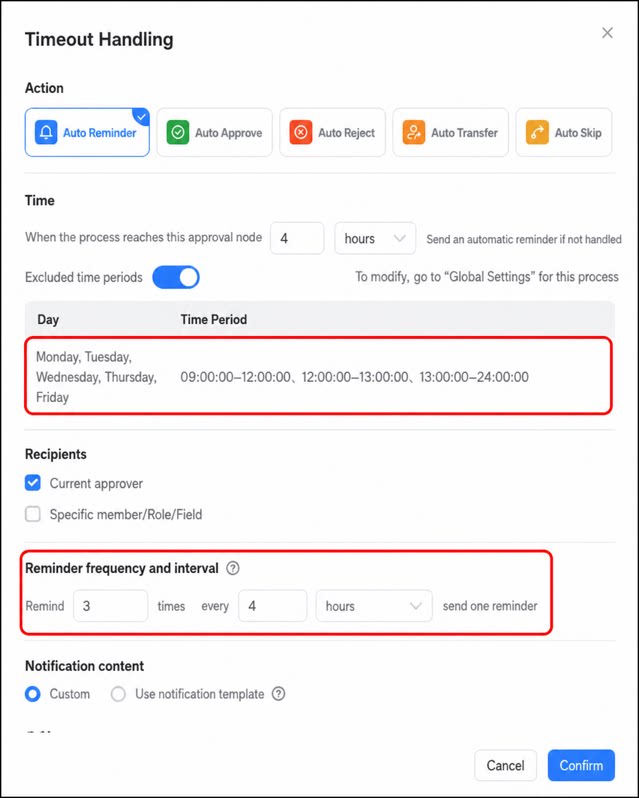
A non-counting time period is a time period that is not counted toward the timeout reminder. It consists of a day of the week plus a time range. You can set multiple days of the week within one rule. Each day of the week can appear in only one rule, and each time range within a rule can be selected only once. Non-counting time periods can only be set in the workflow’s global configuration. After the setup is successful, simply turn on the Non-counting time period option in the Timeout handling rule of the relevant step. Example: Daily work hours are 9:00 – 17:00, and no timeout reminders should be triggered outside of work hours. In this case, set the non-counting time periods to 0:00 – 9:00 and 18:00 – 24:00, and set the timeout reminder rule to Workdays.Repeat reminders are affected by non-counting time periods.Example: An approver step has its timeout reminder rule set to Reminders on workdays only, with a reminder every 4 hours after the process reaches this step, for a total of 3 reminders. The non-counting time periods are Monday to Friday, 0:00 – 9:00, 12:00 – 13:00, and 18:00 – 24:00.In this case, if the process arrives at 15:00 on Thursday afternoon, then:
- The first reminder is sent at 10:00 on Friday.
- The second reminder is sent at 15:00 on Friday.
- The third reminder is sent at 10:00 on the following Monday.
Recipients and Notification Content
Used to select the recipients of message notifications and configure the message content. Only available for the auto-remind execution action. Includes: Recipients: Select the recipients of message notifications.- Current approver: The users selected for the current step in the process.
- Specified User/Role/Field: Users in the Organization Structure / users set for the role / users selected in the member component on the page.
Transfer To
Used to select the users who will handle the step. You can specify users / select users from the workflow form / choose the direct supervisor of the current approver to handle the process. (Only available for the auto-transfer execution action.)Redirect To
Used to redirect to a step in the workflow other than the current step and automatically skip the current step.FAQs
Q: When configuring auto-transfer, if the direct supervisor of the approver is chosen but the direct supervisor does not exist, how will the process flow?
Q: When configuring auto-transfer, if the direct supervisor of the approver is chosen but the direct supervisor does not exist, how will the process flow?
The system will terminate the transfer action.
Q: Do timeout handling rules apply to historical data?
Q: Do timeout handling rules apply to historical data?
Timeout handling rules do not apply to historical data.