

 Chats
Chats Calendar
 Meetings
 Contacts
 Mail
Mail Docs
Docs Drive
Drive AI Table
 AI Minutes
 Attendance
 Approval
 YiDA
YiDA Admin Console
An executor does not make decisions. The executor completes a task and returns the workflow to the approver for further handling. The executor’s work is unrelated to approval.
For example, in a finance approval scenario, the finance manager handles the approval and the cashier makes the payment. The finance manager is the approver and controls the direction of the workflow (Accept, Decline, transfer, and so on). The cashier is the executor and only performs a specific action.
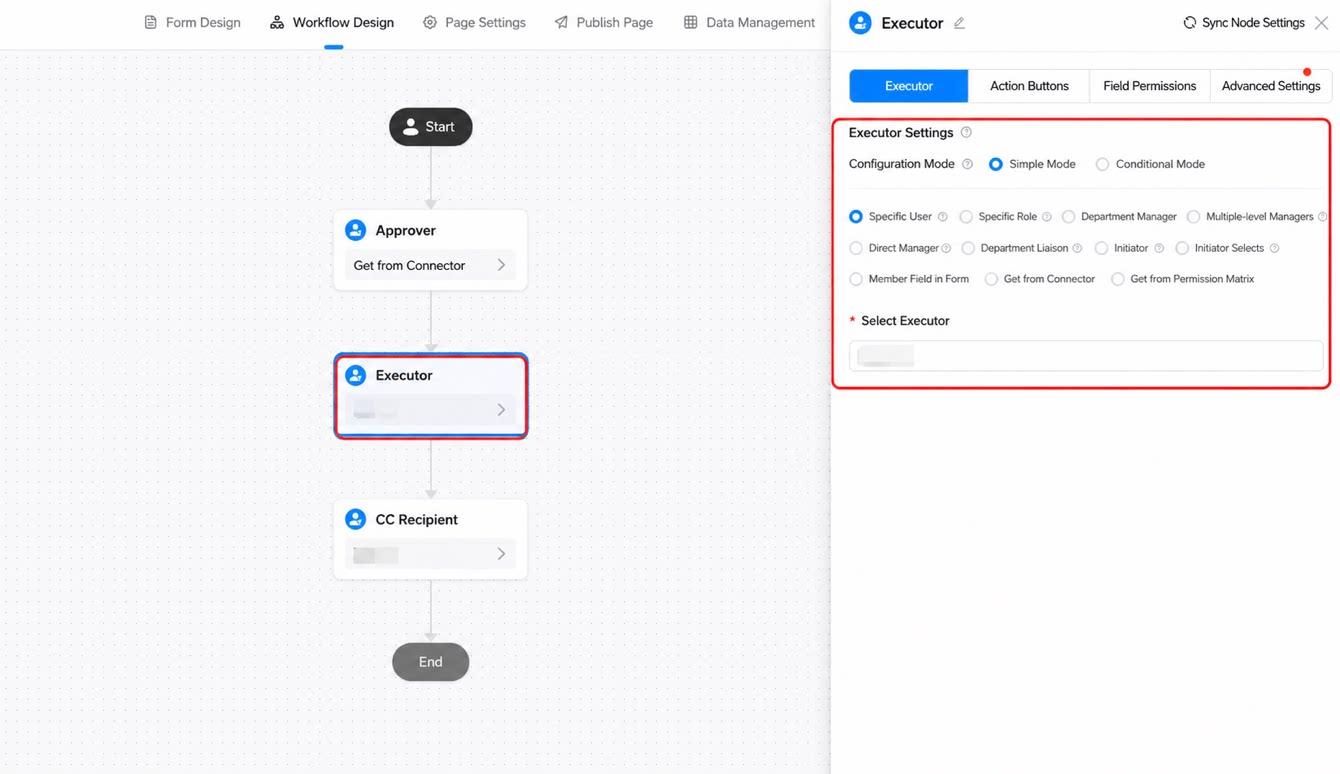
Add an Executor Node
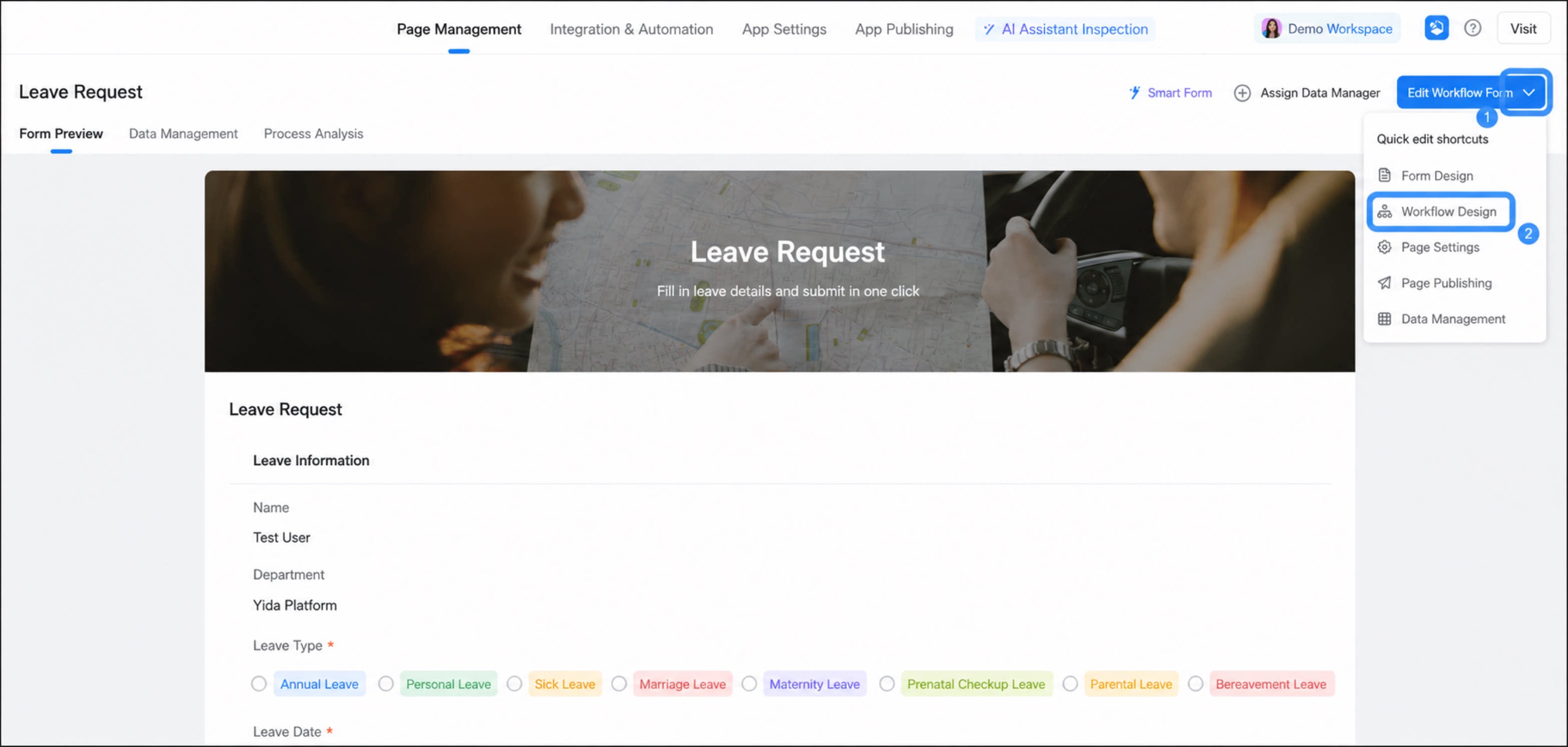
Follow these steps to add an Executor node.1
Step 1
Sign in to the YiDA workbench. Select the target app to open its Page management page.
2
Step 2
Select the workflow form, click the down arrow next to Edit workflow form, and then click Workflow design. 
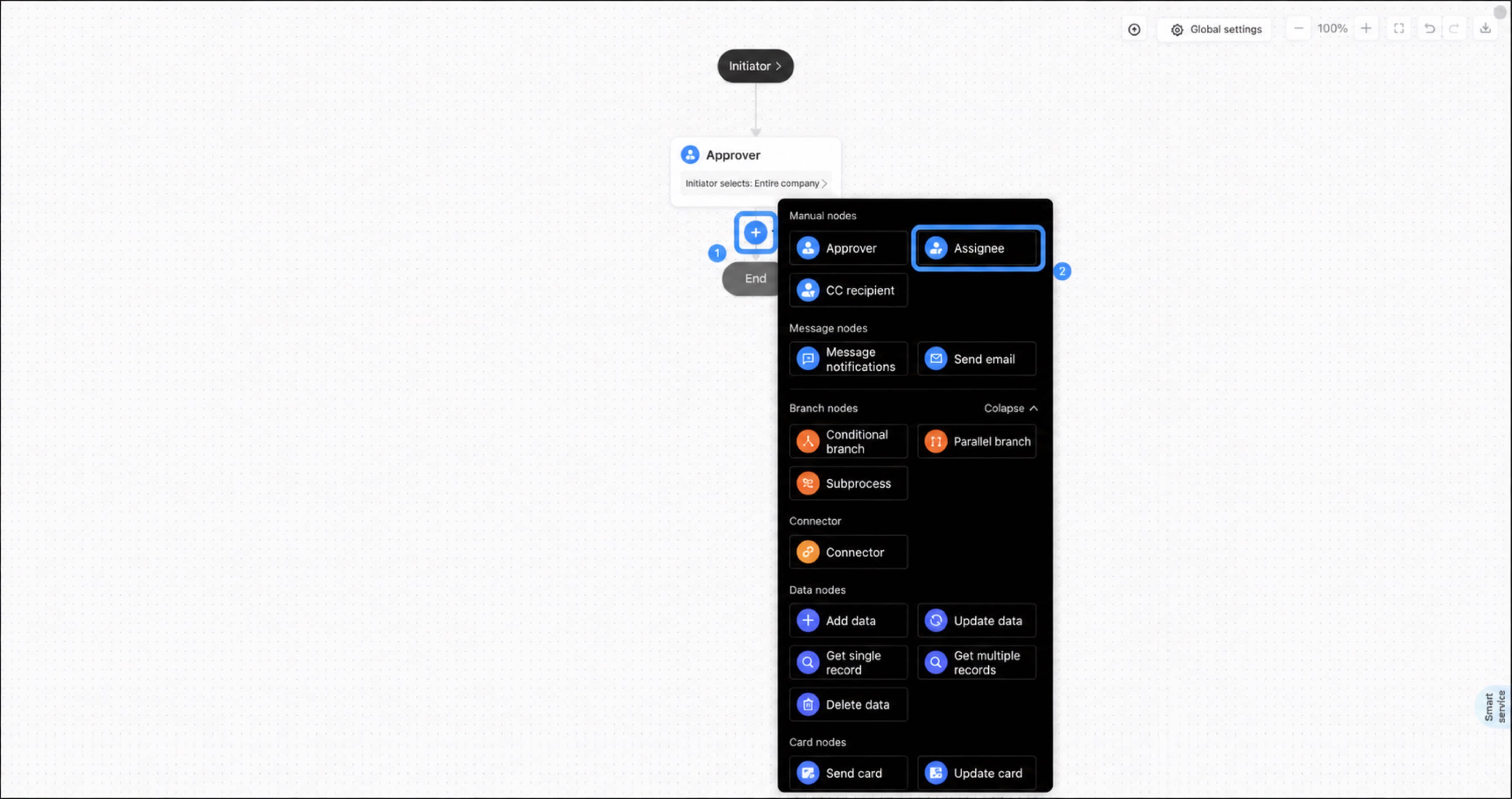
- Move the cursor over the connector line between two steps. A + button appears. Click + and select the Executor node.
Executor Settings
The role of an executor varies across business scenarios. The YiDA Executor node currently supports the following executor types.Specified Users
Specified users means the executors of this step are fixed. Multiselect is supported.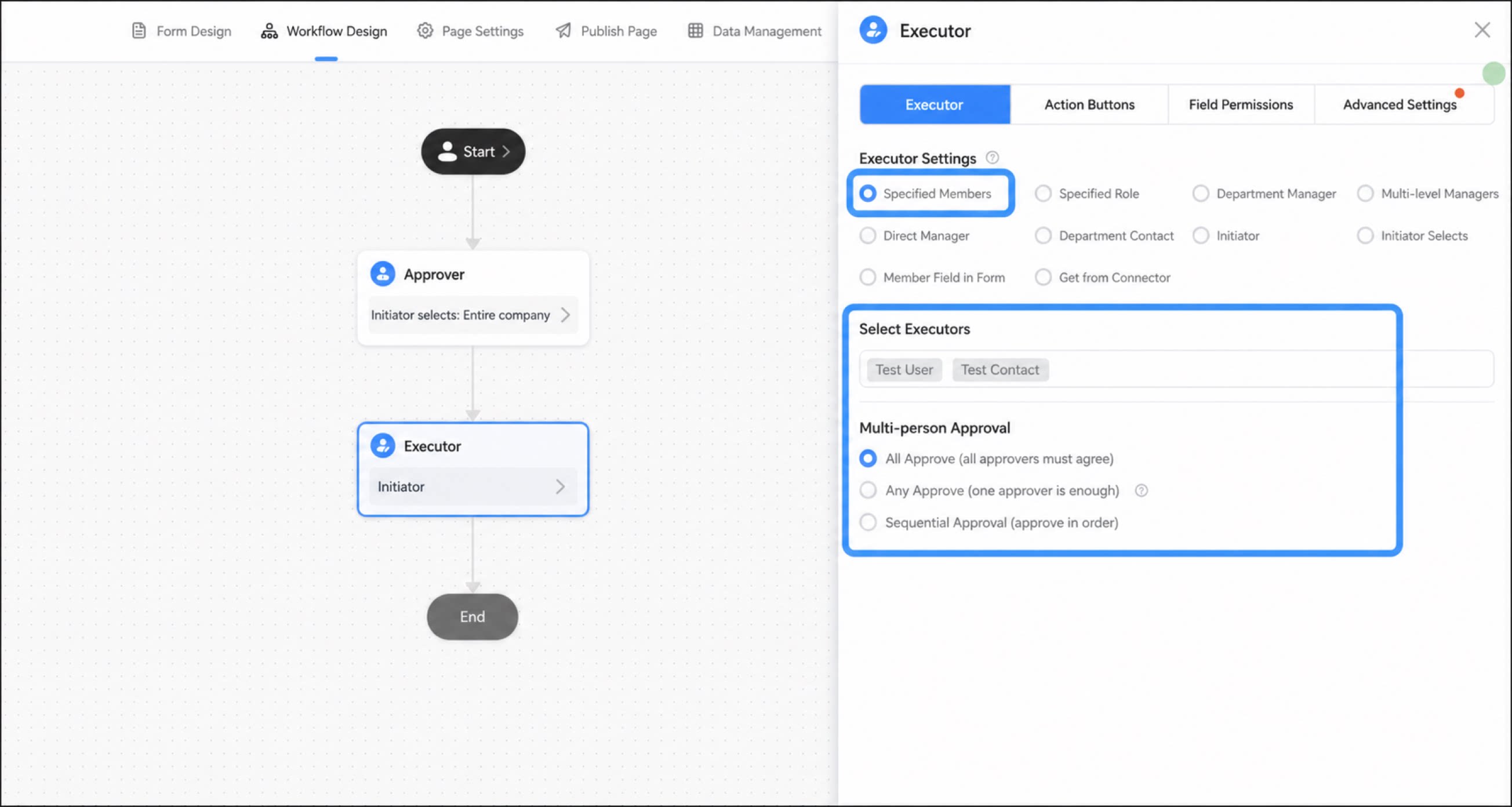
- Any (OR): All users configured on this step receive a notification. Once any executor completes the action, the workflow moves to the next step. The final result is determined by the first person who acts.
- All (AND): The workflow moves to the next step only after all executors on this step complete the action.
- Sequential: Executors act one by one in the configured order.
Specified Roles
Assign an action to a role to tag multiple people at once. You can use a DingTalk role or a YiDA role.- Manage YiDA roles on the YiDA workbench > platform management page.
- Manage DingTalk roles in the DingTalk admin console.
For instructions on configuring roles, see Role management.
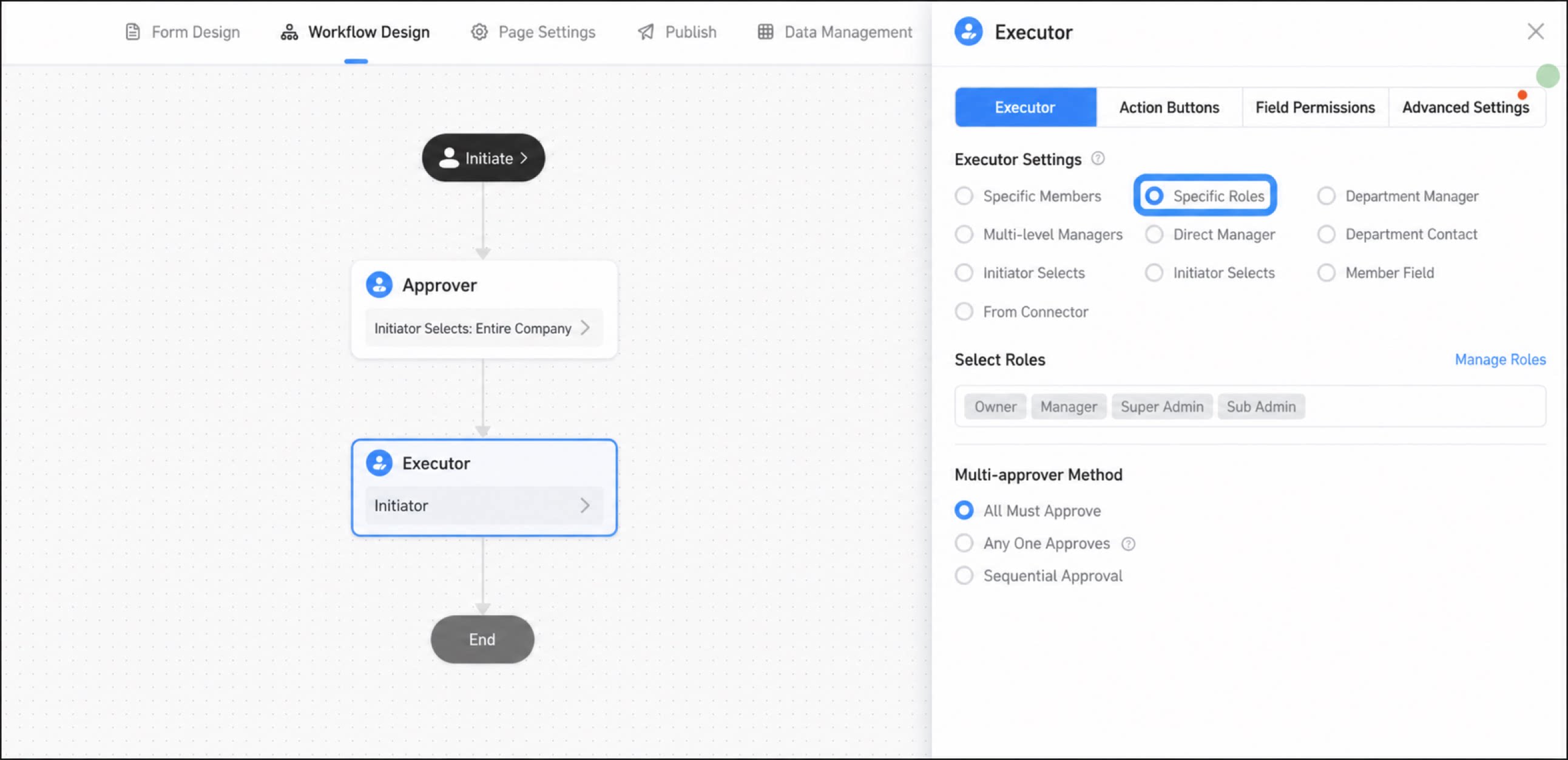
- Any (OR): All users configured on this step receive a notification. Once any executor completes the action, the workflow moves to the next step. The final result is determined by the first person who acts.
- All (AND): The workflow moves to the next step only after all executors on this step complete the action.
- Sequential: Executors act one by one in the configured order.
Department Manager
Specify the department manager of the initiator or of a member component variable on the page.Up to 20 manager levels are supported.
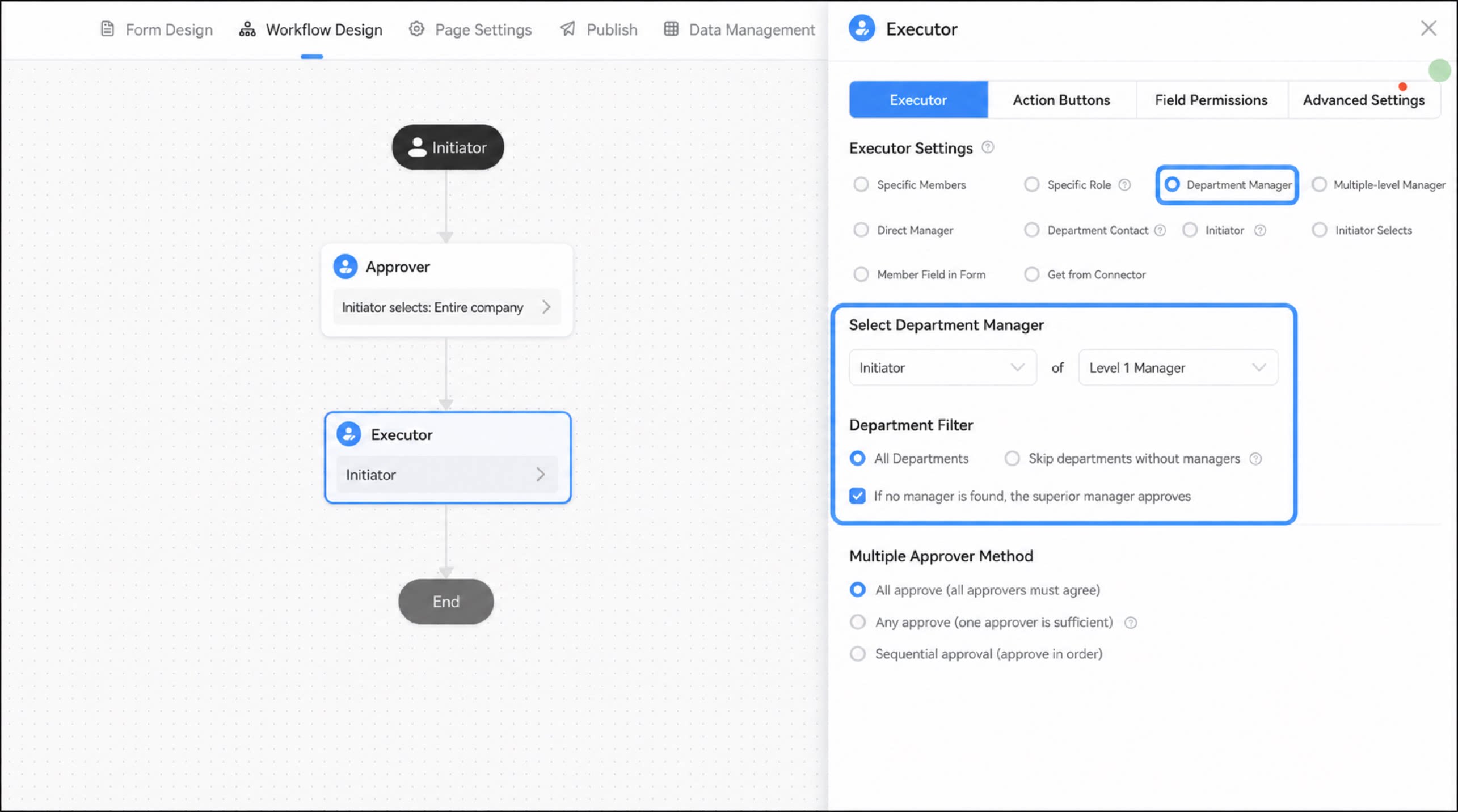
- Department filter:
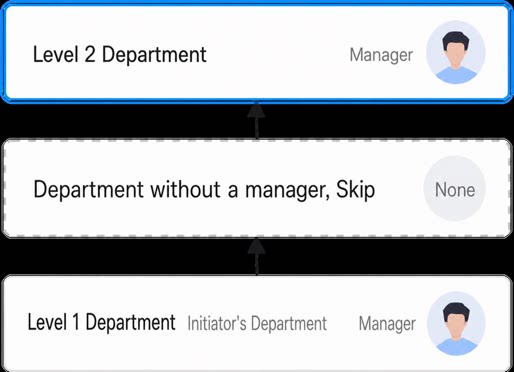
- When there are multiple executors, you can configure how they act:
Multi-Level Managers
After the initiator submits the request, each manager up the reporting line approves it in turn until the approval endpoint is reached. The approval endpoint can be a specific role or a specific manager level.Use a role as the approval endpoint when you know the manager’s role but not the manager’s level.For example, if you know the manager’s role is Finance but not which level that manager sits at, select this option and set the role to Finance. The workflow then finds the manager with the Finance role along the reporting line and assigns that person as the executor.
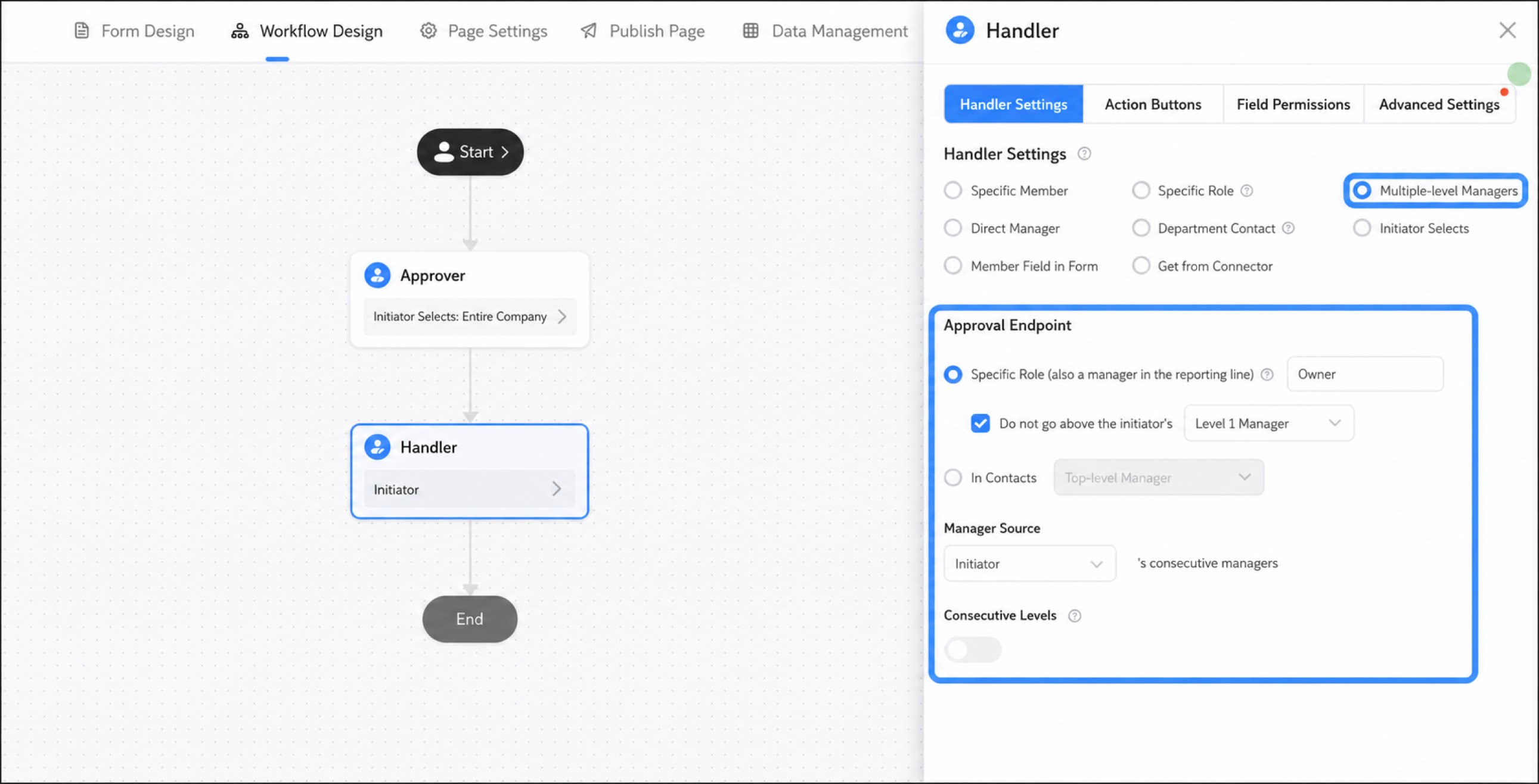
- Specified role (must also be a manager on the reporting line):
- Level-n manager in Contacts: Select which manager level in Contacts acts as the executor.
- When consecutive levels is off, only the manager at the approval endpoint approves.
- When consecutive levels is on, every manager from the first level up to the approval endpoint must approve in order.
Direct Manager
Specify the direct manager of the initiator or of a member component variable on the page. You can also specify a level-N manager.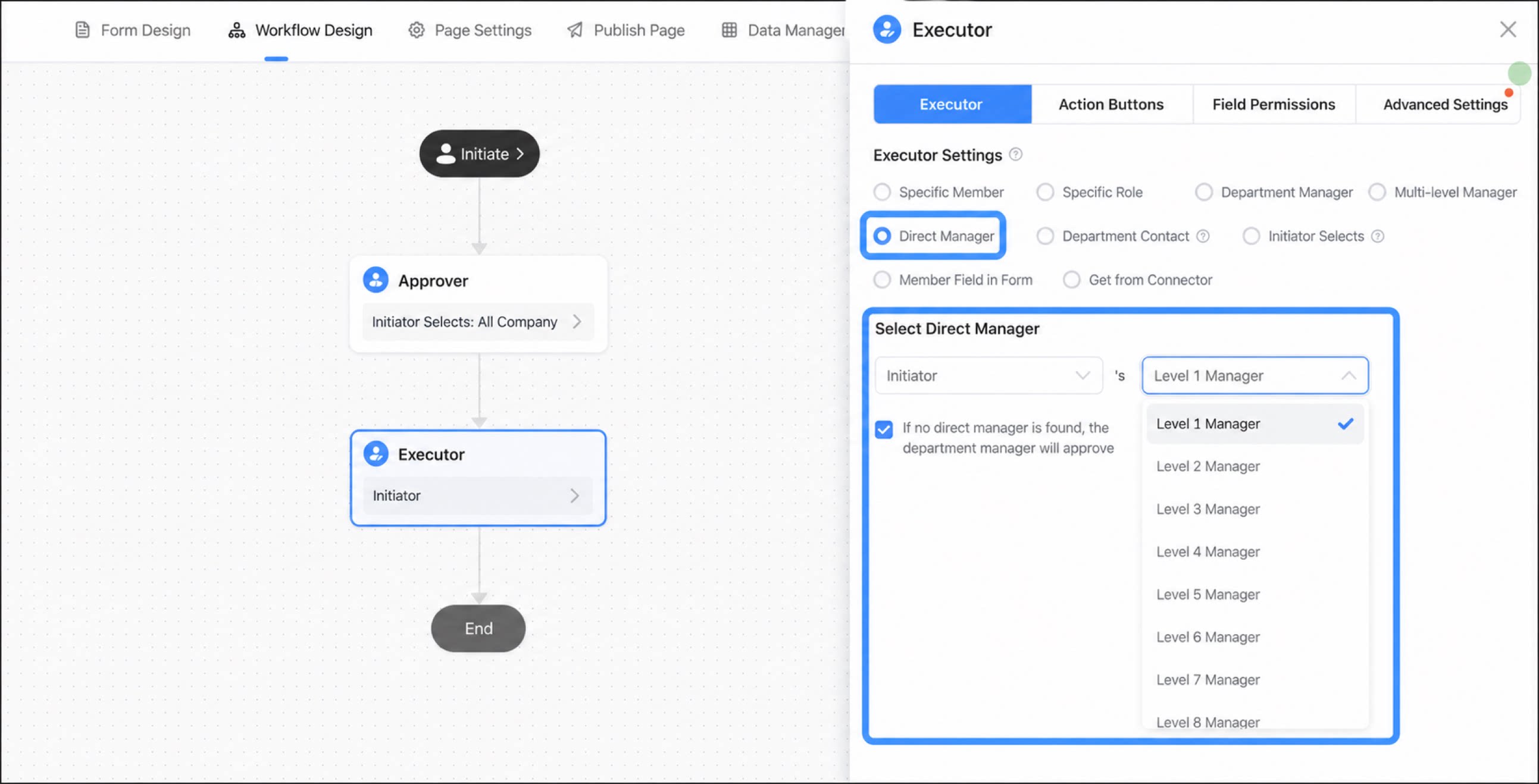
- Up to 20 manager levels are supported.
- If you select the initiator’s direct manager as the approver and the initiator leaves the company, the manager information cannot be retrieved, so the executor lookup fails.
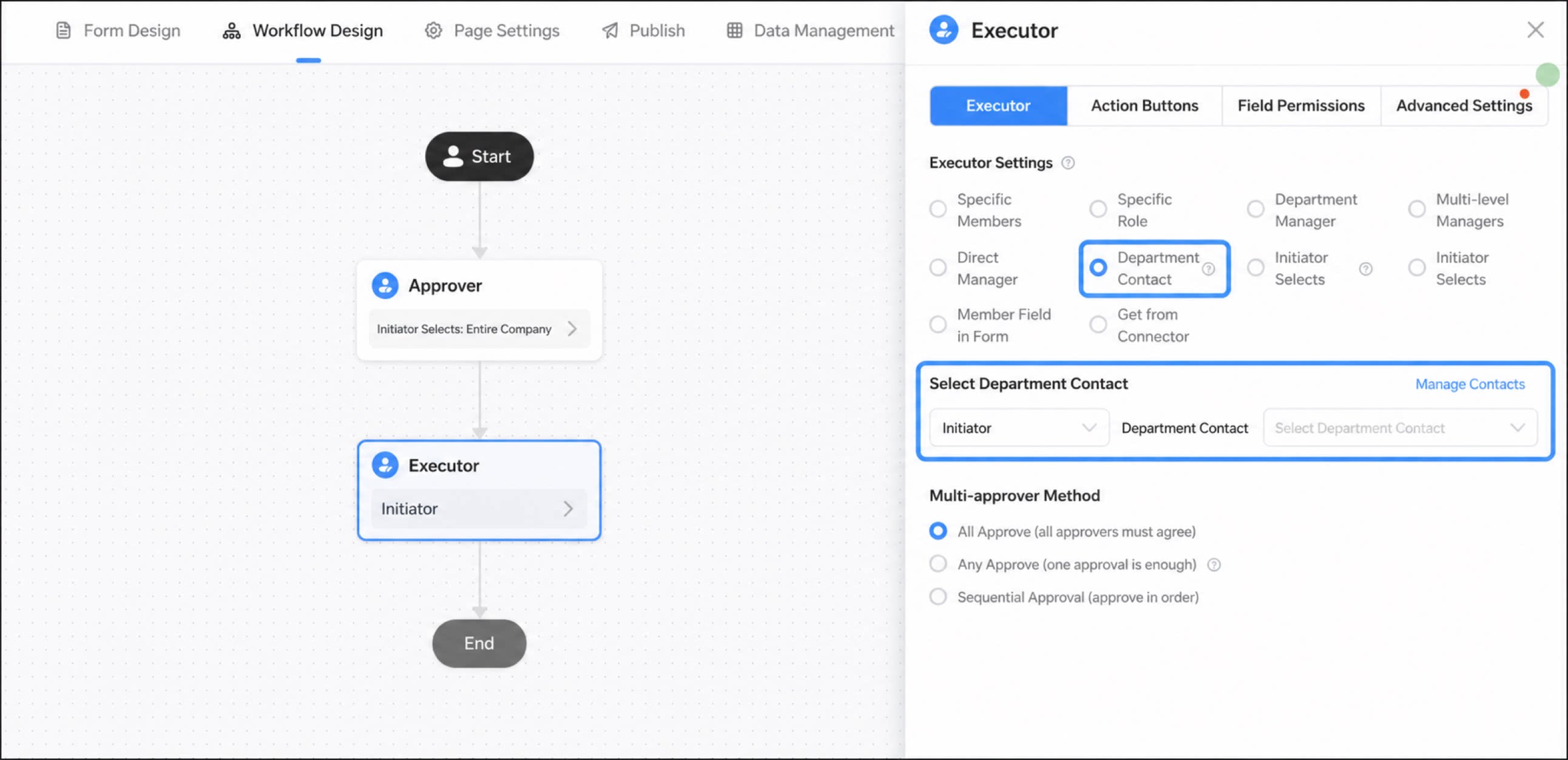
Department Contact
Department contacts are managed on the platform management page. Click the contact management button on the right to open the platform management page and set department contacts. For details, see Contact settings.Think of a department contact as the department’s point of contact. A department may have several reporting levels, but there is usually one designated contact.
- Any (OR): All users configured on this step receive a notification. Once any executor completes the action, the workflow moves to the next step. The final result is determined by the first person who acts.
- All (AND): The workflow moves to the next step only after all executors on this step complete the action.
- Sequential: Executors act one by one in the configured order.
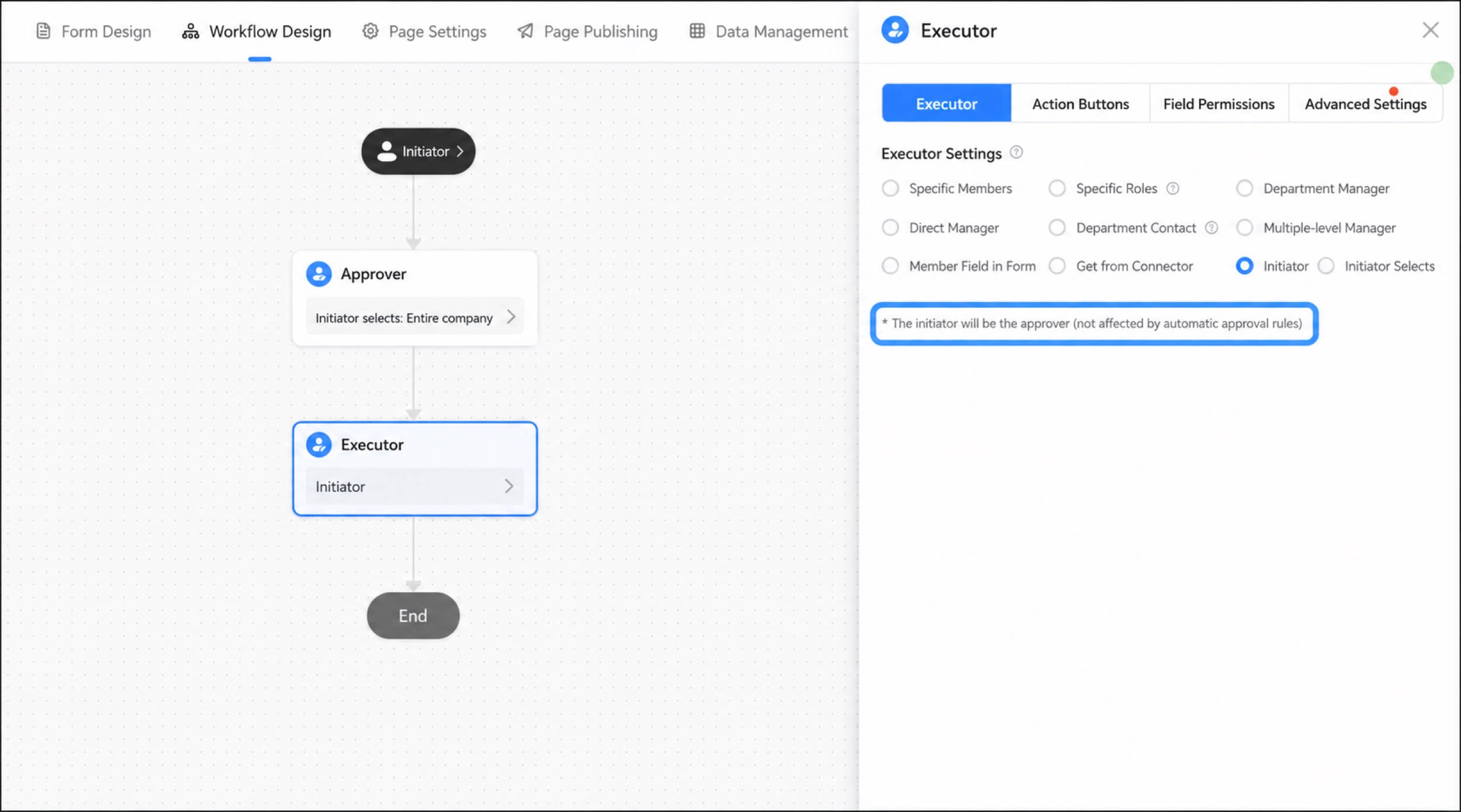
Initiator
The executor of the current step is the person who started the workflow. Use this option when the initiator needs to review the information again.When the executor is the initiator, this step is not affected by auto-approval rules.
Initiator Selects
The initiator selects the executor when starting the workflow.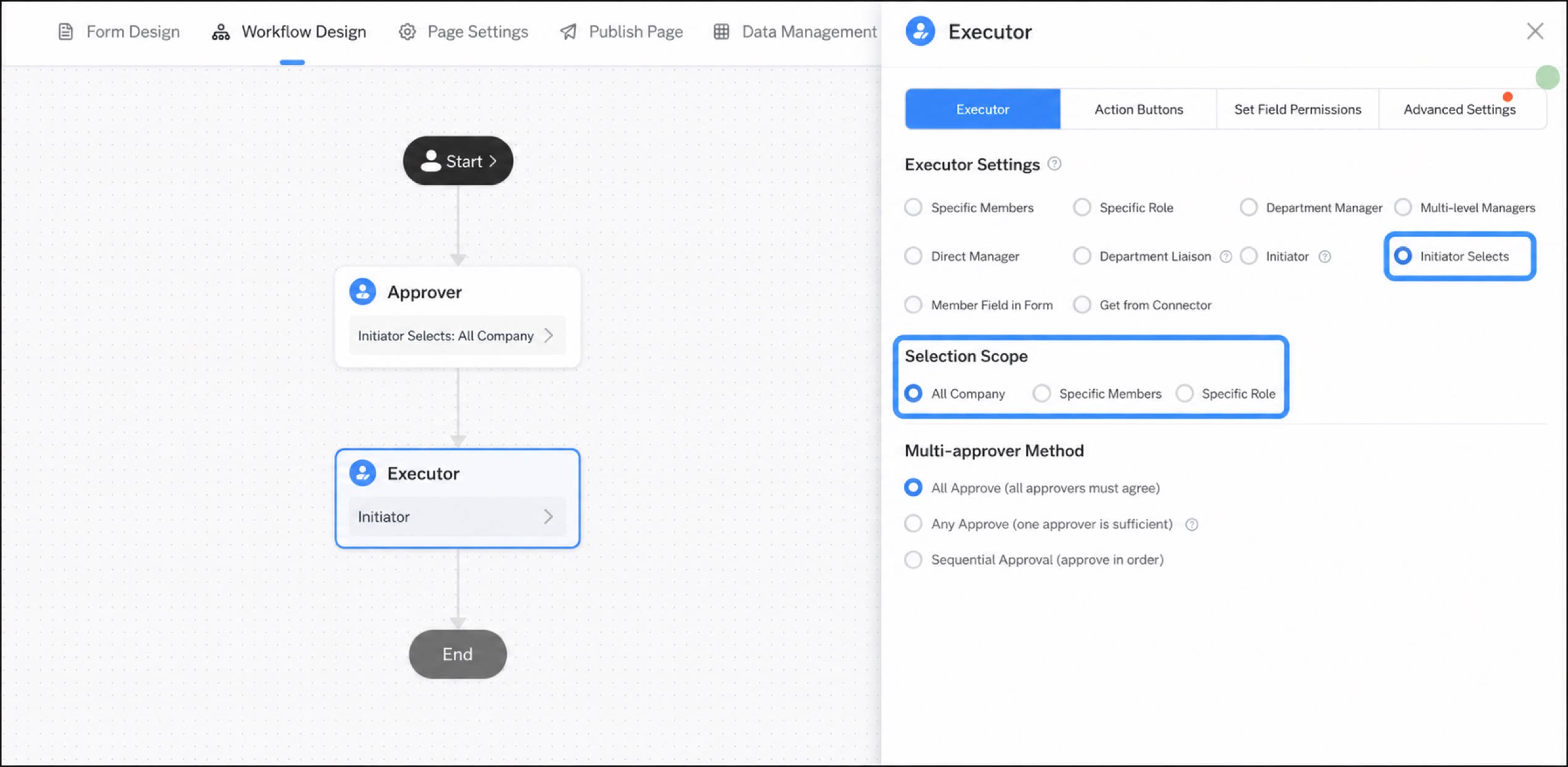
- Entire company: The initiator can select the executor of the current step from anyone in the company.
- Specified users: The initiator can select the executor of the current step from a specified set of users.
- Specified roles: The initiator can select the executor of the current step from a specified set of roles.
- Any (OR): All users configured on this step receive a notification. Once any approver accepts, the workflow moves to the next step. The final result is determined by the first person who acts.
- All (AND): The workflow moves to the next step only after all approvers on this step accept.
- Sequential: Approvers act one by one in the configured order.
User Field in the Form
Use a member variable or the initiator variable in the form as the executor.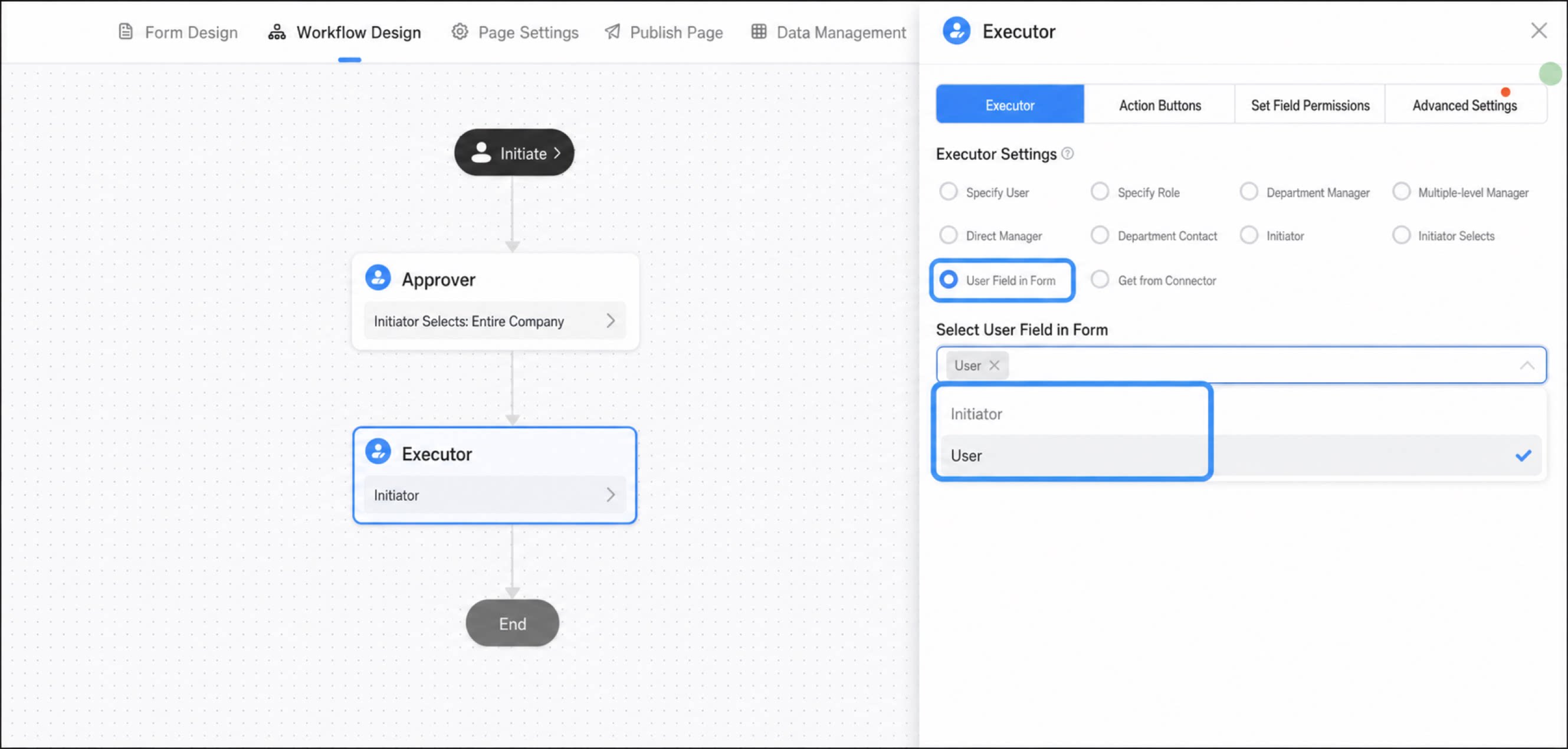
- Any (OR): All users configured on this step receive a notification. Once any executor completes the action, the workflow moves to the next step. The final result is determined by the first person who acts.
- All (AND): The workflow moves to the next step only after all executors on this step complete the action.
- Sequential: Executors act one by one in the configured order.
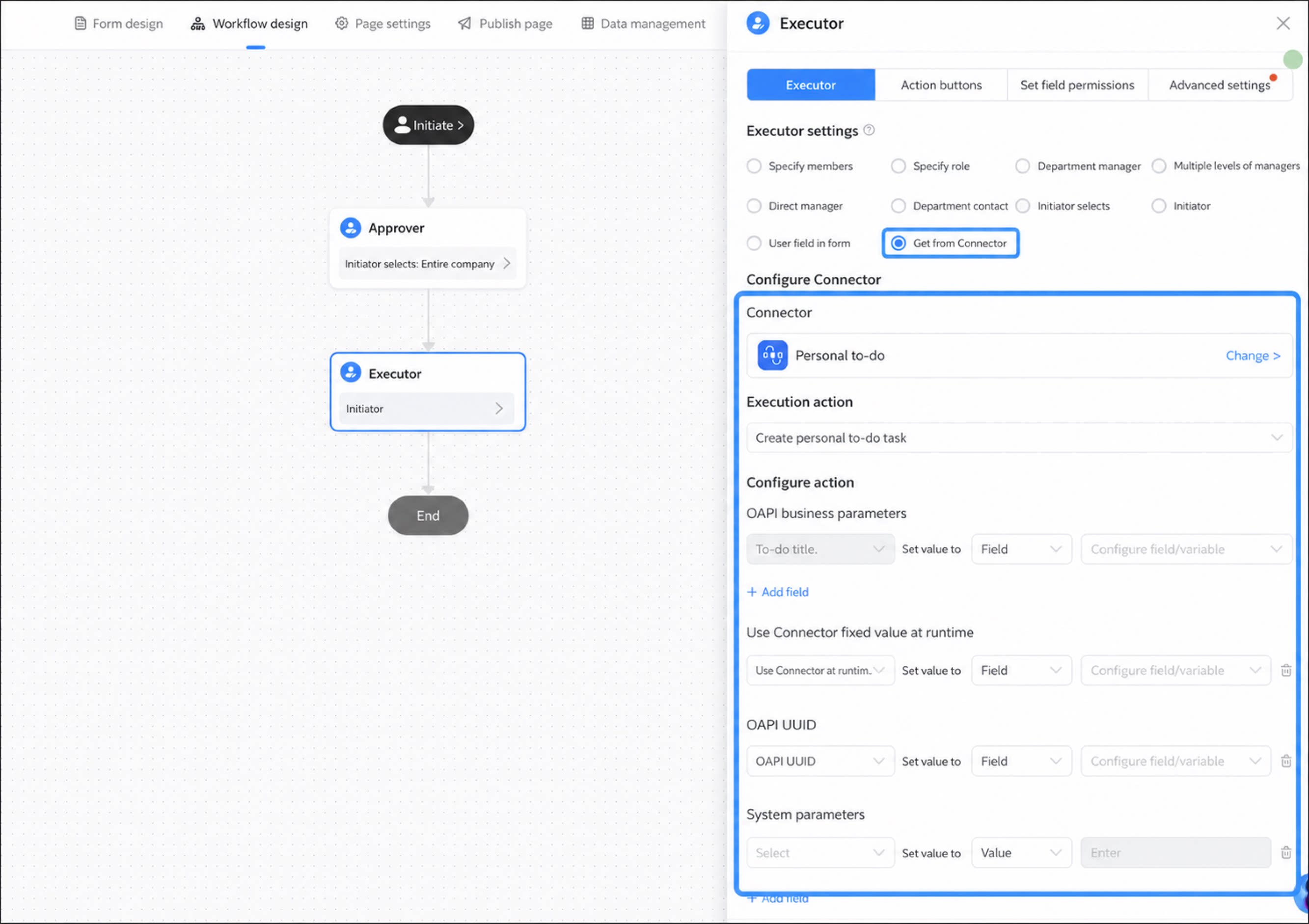
Get from a Connector
You can get executors from a custom connector (the YiDA Connector Factory or the DingTalk Connector Platform). The configuration process is the same as for a Connector node.For connector configuration, see:
- YiDA Connector Factory
- DingTalk Connector Platform
Get from the Permission Matrix
Set approvers in the permission matrix under platform management > Permission matrix, and then select them directly in the workflow. For permission matrix configuration, see Permission matrix.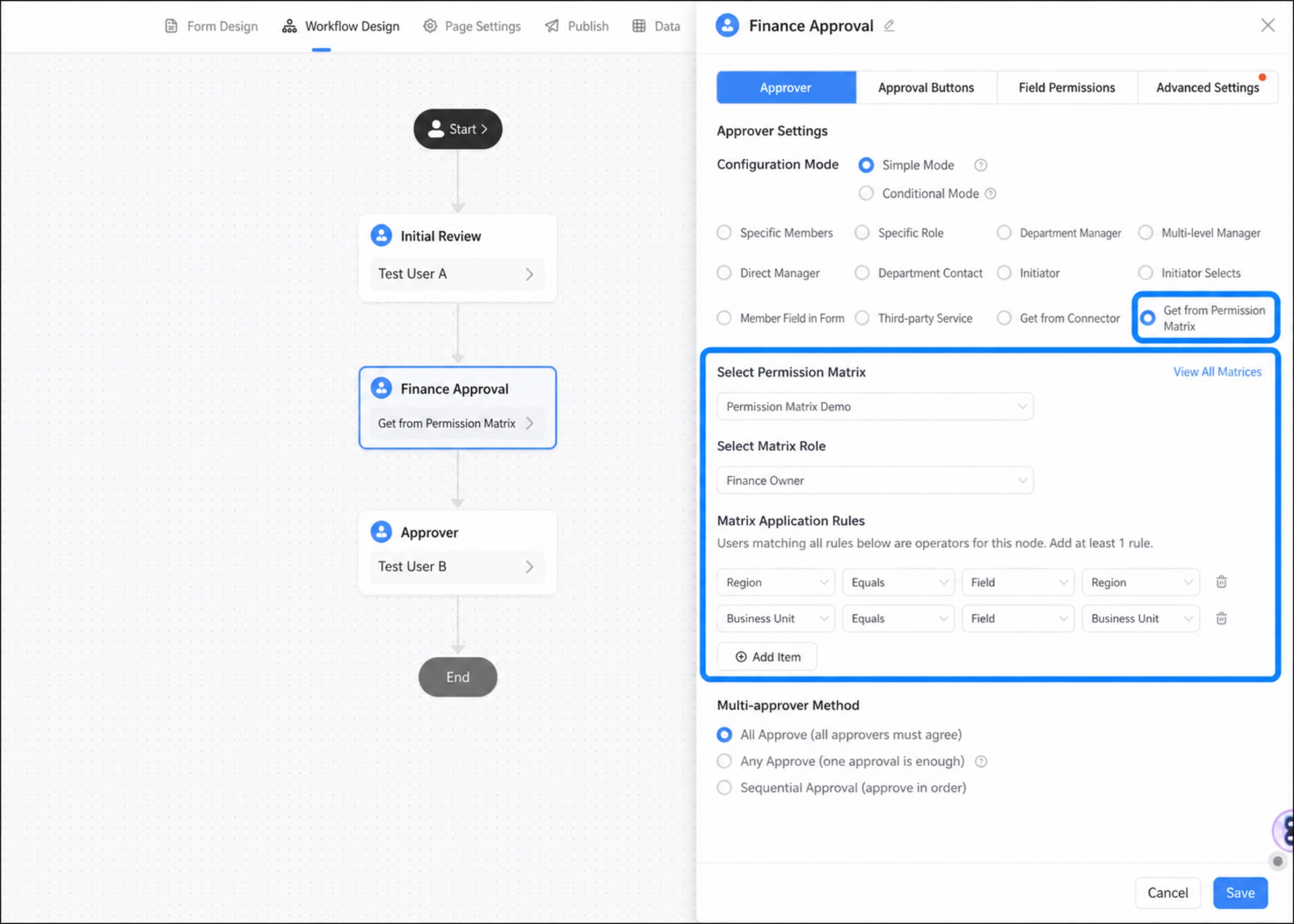
Conditional Mode
In gradual rolloutThe Executor node supports conditional mode. The steps are the same as for the Approver node. For configuration details, see Approver node - Conditional mode.
This feature is exclusive to the Dedicated - OA Enhancement Package.If you are interested in the OA Enhancement Package, contact your YiDA representative.