

 Chats
Chats Calendar
 Meetings
 Contacts
 Mail
Mail Docs
Docs Drive
Drive AI Table
 AI Minutes
 Attendance
 Approval
 YiDA
YiDA Admin Console
In YiDA, you can add a CC node when configuring a workflow. After the approver completes the approval, CC recipients receive a message notification. CC recipients do not need to approve or take any action.
For example, when an employee submits a reimbursement request and the finance team approves it, a manager may want to know what the reimbursement is used for. In this case, add the manager as a CC recipient so that they receive the notification directly.
Add a CC Node
Follow these steps to add a CC node.1
Step 1
Sign in to the YiDA workbench. Select the target app to open its Page management page.
2
Step 2
Select the workflow form, click the down arrow next to its edit button  , and then select Workflow design.
, and then select Workflow design.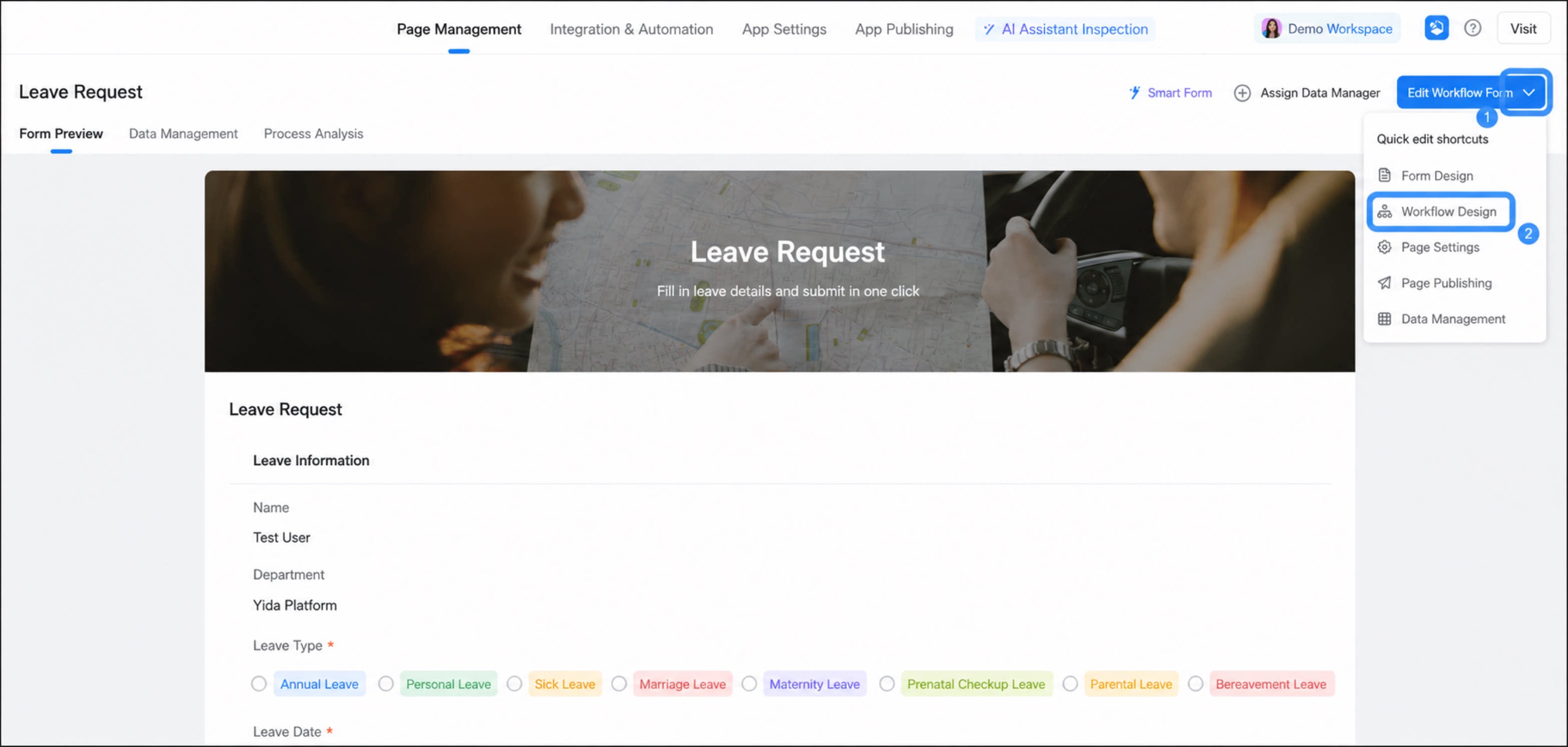
- Hover over the connection line between steps to display the + button. Click + and select the CC node.
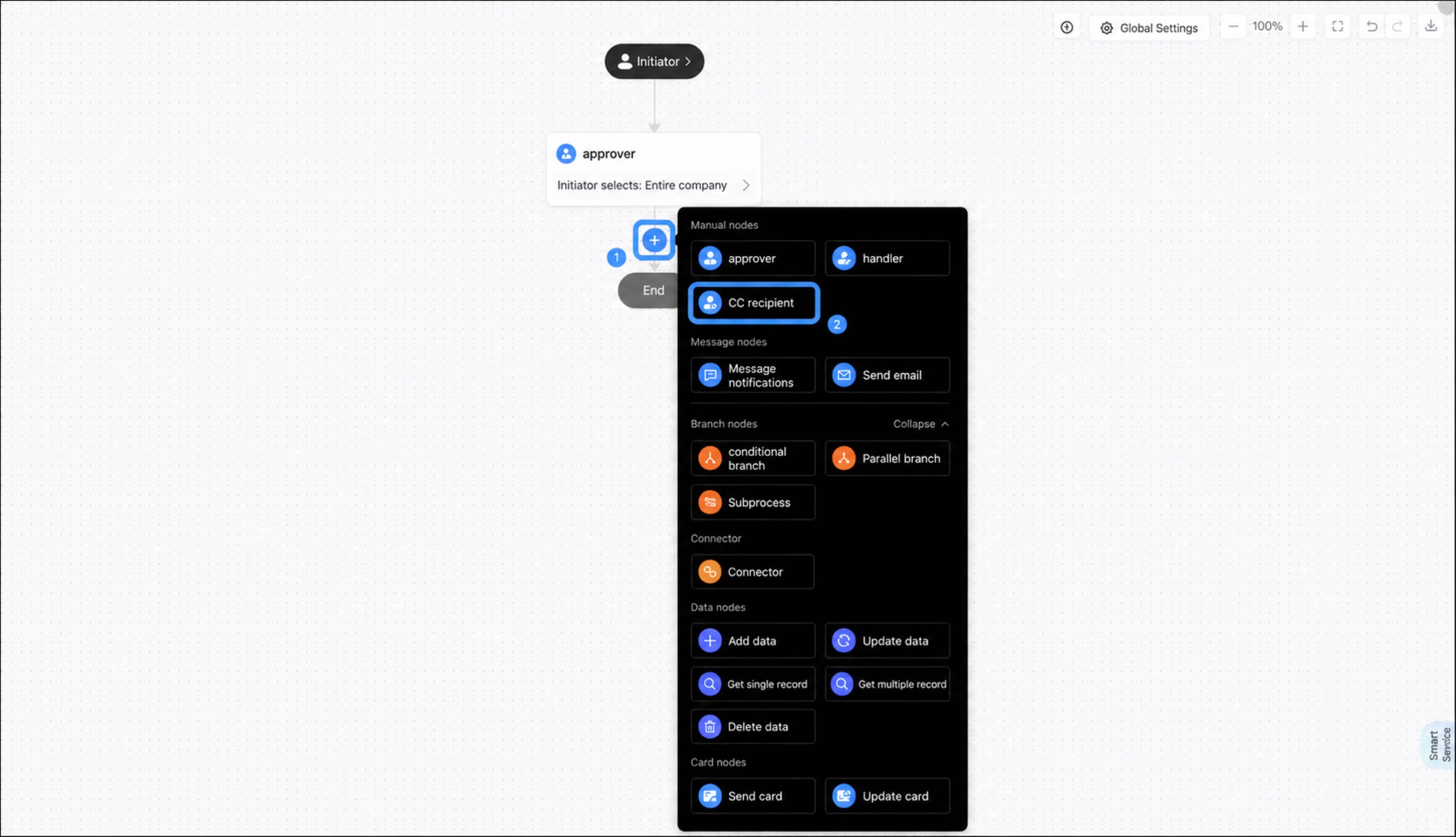
CC Recipient Settings
CC recipient roles vary across business scenarios. YiDA CC nodes support the following CC recipient types.Condition Mode
Gradual rolloutWith conditions configured, the system automatically matches CC recipients based on predefined rules. Different conditions can trigger different CC recipients.
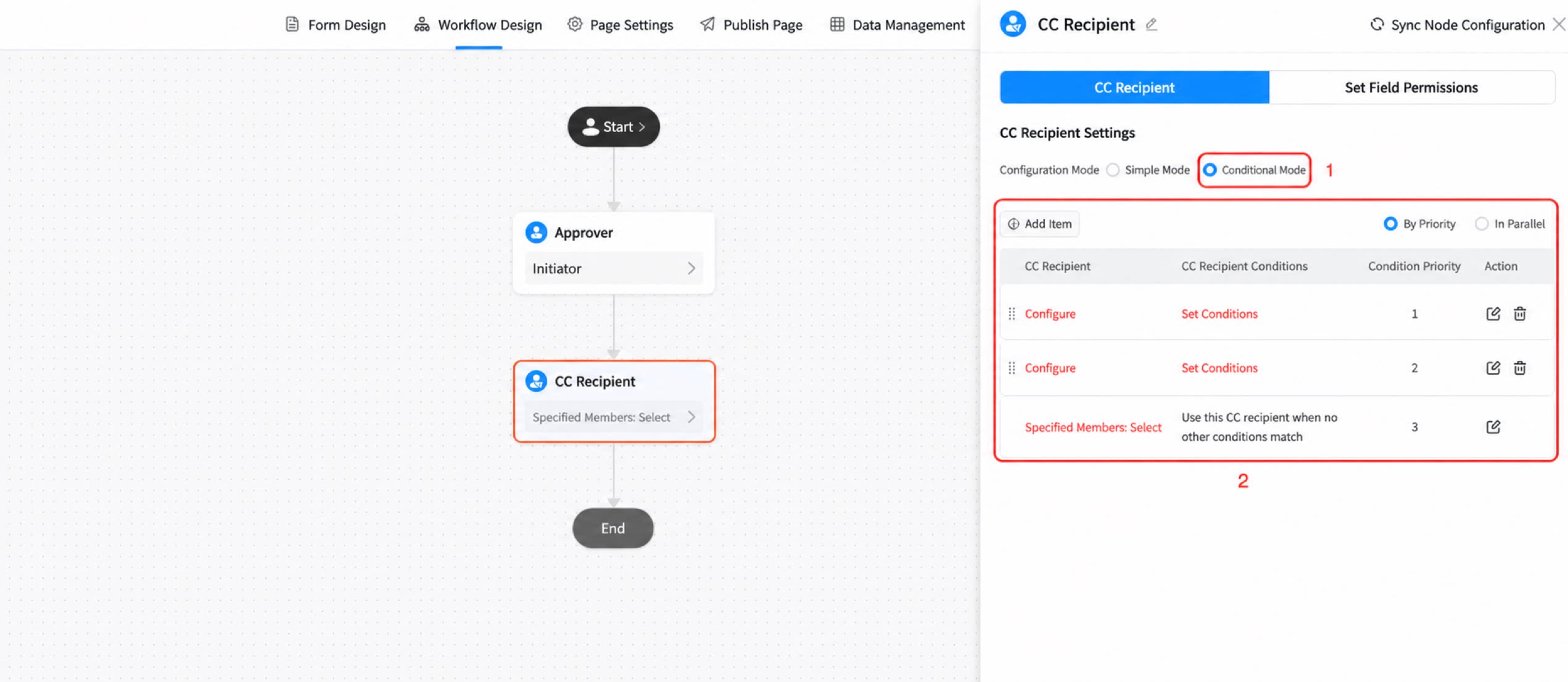
- Open the approval settings page: On the YiDA platform, open the approval process settings page.
- Select condition mode: In the operator settings of the CC node, select Condition mode. Condition mode supports multiple groups of approvers, and you can define different conditions to route requests to different approvers.
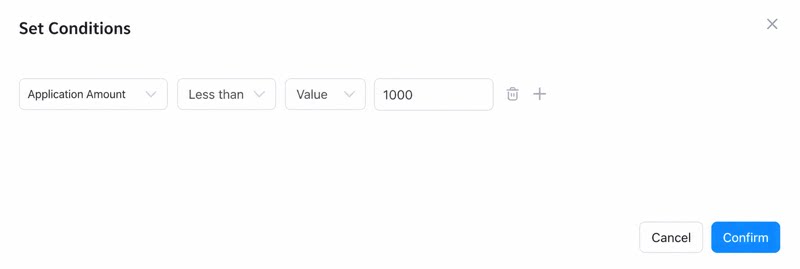
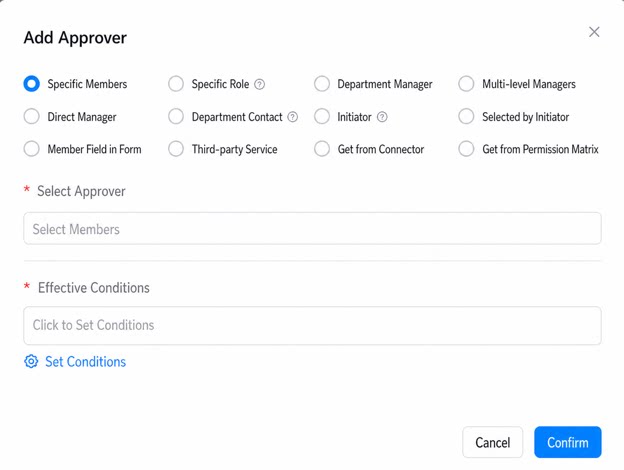
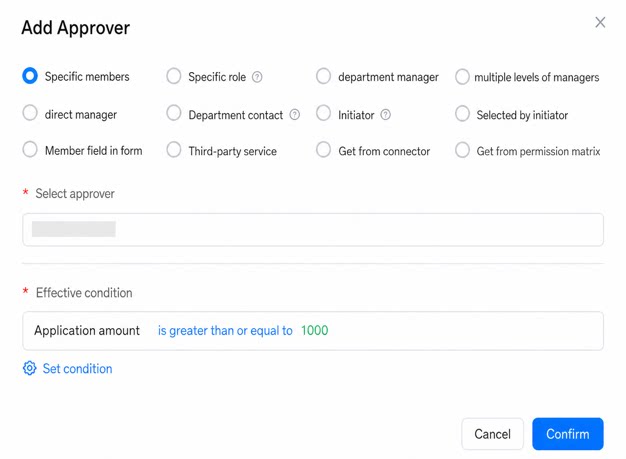
- Configure condition rules: Click Add an item to add a new record under the approval condition. Click Set condition to open the condition configuration dialog, and configure the rules based on your needs.
- Multiple rule execution:
- Execute by priority:
- Execute in parallel:
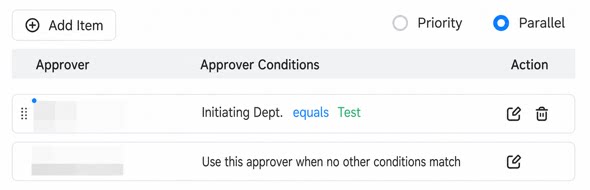
- Save and publish: After all conditions are configured, save the settings and publish.
Configure Field Permissions
Field permission control for steps lets you specify which form fields a CC node can view. You can set fields to editable, read-only, or hidden by component name. For more information, see Workflow permission control.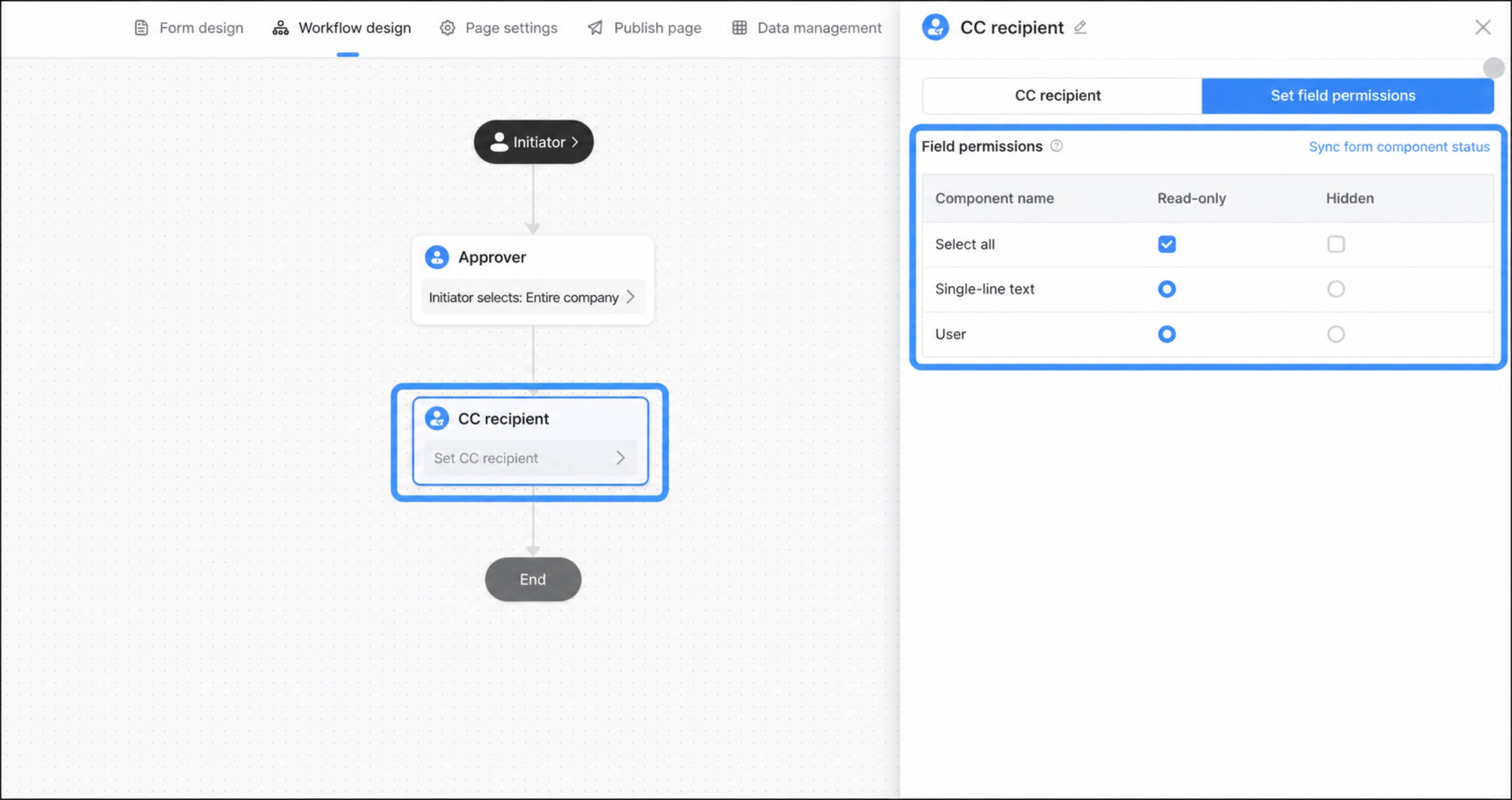
FAQ
Q: Why don’t CC recipients receive message notifications?- If no one receives notifications, troubleshoot as follows:
- If only some users do not receive notifications, troubleshoot as follows: