Chats
Chats Calendar
 Meetings
 Contacts
 Mail
Mail Docs
Docs Drive
Drive AI Table
 AI Minutes
 Attendance
 Approval
 YiDA
YiDA Admin Console
Use Cases
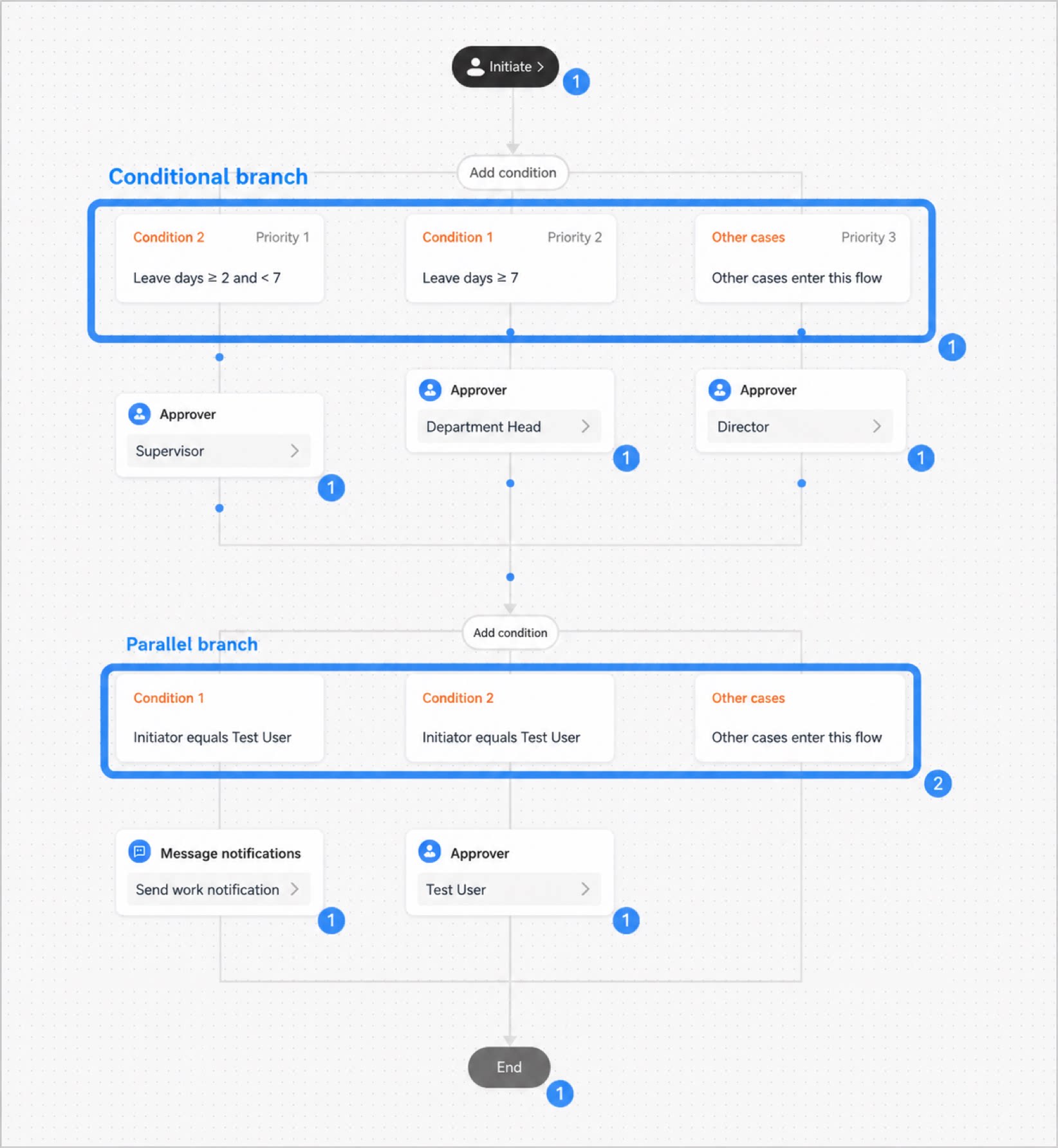
In an Approval process, when different approvers need to be set based on different conditions, you can set approval conditions and configure multiple workflow branches within a single workflow. For example: When an employee applies for leave, if the leave duration is less than 7 days, the request goes to the supervisor for Approval. If the leave duration is more than 7 days, it goes to the general manager for Approval.Add a Branch Step
Use branch steps to configure more complex branch conditions and multiple condition combinations, and to resolve issues with numerous branches and steps in a workflow. This gives the Approval process rich submit rules and supports more scenarios required by users.1
Step 1
Sign in to the YiDA workbench. Select the target app and go to the Page management page of the app.
2
Step 2
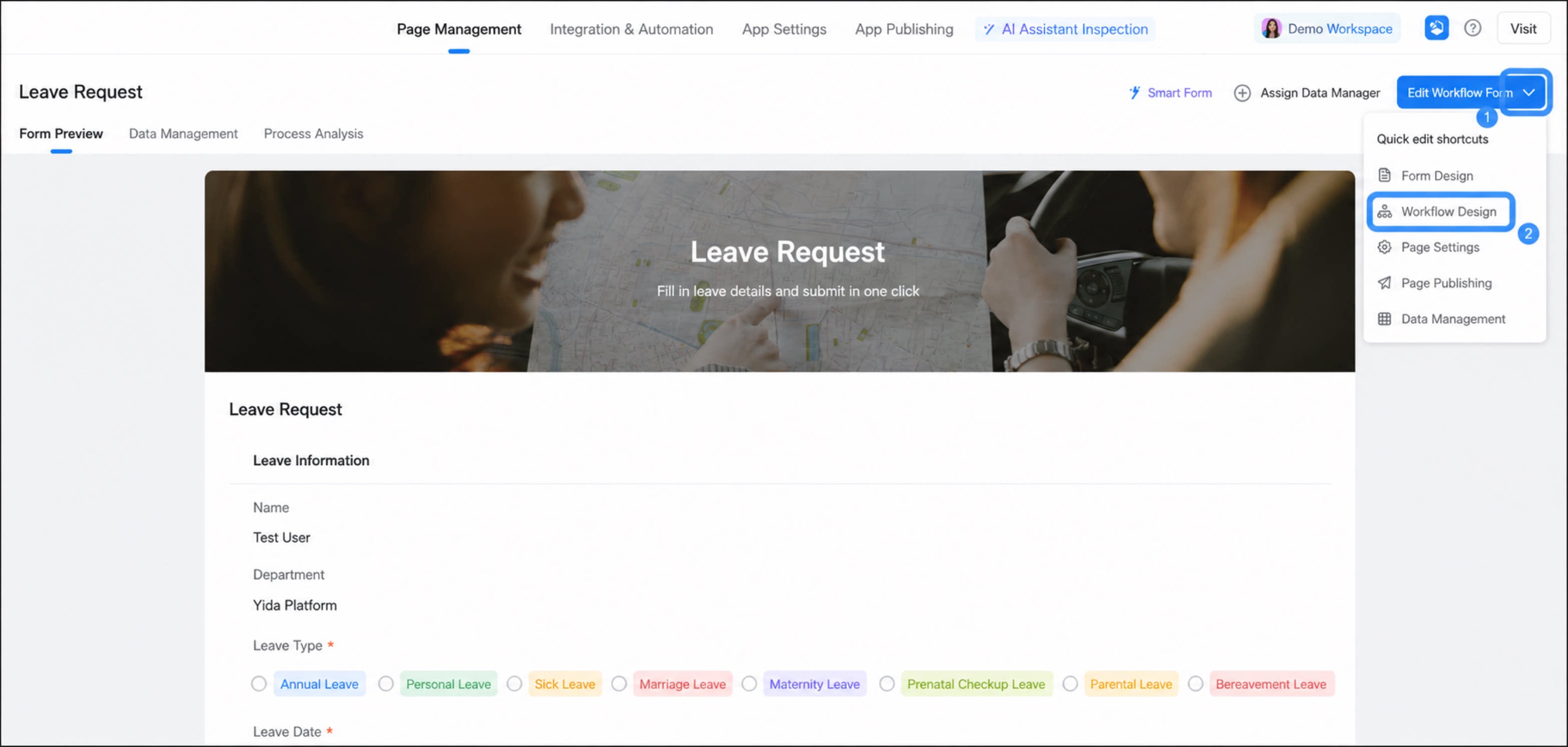
Select the workflow form, click the down arrow next to Edit workflow form, and then click workflow design. 
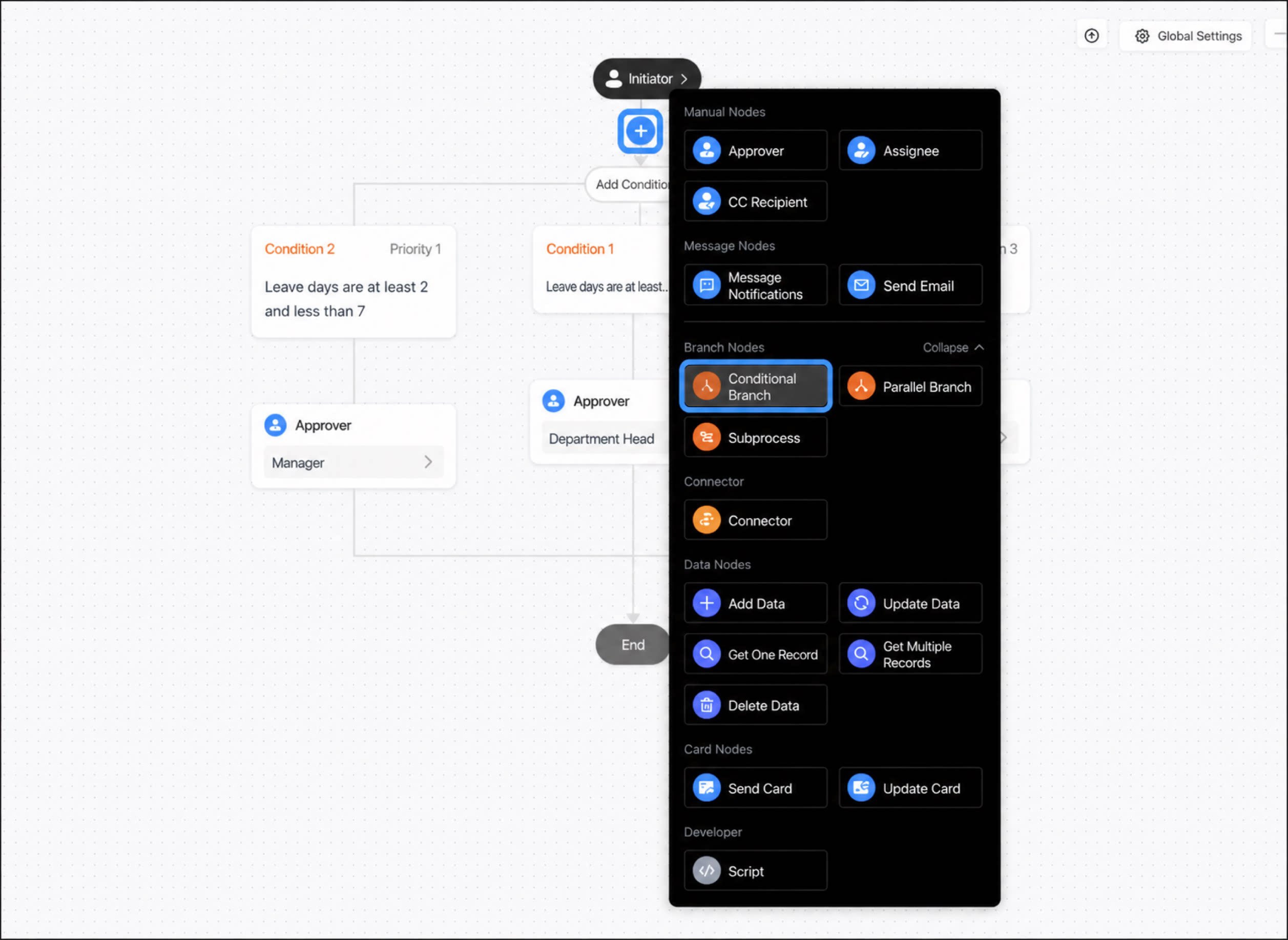
- Move the cursor to the connecting line between steps. A + button appears. Click + and select Conditional branch Step.
Configure Branch Conditions
After you add a branch condition, two conditions are generated by default. Click Condition 1 to start configuring the condition. The other branch handles all cases not covered by Condition 1. When the workflow reaches the conditional branch, the branch conditions are evaluated in order from left to right, and the first branch whose condition is satisfied is executed. If no branch satisfies its condition, the other-cases branch runs.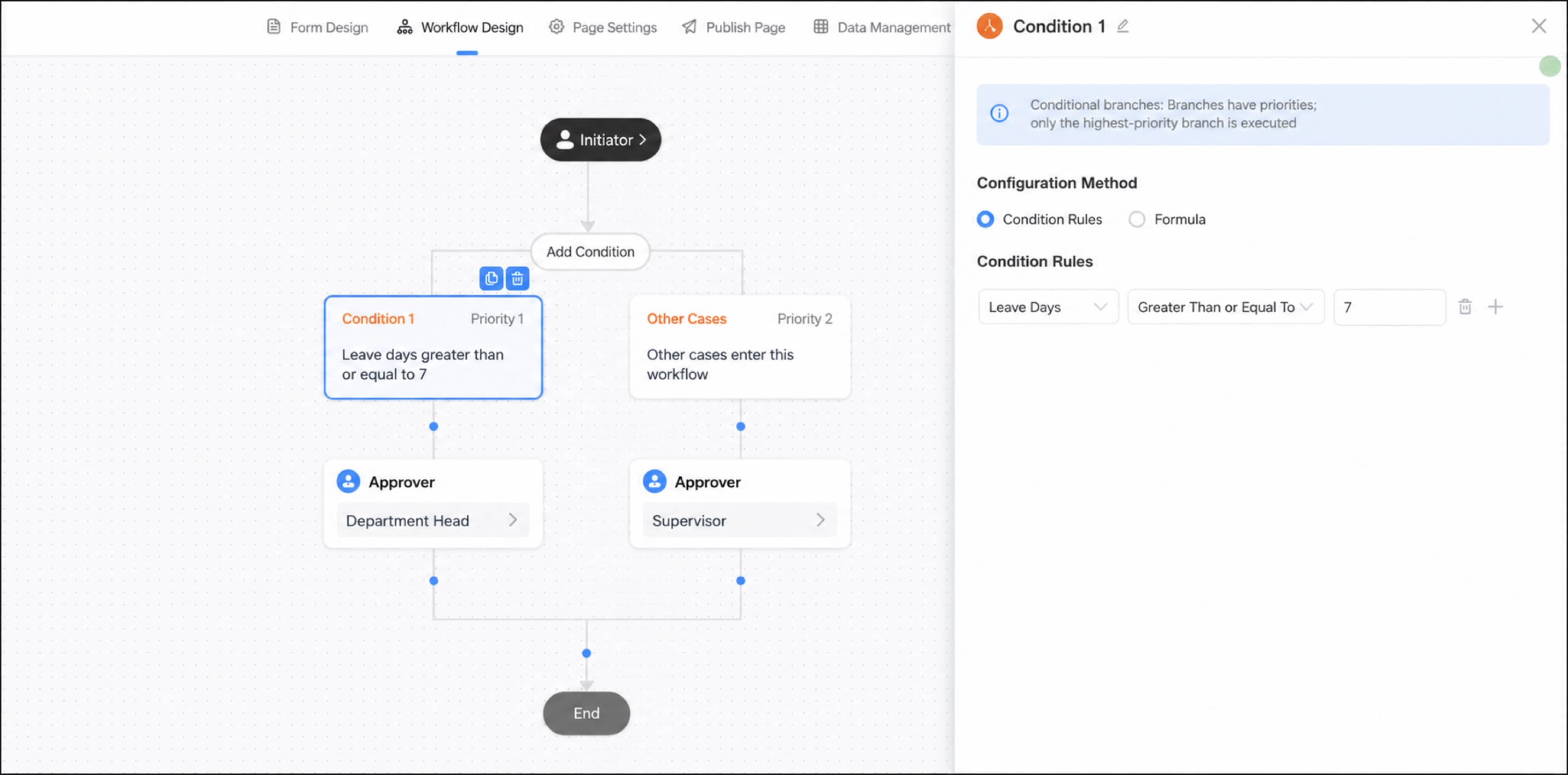
Configure Condition Rules
Both formula calculation results and form field values are supported as condition rules.- formula: Edit a formula using the current form’s fields as the branch condition. You must use a function from the Logical functions category to determine whether the condition is met.
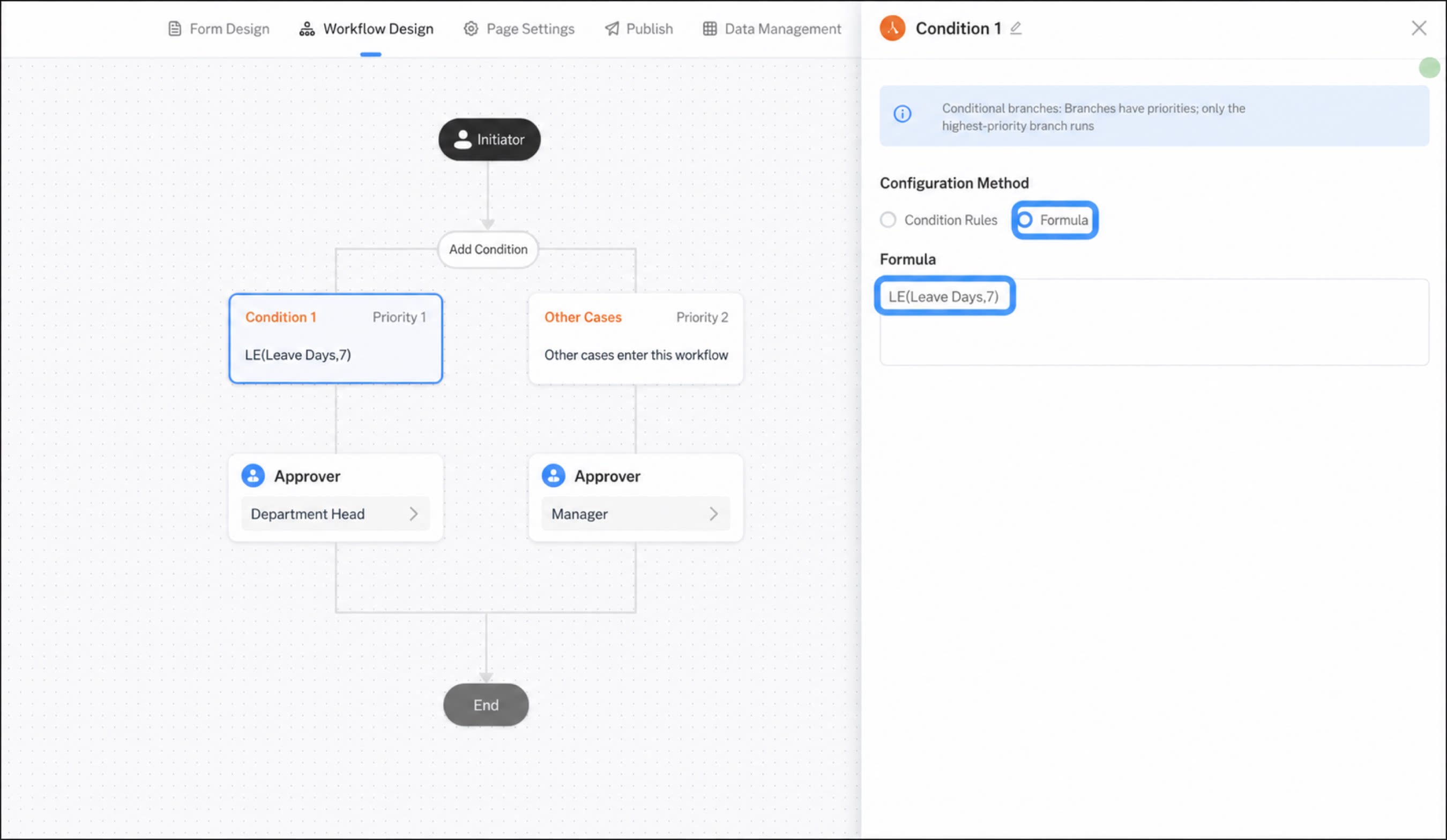
- form component values: Use required components in the form and system default fields as the branch condition.
A single condition supports multiple condition rules, and multiple condition rules can be combined with AND and OR.
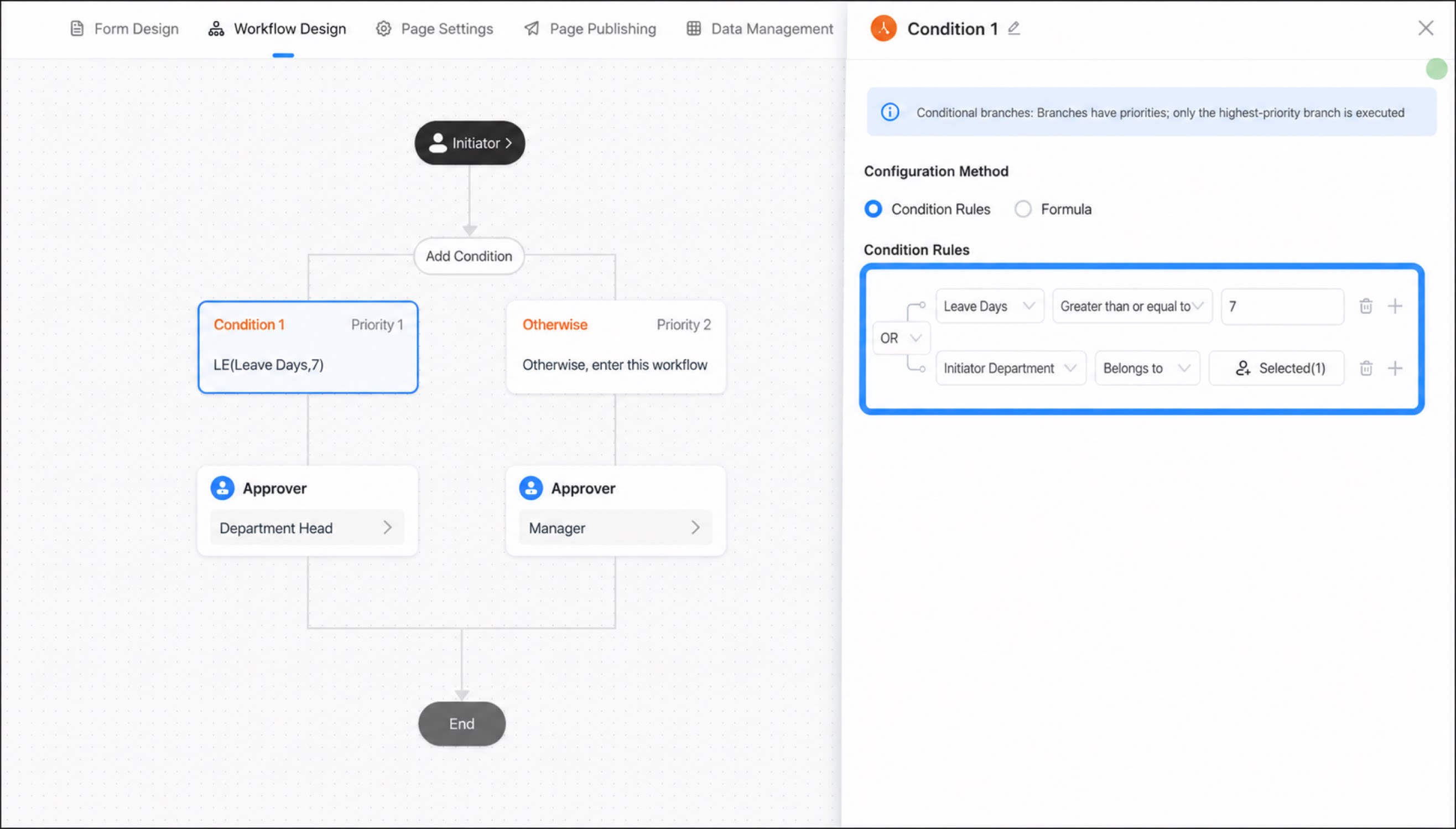
Add a Conditional Branch
Click Add condition to add a new condition. By default, the new condition appears to the right of Condition 1, which means it has a lower priority than the first condition.Change Branch Condition Priority
When a branch step has more than two branch conditions, you can change the priority of each branch condition in the following ways:- Click the > (right) or < (left) arrow on either side of a branch condition to change its priority.
- Drag the branch directly to adjust its priority.
Differences Between Parallel Branches and Conditional Branches
- Conditional branches (branches have priorities): When a data record satisfies two branches at the same time, the highest-priority branch runs automatically based on priority, and only one branch is executed. Priorities can be adjusted. [Other cases] has the lowest priority by default and cannot be changed.
- Parallel branches (branches have no priorities): When a data record satisfies the rules of two branches at the same time, the tasks in both branches are executed.
- Different step count calculation: