Chats
Chats Calendar
 Meetings
 Contacts
 Mail
Mail Docs
Docs Drive
Drive AI Table
 AI Minutes
 Attendance
 Approval
 YiDA
YiDA Admin Console
1. Introduction
1.1 Overview
When the data of one field in a form changes, the data of another field in the same form changes accordingly. This is typically used to set default values for components.1.2 Use Case
Let’s build a data linkage between grade and class. Class table
When enrolling a student, we want to assign them to the corresponding class. How can we achieve this?
2. Data Linkage Configuration Items
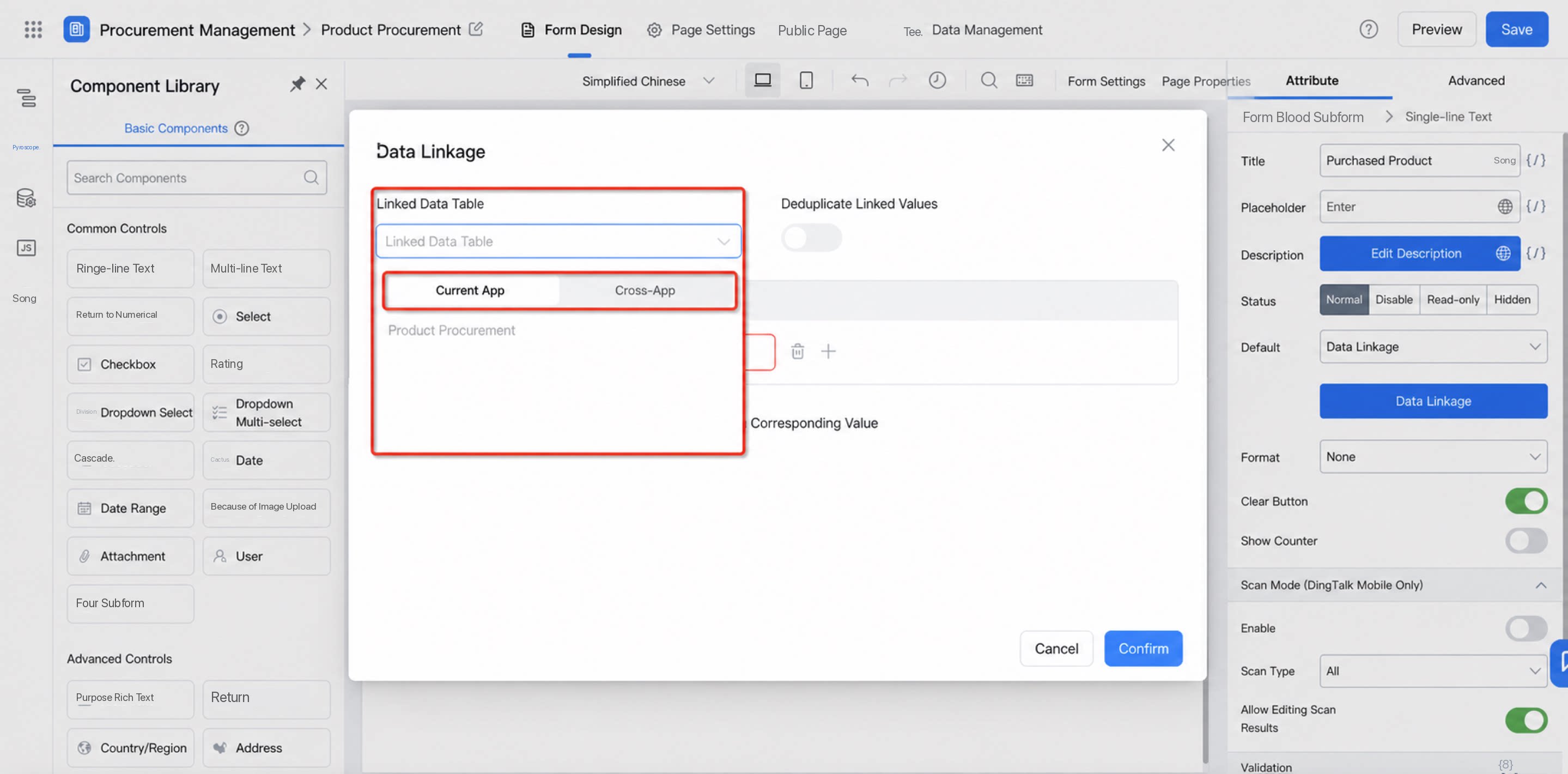
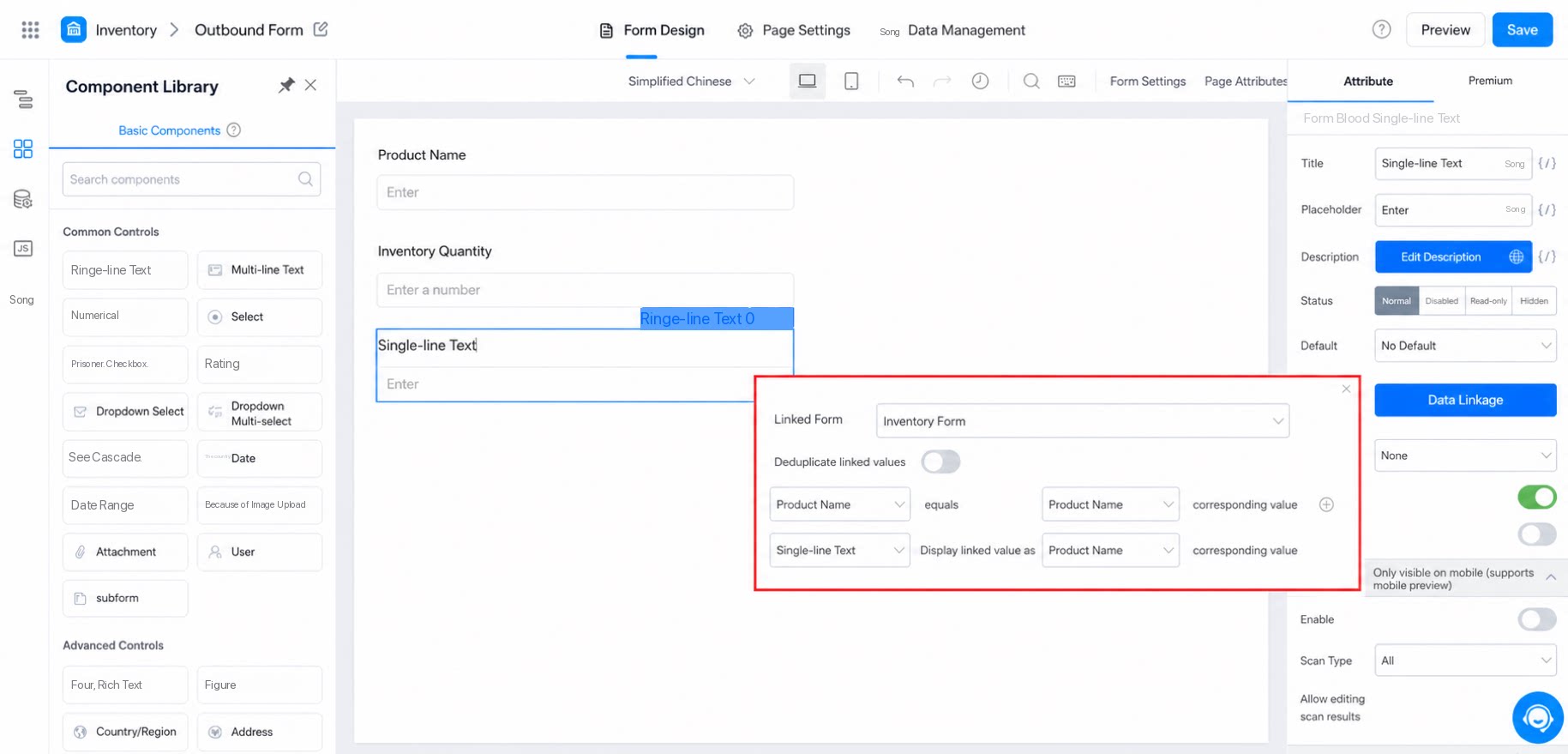
Associated table: Select the table to associate with.- Current app: Other forms that belong to the same app as the current form. A form cannot use itself as the source for its own data linkage.
- Cross-app: You can select a cross-app dataset form that has been created. For details, see Retrieve form data across apps.
3. Component Types That Support Data Linkage
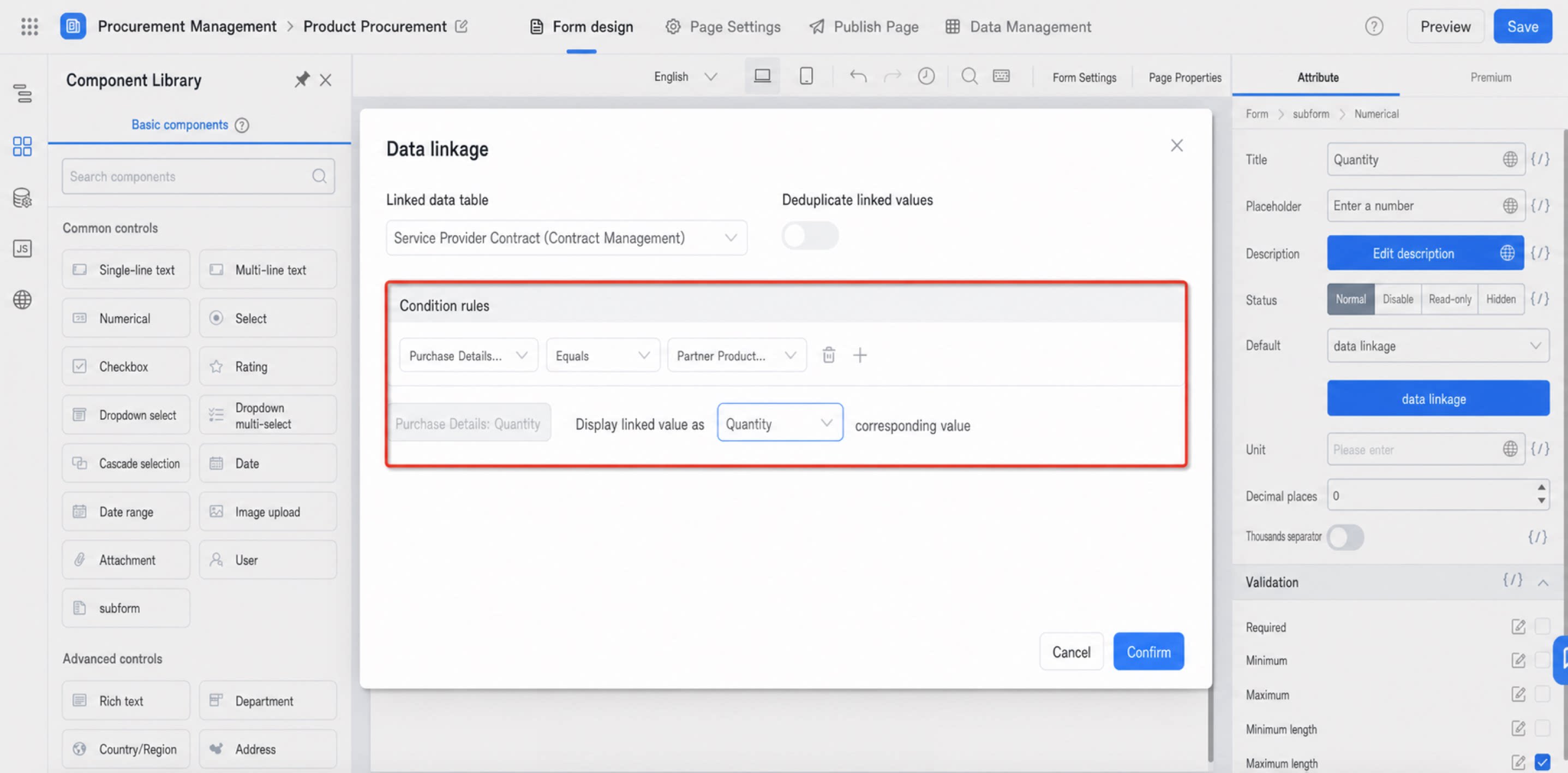
Note: Address and associated form components can only be used as condition rules. The associated form quotes the main information fields configured in it.4. Special-Character Compatibility Enhancement for the Single-Select Dropdown Data Linkage Conditions
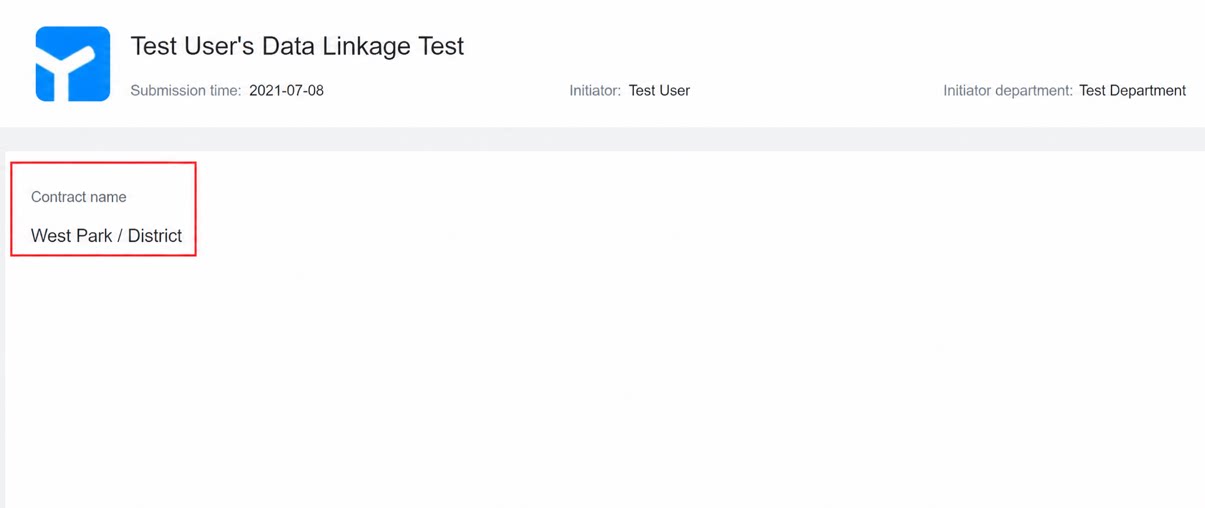
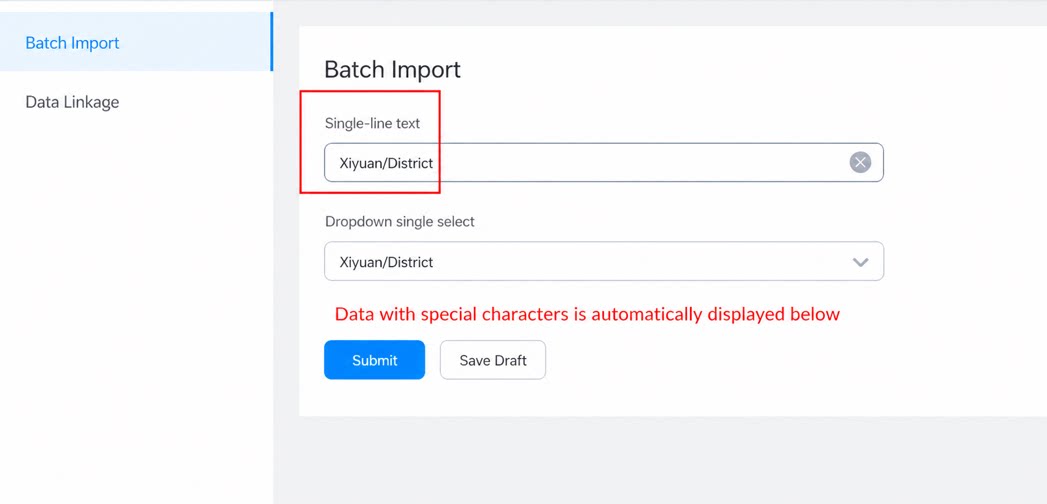
- Before: If the target data field contained special characters, the linkage failed and the business logic could not run.
- Now: Target data containing special characters such as and / can be matched correctly.
5. FAQ
5.1 The Source Table Contains Data, but the Linked Data Is Not Displayed.
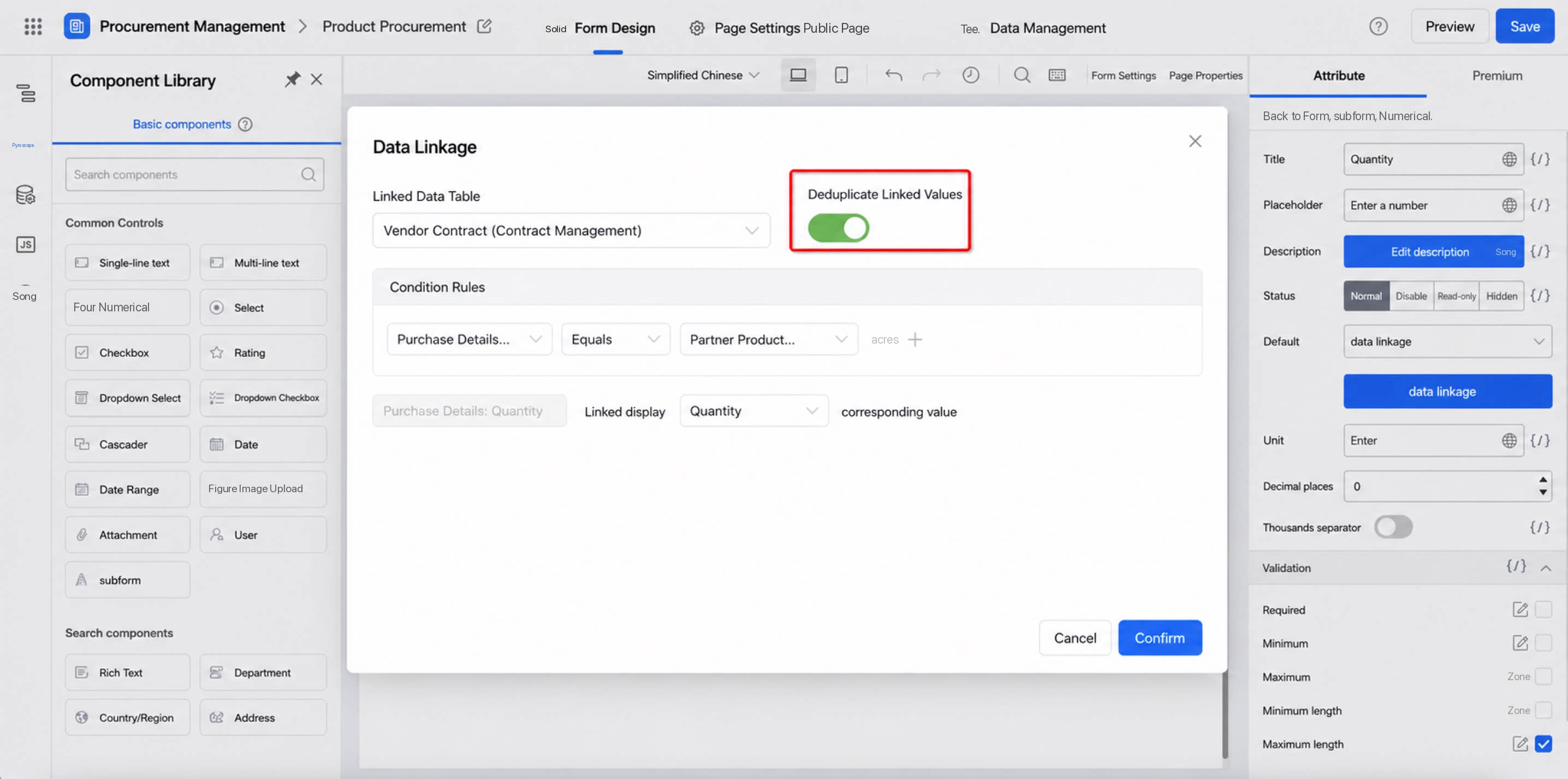
The data linkage returns a limited number of results, and searching within the returned results is not currently supported. If the source table contains many records that meet the conditions—especially many duplicate values—the desired result may not appear in the linkage. You can enable deduplication to reduce duplicate records in the results, which allows more meaningful linked data to be displayed.