

 Chats
Chats Calendar
 Meetings
 Contacts
 Mail
Mail Docs
Docs Drive
Drive AI Table
 AI Minutes
 Attendance
 Approval
 YiDA
YiDA Admin Console
1. Overview
Only the Rich text display, Layout container, and Group component currently support style settings. Use them to arrange form components for a more polished appearance.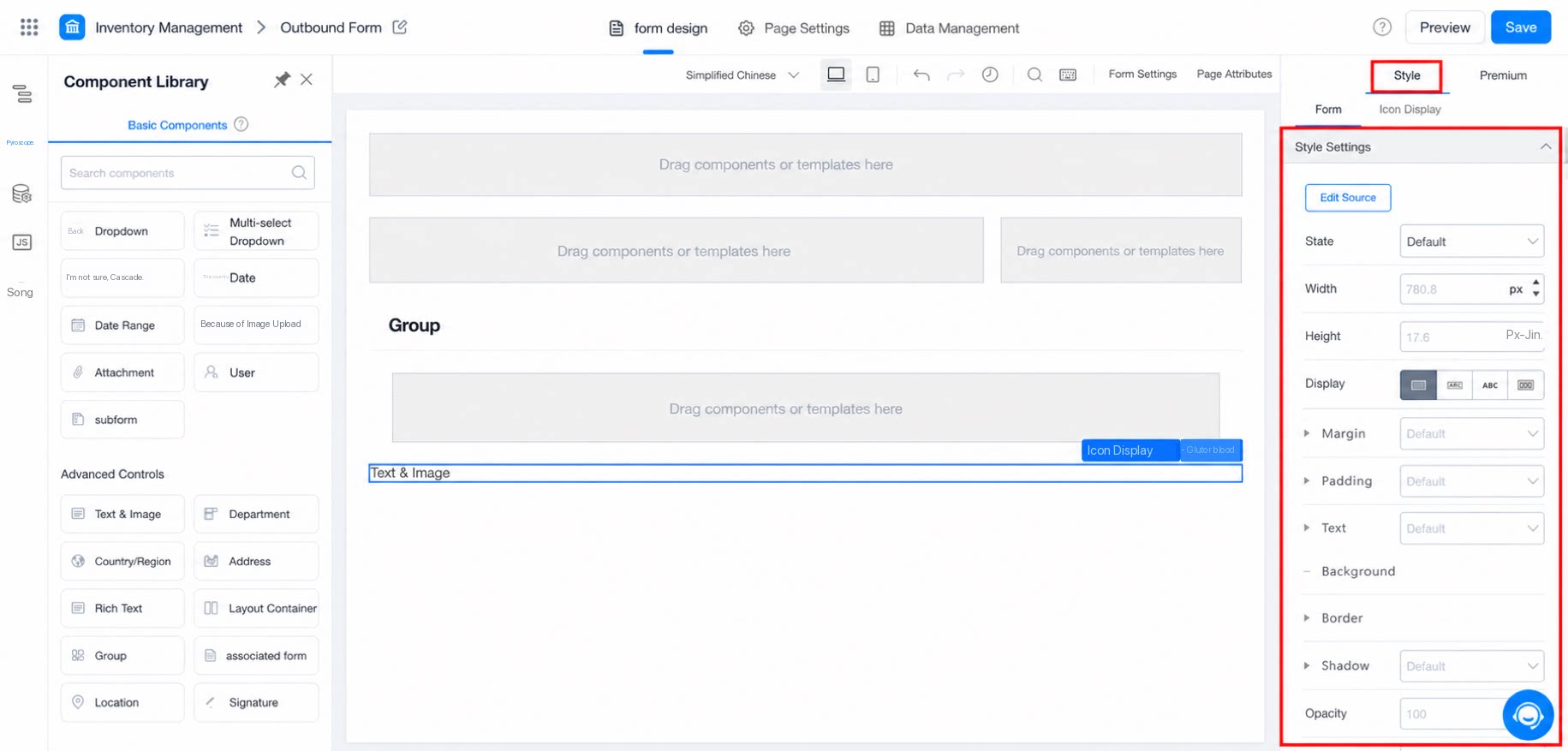
2. Feature Details
2.1 Source Code Editing
When certain CSS styles cannot be configured through the settings panel, use source code editing to write CSS code and define custom styles. Source code editing stays fully in sync with the settings panel on the right. Changes take effect immediately, and edits on either side are mirrored on the other. Reference: How to modify the style and size of the Single-line text component2.2 Default States
2.3 Layout
2.3.2 CSS Padding Properties
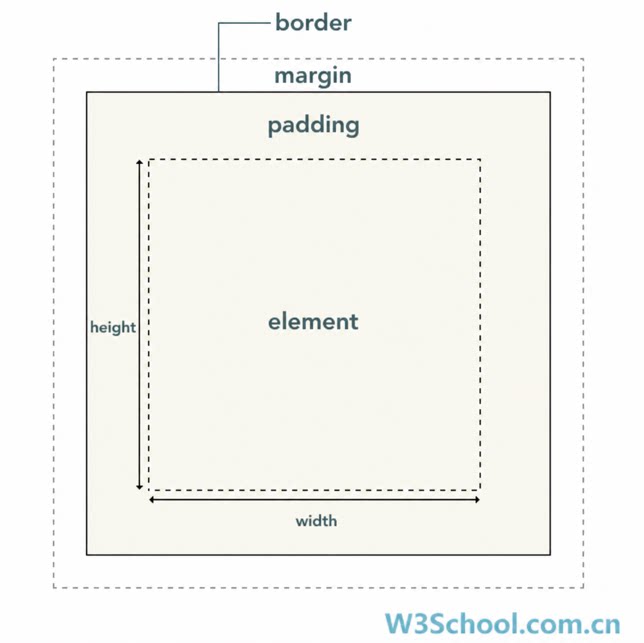
2.3.3 CSS Margin Properties
2.3.4 CSS Border Properties
2.4 Display
2.4.1 Block
A block-level element always occupies a full line. It starts on a new line, and any element that follows must also start on a new line. Its width (width), height (height), padding (padding), and margin (margin) are all controllable.2.4.2 Inline-Block
An inline-block element sits on the same line as adjacent inline elements. Its width (width), height (height), padding (padding), and margin (margin) are all controllable.2.4.3 Inline
An inline element sits on the same line as adjacent inline elements. Its width (width), height (height), top and bottom padding (padding-top/padding-bottom), and top and bottom margin (margin-top/margin-bottom) cannot be changed. Its size is determined by the Text or Image it contains.2.4.4 Flex (Non-Technical Users Are Advised to Use Column Layouts)
Flex layout is a simple, complete, and responsive way to build a wide range of page layouts. An element that uses flex layout is called a flex container. By default, a container has two axes: a horizontal main axis and a vertical cross axis. Direction: row — The main axis runs horizontally, starting from the left (default). Direction: column — The main axis runs horizontally, starting from the right. Direction: row-reverse — The main axis runs vertically, starting from the top. Direction: column-reverse — The main axis runs vertically, starting from the bottom. Align: flex-start — Aligns items to the start of the cross axis. Align: flex-end — Aligns items to the end of the cross axis. Align: center — Aligns items to the center of the cross axis. Align: baseline — Aligns items along the baseline of the first line of text. Align: stretch — Items with no set height, or with height set to auto, stretch to fill the full height of the container (default). Justify: flex-start — Align Left (default). Justify: flex-end — Align Right. Justify: center — Center Align. Justify: space-between — Aligns items to both ends with equal spacing between them. Justify: space-around — Applies equal spacing on both sides of each item. Note: For a detailed tutorial, see Flex layout syntax tutorial.2.5 Text
(1) Font: The Font of the Text. (2) Weight: The thickness of the Text. (3) Style: The style of the Text (normal or Italic). (4) Color: The color of the Text. (5) Size: The size of the Text. (6) Line height: The height of the line containing the Text. (7) Align: The Text alignment (Align Left, Center Align, Align Right, or justify). (8) Decoration: The Text decoration (normal, Underline, or Strikethrough).2.6 Background
(1) Fill color: The Background color. (2) Image: Use an Image as the Background.2.7 Border
(1) Line style: The border line style (solid, dotted, or dashed). (2) Width: The width of the border. (3) Color: The color of the border. (4) Corner radius: The size of the border corner radius.2.8 Effects
(1) Opacity: The transparency of the element. The smaller the value, the more transparent it becomes. (2) Cursor: The Cursor style shown when hovering over the element (pointer or hand).2.9 Shadow
(1) Color: The color of the shadow. (2) X: The horizontal offset of the shadow. (3) Y: The vertical offset of the shadow. (4) Blur: The blur distance of the shadow. A larger value produces a softer shadow edge. (5) Spread: The spread radius of the shadow. A positive value expands the entire shadow, while a negative value shrinks it.If the Help document above does not resolve your issue, contact Xingfudemianhuatang.