Chats
Chats Calendar
 Meetings
 Contacts
 Mail
Mail Docs
Docs Drive
Drive AI Table
 AI Minutes
 Attendance
 Approval
 YiDA
YiDA Admin Console
1. Introduction
1.1 Feature Overview
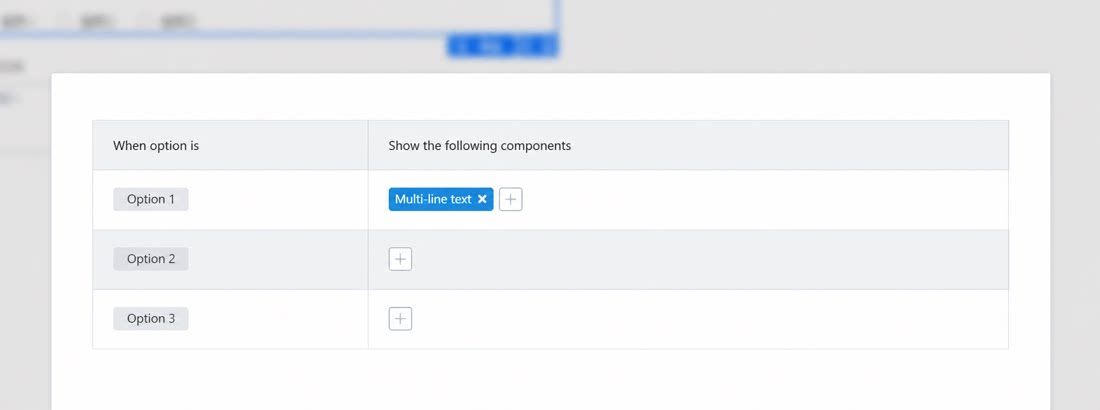
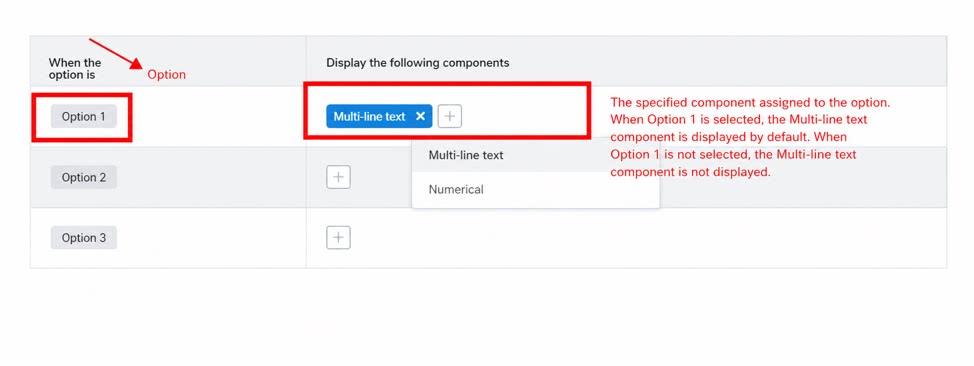
In Select, Multi-select, Dropdown select, and Dropdown multi-select fields, assign specified components to each option. The specified component appears only when the option matches the selected value. This applies to scenarios such as item requisition and contract management. Note: The Linked option settings button is not available when the component is placed inside a subform. For an example of options and their assigned components, see the figure below: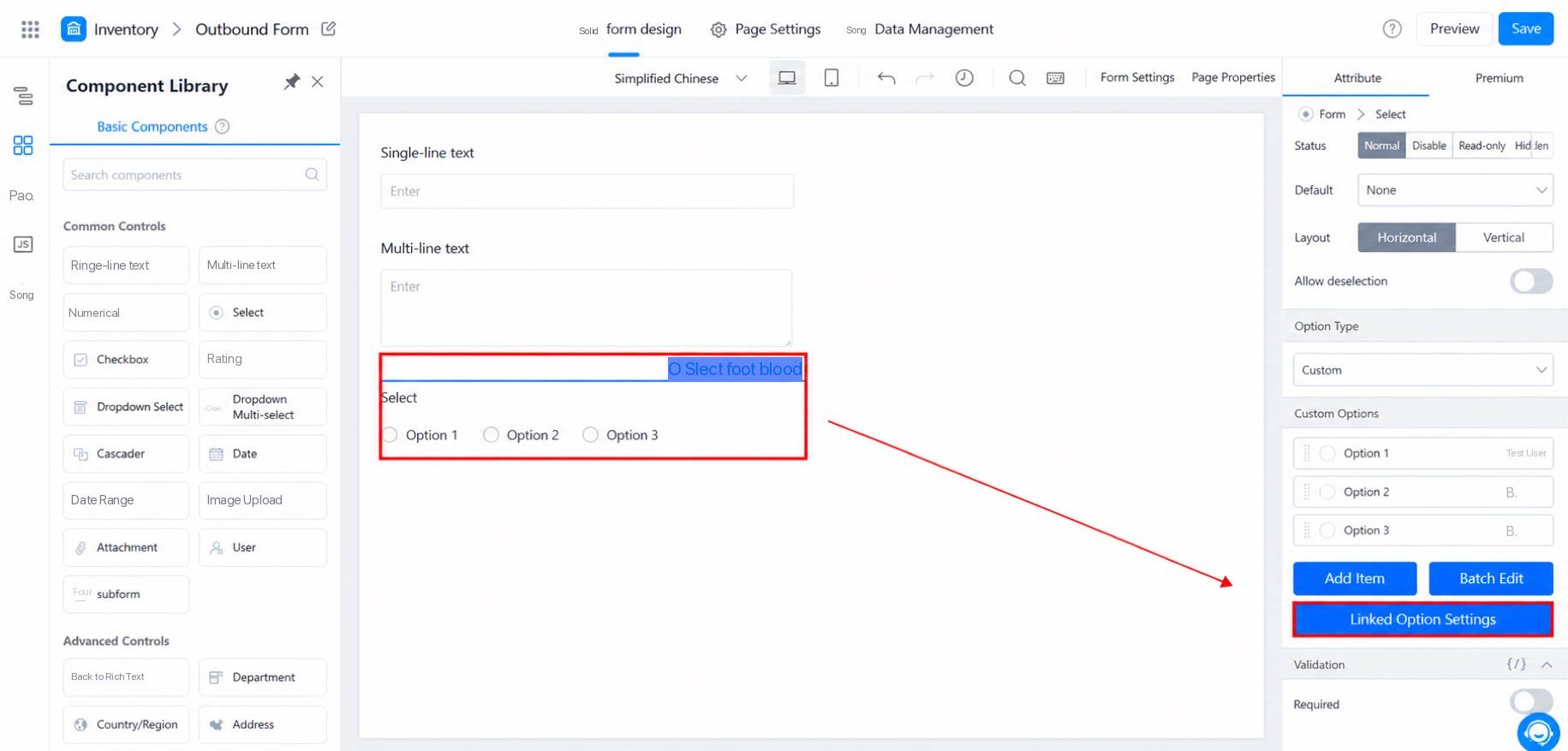
1.2 Use Case
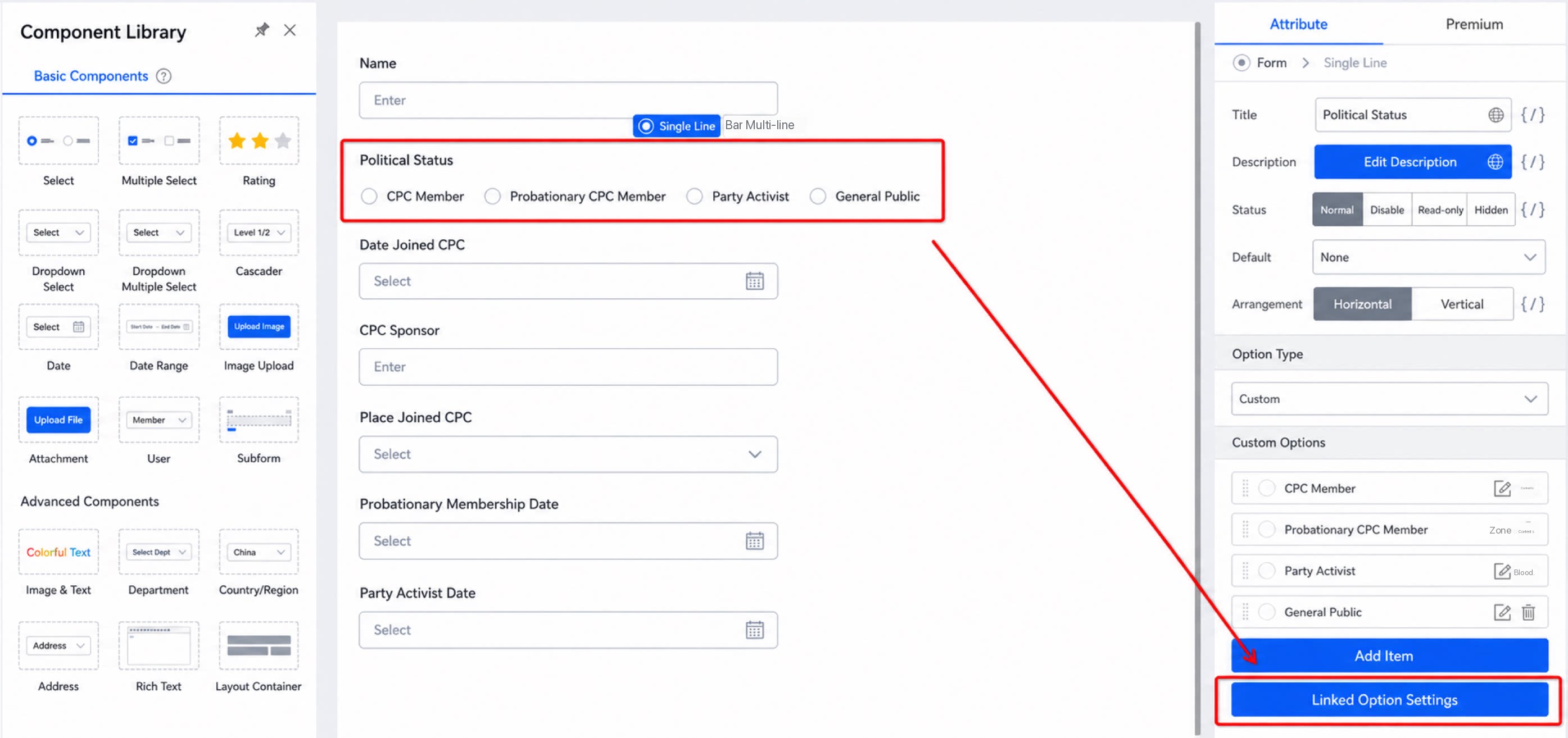
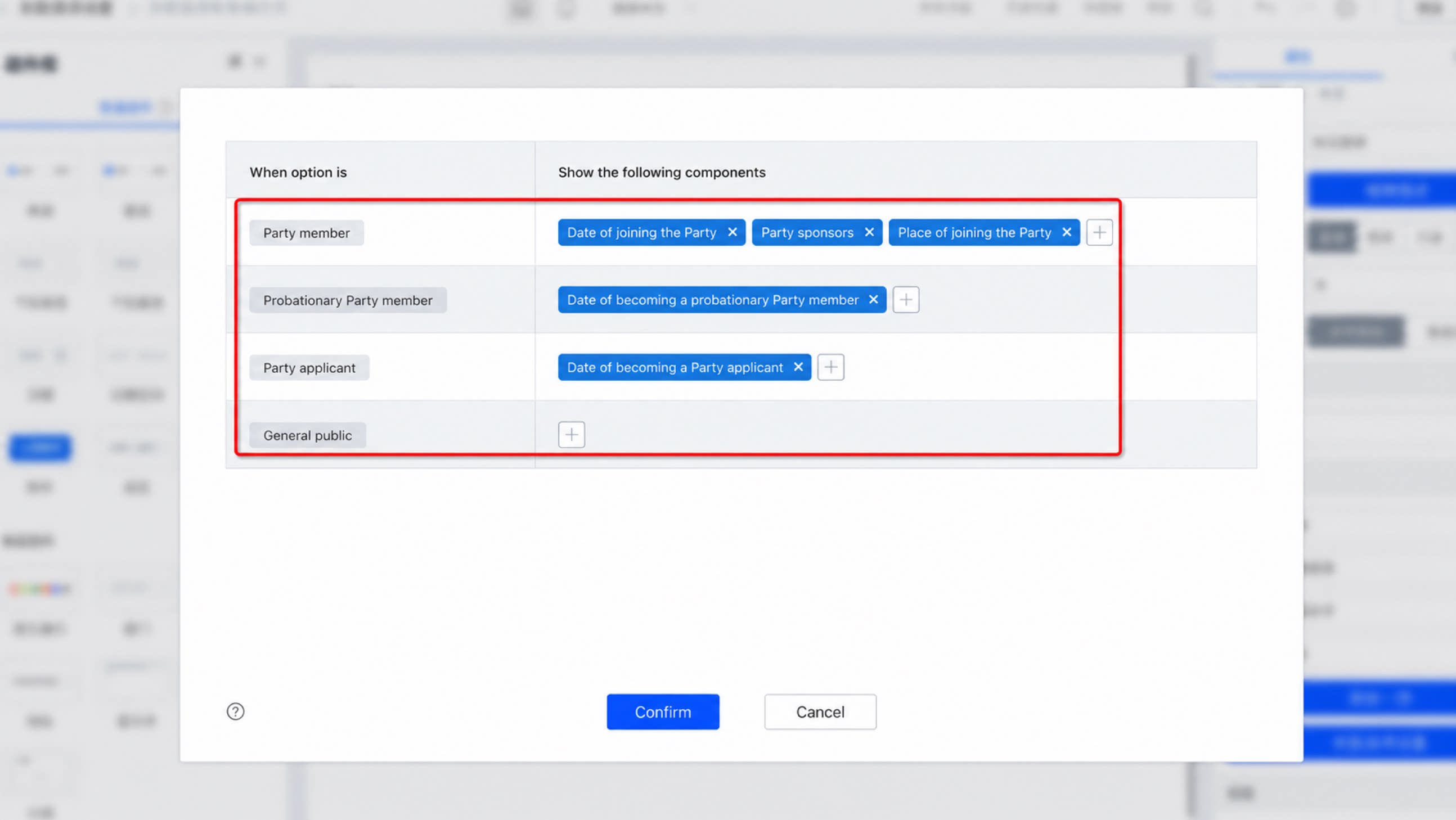
Design a Party member information platform for a company. Employees with different identities fill in different information. For example:- Party member: Enter the date of joining the Party, the location of joining, and the introducer.
- Probationary Party member: Enter the date of becoming a probationary Party member.
- Activist: Enter the date of becoming an activist.
- General public: No additional information required.
2. Rules for Linked Option Settings
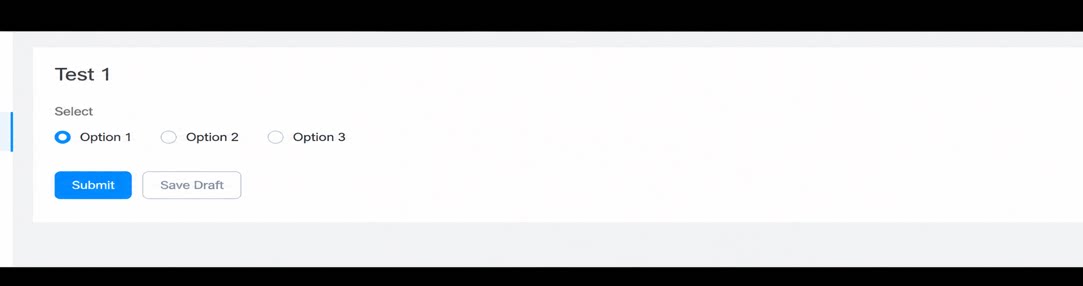
If a component is assigned to an option but no option is selected, the assigned component is hidden and does not appear on the form.