Chats
Chats Calendar
 Meetings
 Contacts
 Mail
Mail Docs
Docs Drive
Drive AI Table
 AI Minutes
 Attendance
 Approval
 YiDA
YiDA Admin Console
1. Introduction
1.1 Feature Overview
Association settings let a Select or Multiselect field automatically fetch and display a value from a field in another form, avoiding duplicate data entry and keeping the two forms in sync.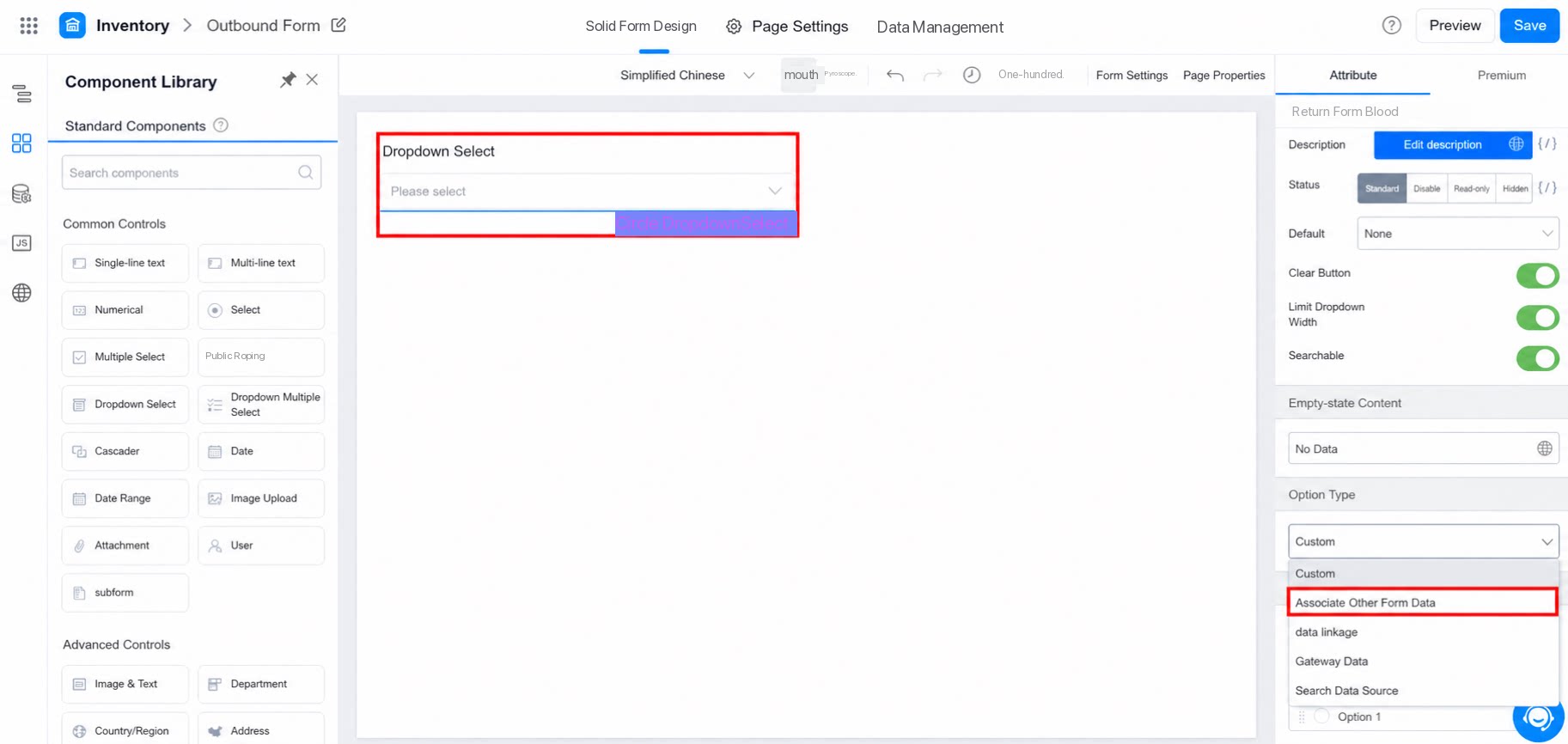
1.2 Use Cases
Commonly used to configure options for components such as Select, Multiselect, dropdown Select, dropdown Multiselect, and checkbox. Association settings: Configure a primary association. If duplicates appear in the primary association, add a secondary association to distinguish them.1.2.1 Example
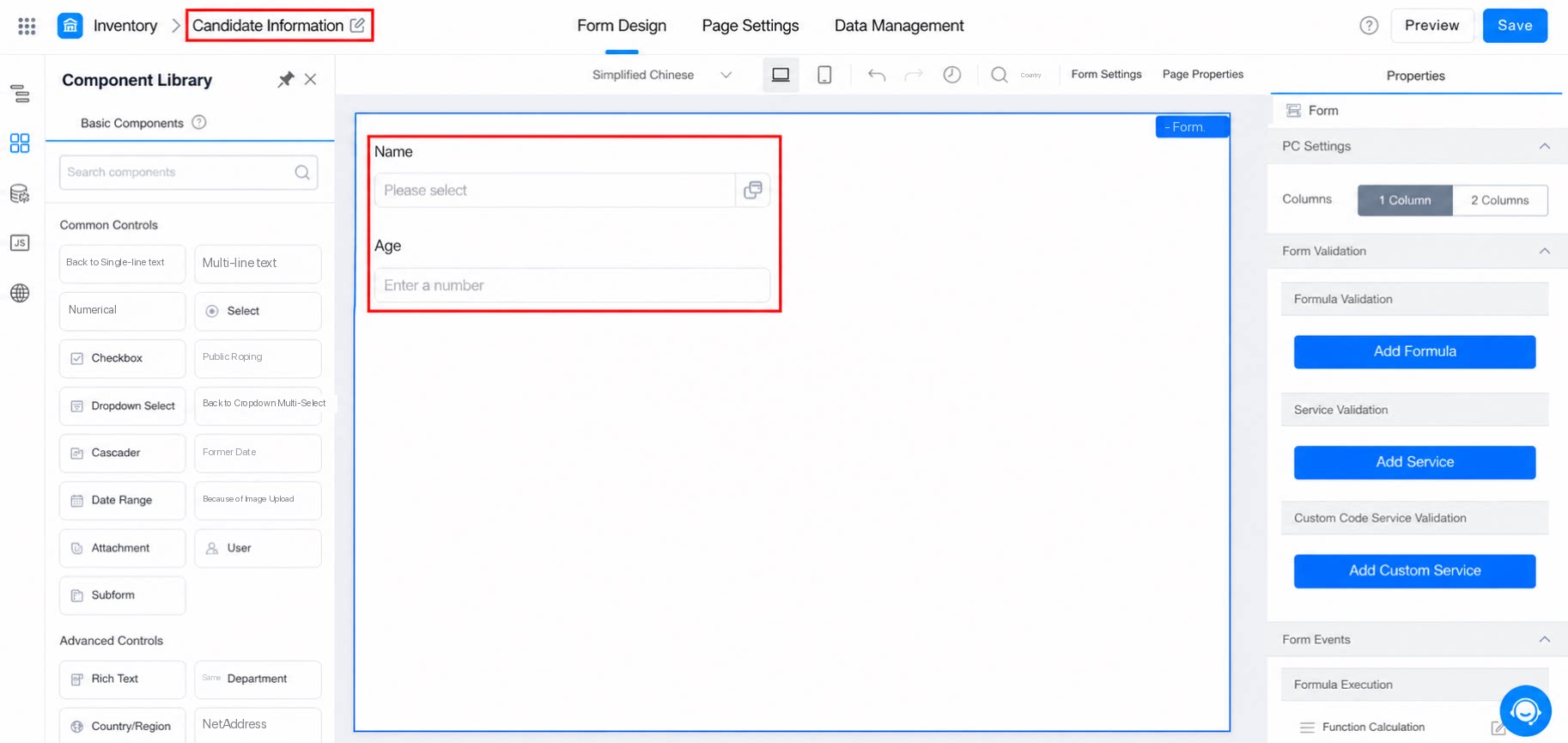
Design two forms:- Candidate information form: Captures user details such as name and age.
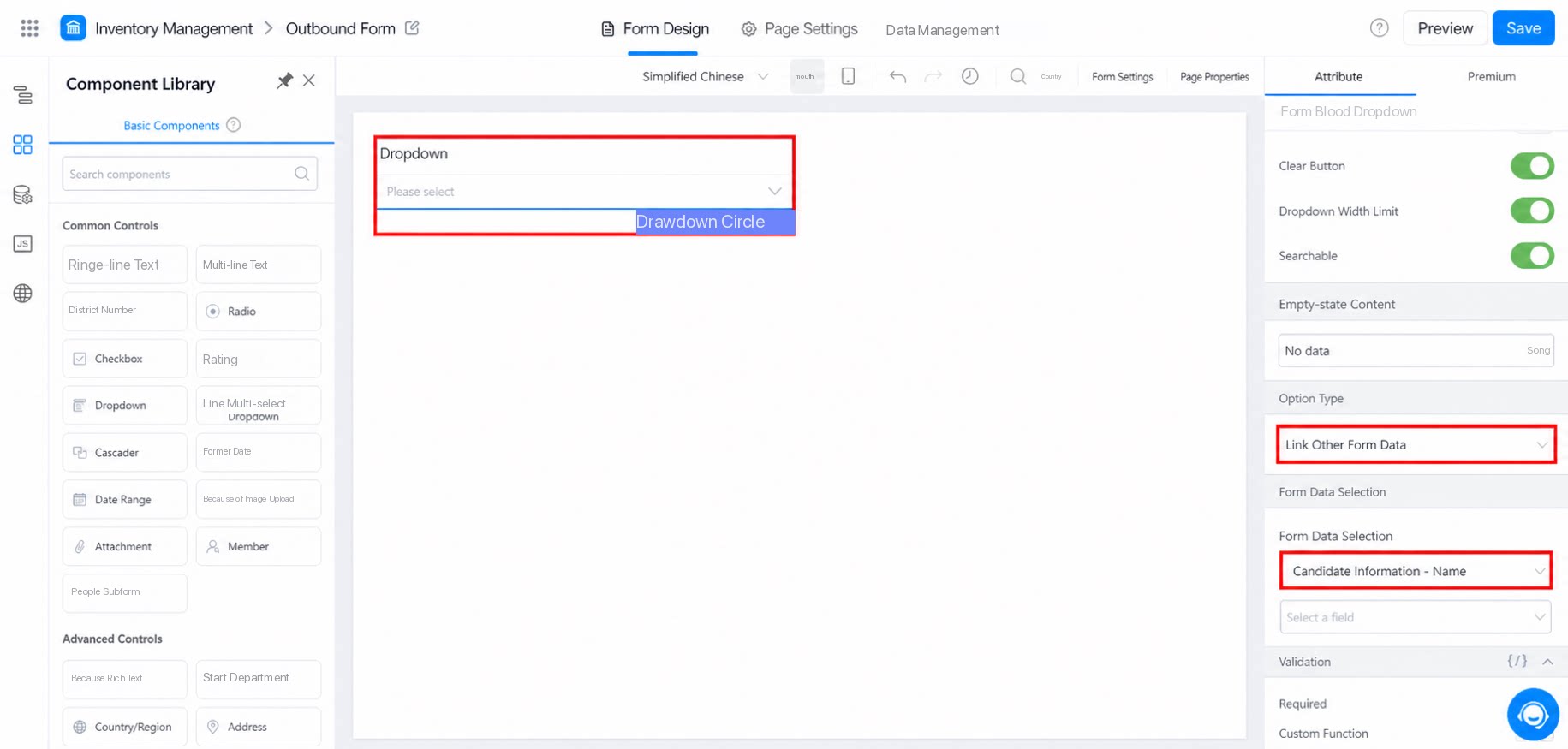
- Select candidate form: Selects the user information submitted through the Candidate information form.
2. Select the Associated Form
2.1 Selectable Forms
Only regular forms and workflow forms are supported. You can also choose form data sources from other apps. For details on retrieving form data across apps, see Obtain form data across apps.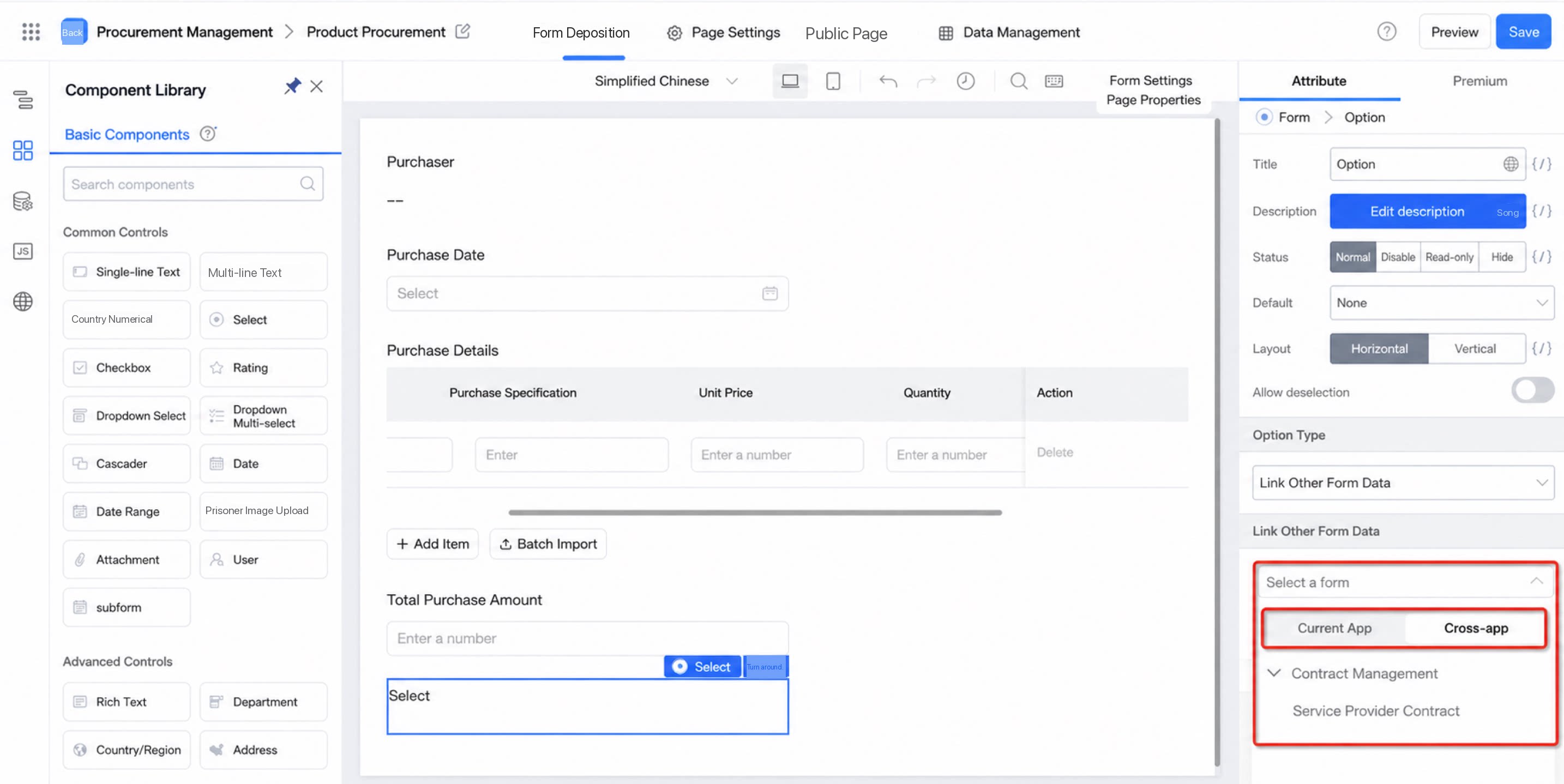
2.2 Supported Components
Only Single-line text and Multi-line text components in the associated form can be selected. Other components, such as Numerical and Date, are not supported. Note: To associate data from components other than Single-line text or Multi-line text, add a hidden Single-line text field (with Always Submit enabled) and assign its value through a formula.3. FAQ
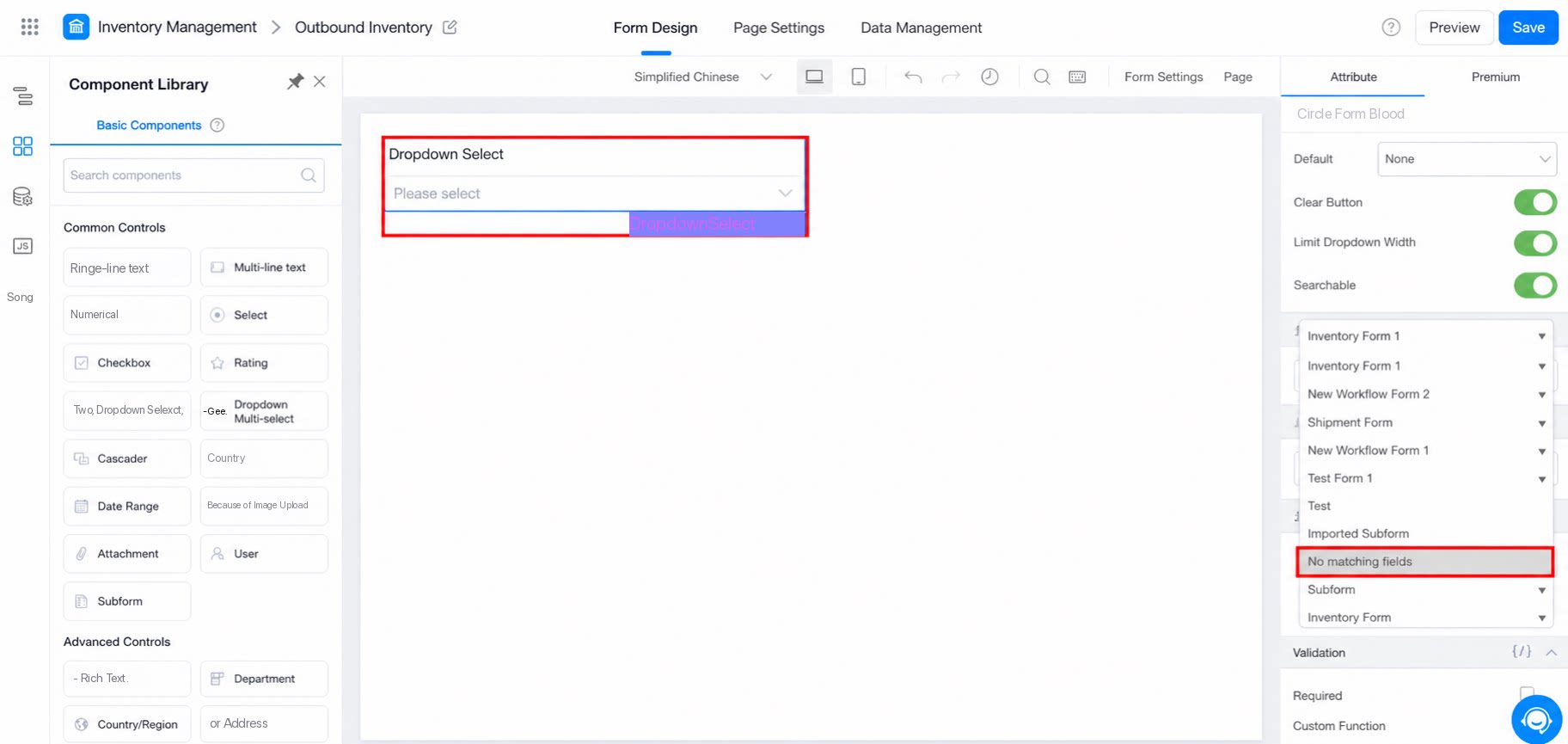
3.1 When Selecting Associated Data from Another Form, I Cannot Select a Field, and the Message “No Matching Field” Appears. Why?
The associated form does not contain a Single-line text or Multi-line text component, so no field is available for selection. Add one of these components to the form to resolve the issue.