Chats
Chats Calendar
 Meetings
 Contacts
 Mail
Mail Docs
Docs Drive
Drive AI Table
 AI Minutes
 Attendance
 Approval
 YiDA
YiDA Admin Console
1. Use Cases
2. Selectable Scope
3. Supported Features
| Module | Supported scope | Screenshot example |
| Manage permissions | Set data filter conditions based on form content. Custom permission fields. | 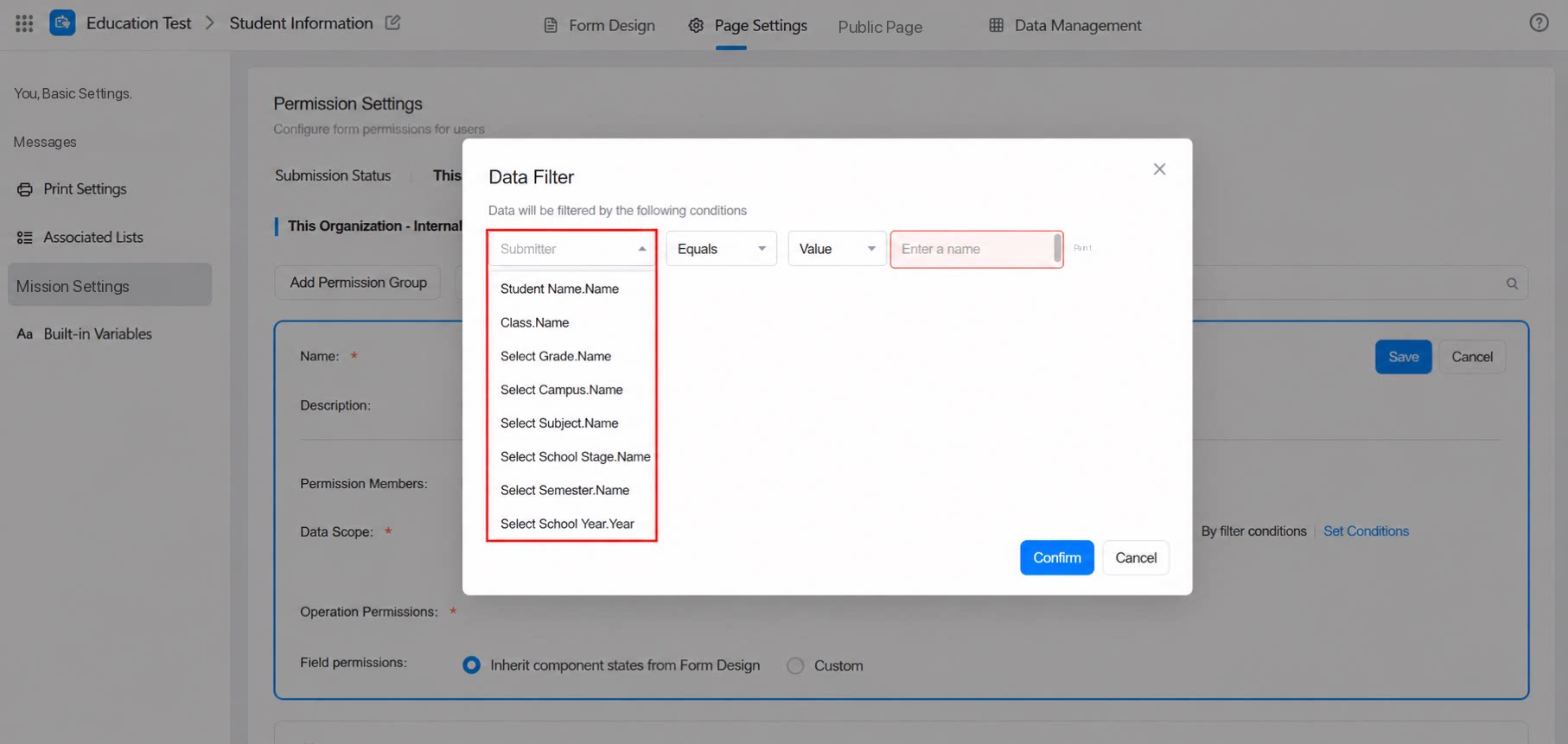 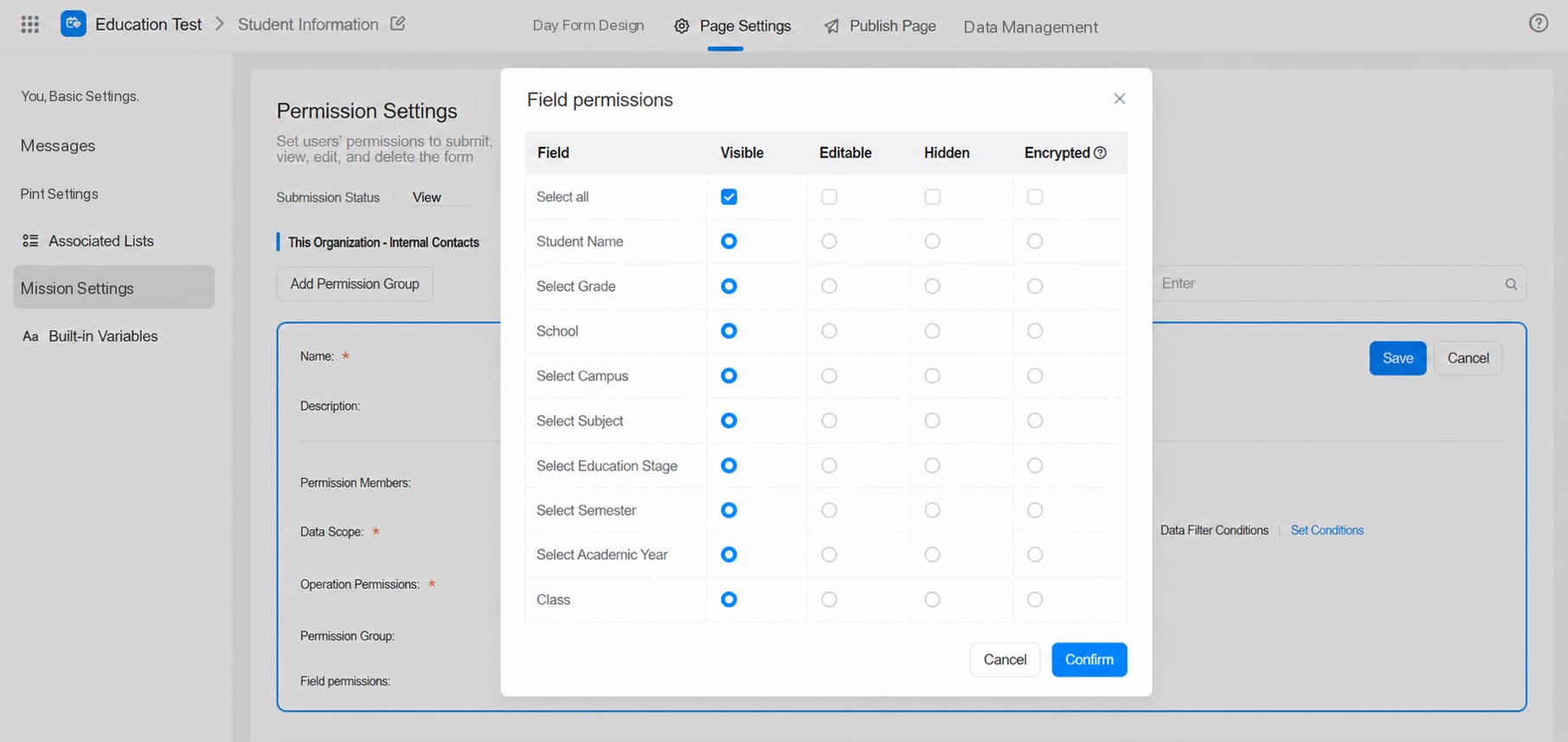 |
| Data management page | Set display columns. Associated list - custom columns. List / associated form list display. Subform display. Sort. Filter. Add filter conditions > fields excluded from search. | 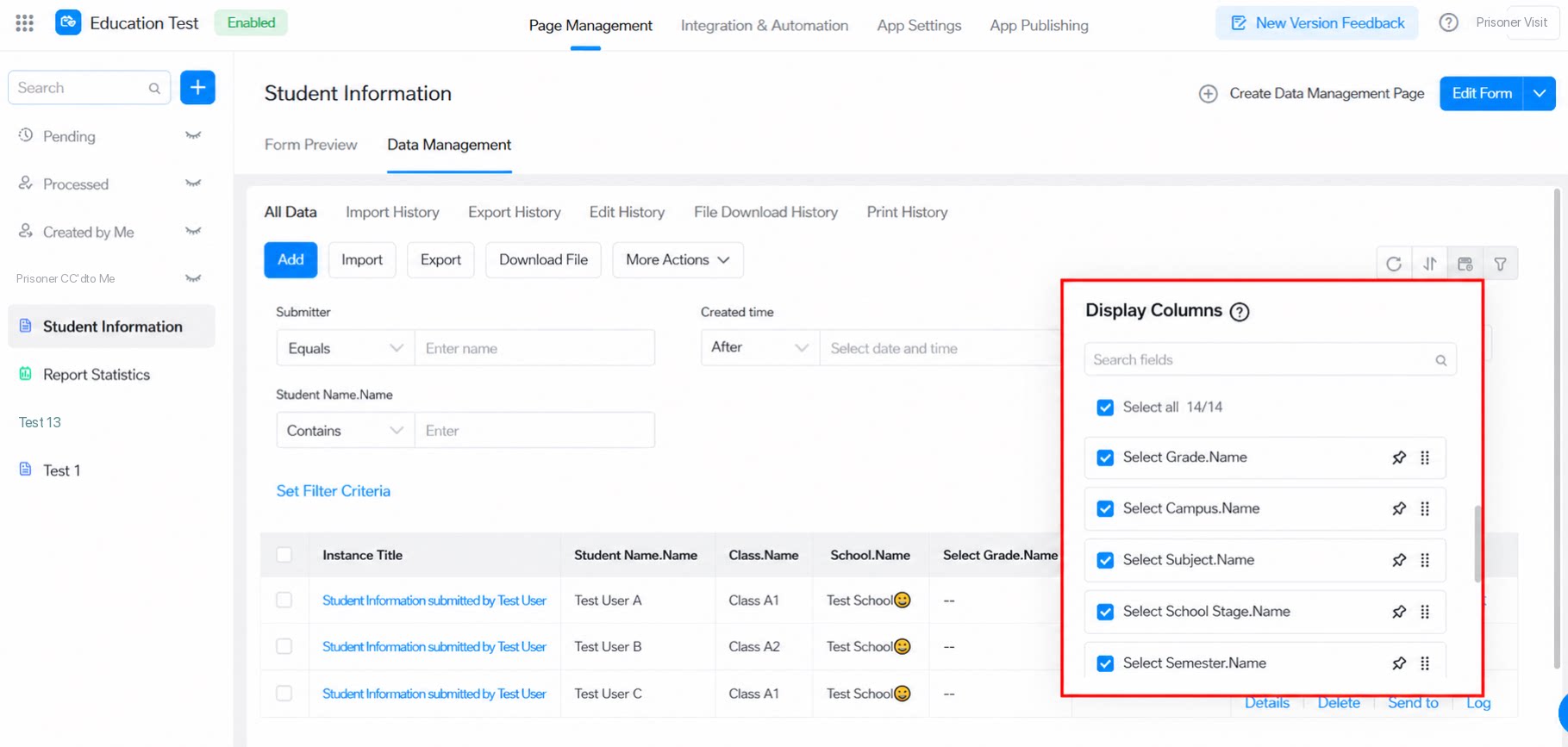 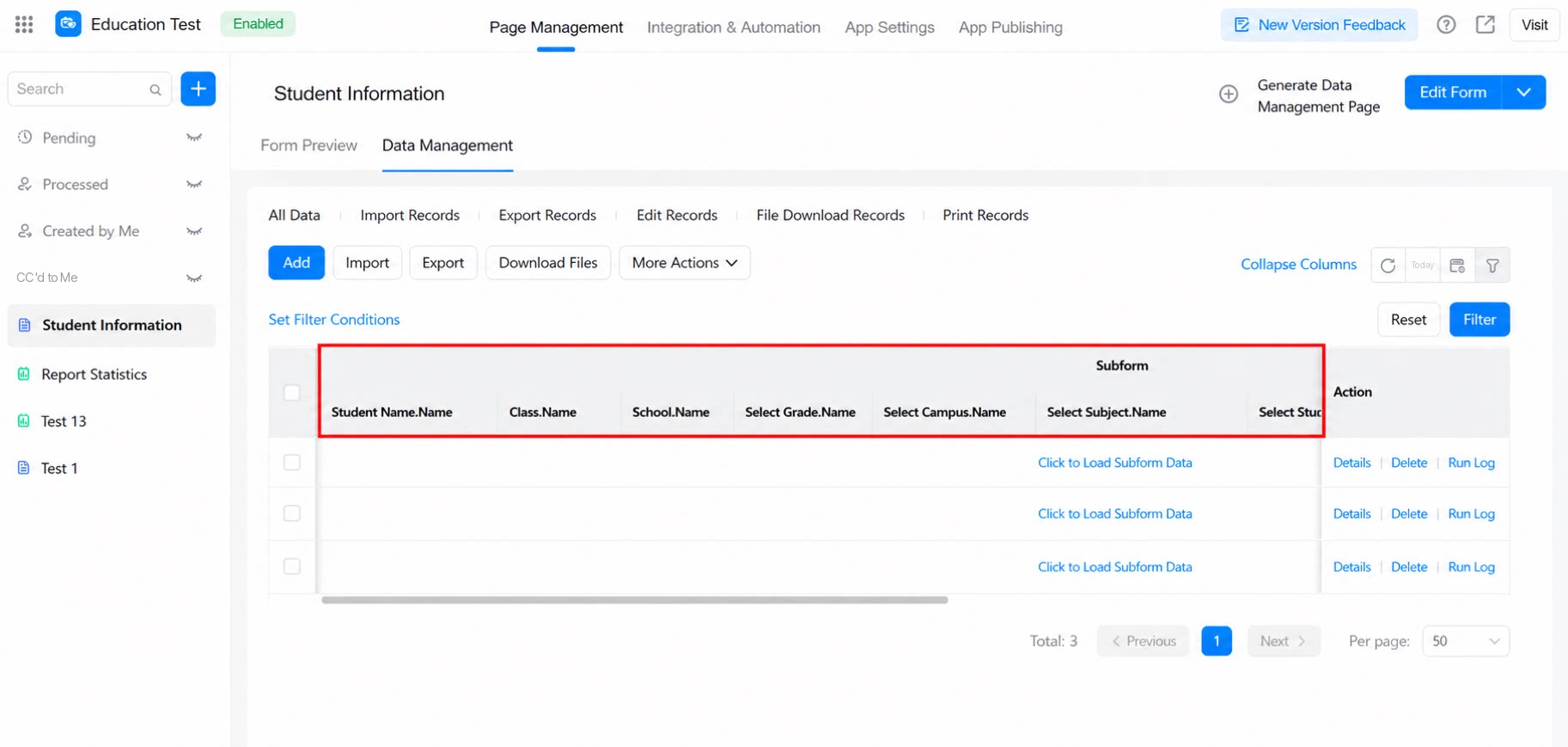 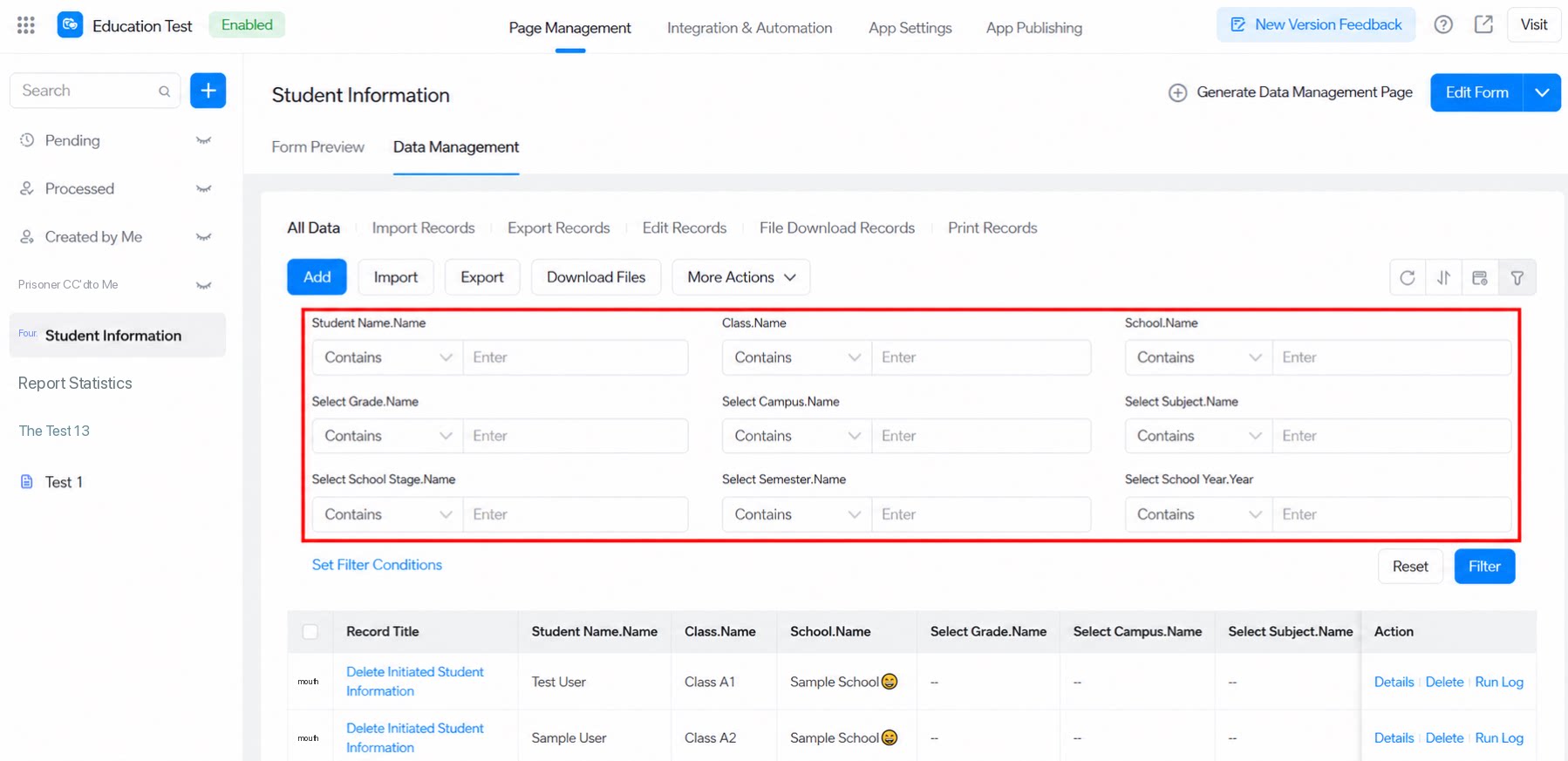 |
| Print template name settings. Print PDF content design. | 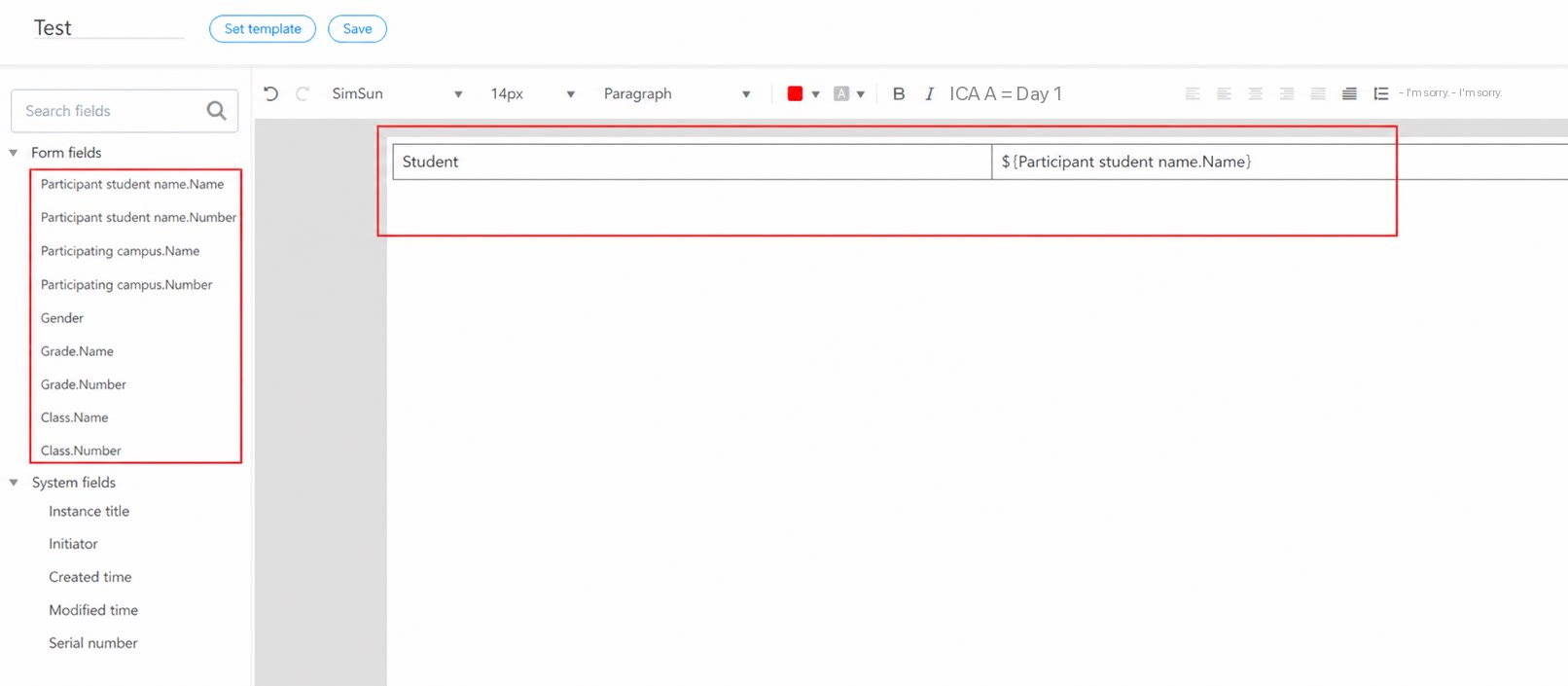 | |
| Form design | Form designer - Default value formula. | 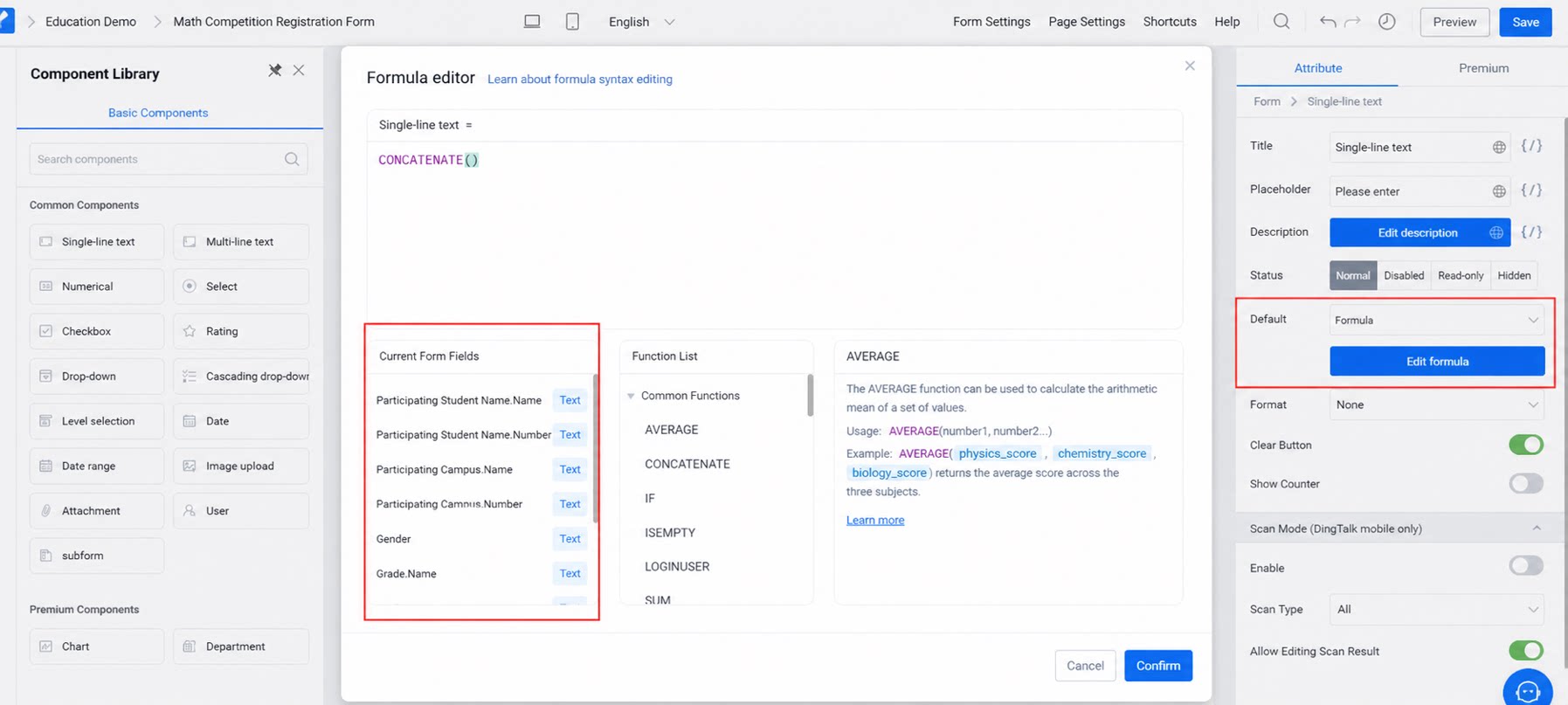 |
| Form designer - Data linkage. Only supported as a deduplication field. | 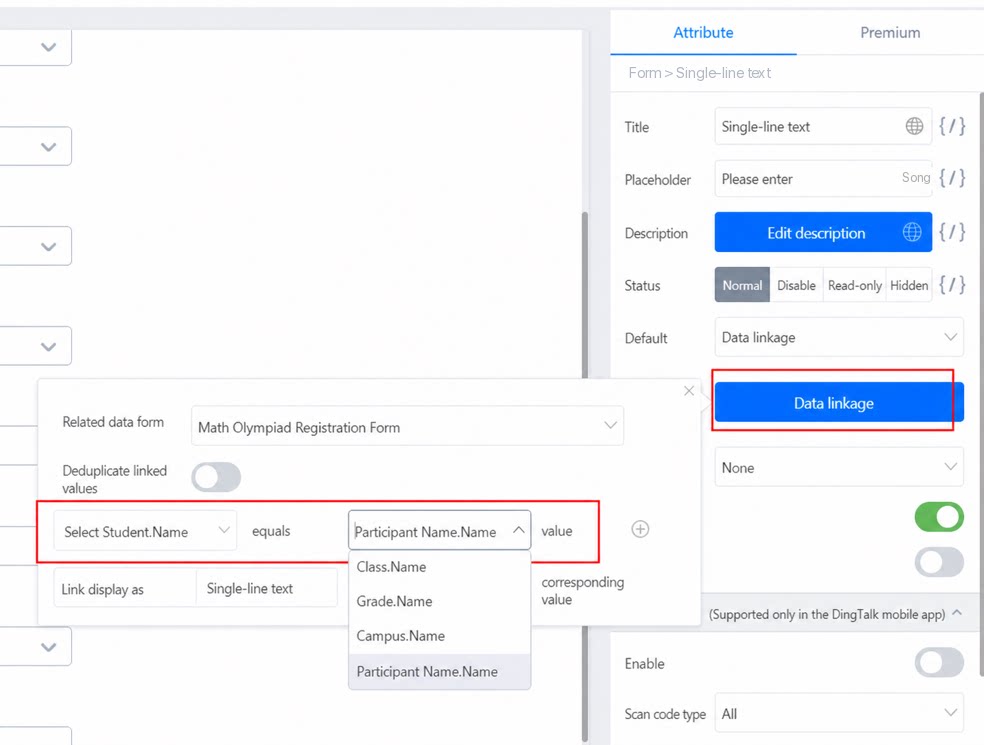 | |
| Form designer - Association with data from other forms (form data selection). Association with data from other forms can only be assigned to Single-line text for association. | 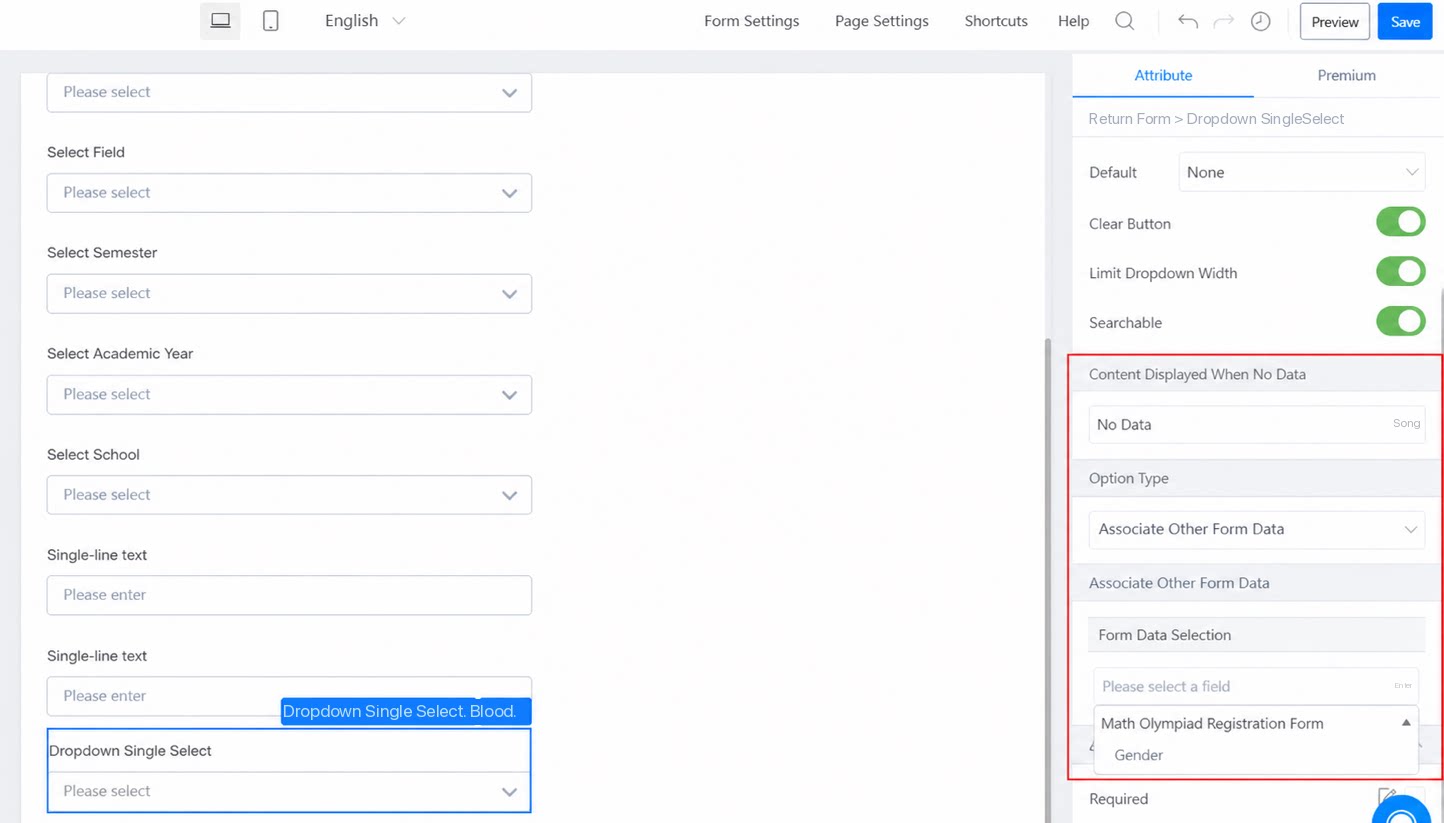 | |
| Form designer - Associated form display settings. Only supported as secondary information. | 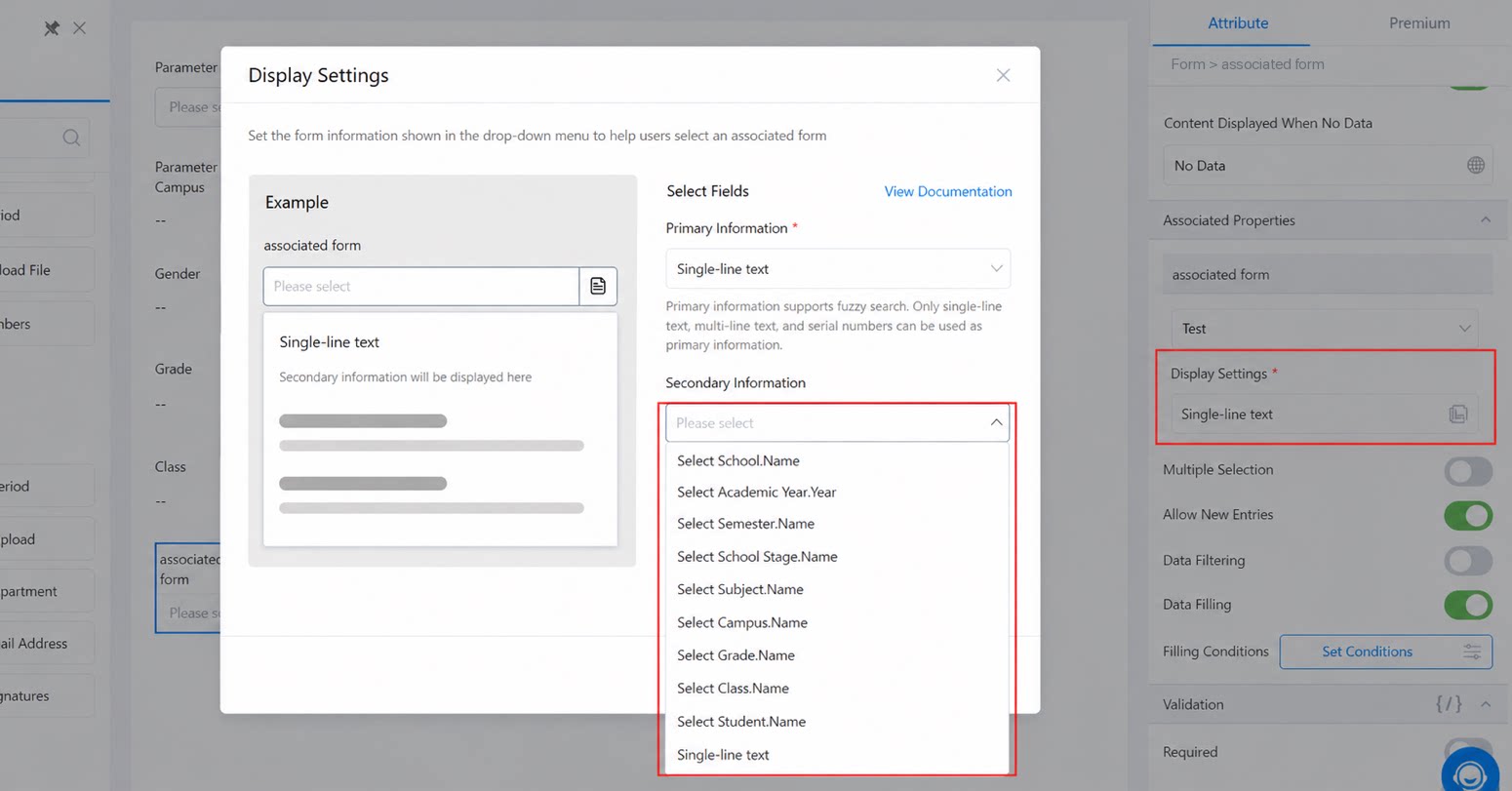 | |
| Form designer - Associated form component population. | 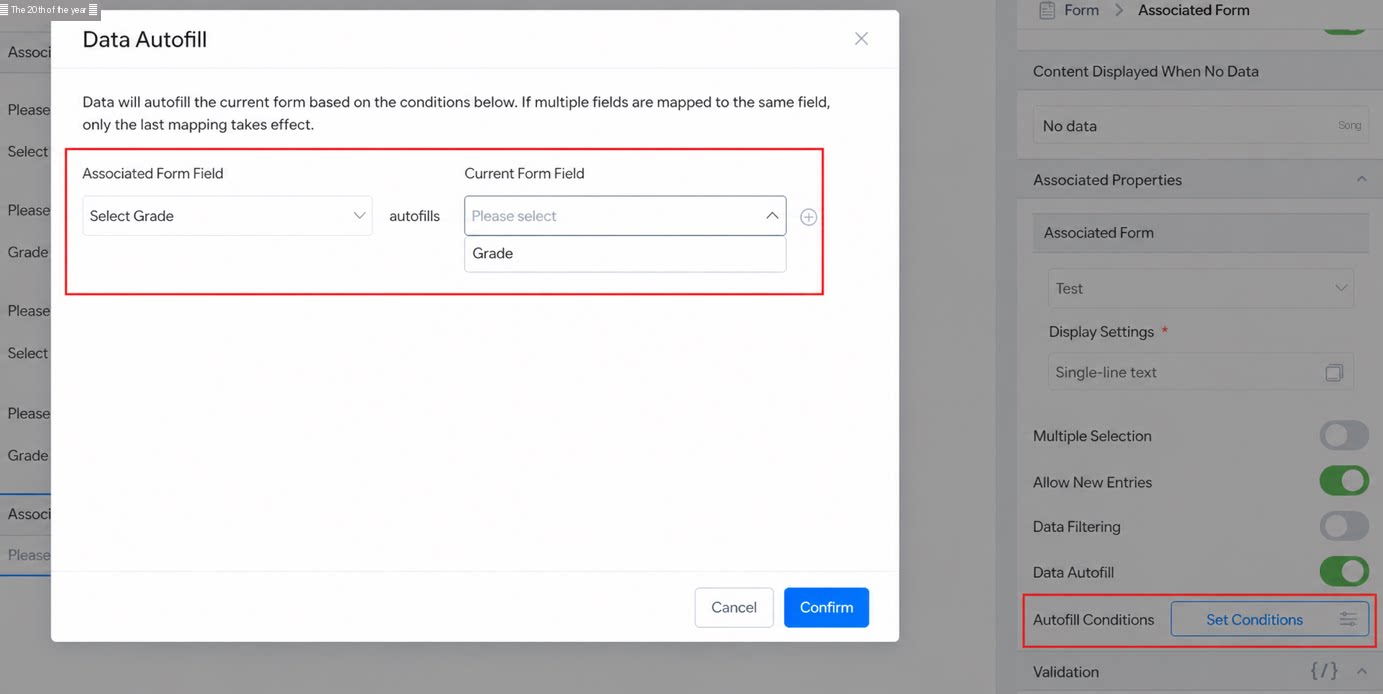 | |
| Form designer - Associated form filter conditions. | 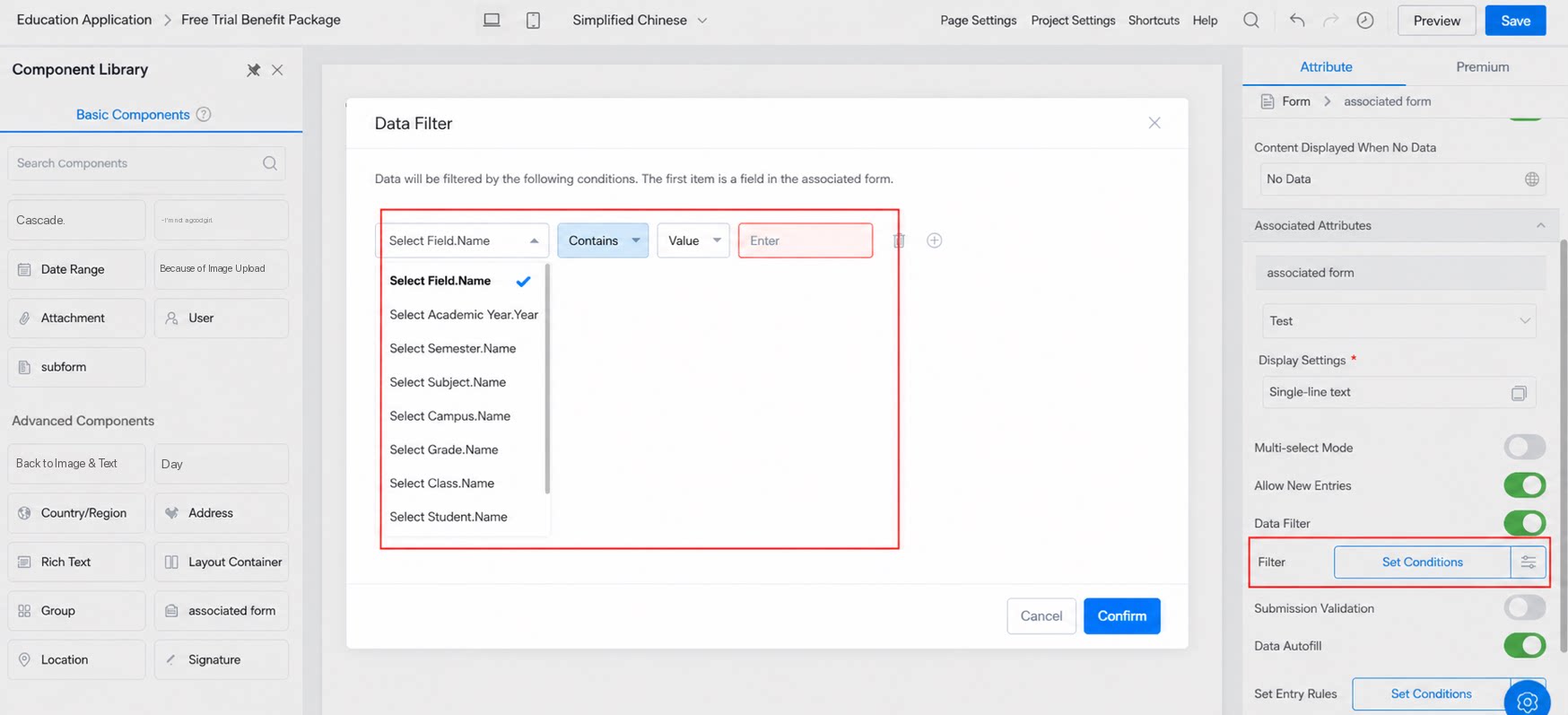 | |
| Form designer - Association options. | 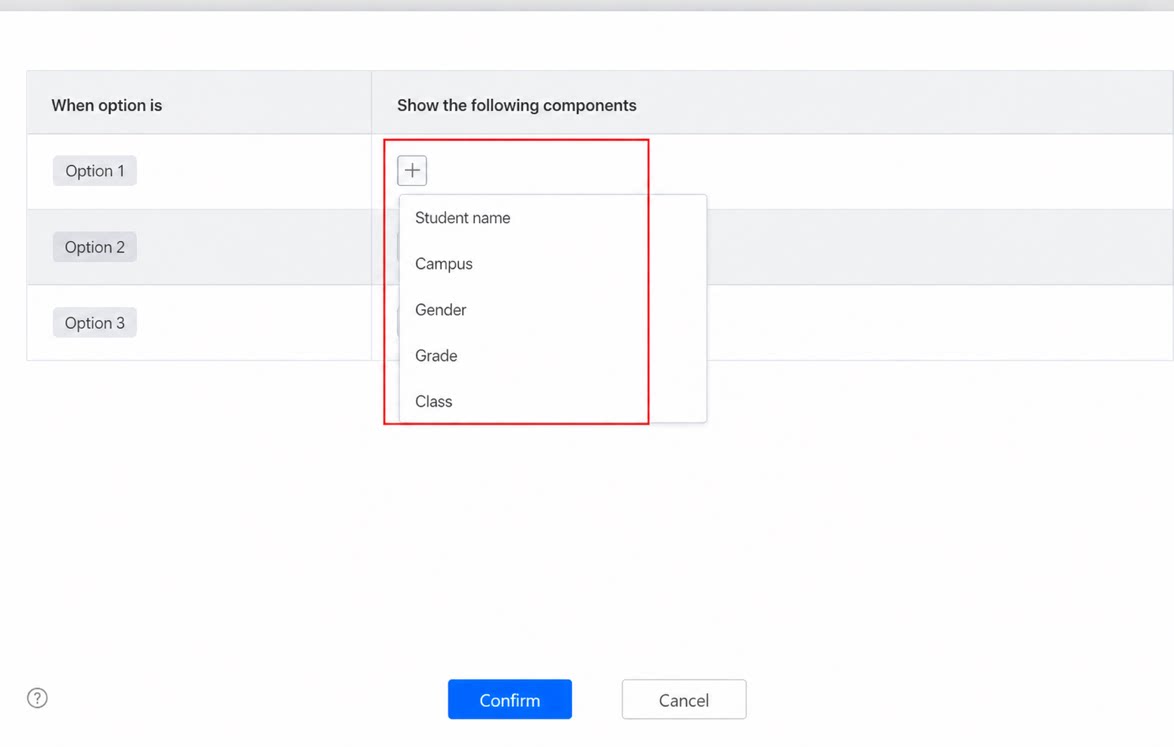 | |
| Form settings > Form validation > Formula validation. | 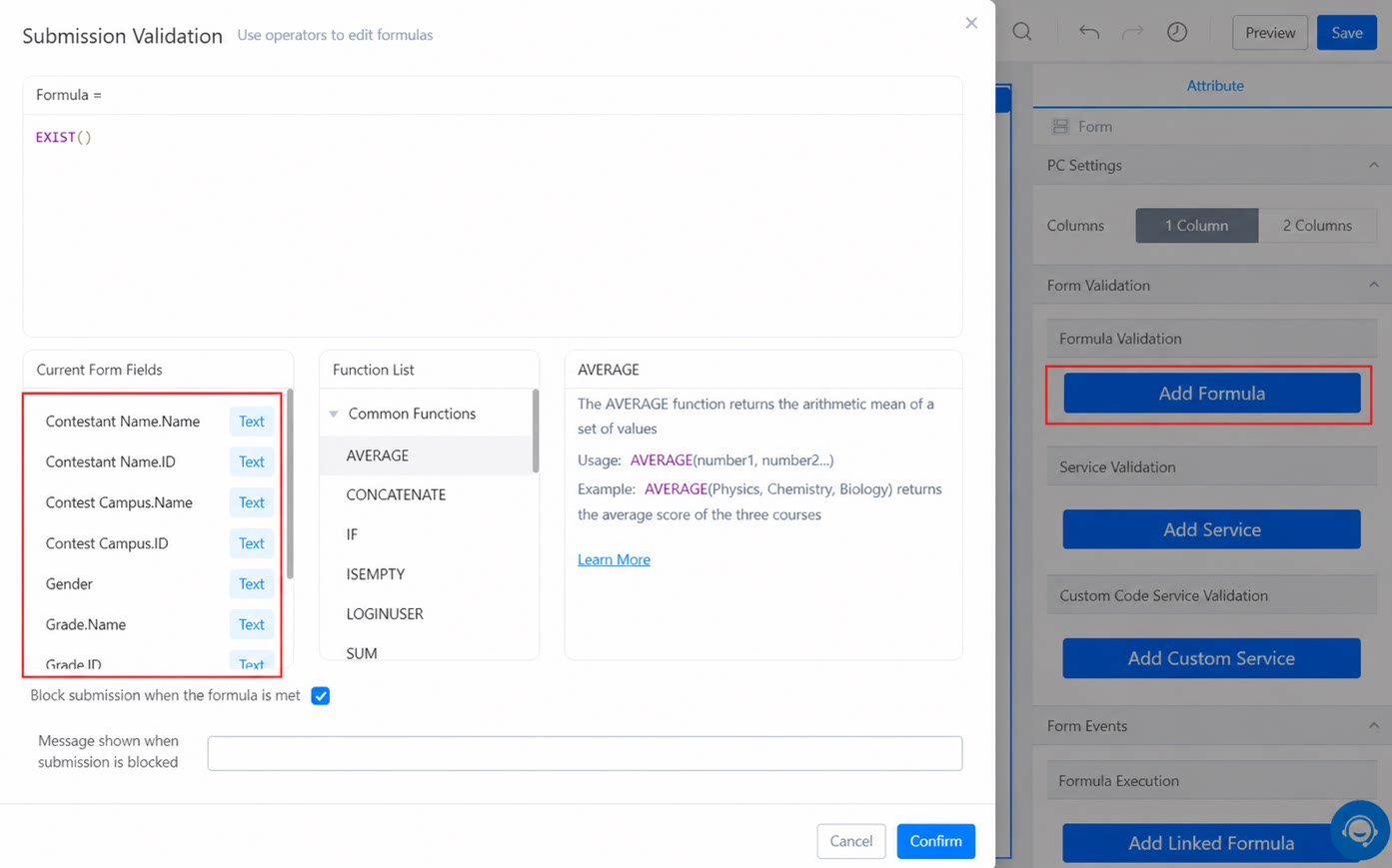 | |
| Message notifications | Message template variable replacement. Notification by user / student (notify parents). Note: When Message notifications is set to notify by components on the page, a regular component of the user type appears in a dropdown list. For non-regular components, display depends on whether the component has a Data Source. | 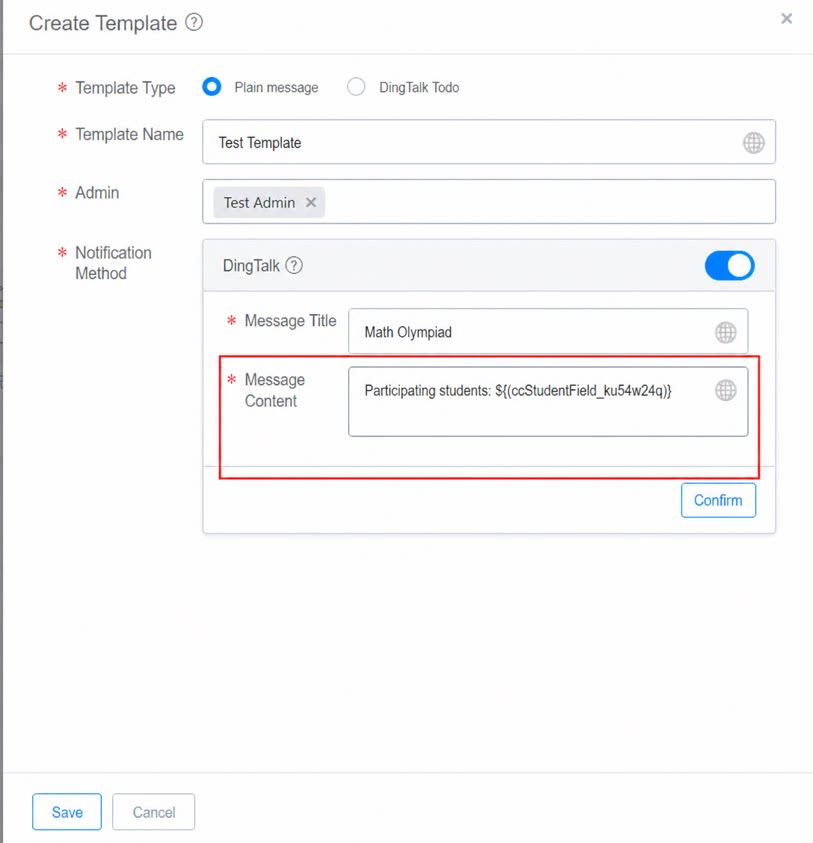 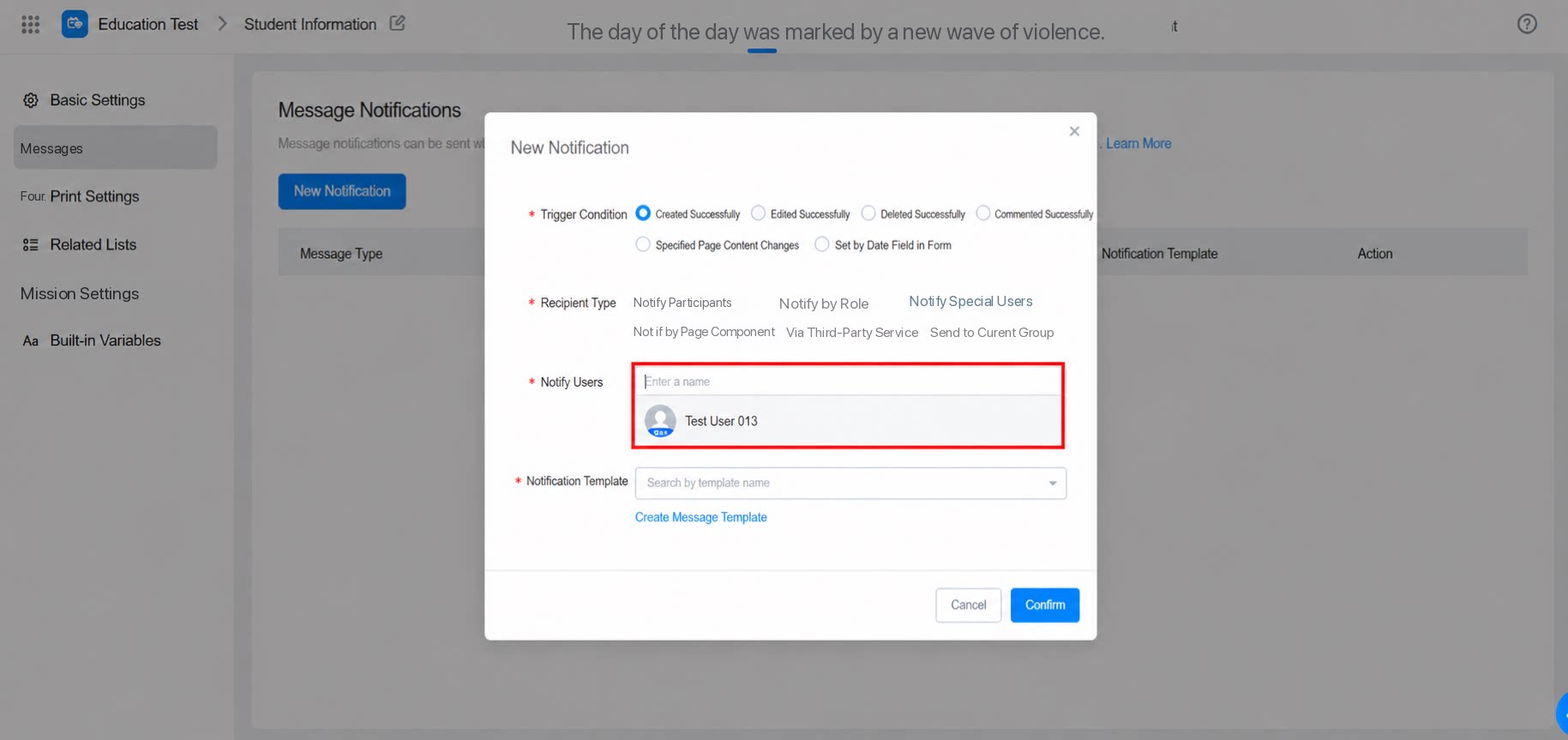 |
| Page settings | Redirect link settings. | 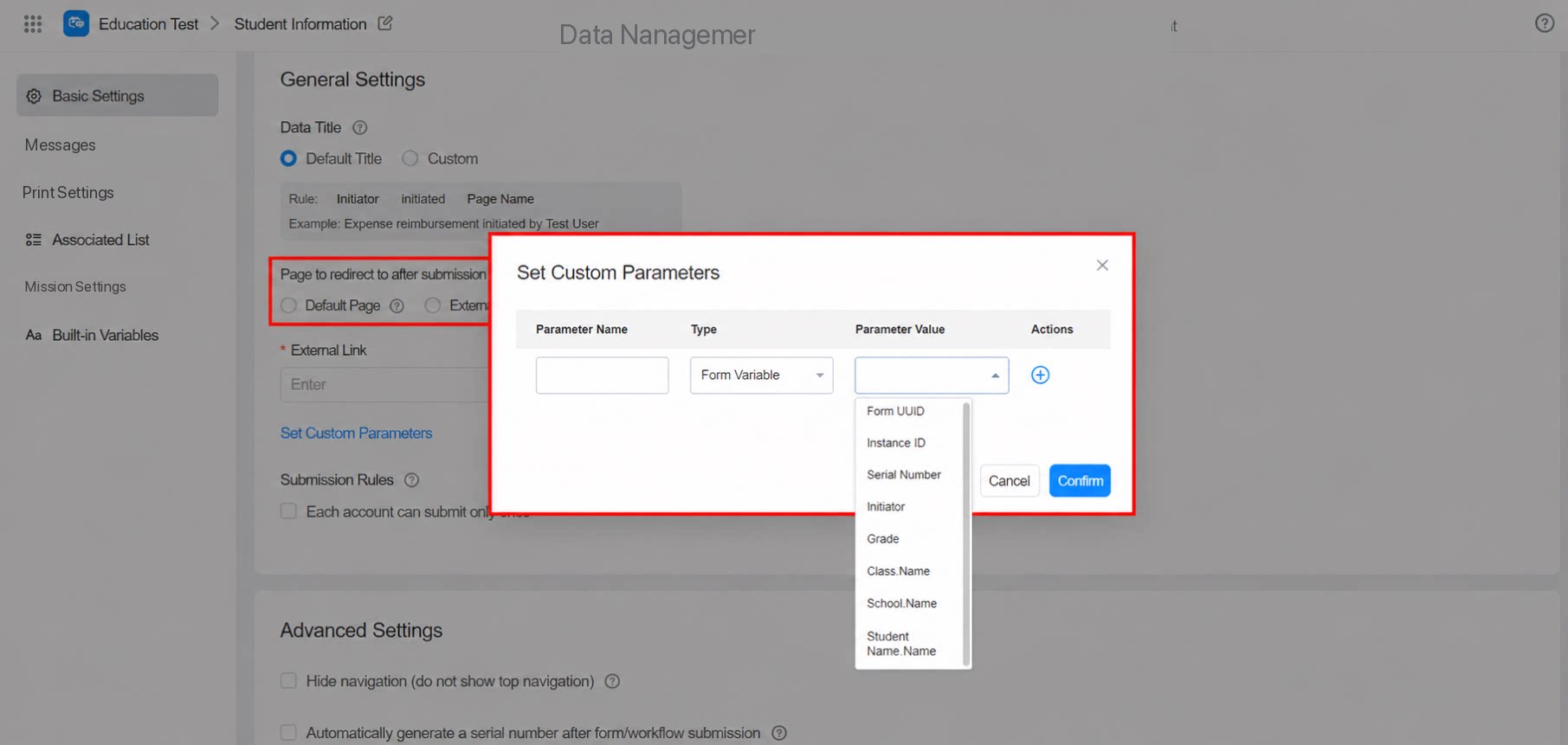 |
| Report | Currently, newly created regular forms / workflow forms are supported directly. To display historical form data directly on the report side, perform the following actions:
There are currently 2 ways to push education components to reports:
Note: Data preparation is only available in the Exclusive edition (YiDA education edition is the Exclusive edition). Example scenario: University math olympiad scores (1) Create a regular form to record student scores. Use components such as student, class, school, and Numerical on the form, and enter the corresponding student scores. (2) Create a report and display score statistics through the following 2 methods:
| Create the form and enter data Main table field format display Configuration path: Create report > Report edit page > Select data display component > Configure dataset > Select data fields to display. Independent data format display Configuration path: Enter the app and first create a view table / data preparation. For specific configuration, refer to the view table documentation and data preparation documentation. Create report > Select data display component > Configure dataset > Select view table or created data preparation as the dataset > Select data fields to display. 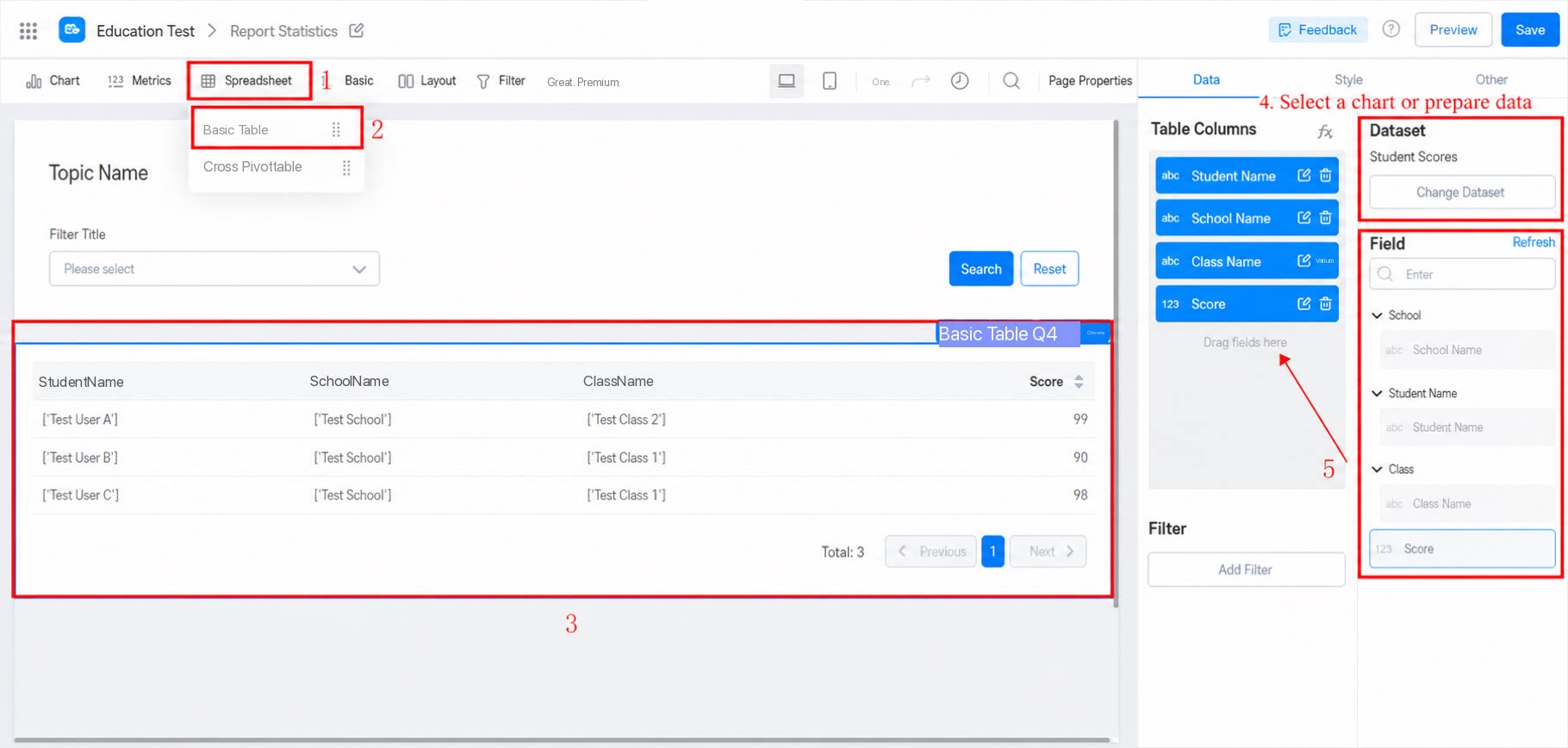 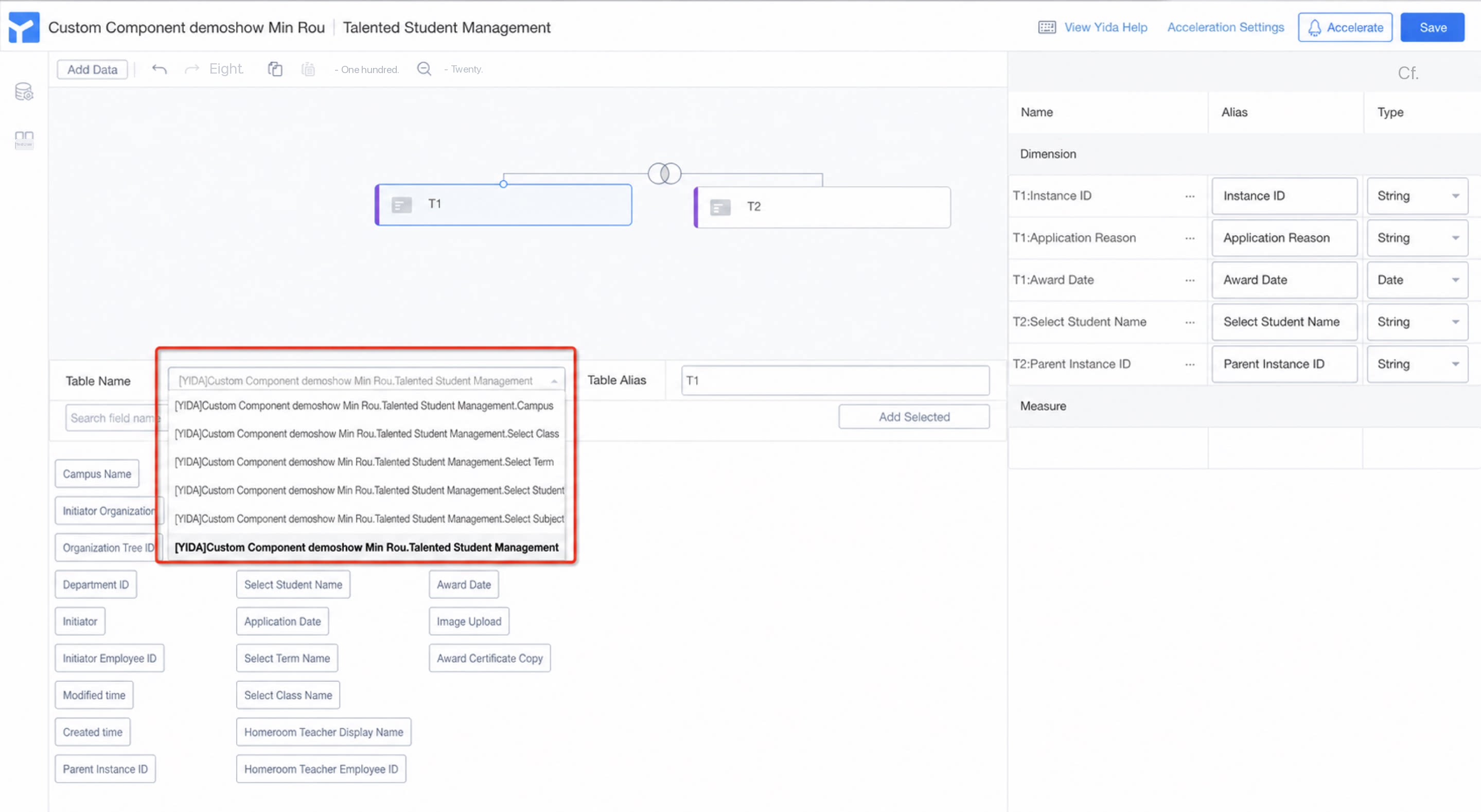 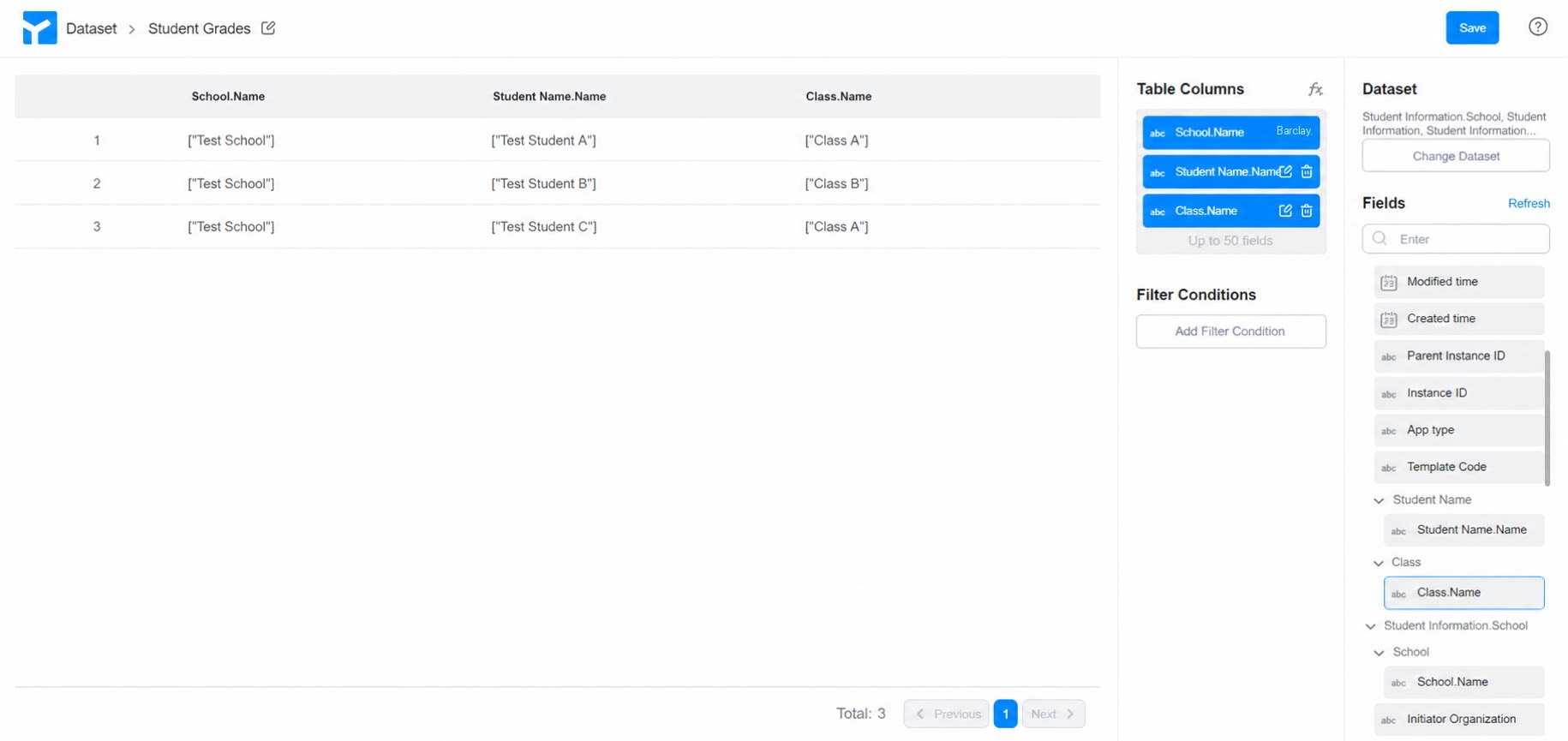 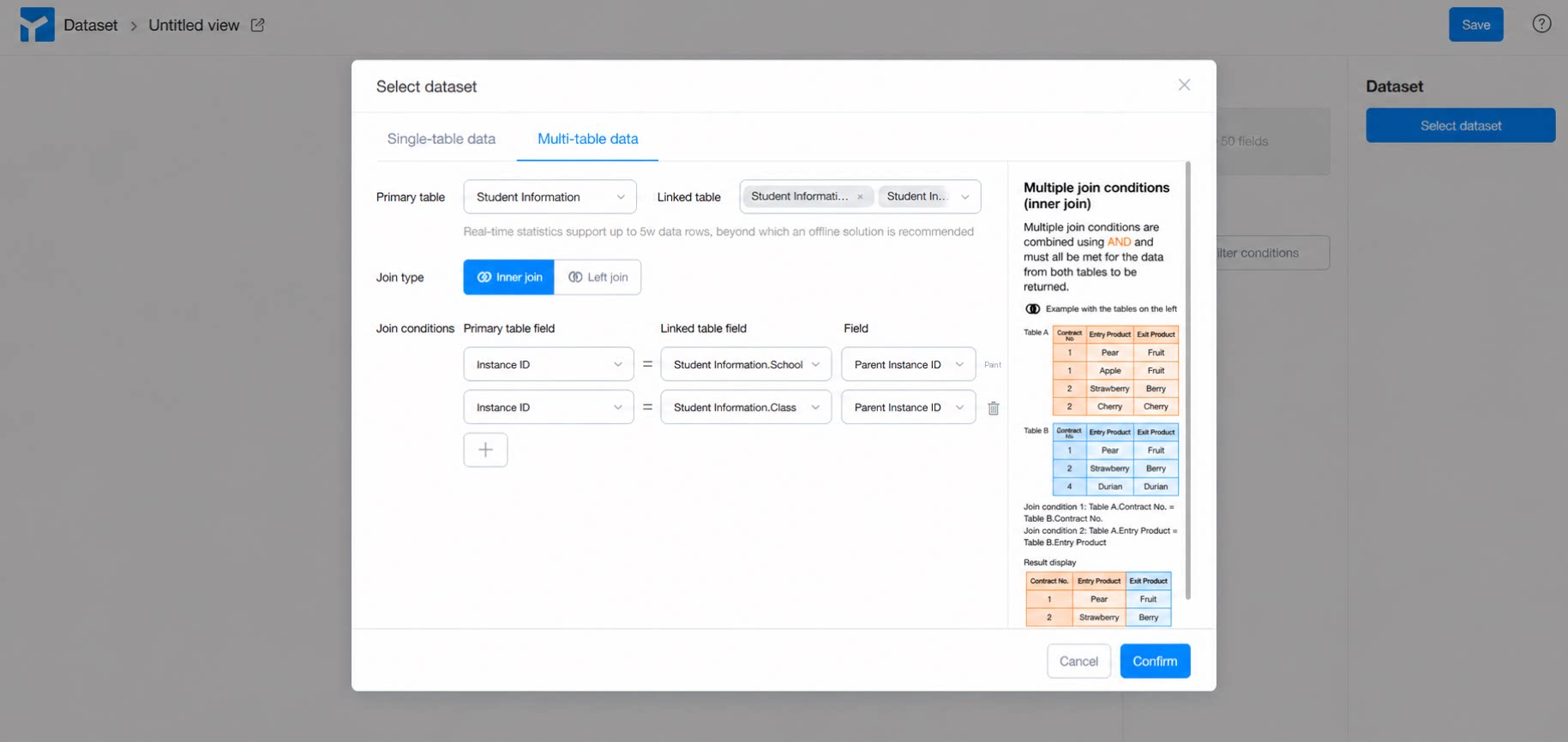 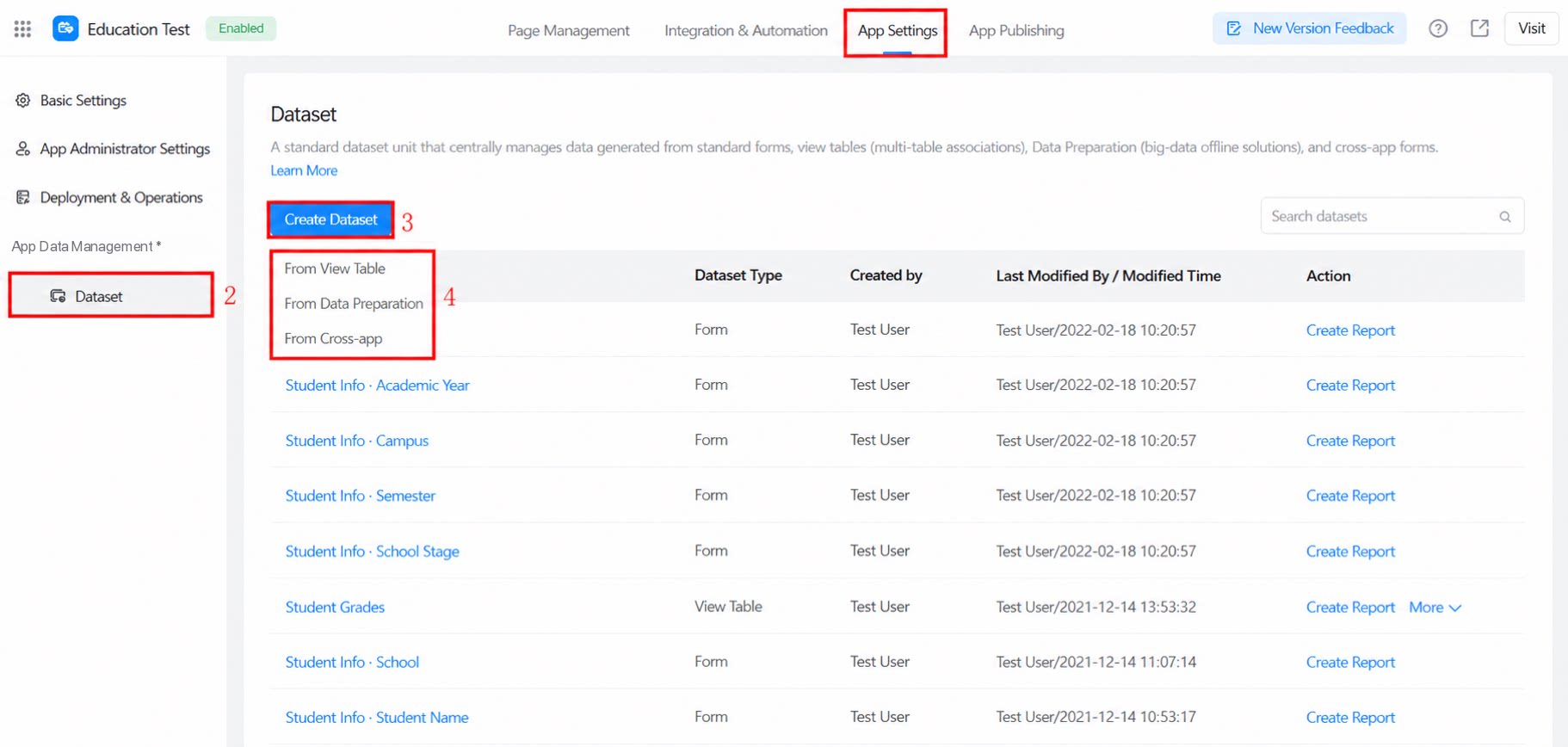 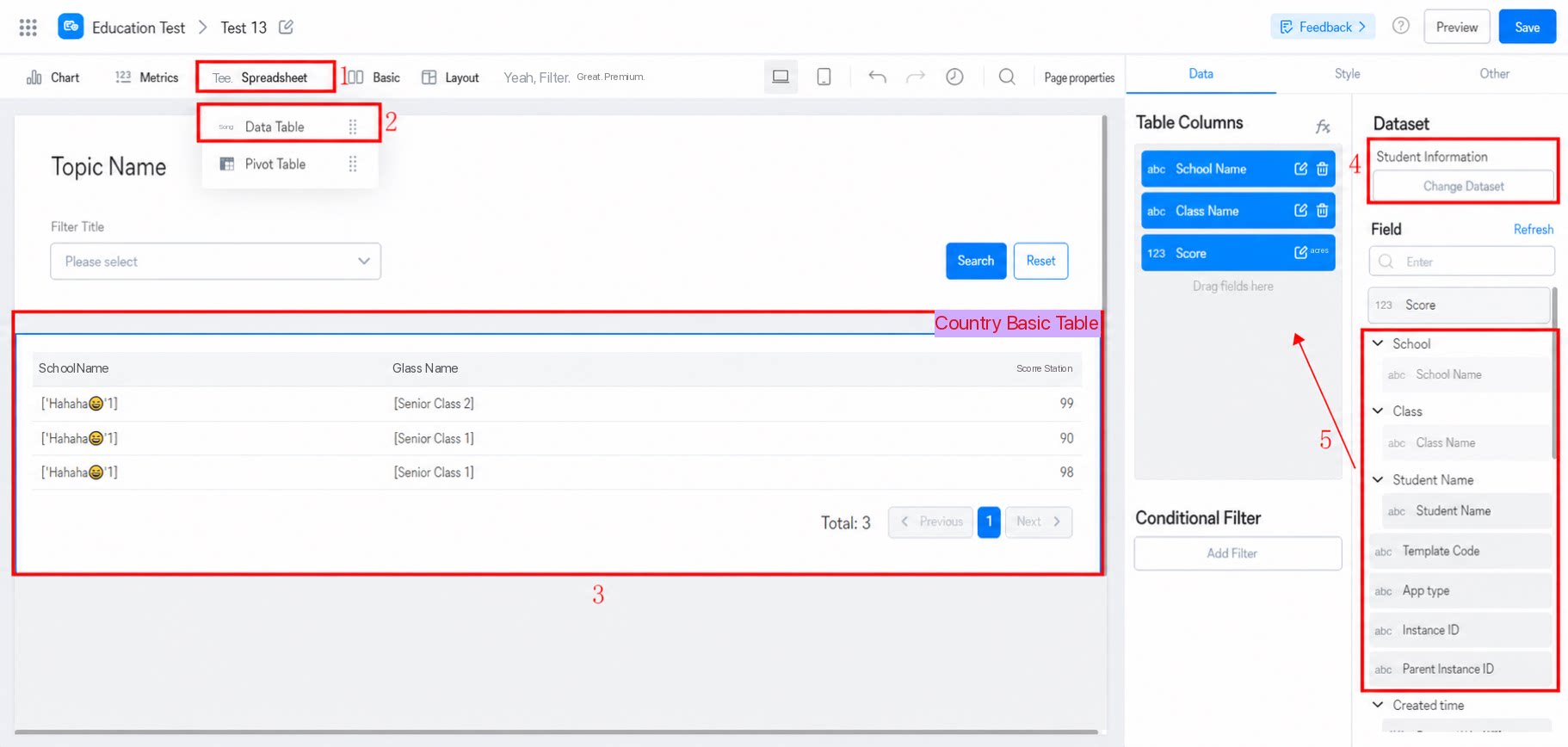 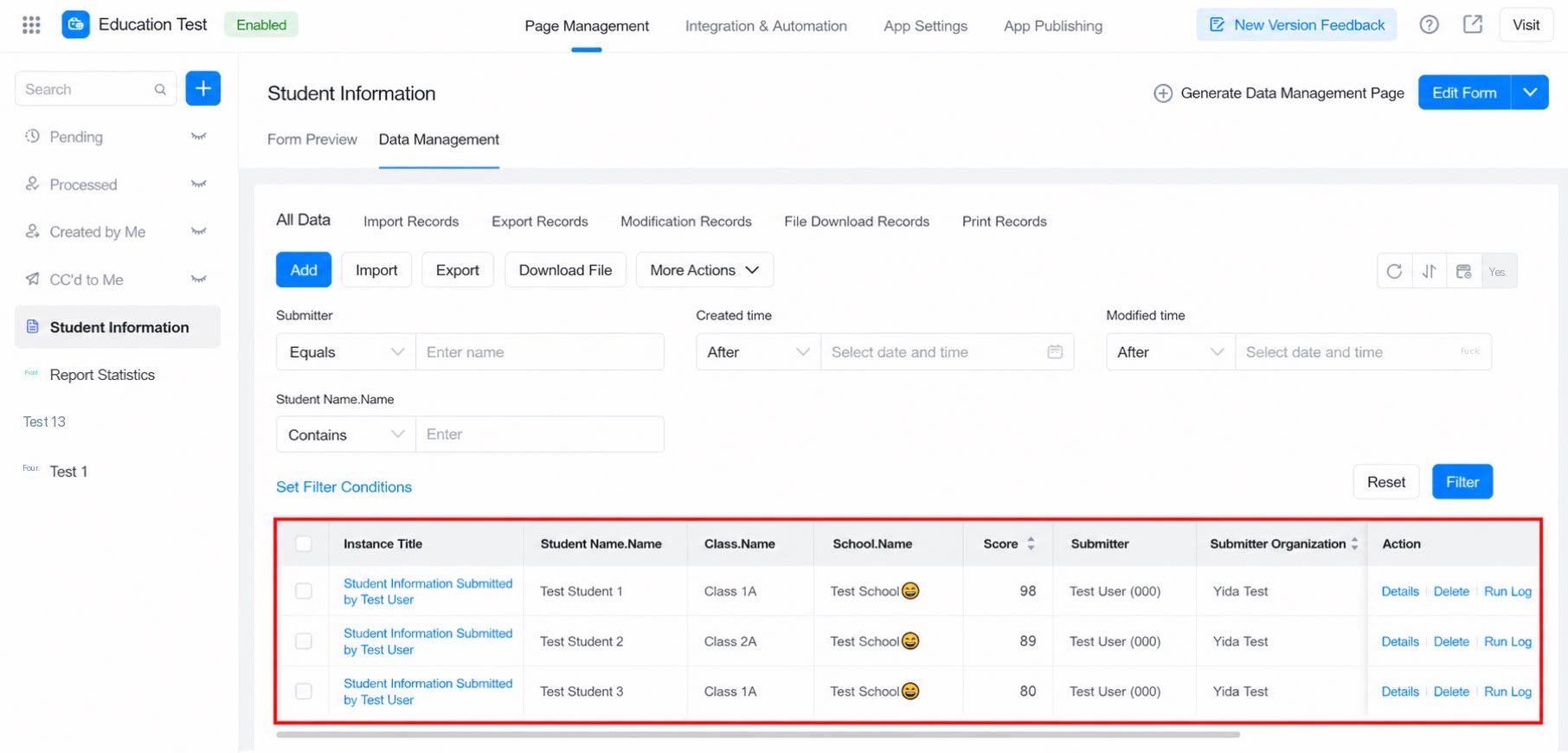 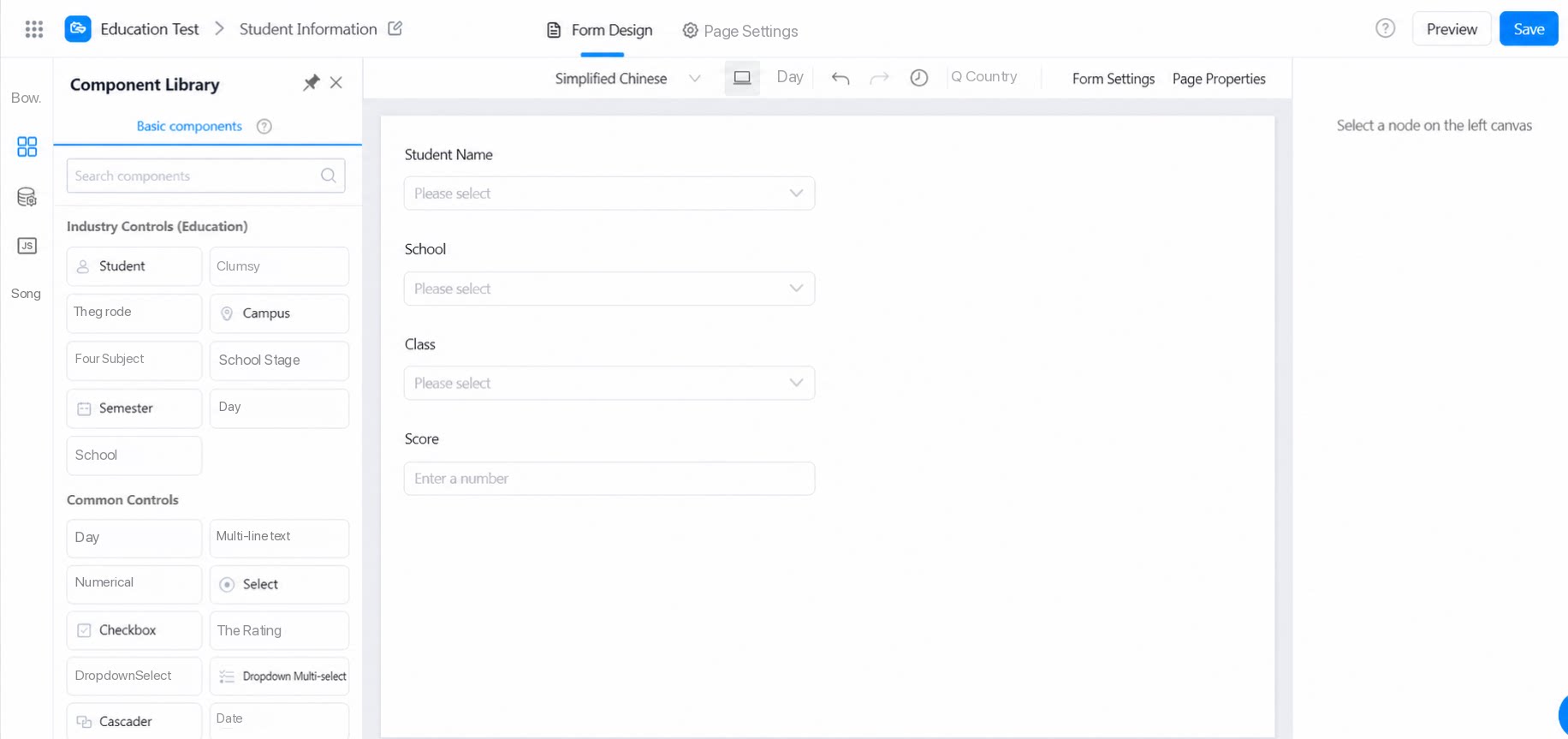 |
- The 9 new education industry components will progressively support features such as workflow / student filtering with dropdown selection.
- Education components do not support OpenAPI calls.
- Education components do not support bulk export on the data management page. To export data, display the fields as a table in a report and export from there.
- Education components do not support bulk import or bulk data modification.
4. FAQ
4.1 Why Can’t the Student Component Search by Student Name?
Currently, only exact-match search is supported, and dropdown selection of students is not supported. This will be optimized later. Please stay tuned.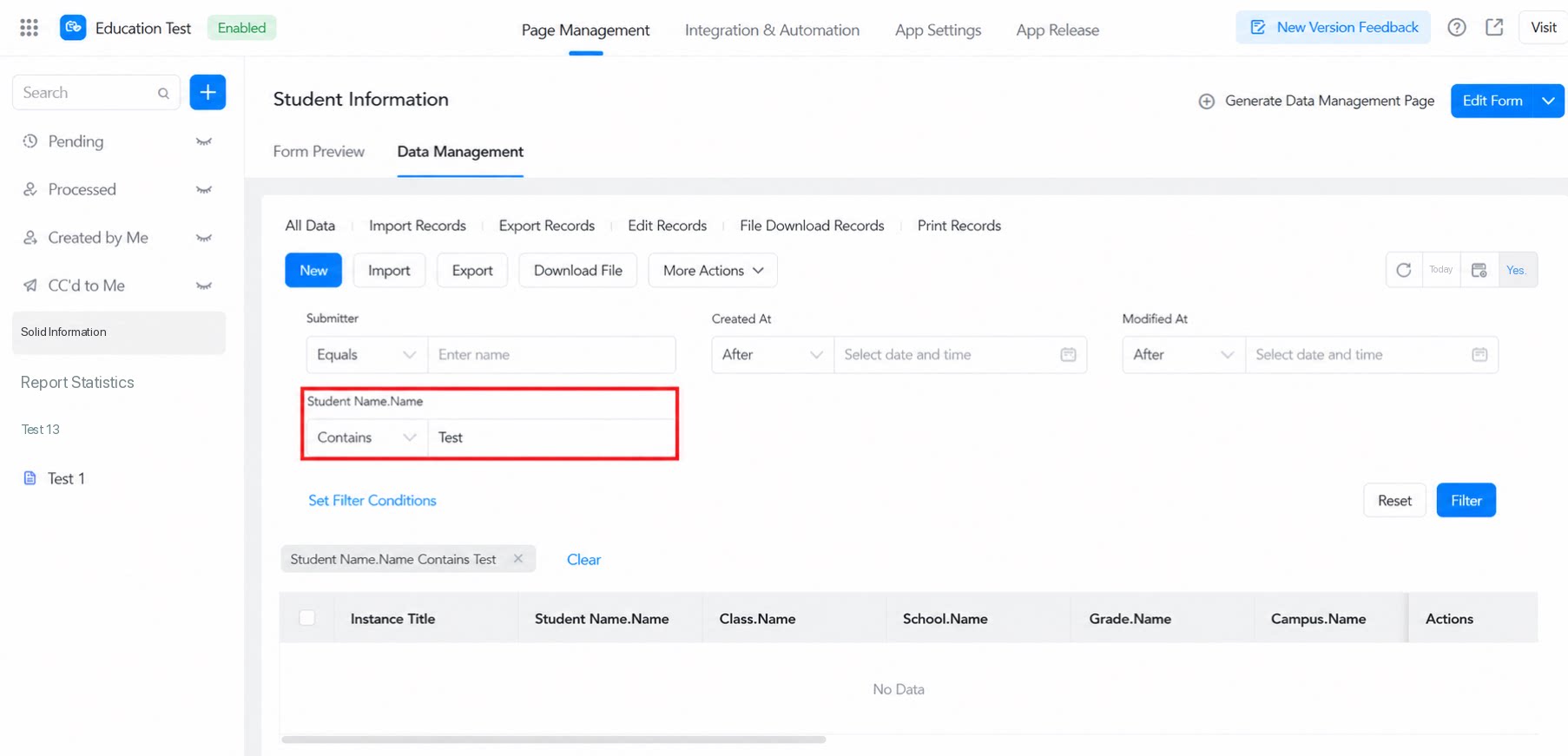
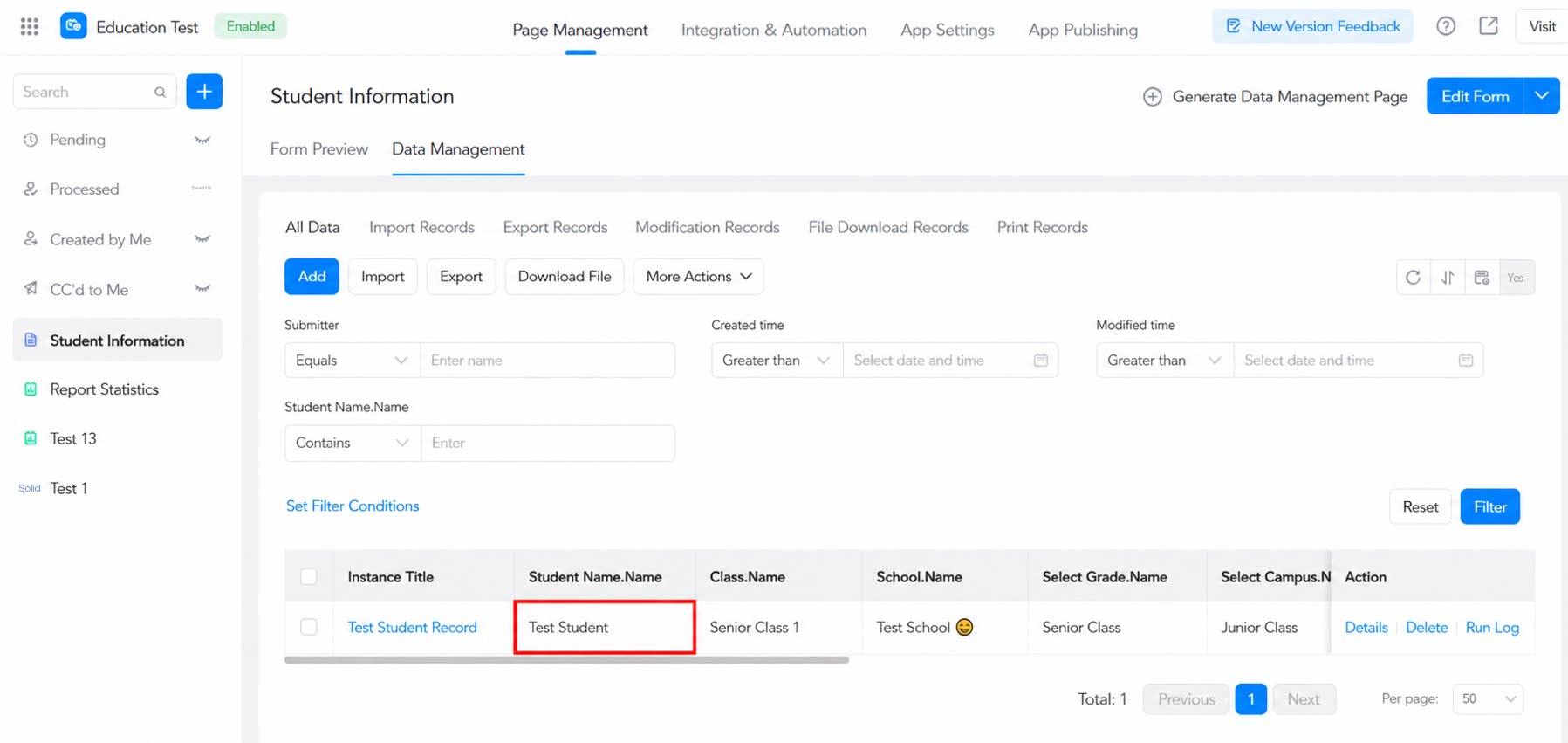
4.3 Why does selecting a student in message notifications automatically notify the parents?
4.3 Why does selecting a student in message notifications automatically notify the parents?
This is caused by the special logic of the education industry. Currently, the education industry only has Home-School groups (containing only teachers and parents) and Teacher-Student groups (containing only teachers and students). Since the three roles cannot be clearly confirmed in the same group within core education scenarios, notifications are currently sent to both students and parents. The parent-student relationship can be maintained in the DingTalk Home-School Contacts.
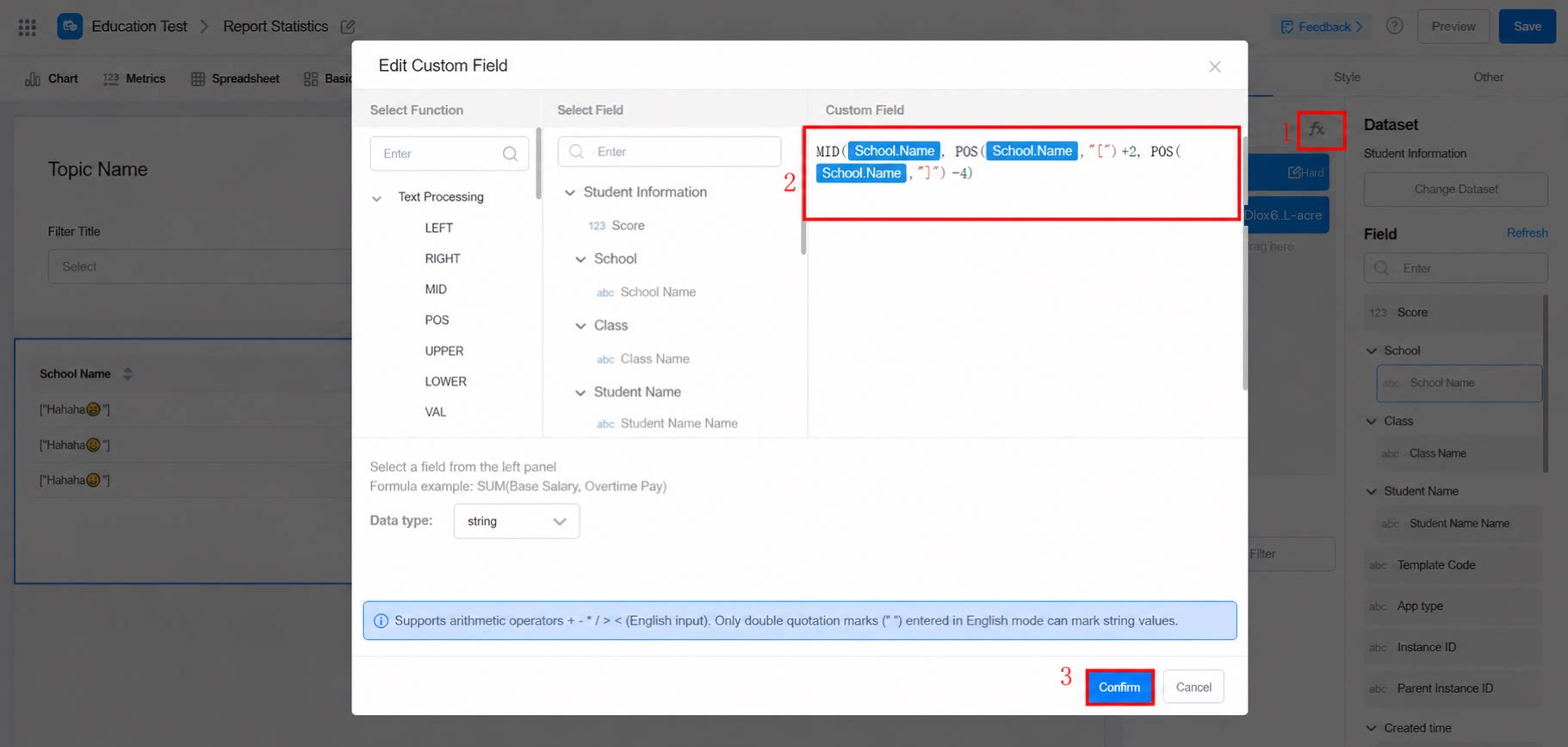
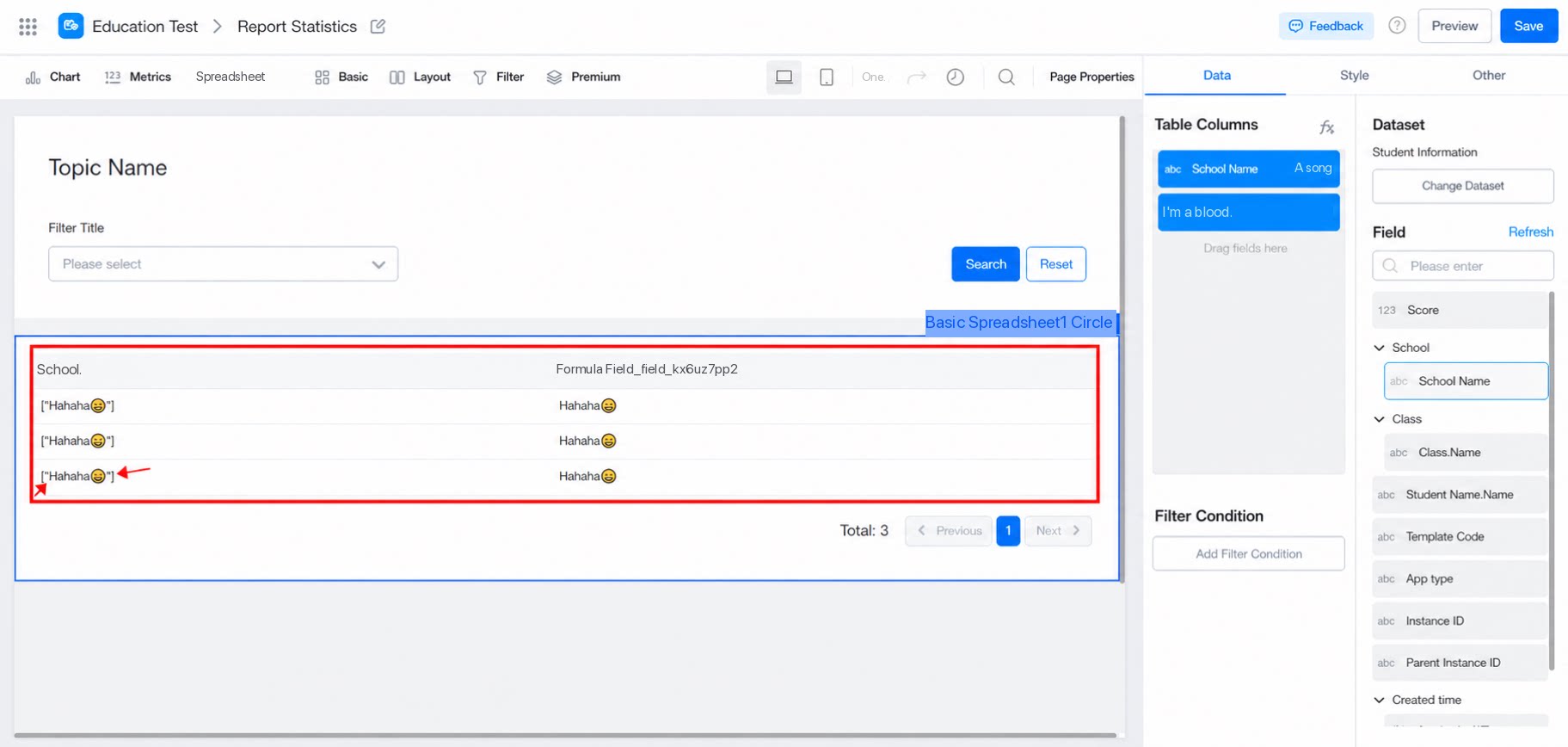
4.4 How do I remove the [''] symbols that appear in the data displayed by education components in reports?
4.4 How do I remove the [''] symbols that appear in the data displayed by education components in reports?
This is a known issue. Data submitted from newly created forms has been fixed and no longer contains [""]. For legacy form data, use string functions to process it. Configure a formula field in the report. Refer to the screenshots below for configuration: