

Overview

AI Table’s plugin center is flexible and convenient. A rich plugin library covers the long-tail needs of every team — batch attachment uploads, find-and-replace, deduplication, and more. The plugin platform is open: developers with code chops can build script plugins and custom plugins tailored to their own needs. With plugins, AI Table can do almost anything.

Working with AI Table plugins

Batch operations

Featured pluginOne-linerClick 👇 to try
Deduplicate recordsPick one or more fields as the lookup key, find duplicates, and delete in bulk. Cross-table lookup supported. https://alidocs.dingtalk.com/site/notable/plugin?extensionId=D5B832CAAF7D149D38B01C81745DAE60
Batch upload attachmentsThree flavors: upload as new records, match by filename, or upload from a specific row number. https://alidocs.dingtalk.com/site/notable/plugin?extensionId=054959643996BDD338B01C81745DAE60
Find and replaceFind and replace data in bulk with custom rules. https://alidocs.dingtalk.com/site/notable/plugin?extensionId=58F9B0AFCF303F3A38B01C81745DAE60
Change trackerTrack table-record changes and generate an audit log. https://alidocs.dingtalk.com/site/notable/plugin?extensionId=2D576034BB8E4DF938B01C81745DAE60
Batch updateBulk-update field values across text, number, date, single-select, multi-select, and more. https://alidocs.dingtalk.com/site/notable/plugin?extensionId=F17AC382A2DCF5A538B01C81745DAE60
Bulk-change field typePick one or more fields and convert their types intelligently in one shot. https://alidocs.dingtalk.com/site/notable/plugin?extensionId=80DD9FA087BA140B38B01C81745DAE60
Web ScraperPull what you need from any web page in one click and import it into AI Table. https://alidocs.dingtalk.com/site/notable/plugin?extensionId=02A942057A5CB1E6FB5D1D4F232F5EC3 Web Scraper — plugin overview and install guide

Quick previews

Featured pluginOne-linerClick 👇 to try
Gallery previewClick any cell to see a detailed image and metadata in the side panel. https://alidocs.dingtalk.com/site/notable/plugin?extensionId=D192AA0C3A242F4C38B01C81745DAE60
Markdown previewClick a cell containing Markdown to see it formatted — WYSIWYG. https://alidocs.dingtalk.com/site/notable/plugin?extensionId=9FF46EE7E1F4855538B01C81745DAE60
Web previewClick a URL cell to preview the page right there. https://alidocs.dingtalk.com/site/notable/plugin?extensionId=A76E3BC2410589CC38B01C81745DAE60
HTML previewClick a cell with HTML to render it directly. https://alidocs.dingtalk.com/site/notable/plugin?extensionId=22090B6EC9A077EE38B01C81745DAE60

AI plugins

Featured pluginOne-linerClick 👇 to try
Bailian Agent WorkspacePlug enterprise-grade AI agents in seamlessly — no app switching, instant task automation, data analysis, and decision support. https://alidocs.dingtalk.com/site/notable/plugin?extensionId=4F6BBFBBEBFFAD9838B01C81745DAE60
Video to imagePull keyframes out of a video and save them as image attachments in AI Table — capture key moments and turn video into shareable stills. https://alidocs.dingtalk.com/site/notable/plugin?extensionId=DA439B972178C8DF38B01C81745DAE60

How to use plugins

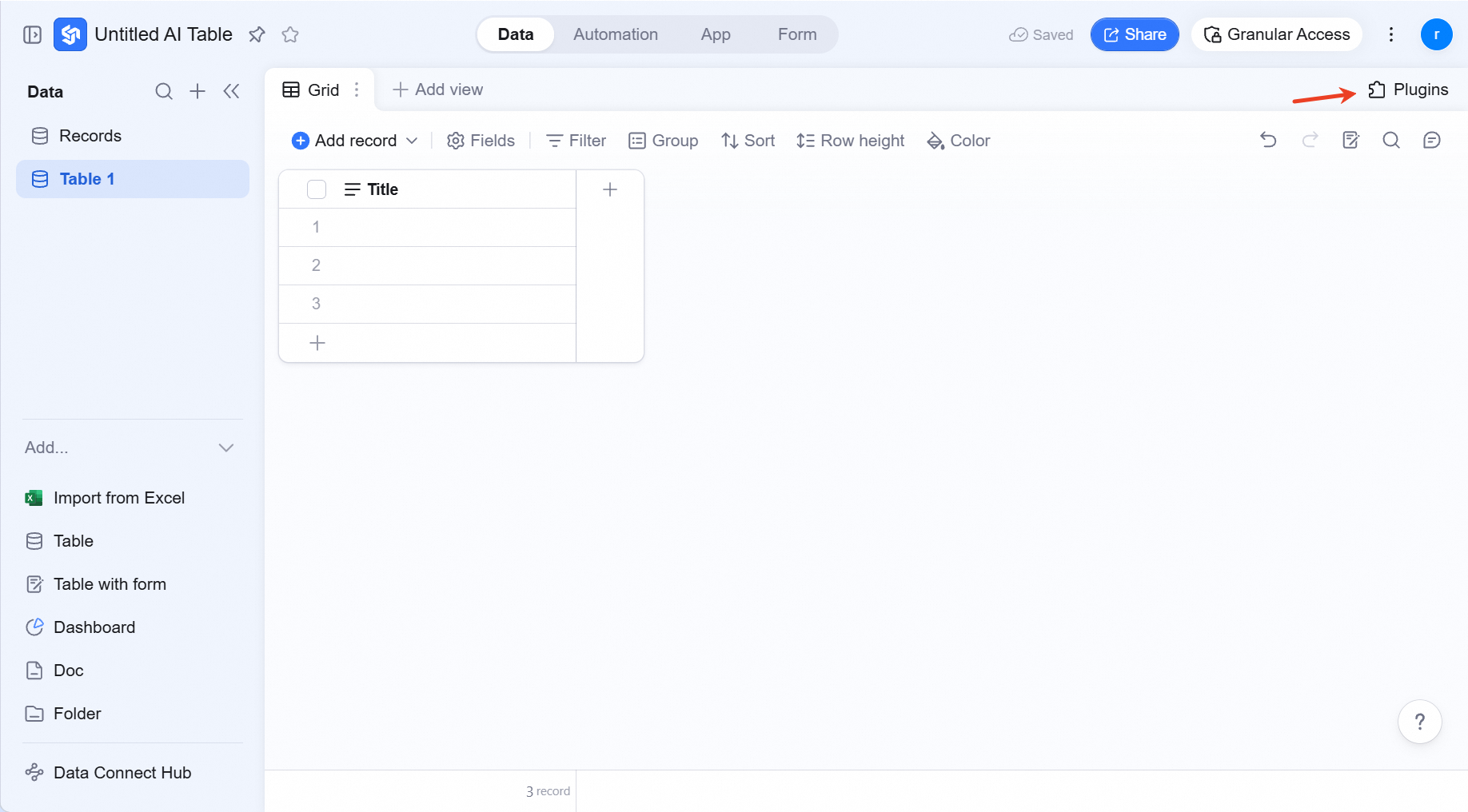
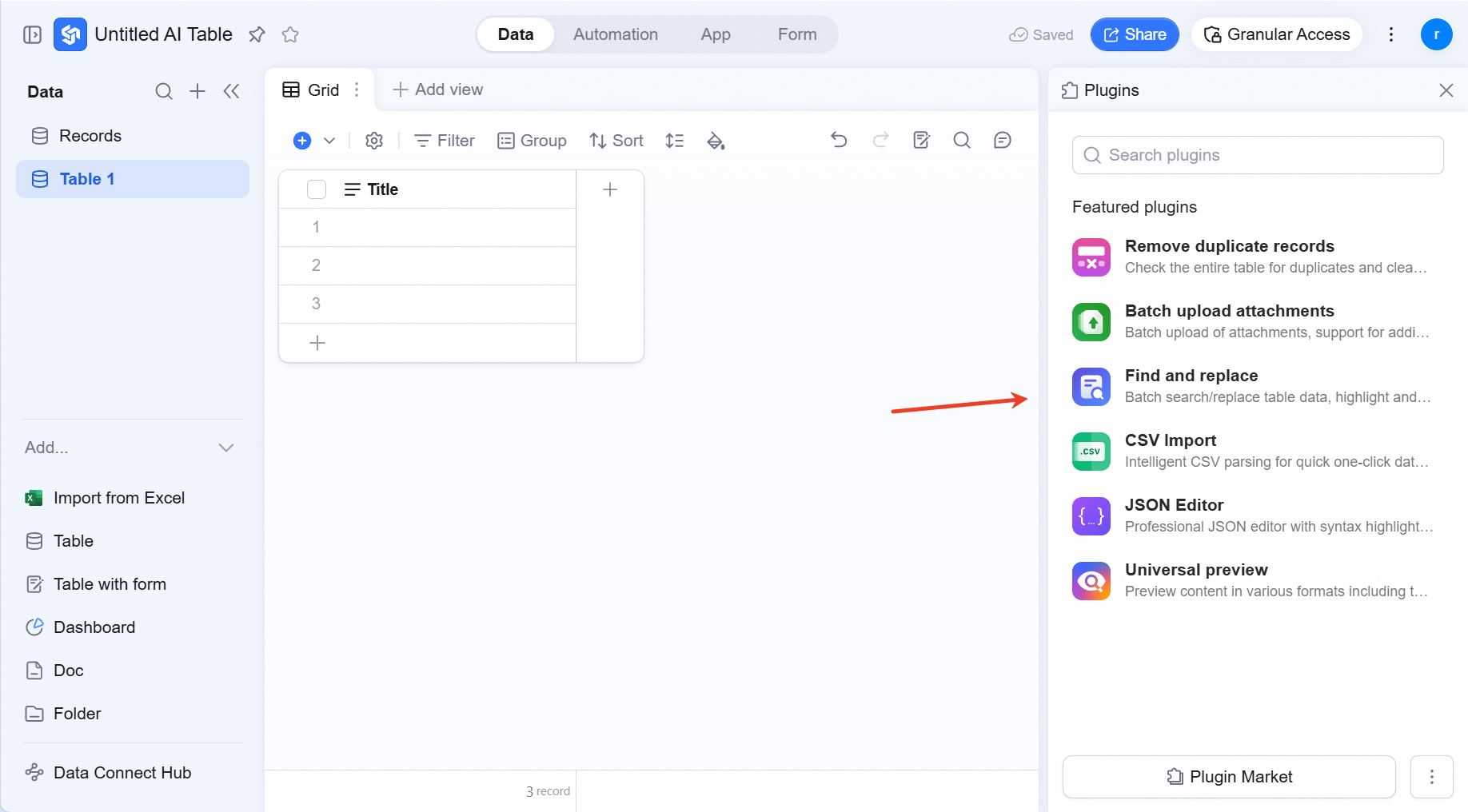
Open an AI Table and click the Plugins icon at the top-right. The right side panel shows featured plugins; click Plugin Market at the bottom to browse the full catalog.
Using a plugin

For example: you want to bulk-upload résumé attachments to a Resume Library AI Table. Find a batch-upload plugin in the plugin center to speed it up.
  1. Click the Plugins button at the top-right > plugin list, then click Plugin Market at the bottom.
  2. Search batch upload to find the plugin you want.
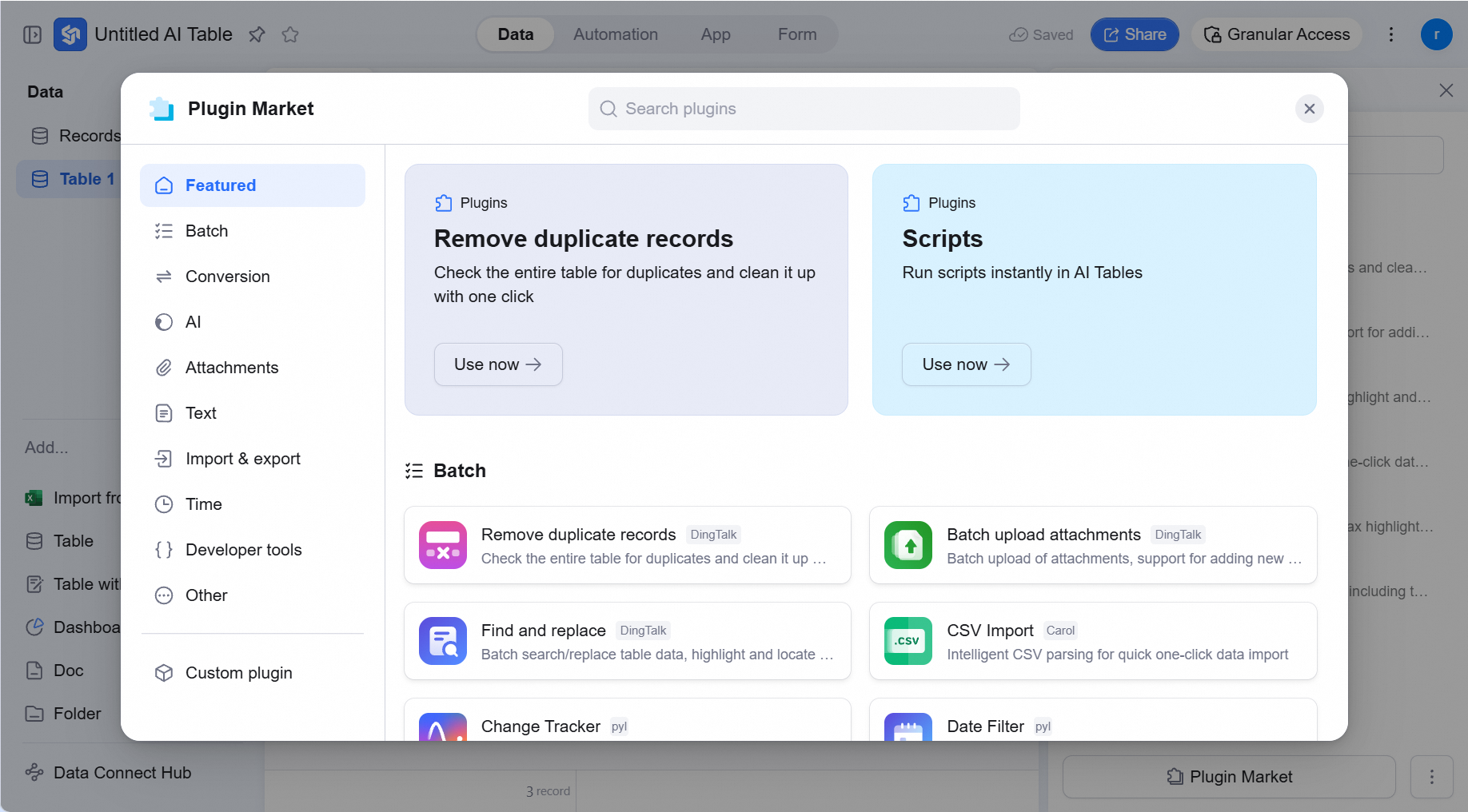
  3. Hover over the plugin and click View (or click the empty area) to read the plugin’s full intro.
  4. Hover over the plugin and click Use. The configuration panel opens in the right side panel.

Sharing a plugin

  1. Recommend it: in step 3 above, while viewing the plugin’s intro, click Share to copy a plugin link to send to teammates.
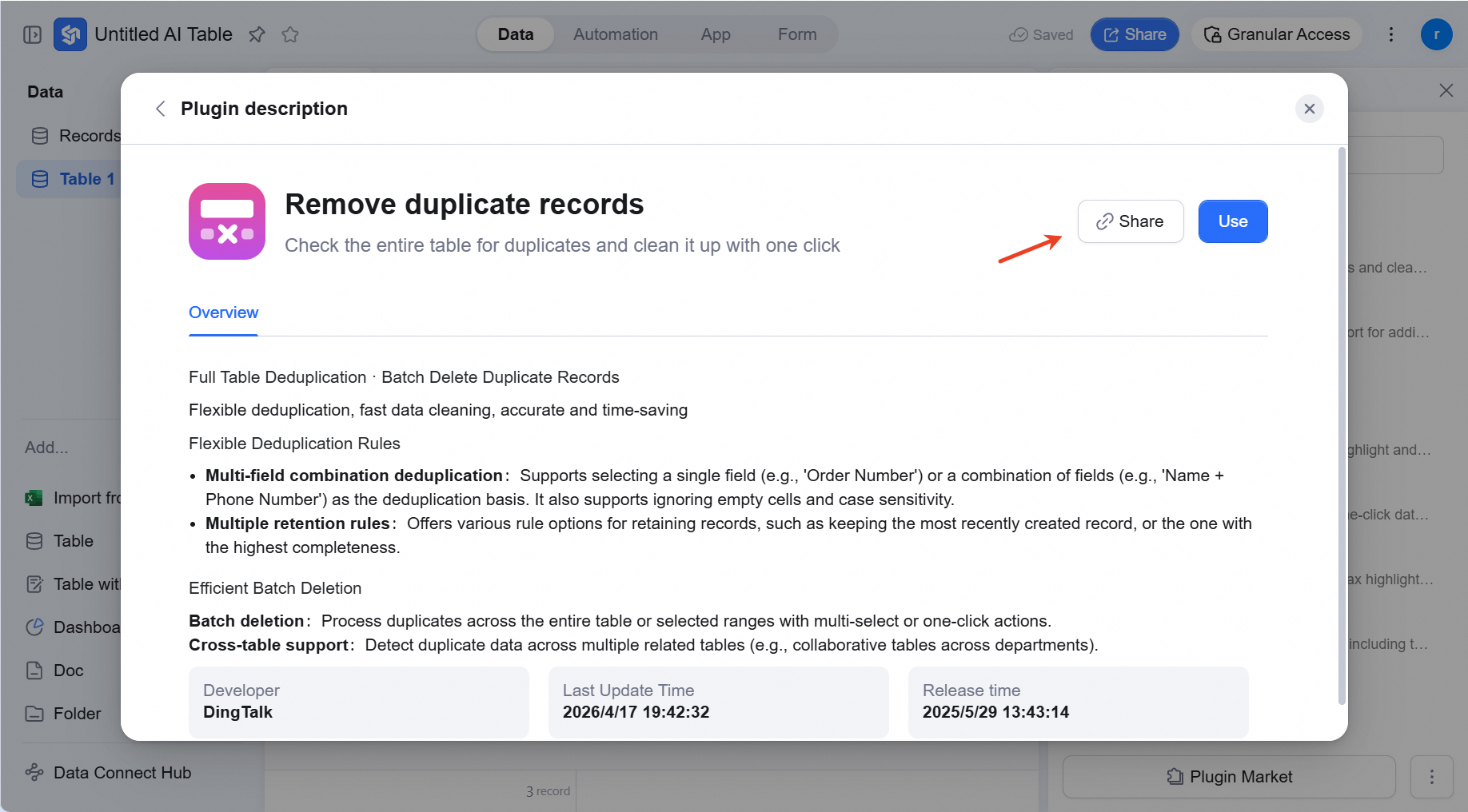
  2. The recipient: open the link 🔗 in a browser, click Try in DingTalk AI Table, and the plugin opens in a sample template you can play with.

Pin a plugin

For plugins you use often in this AI Table, pin them to the right side panel for quick access. Hover and click the pin icon.
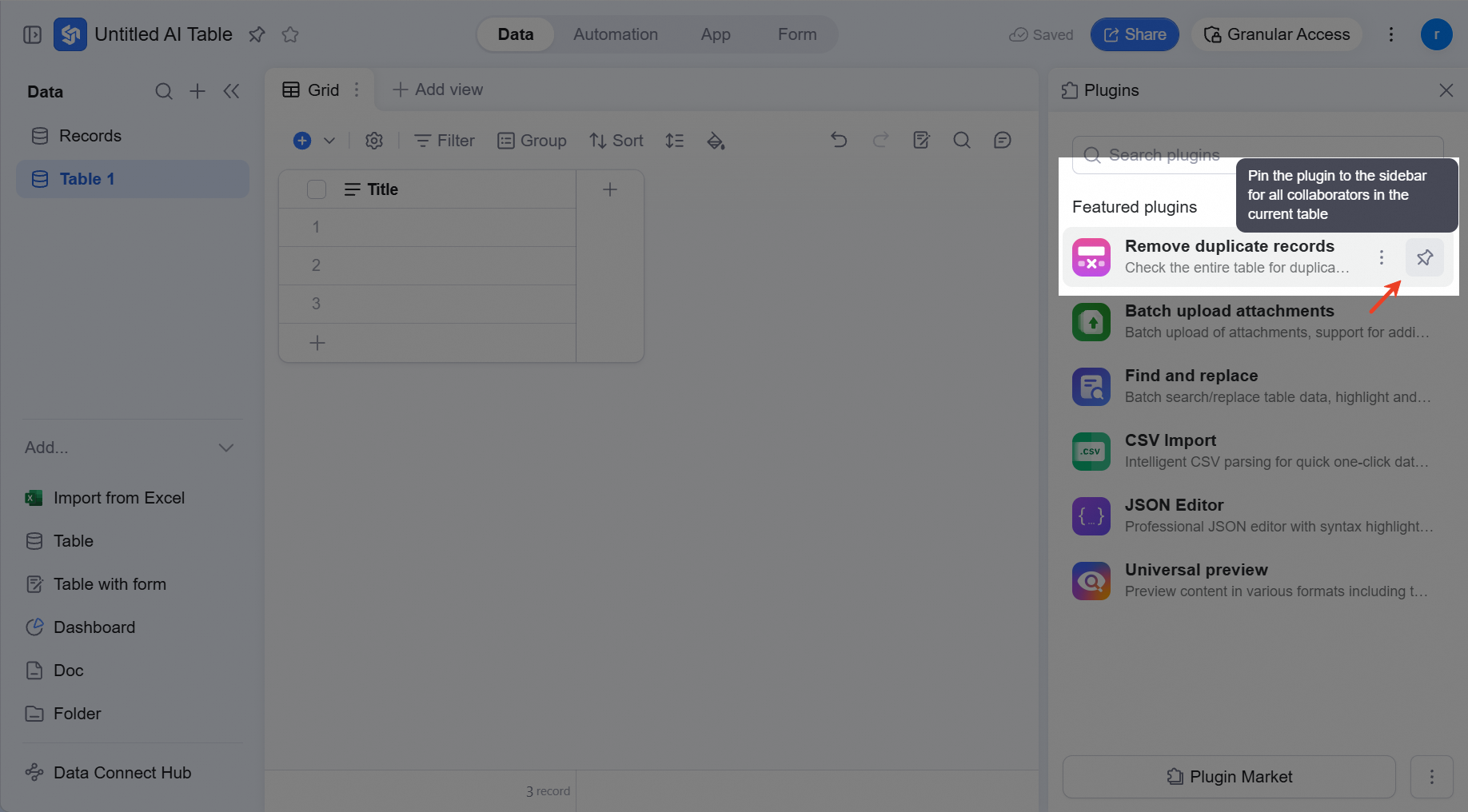
Remove a plugin

In the Used list, click More > Remove from list on the right of a plugin to remove it. To use it again, you’ll need to enable it again.
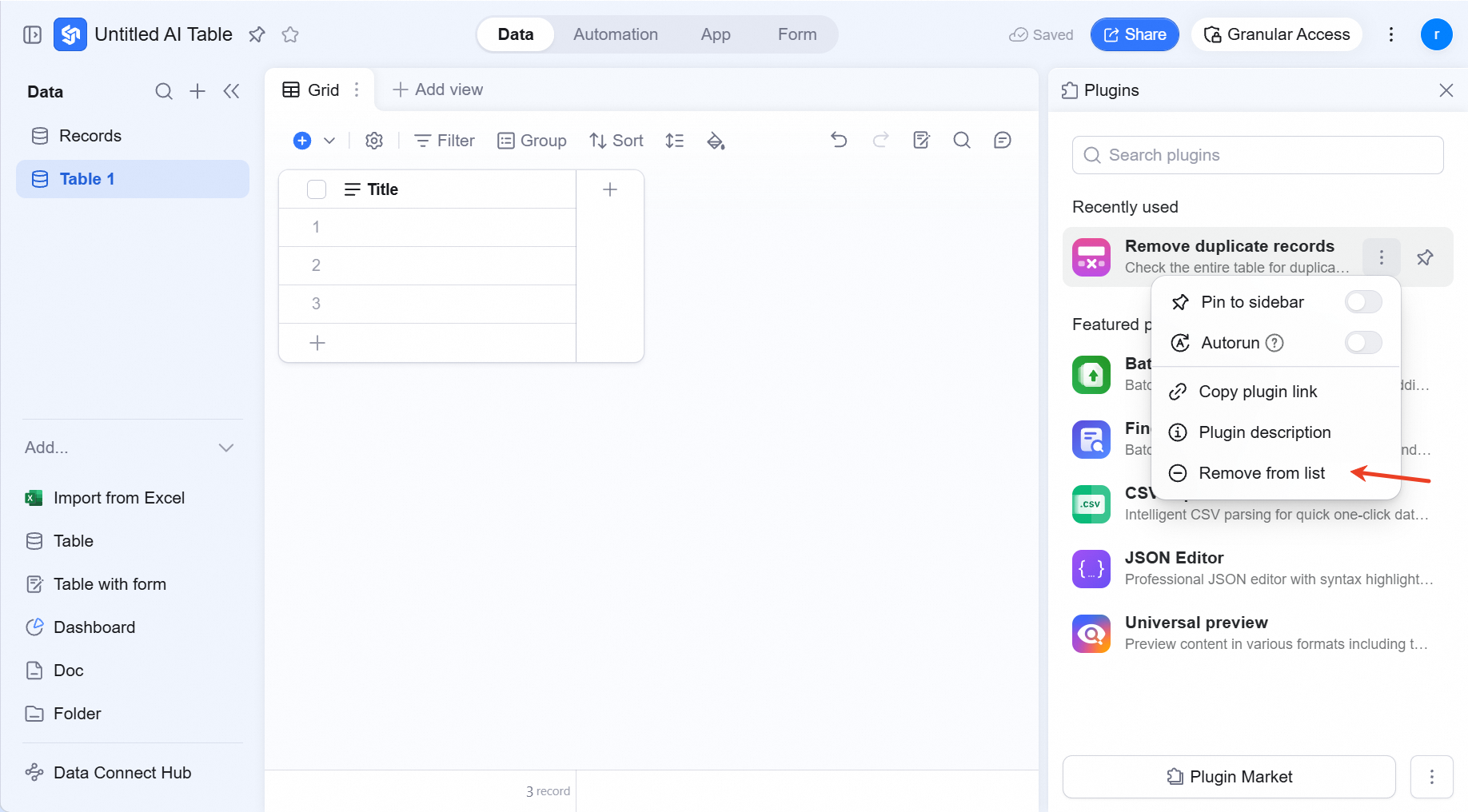
Plugin permissions

When Advanced Permissions is off: anyone with Edit or Manage can use plugins. When Advanced Permissions is on: only users with table-level Manage can use plugins.

FAQ

Q: How do I write my own plugin?

A: You can. See AI Table Plugins — Custom Plugins for the details.

Q: What’s a script plugin?

A: See AI Table Plugins — Script Plugins for the details.