Chats
Chats Calendar
 Meetings
 Contacts
 Mail
Mail Docs
Docs Drive
Drive AI Table
 AI Minutes
 Attendance
 Approval
 YiDA
YiDA Admin Console
Steps
1
Step 1
Sign in to the YiDA workbench as an Admin, then click Platform management in the upper-right corner to open the platform management page. 
2
Step 2
In the left-hand menu, select Platform-specific customization > Space management, choose the target space, and click Edit.
3
Step 3
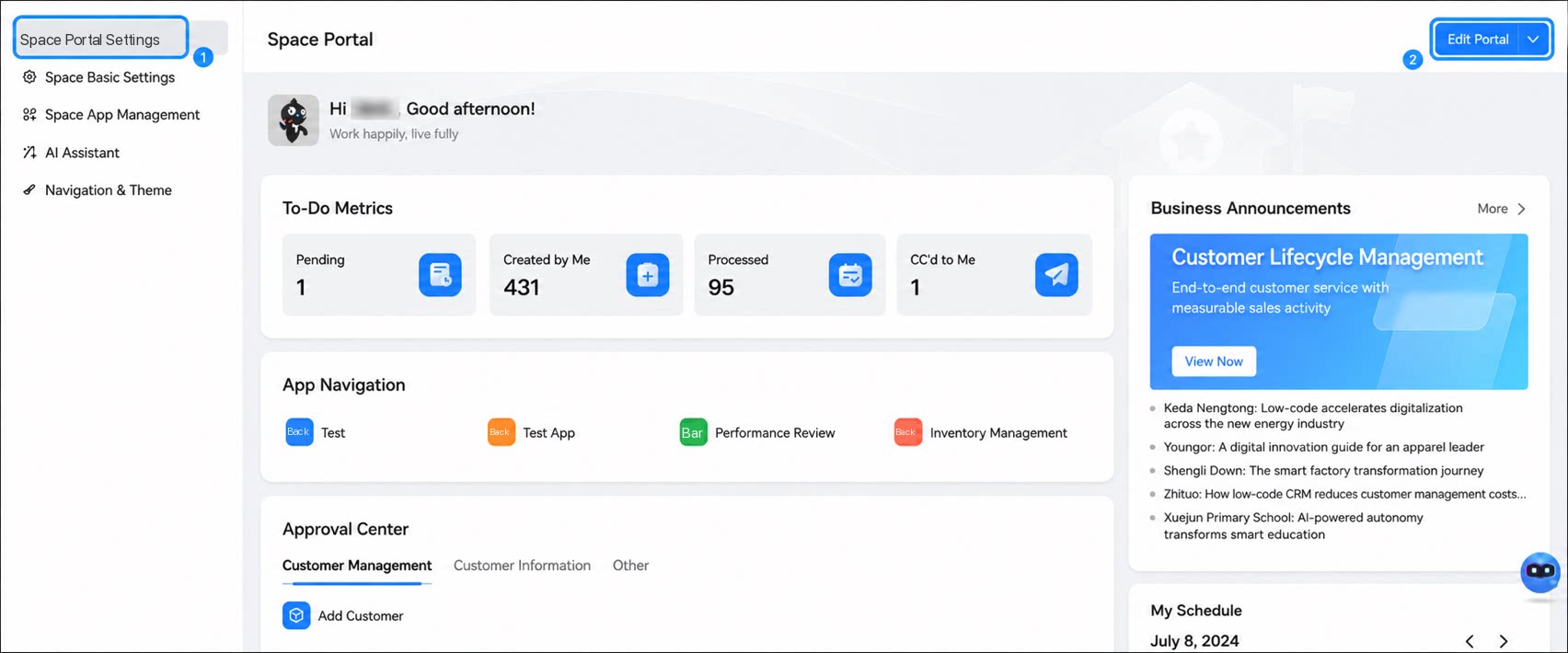
Select Space portal settings and click Edit portal.
1
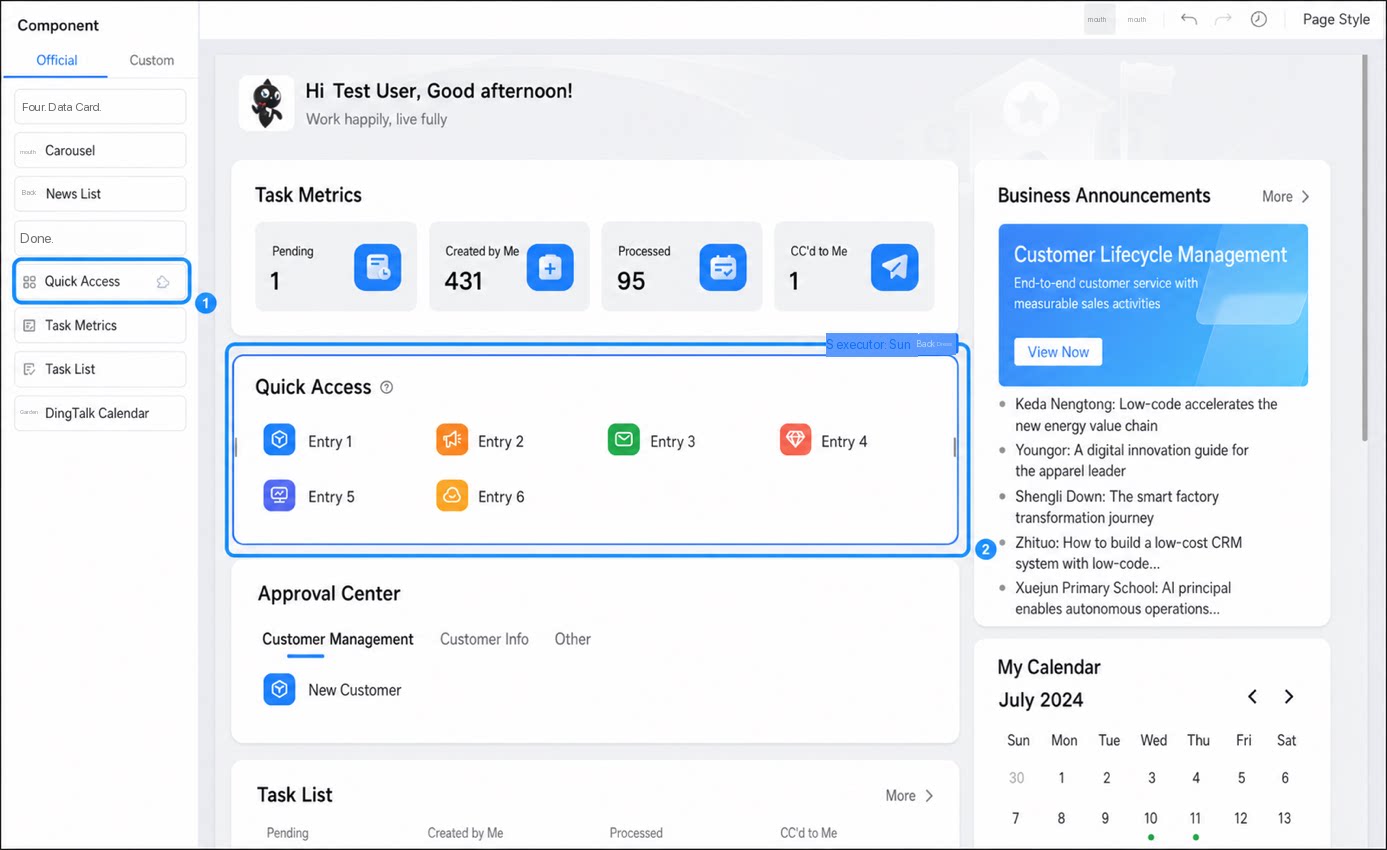
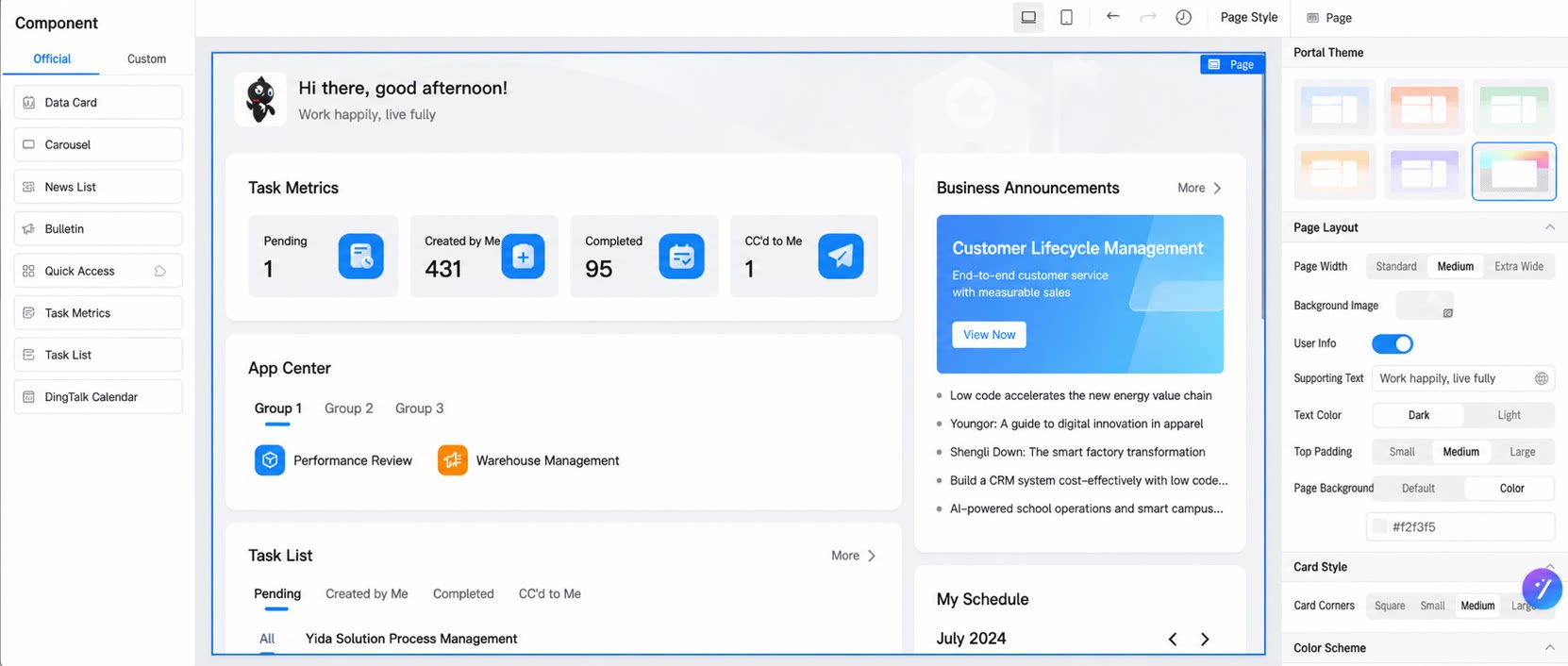
In the left component panel, select the Shortcut entry component and add it to the central canvas area
2
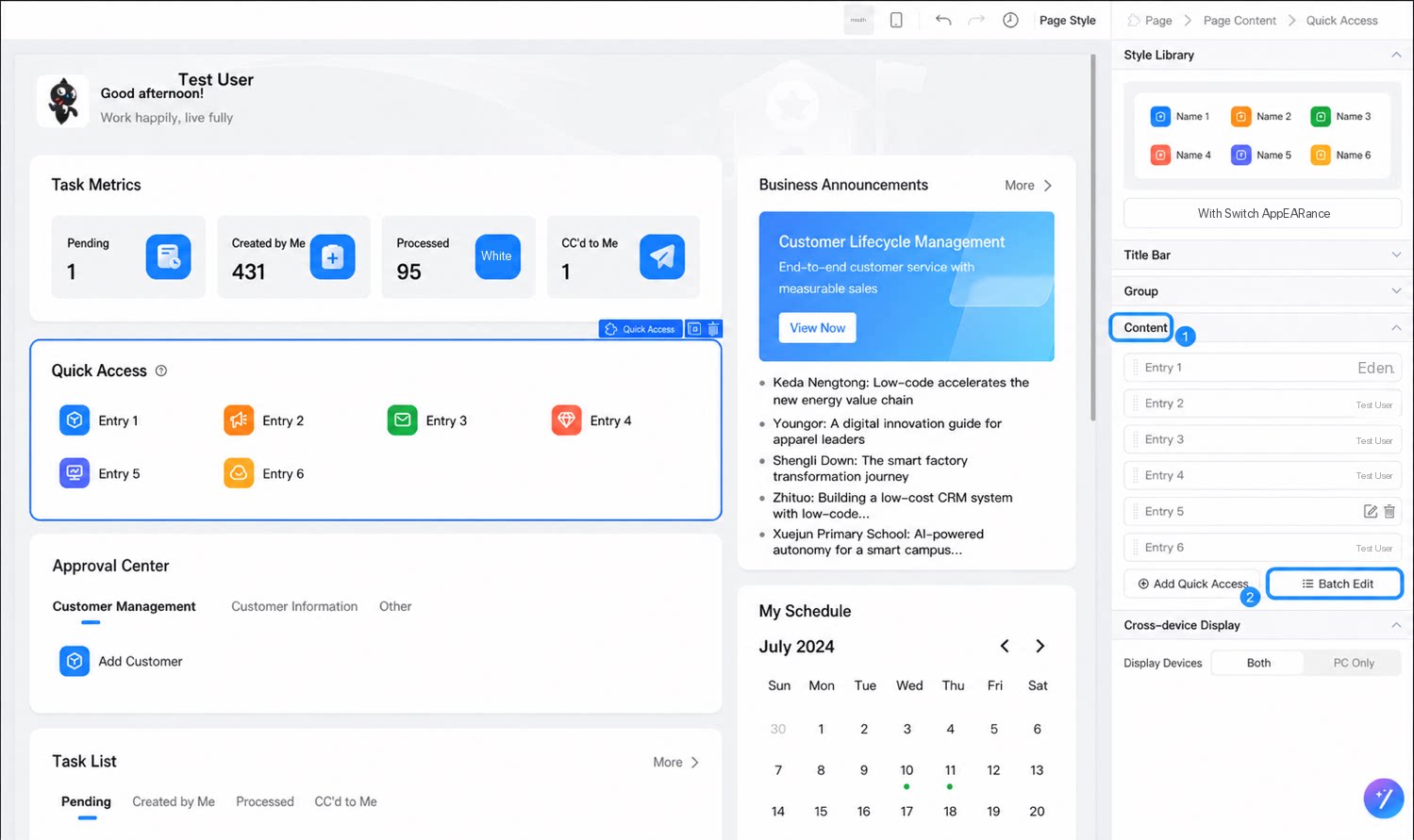
In the right attribute panel, select Content > Batch edit
3
Step 3
In the dialog box, set Entry type to Page, set App/Page/Link to a workflow form in the app, set Entry name to the process name, and set Auxiliary description to the process description. Then click Confirm.
4
After configuration is complete, click Save in the upper right corner