Chats
Chats Calendar
 Meetings
 Contacts
 Mail
Mail Docs
Docs Drive
Drive AI Table
 AI Minutes
 Attendance
 Approval
 YiDA
YiDA Admin Console
Print a Single Record
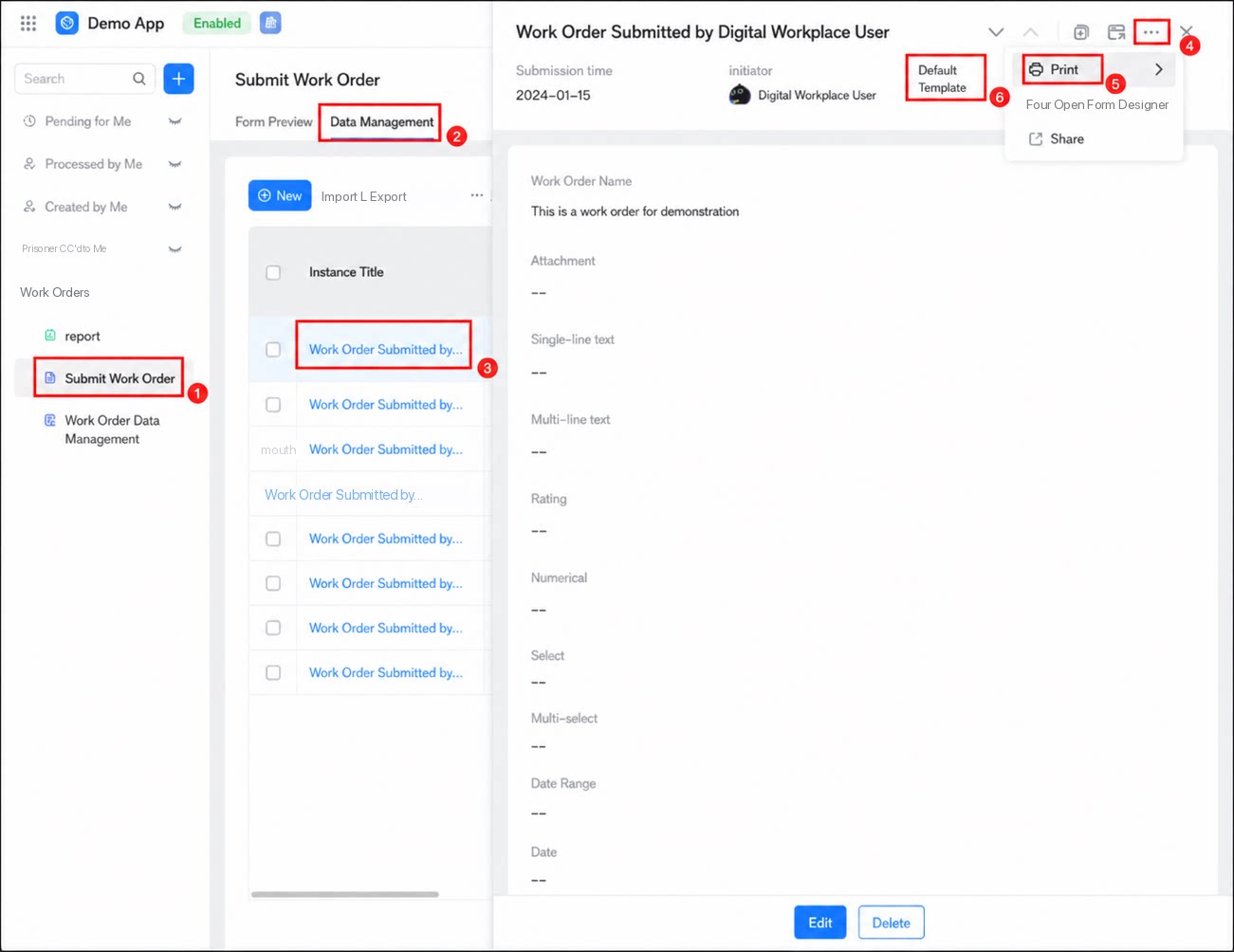
Follow these steps to print a form.- Sign in to the YiDA workbench and open the app details page.
- Locate the form you want to print, and click Data management.
- Locate the form record you want to print, and click it to open the details page.
- In the upper-right corner, click ··· > Print, and then select a print template.
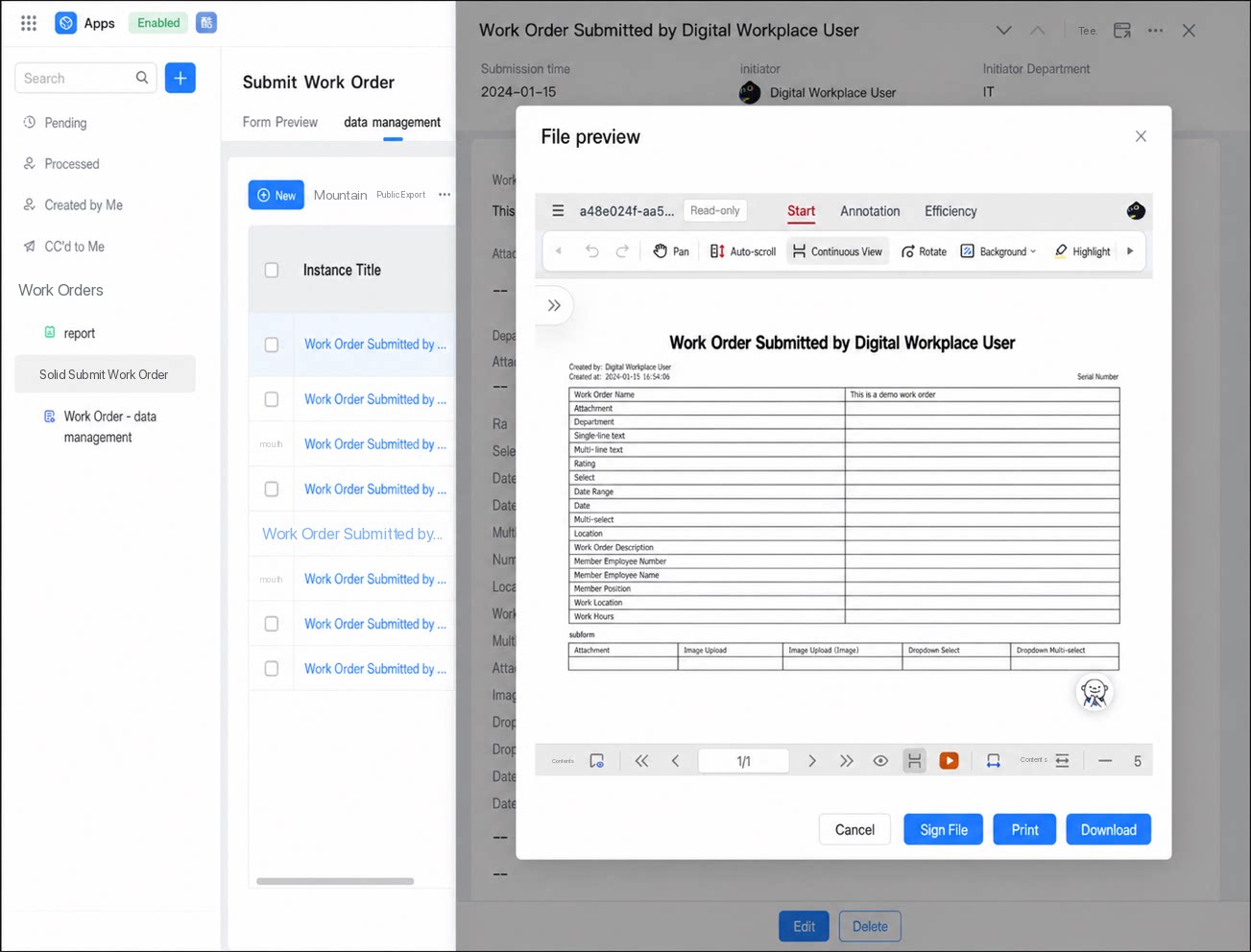
- Select Sign file, Print directly, or Download.
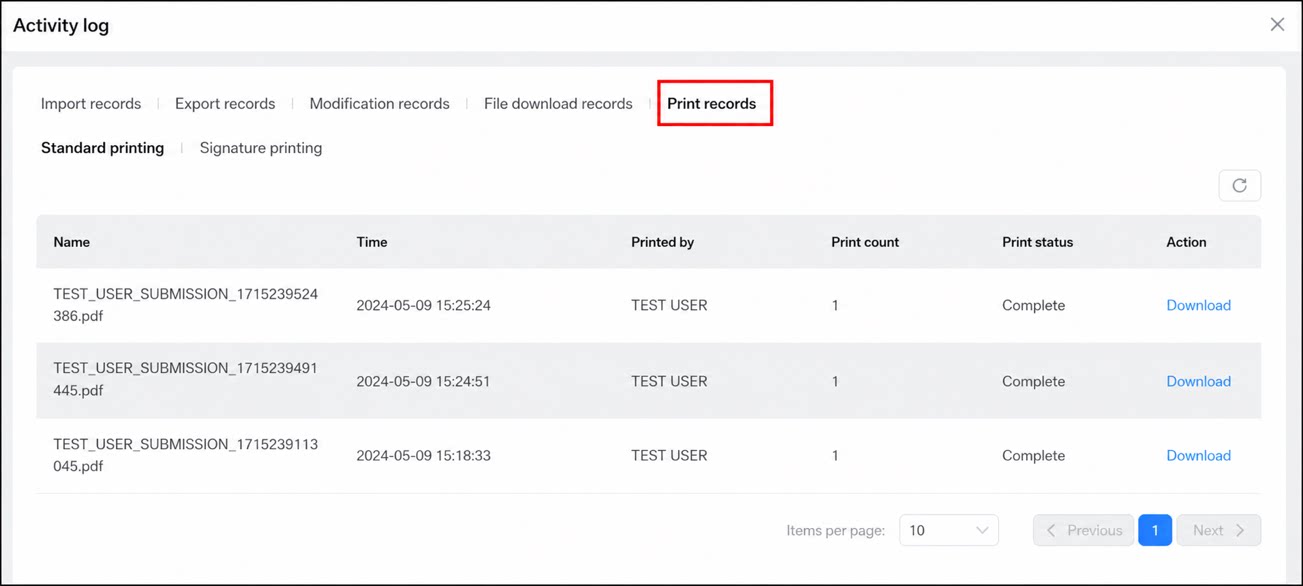
View Print Records
- Sign in to the YiDA workbench and open the app details page.
- Select the target form, and click Data management.
- On the Data management page, click More > Activity log.
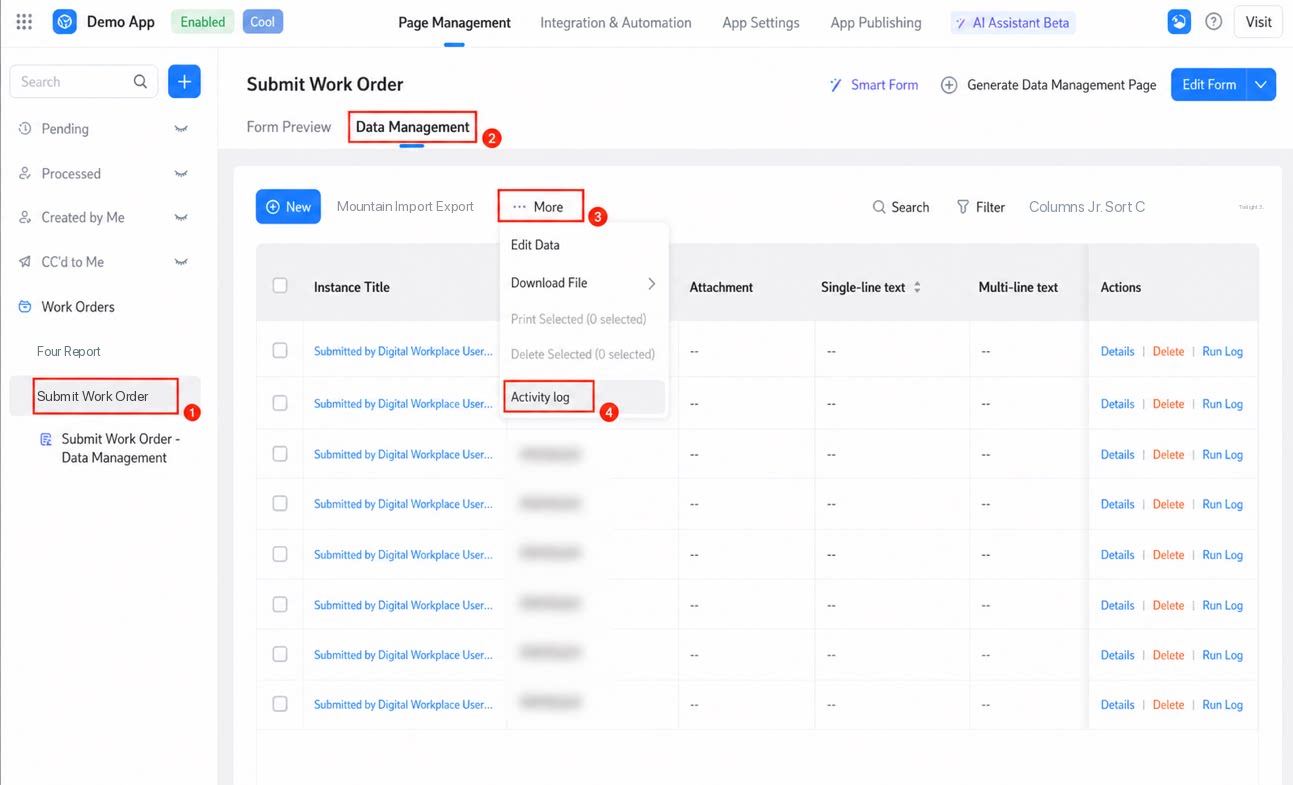
- Click Print records to view them.
Batch Print
Differences between batch printing and printing a single record:- Print multiple form records at once.
- Downloading a single printed file returns one PDF file by default.
- Downloading batch-printed files returns a ZIP archive containing all printed files by default.
- You can select up to 100 records per batch print.
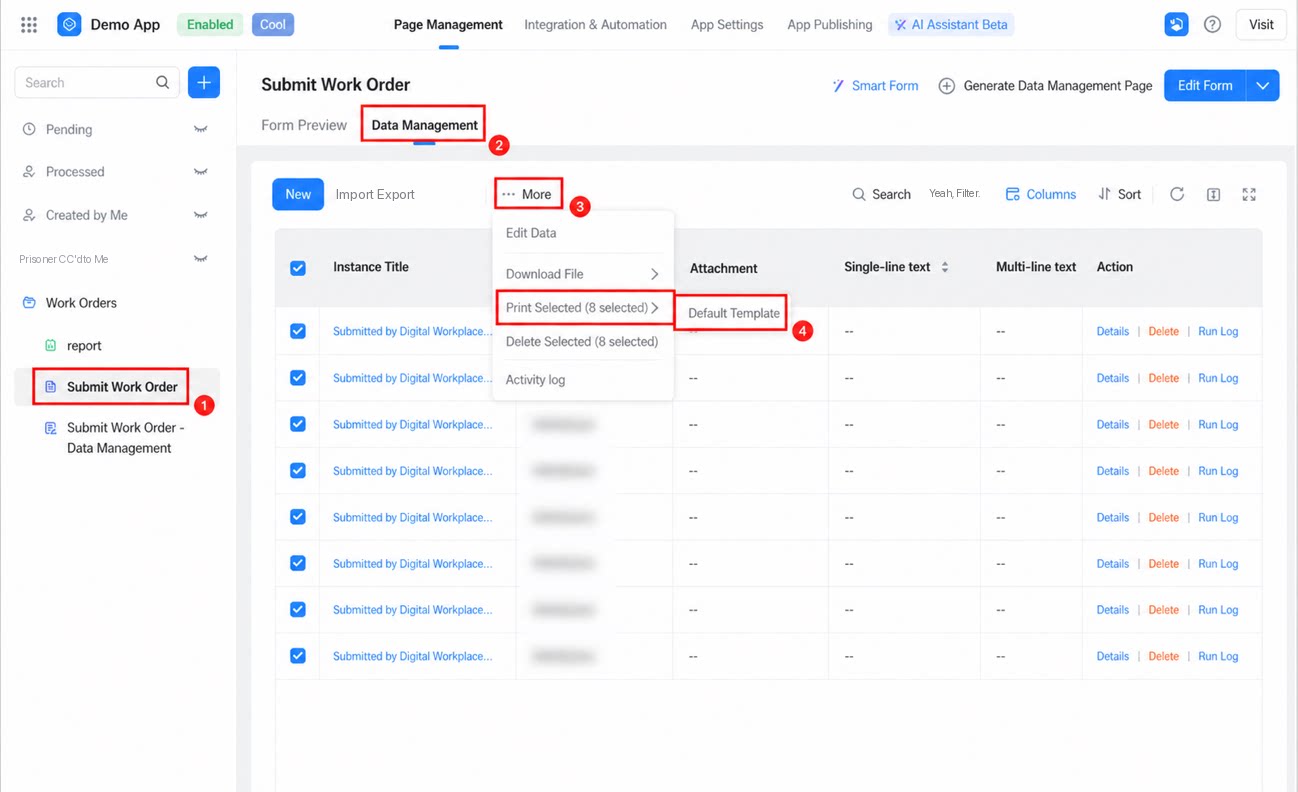
- Sign in to the YiDA workbench and open the app details page.
- Locate the form you want to print, and click Data management.
- Select the records to print, and click More > Print selected.