

 Chats
Chats Calendar
 Meetings
 Contacts
 Mail
Mail Docs
Docs Drive
Drive AI Table
 AI Minutes
 Attendance
 Approval
 YiDA
YiDA Admin Console
Steps
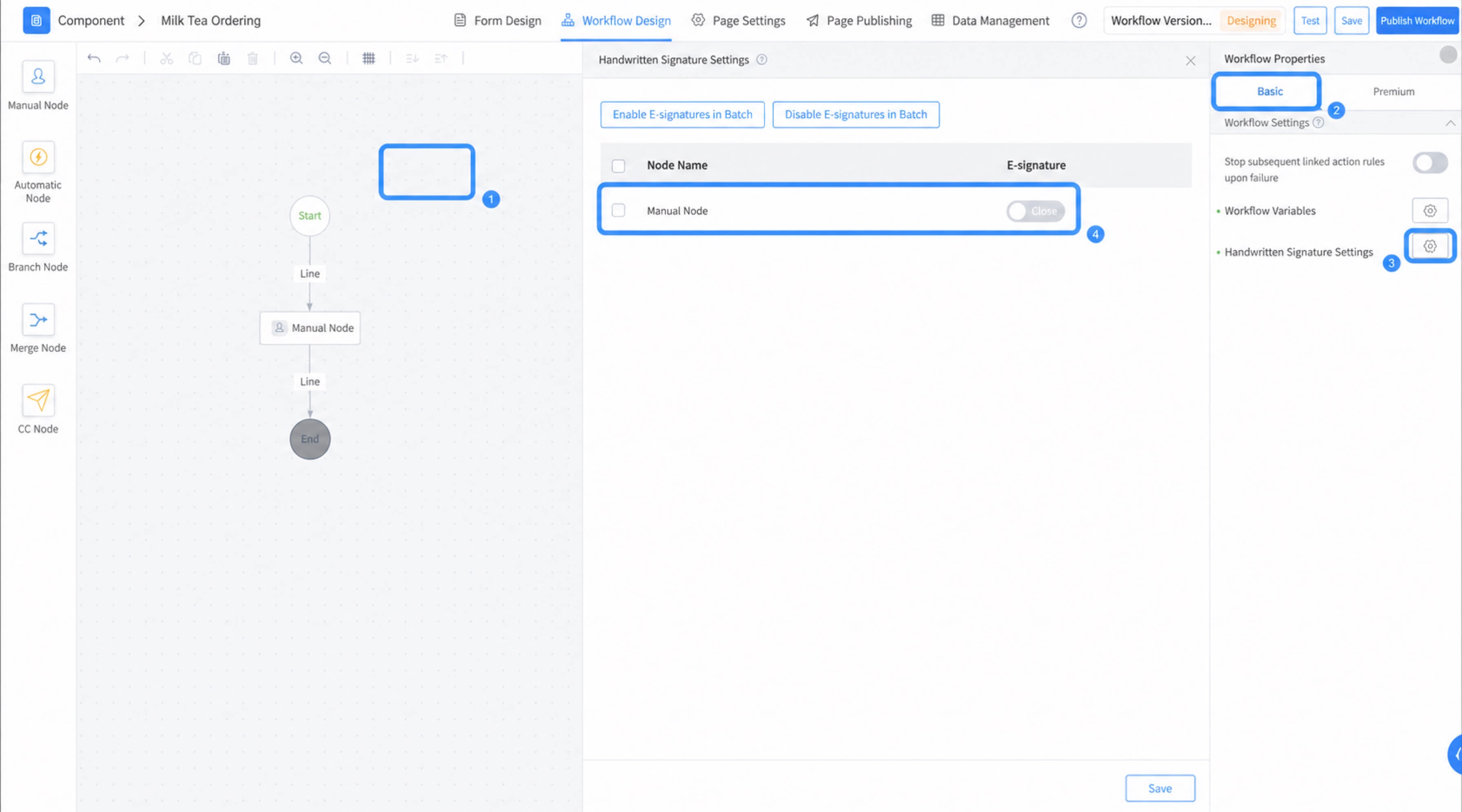
- Open the advanced workflow designer.
- Click a blank area in the workflow designer to open the workflow attribute settings.
- Select Configure signature, and then click the Settings button.
- Set the steps where you want to enable electronic signatures. You can enable or disable electronic signatures in bulk, or enable them for individual steps. After configuration, click the Save button in the lower-right corner to apply the settings.
Notes
- The first time you use an electronic signature, YiDA stores the signature result. When the same person uses the electronic signature feature again, the system automatically displays the most recent signature. To modify your signature, continue with the signing action described above, and YiDA will update the signature result.
- Electronic signatures work only on mobile devices. They do not work on PC.
- Electronic signature settings apply only to manual steps.
- Electronic signatures do not carry legal effect.