

 Chats
Chats Calendar
 Meetings
 Contacts
 Mail
Mail Docs
Docs Drive
Drive AI Table
 AI Minutes
 Attendance
 Approval
 YiDA
YiDA Admin Console
Basic Settings
Basic settings include step information, rule configuration, step action buttons, and batch approval configuration.Step Information
Step information includes the step name, English name, and description.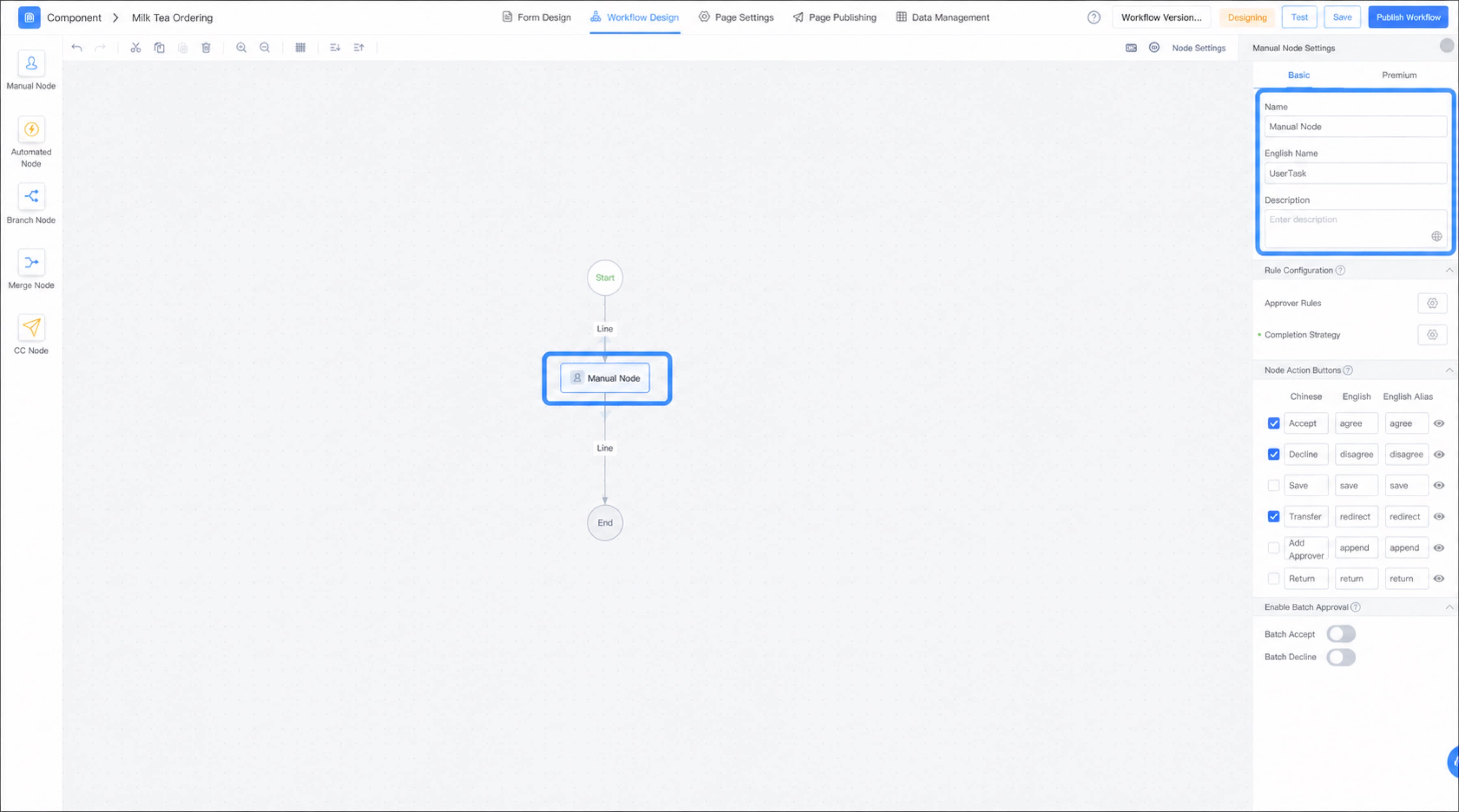
Rule Configuration
Approver Rule
Approver rules define who processes the step. Supported options include frequent approvers, department liaisons, specified approvers, department managers, consecutive multi-level managers, and other rules.- Frequent approvers: In premium workflows, frequent approvers work the same as specified role approval in standard workflows. Multiple users are tagged as a group, using either DingTalk Roles or YiDA Roles.
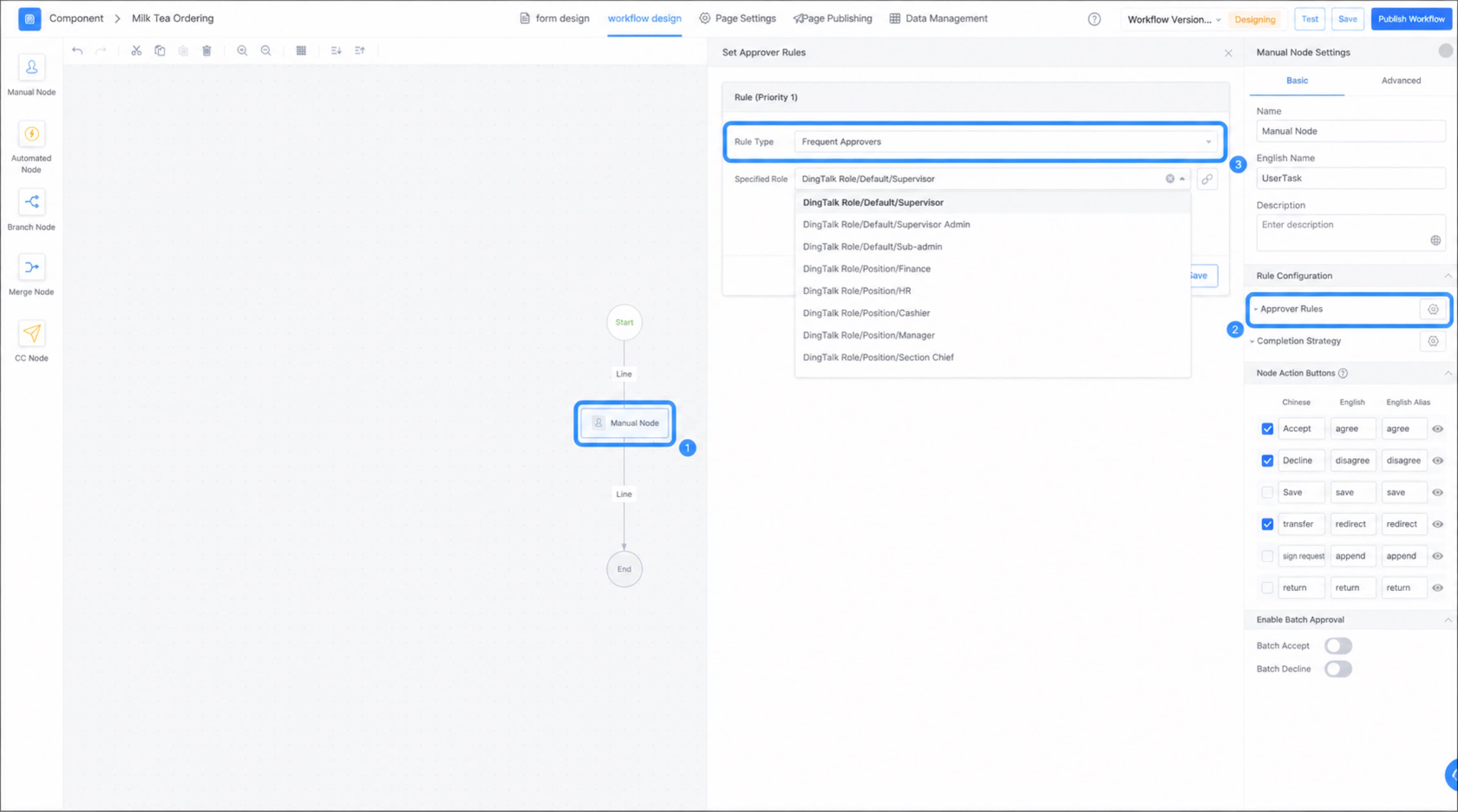
For details on configuring roles, see Role management.
- Specified approver: Specifies fixed approvers for this step. Multiselect is supported.
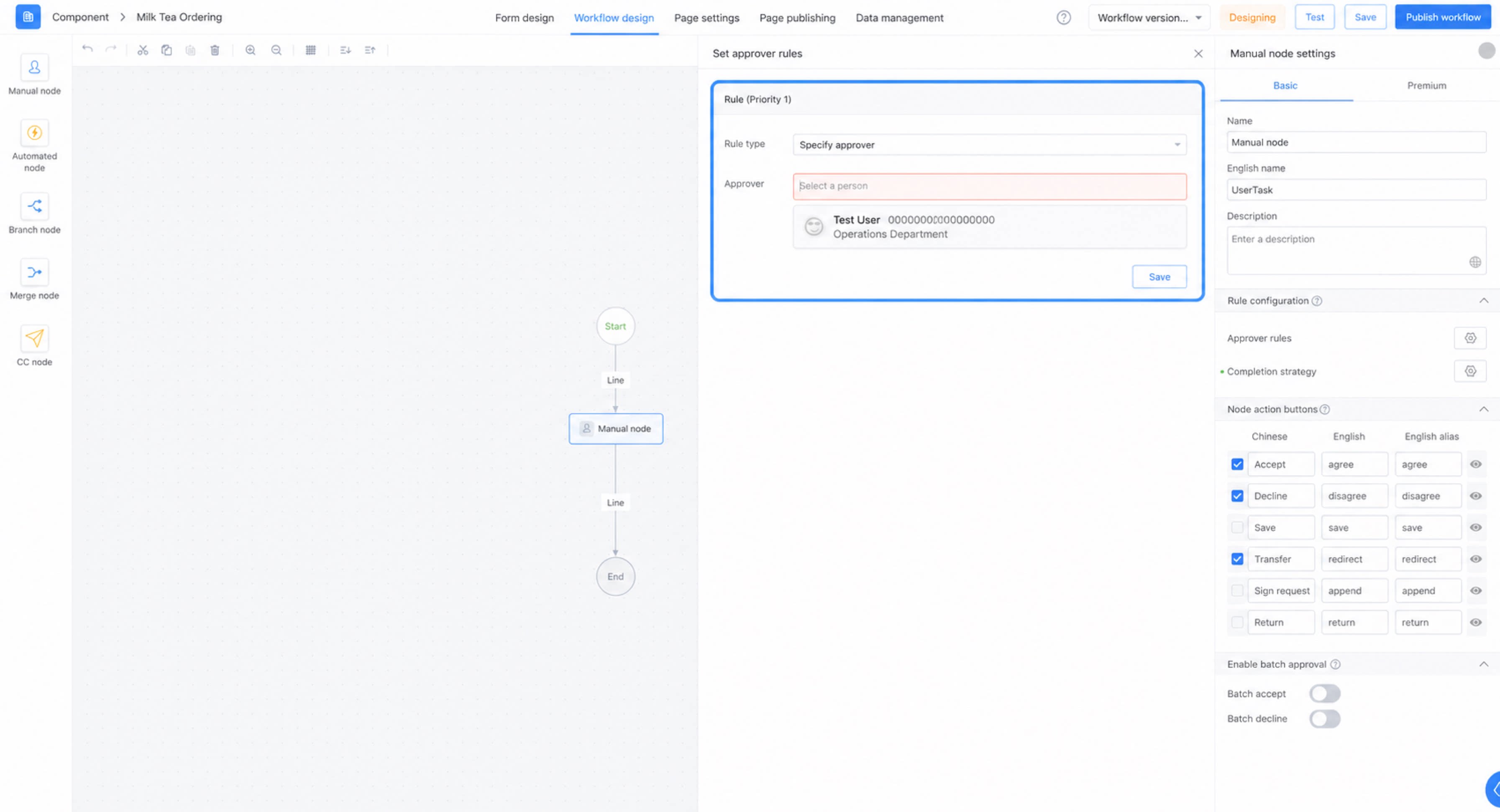
- Department liaison: Department liaisons are managed on the platform management page. Set department liaisons on the YiDA platform management page. For details, see Department liaison settings.
Note: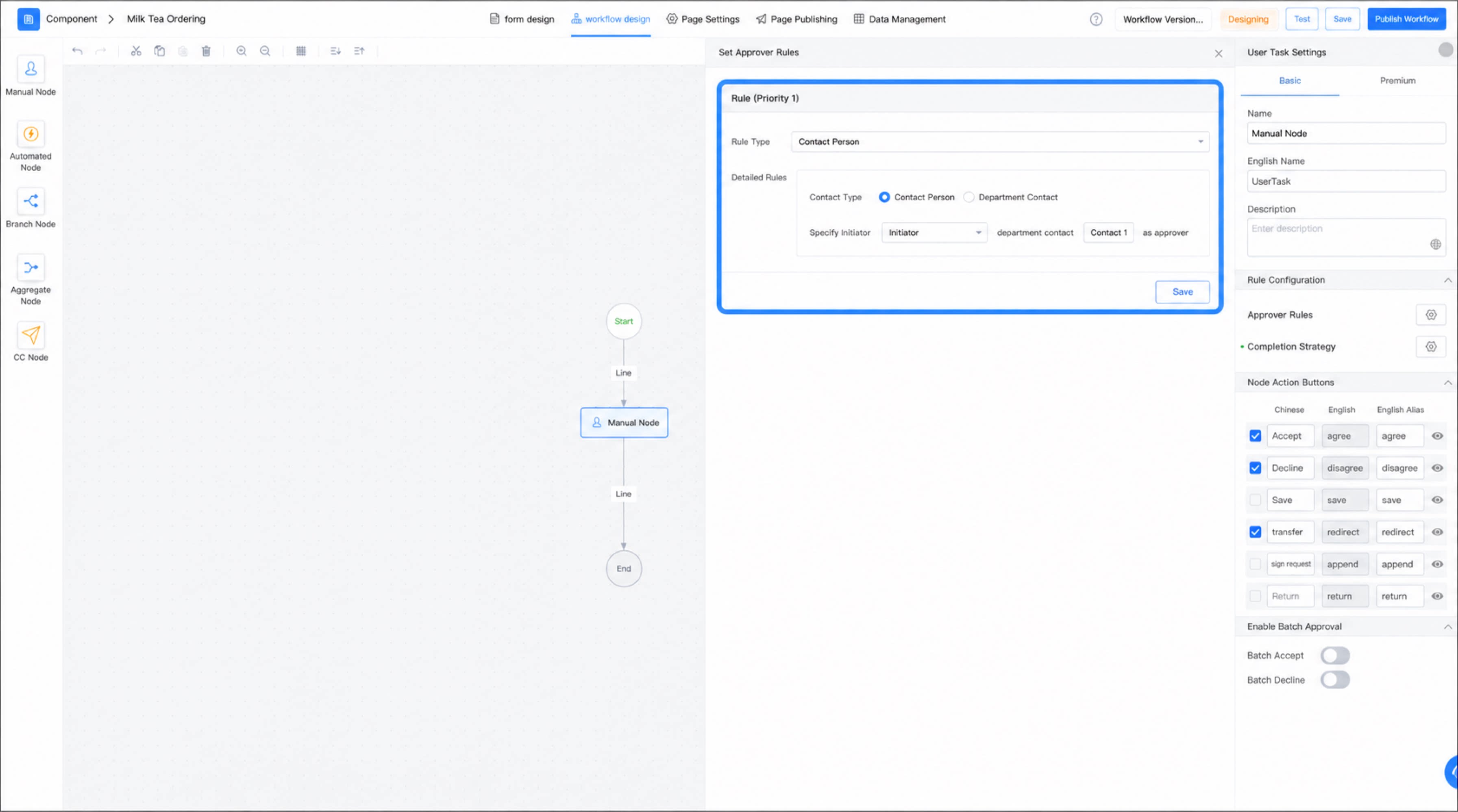 A department liaison can be understood as a department contact. Although a department may have multiple levels of hierarchy, there is typically a designated department contact.
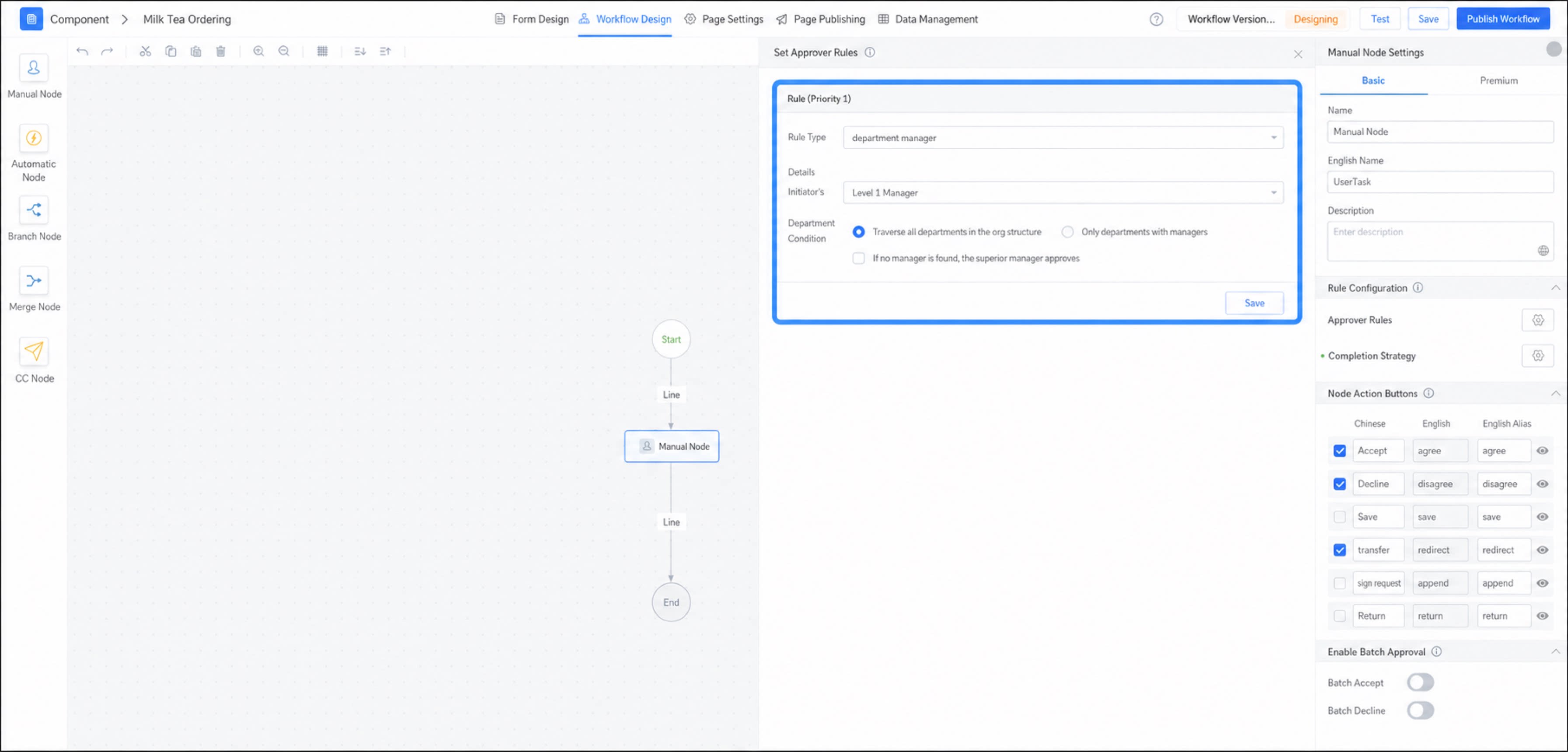
- Department manager: Specifies the initiator’s department manager, up to 20 levels of managers.
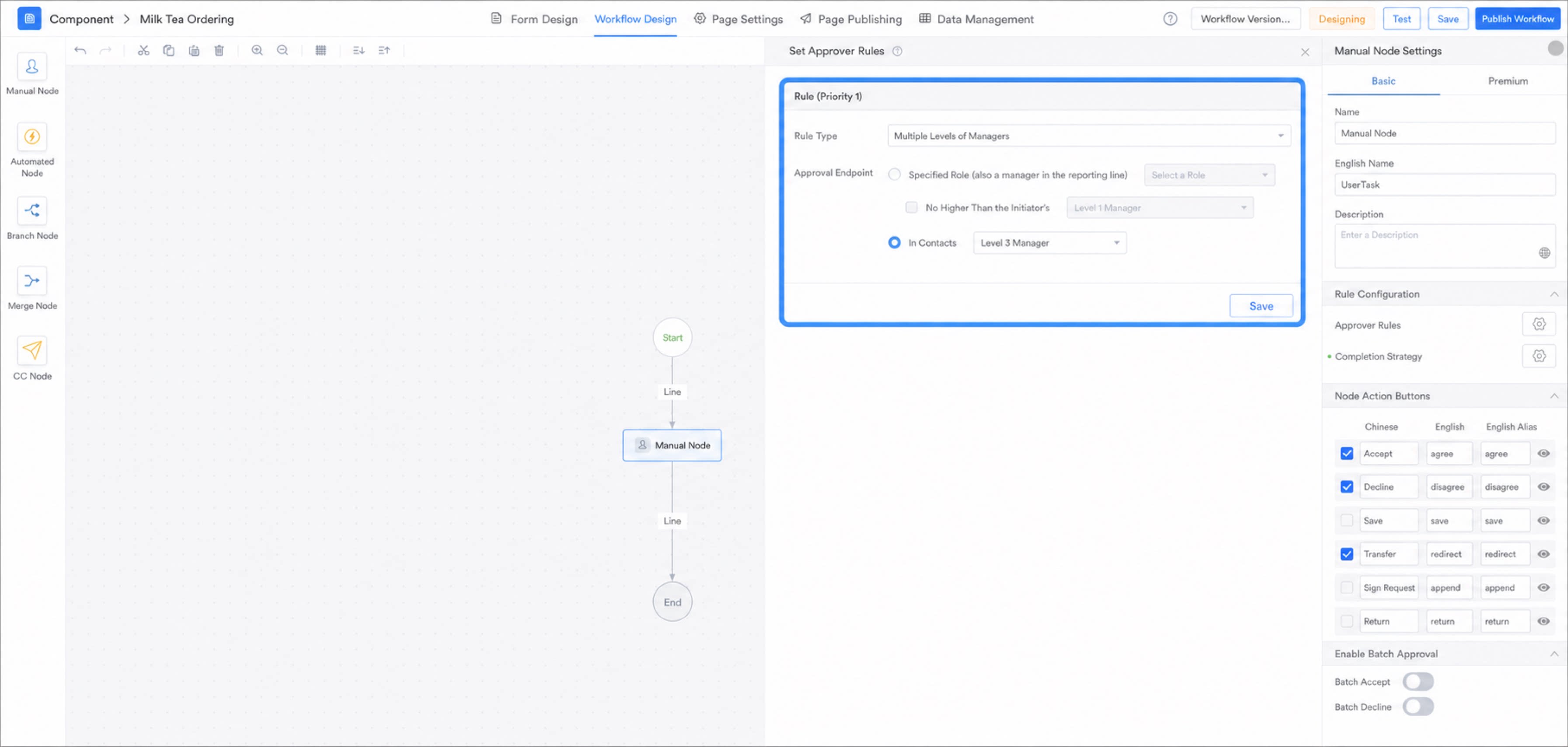
- Consecutive multi-level managers: After the initiator submits the approval, the initiator’s managers approve in sequence from the lowest to the highest level, until the designated endpoint. The endpoint can be a specific role or a specific manager level.
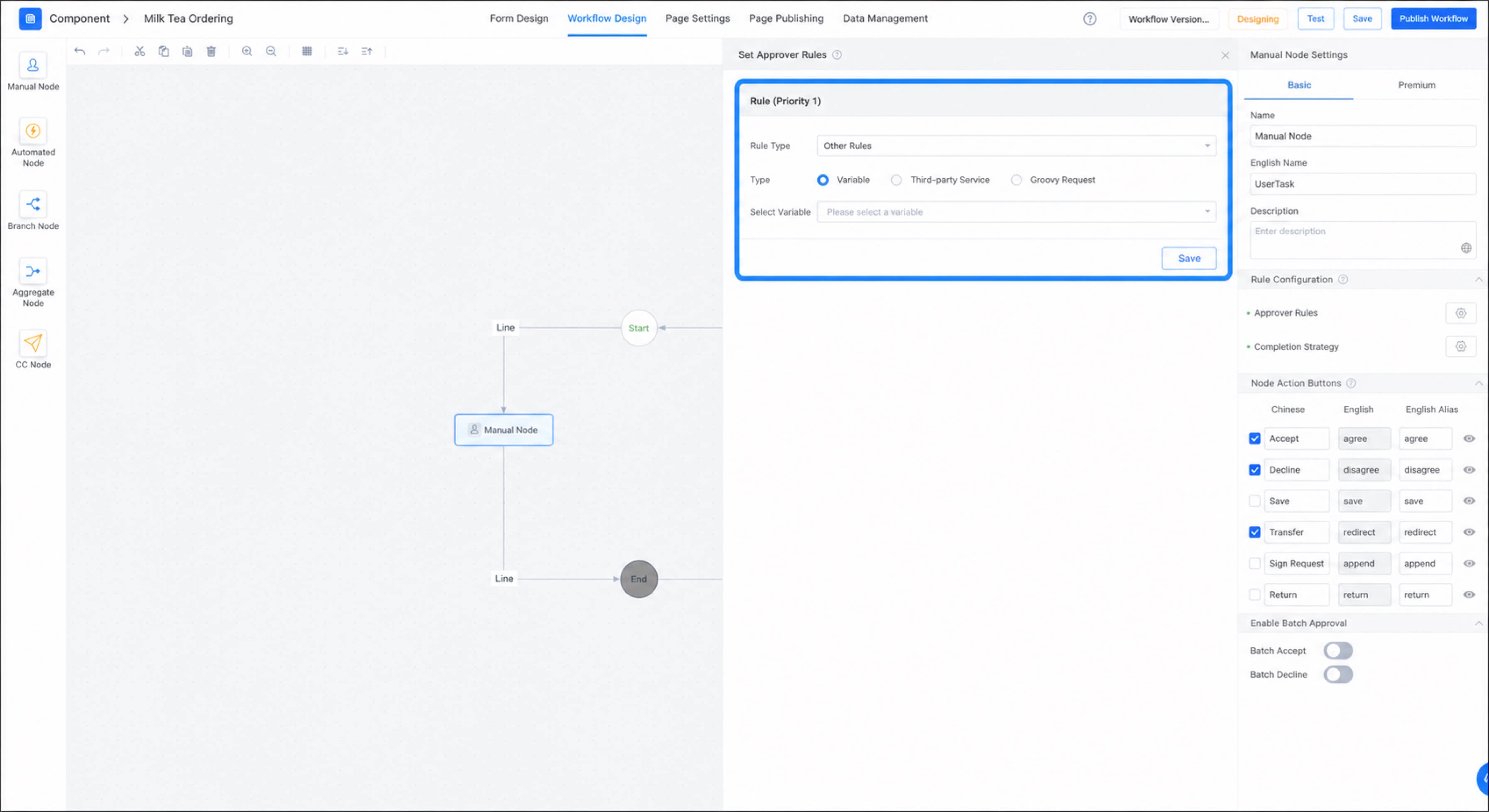
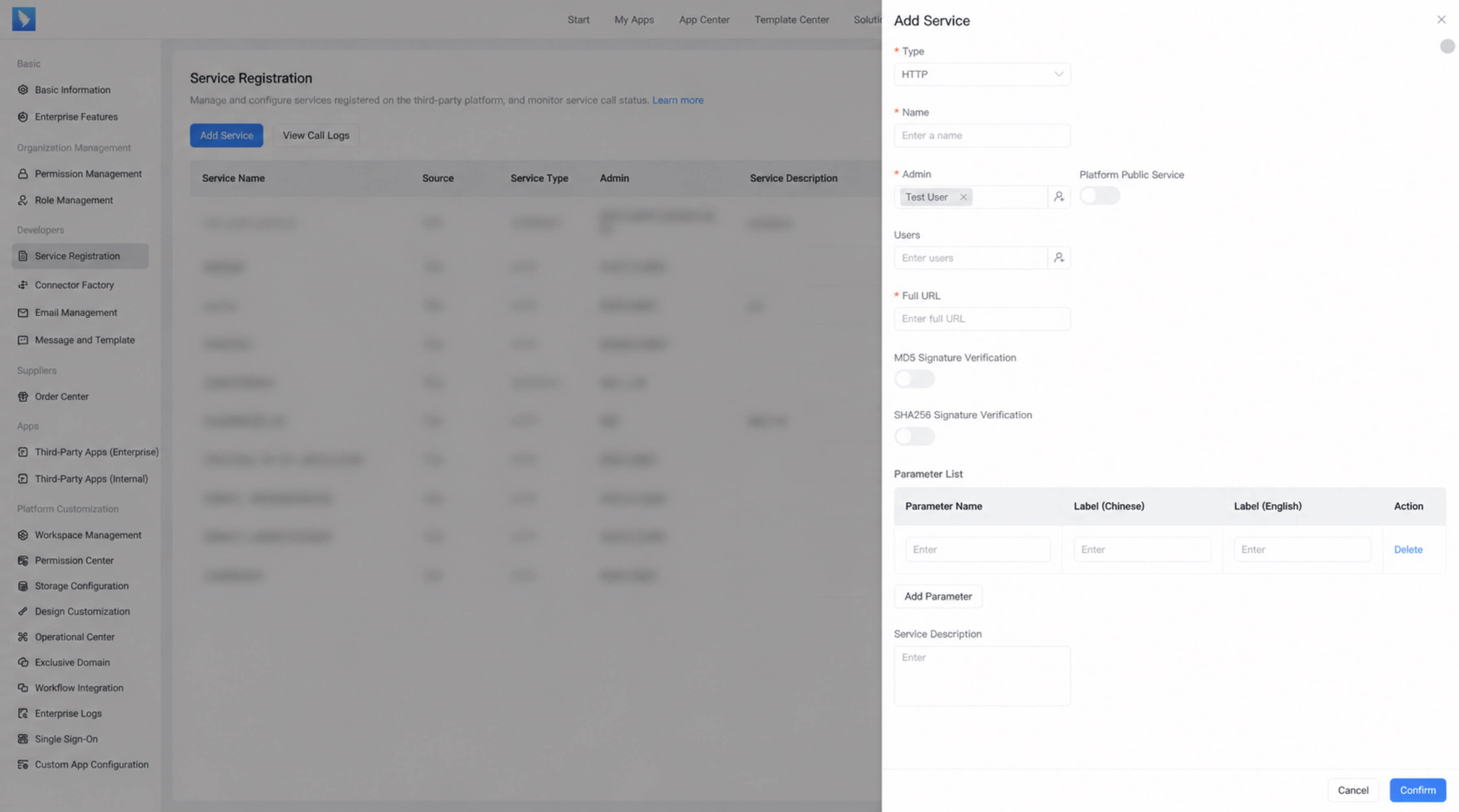
- Other rules: In addition to the above rules, approvers can also be set using variables, third-party services, or Groovy requests. Third-party services can be configured on the YiDA service registration page and then selected directly in the workflow.
Completion Policy
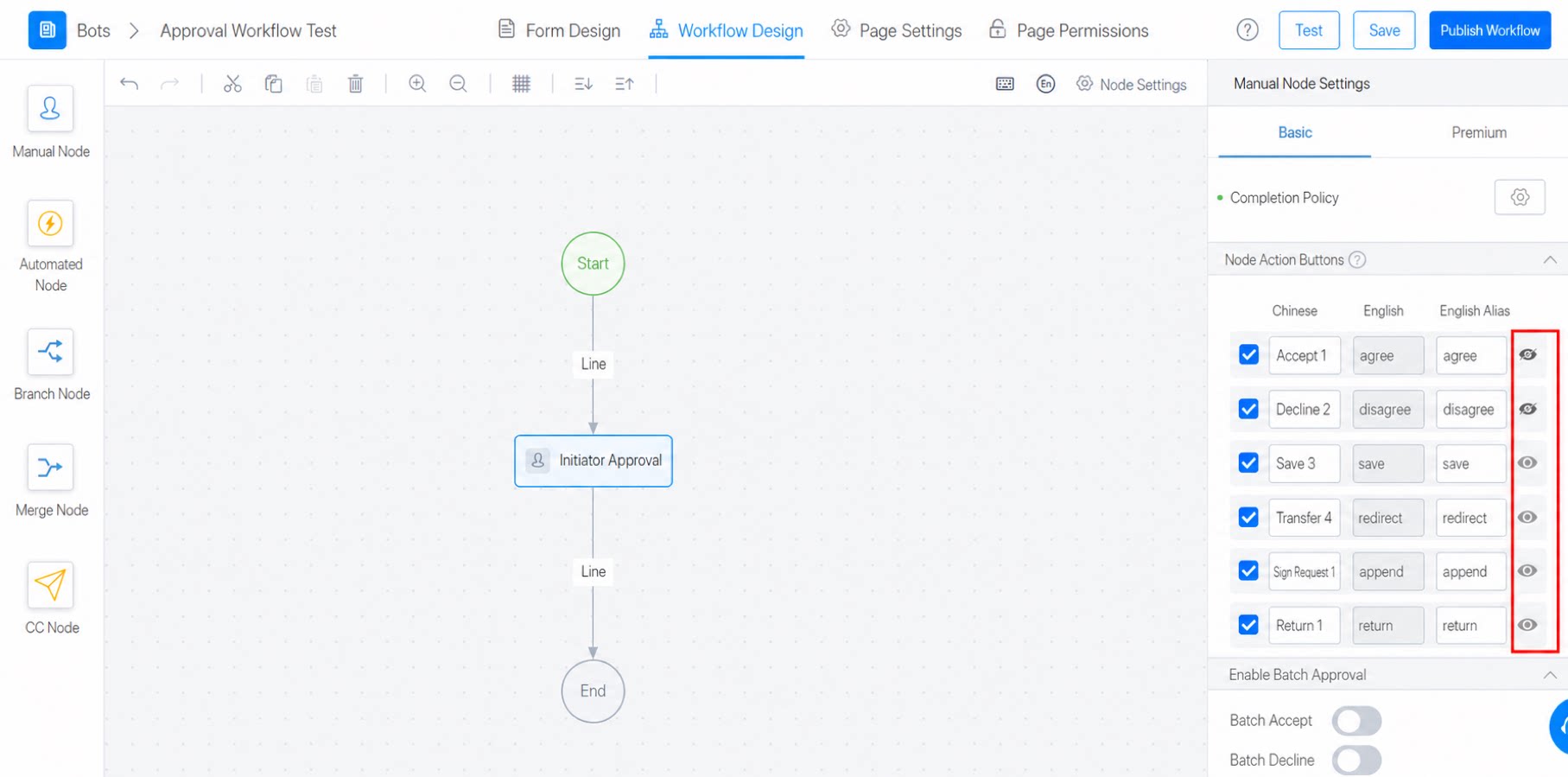
The completion policy defines the execution rules for the lines following the step. Lines are matched based on the rule names in the completion policy. The actions in the rule conditions are selected from the step action buttons defined in the step’s basic attributes. The red box in the diagram marks the sign request rule. The recommended best practice is: Accept invalid, Decline valid.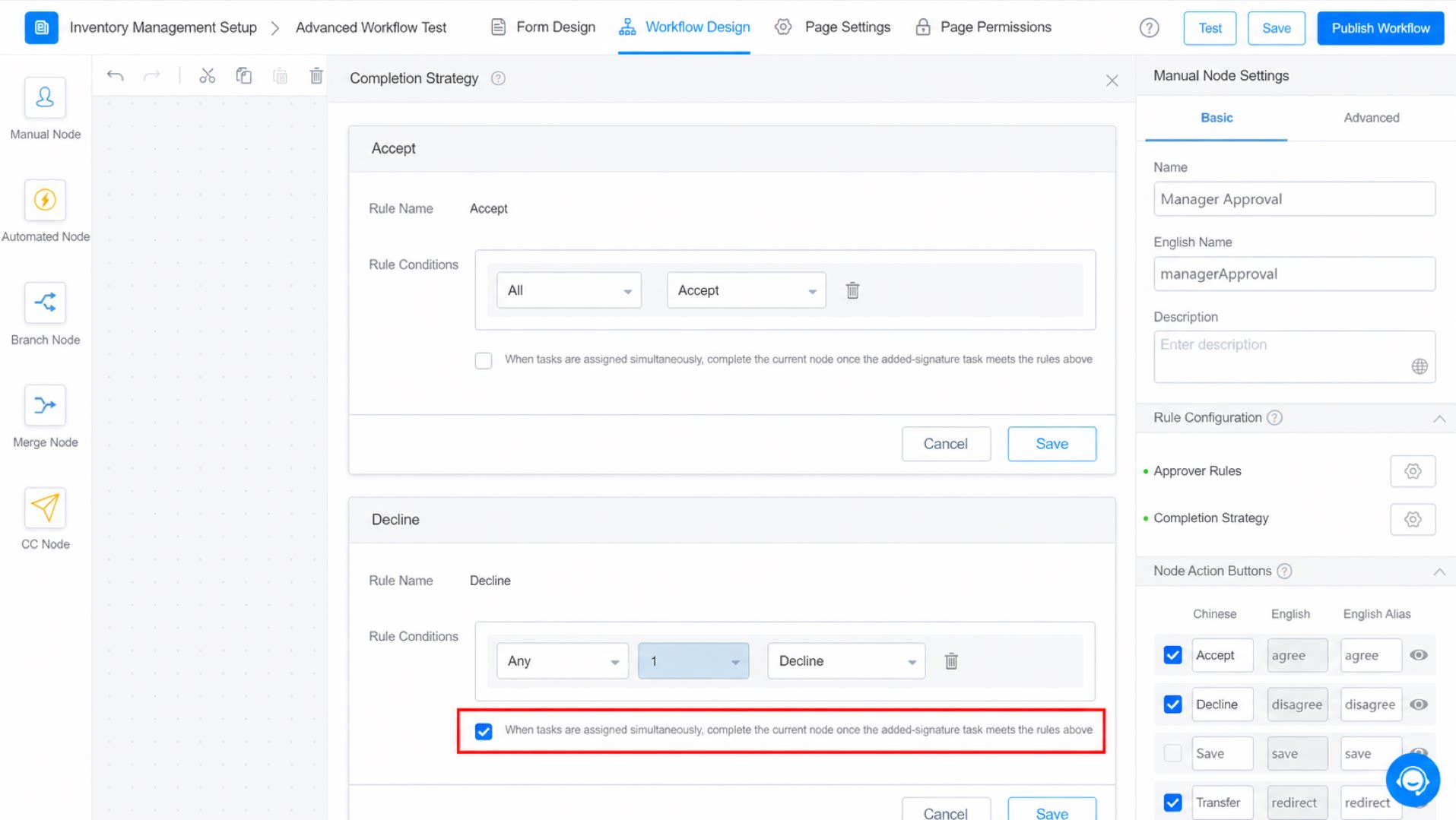
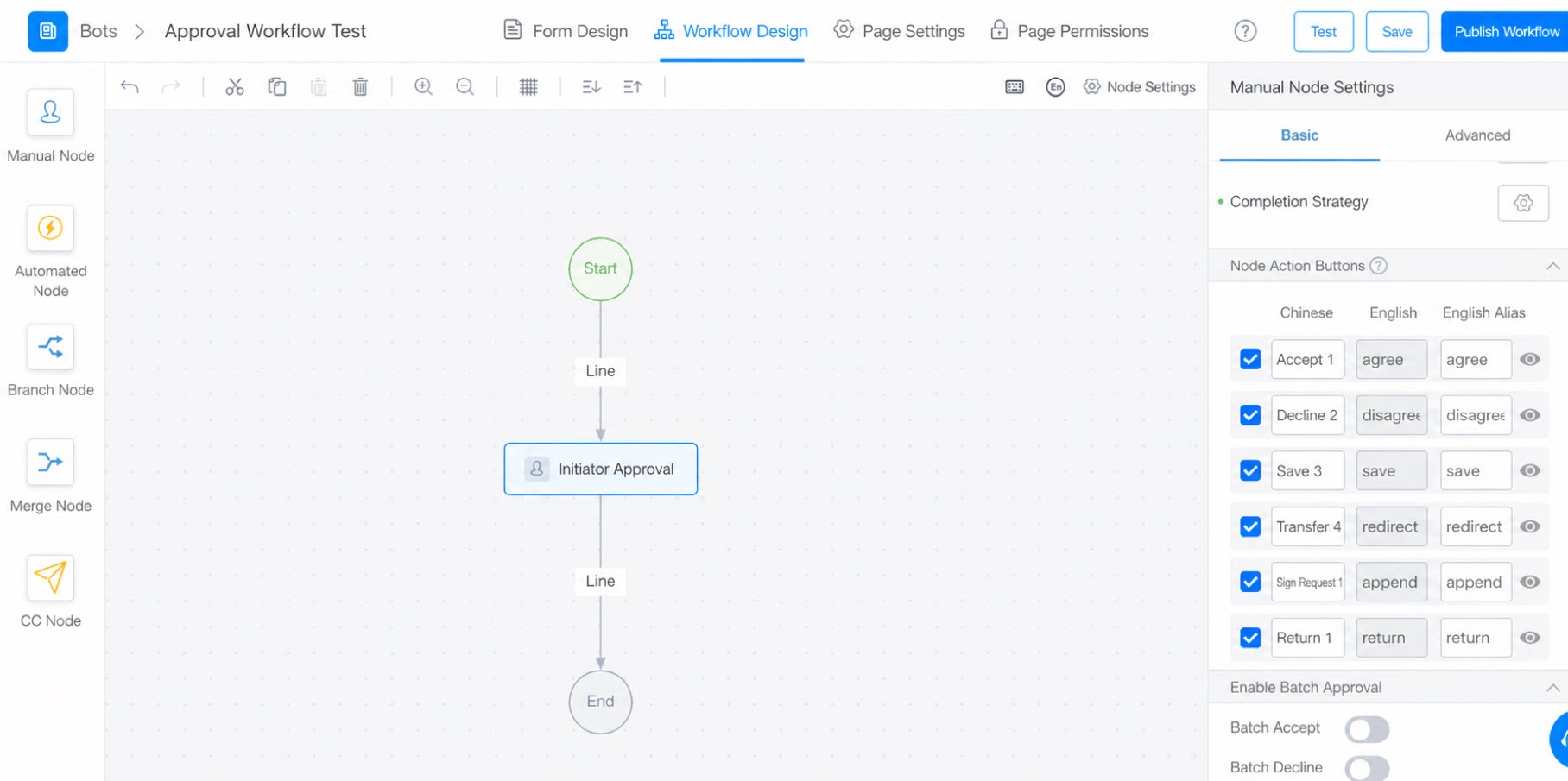
Step Action Buttons
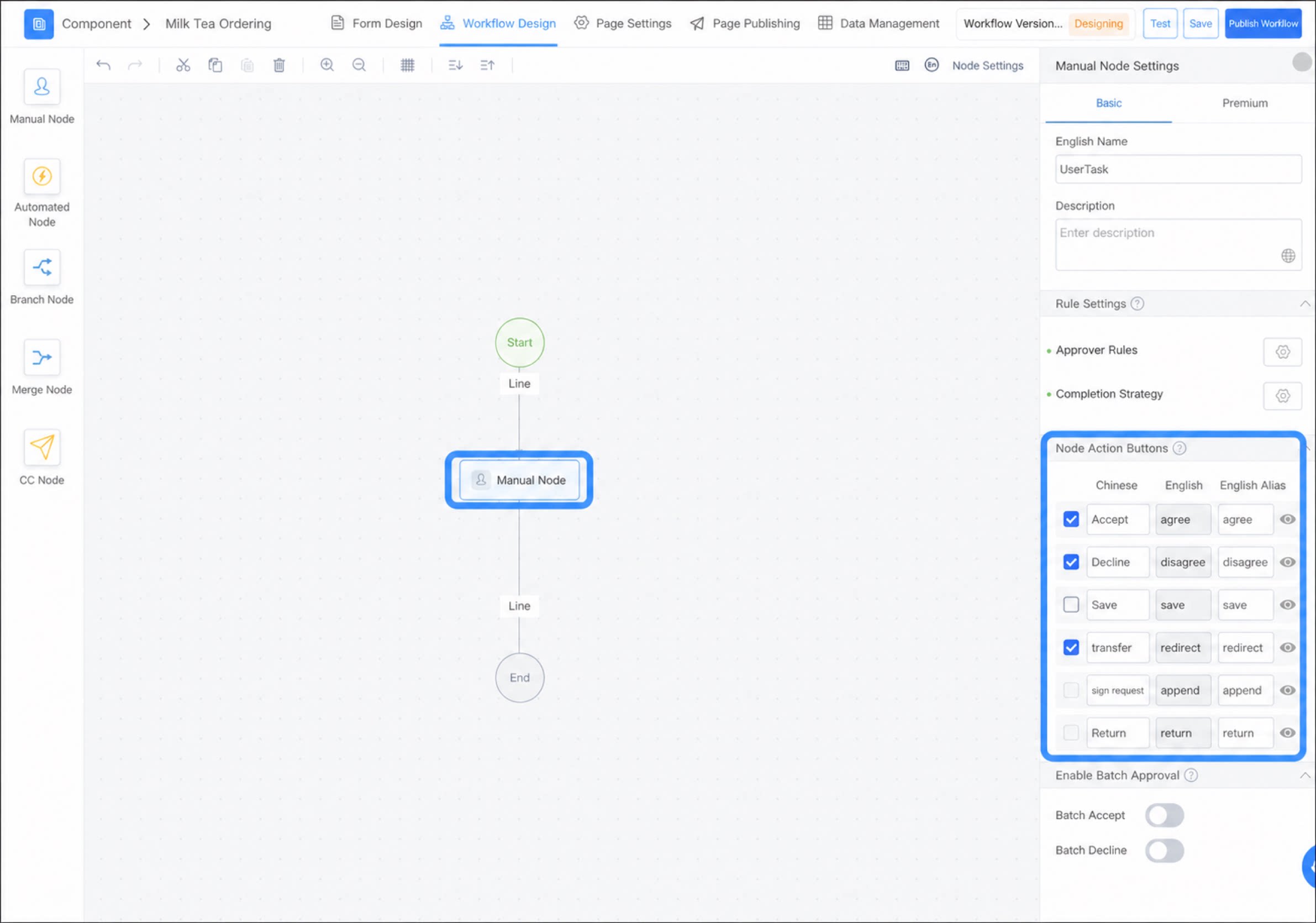
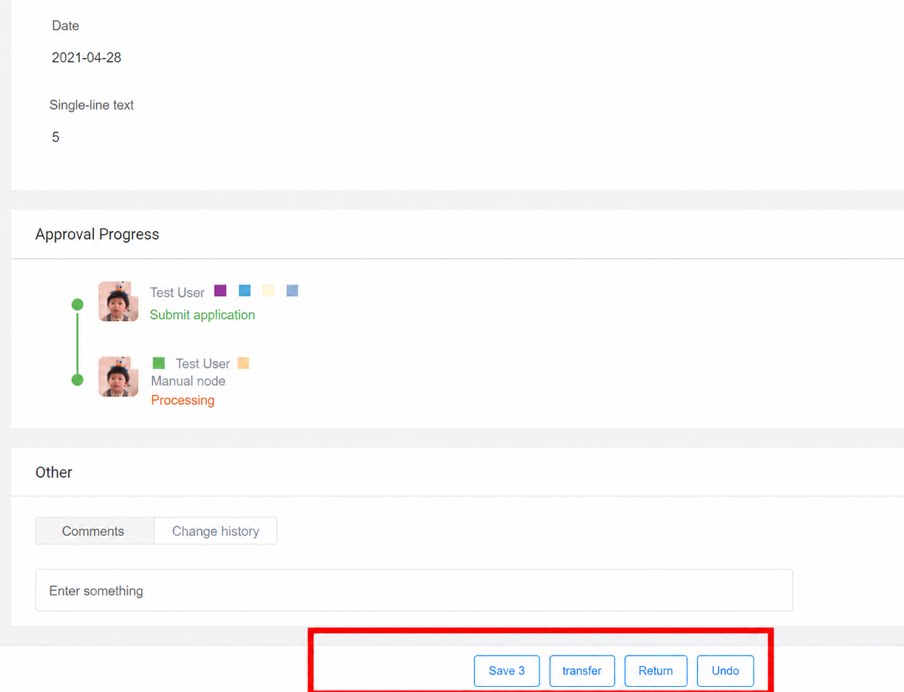
Step action button settings determine which buttons the approver sees at this step, and also define the action options for subsequent line execution rules.Accept and Decline are required and cannot be removed.
Batch Approval
When one person needs to approve multiple approval forms, batch approval saves time and improves work efficiency.Advanced Settings
Step ID
Uniquely identifies the step. If the workflow returns an error, use the Step ID to quickly locate the faulty step.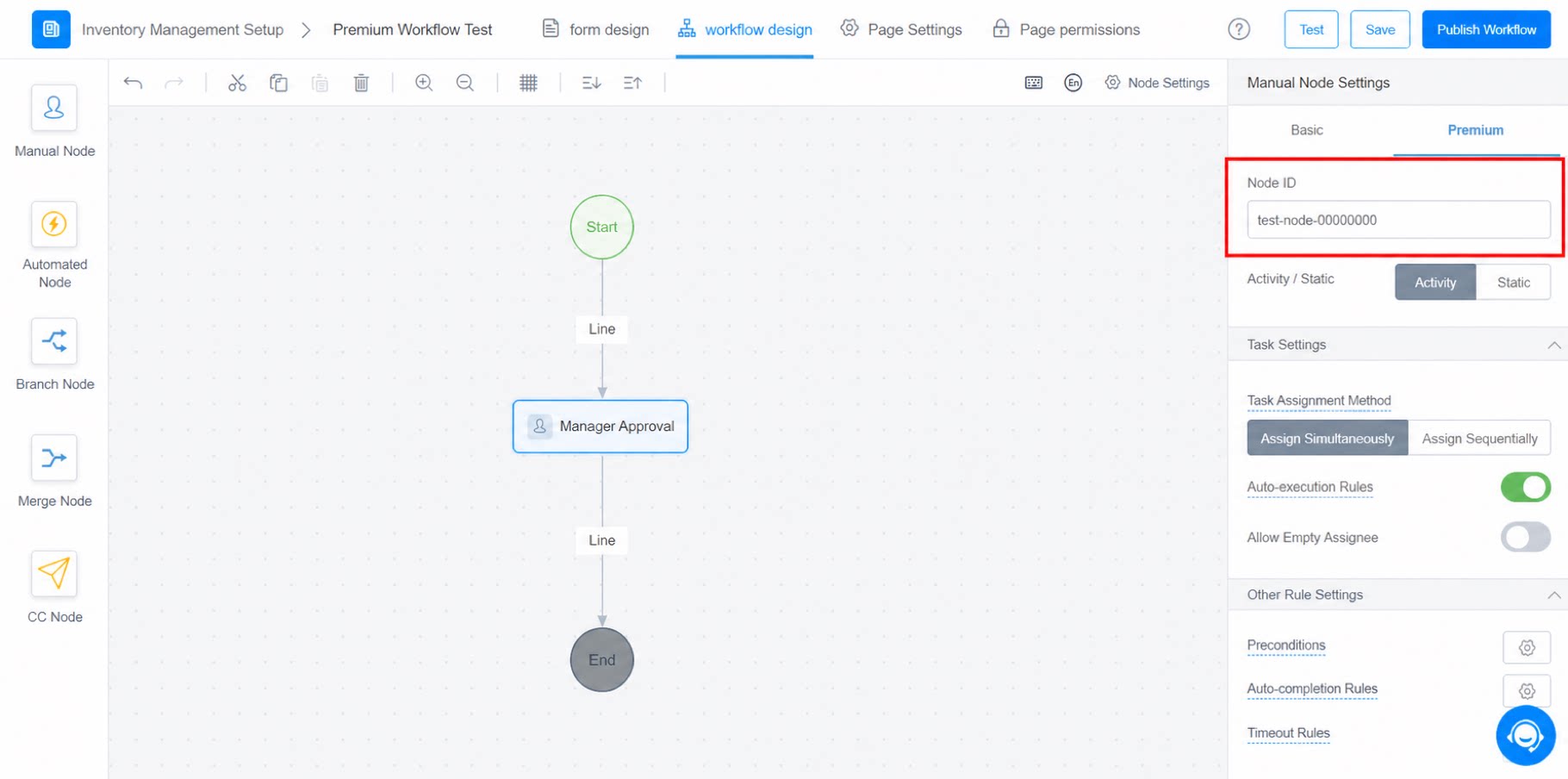
Dynamic vs. Static
Static steps have their operators determined before the workflow is initiated. Dynamic steps have their operators determined after the workflow is initiated.- When the approver rule is a frequent approver, department liaison, specified approver, department manager, consecutive multi-level manager, or variable, the operator is static.
- When approvers are determined through external services (third-party services or Groovy requests), the step is dynamic.
Dynamic steps do not appear in prediction information.
Task Assignment Method
Simultaneous assignment means that if the step requires multiple approvers, tasks are assigned to all of them at once. Sequential assignment means tasks are assigned in order — only after the previous approver completes their approval is the task assigned to the next approver. Whether to push to the task center and require approval comments can be configured based on your needs.Auto-Execution Rule
The auto-execution rule allows the current step to be executed automatically when the approver is the workflow initiator or the approver of the previous task. (Applies only to workflow forms.)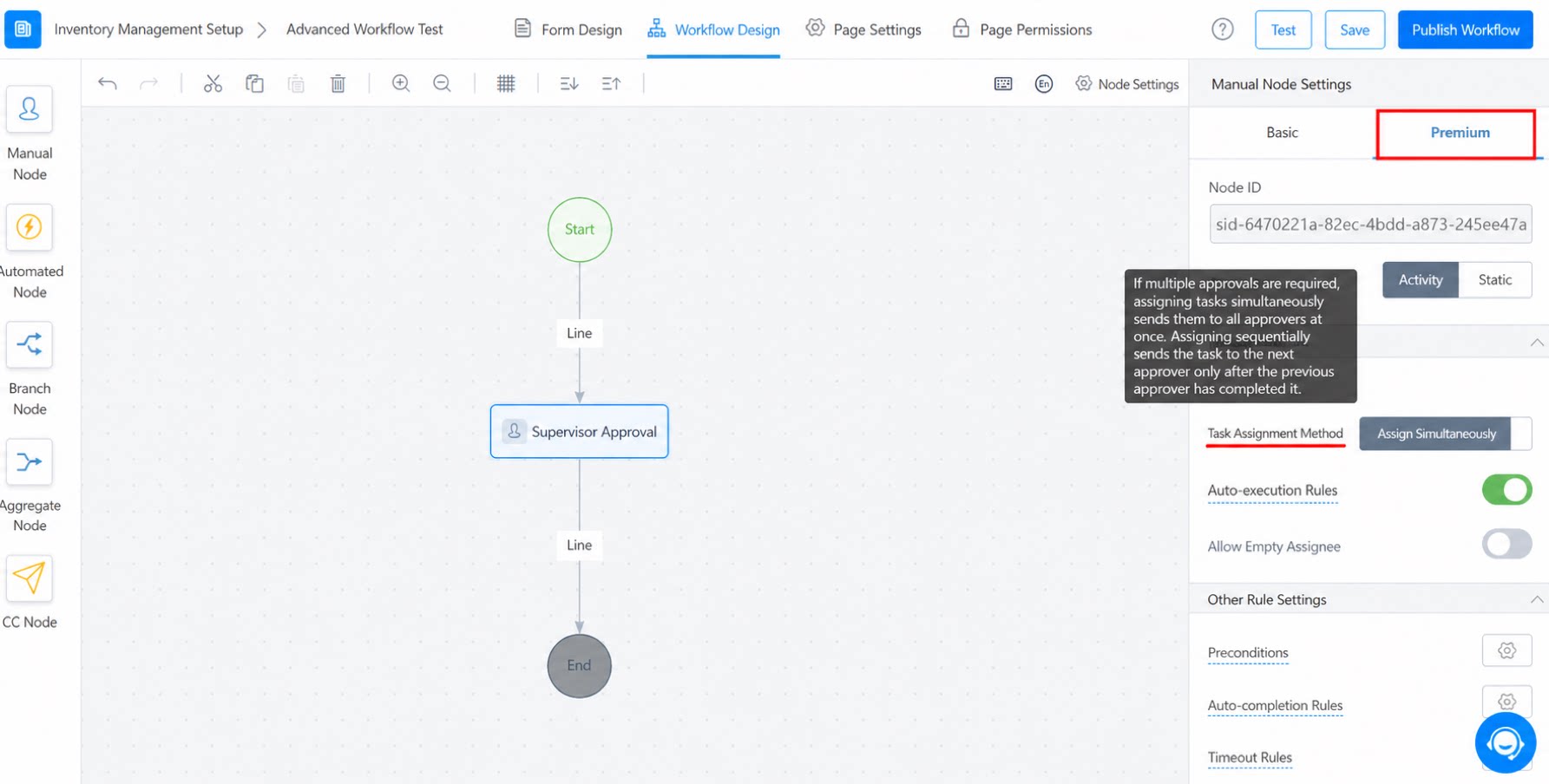
Preconditions
The designer supports precondition settings. If the precondition rule is not met, the step is skipped, and the workflow follows the default outgoing line or the line that meets the conditions.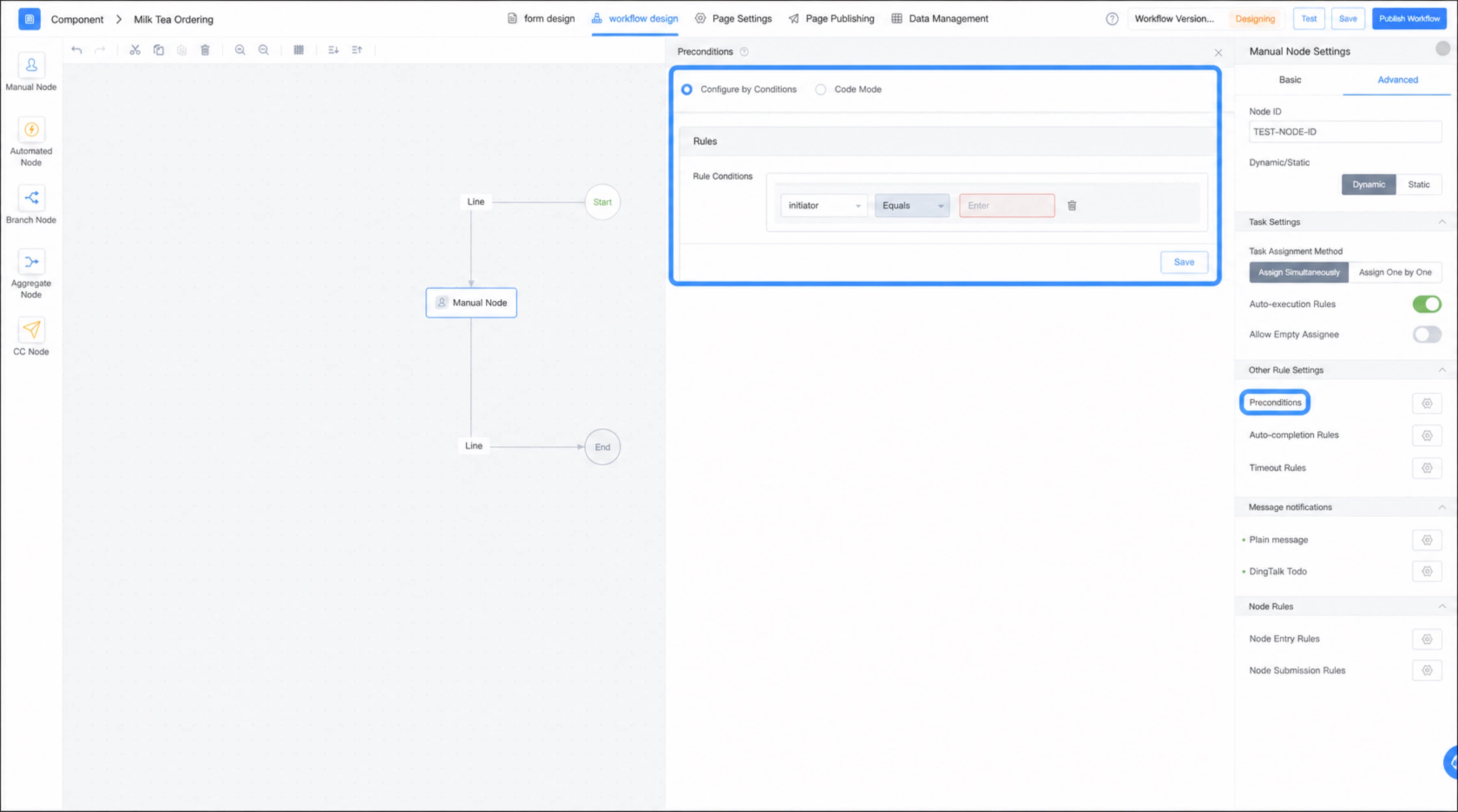
Auto-Completion Rule
Auto-completion rules configure automatic approval rules based on form fields and system fields at workflow initiation. When the conditions are met, the Accept or Decline action is executed automatically.If the selected condition is the initiator, enter the corresponding user’s
["userid"]/Employee ID. Entering the user’s name directly does not work.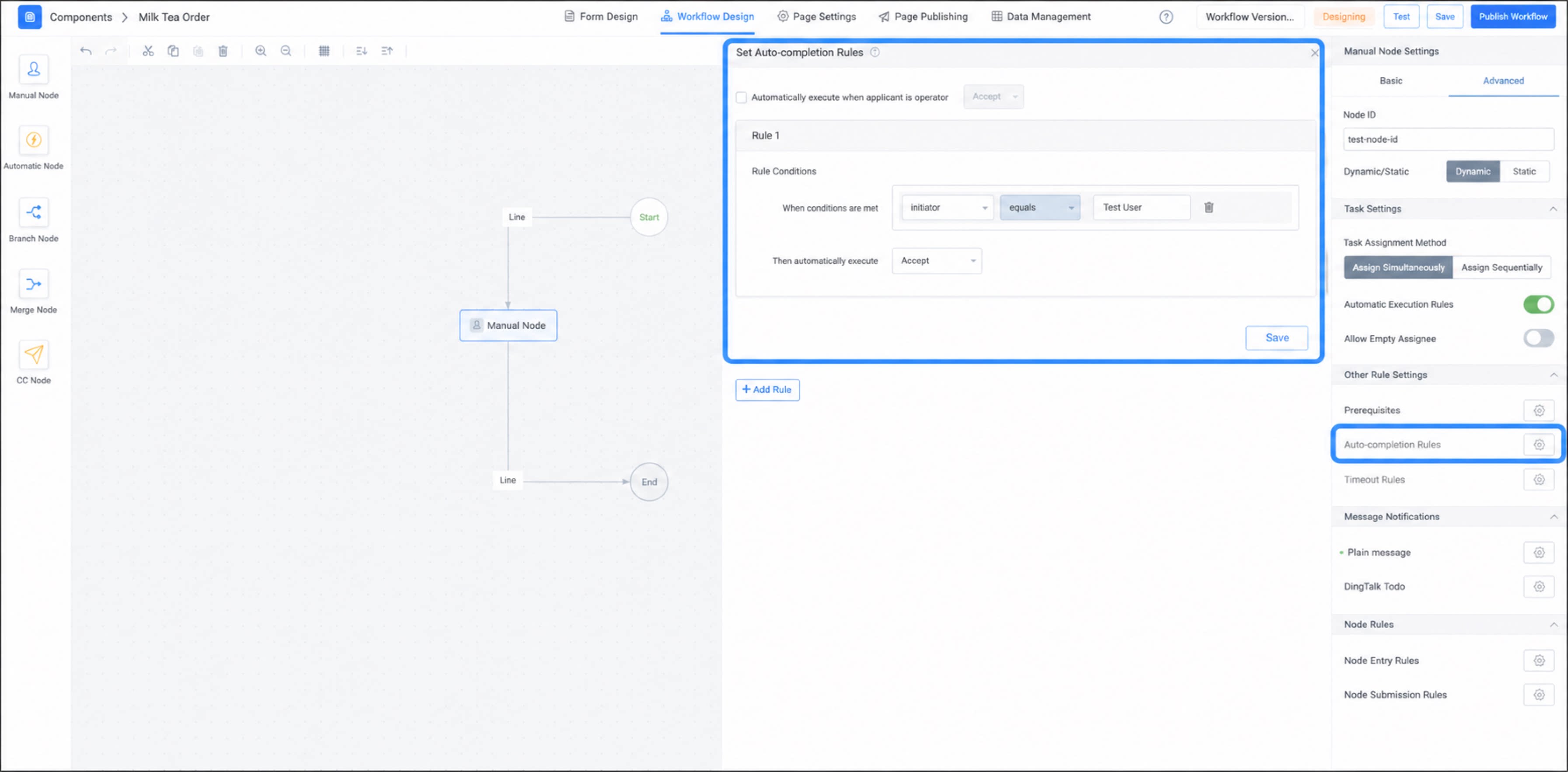
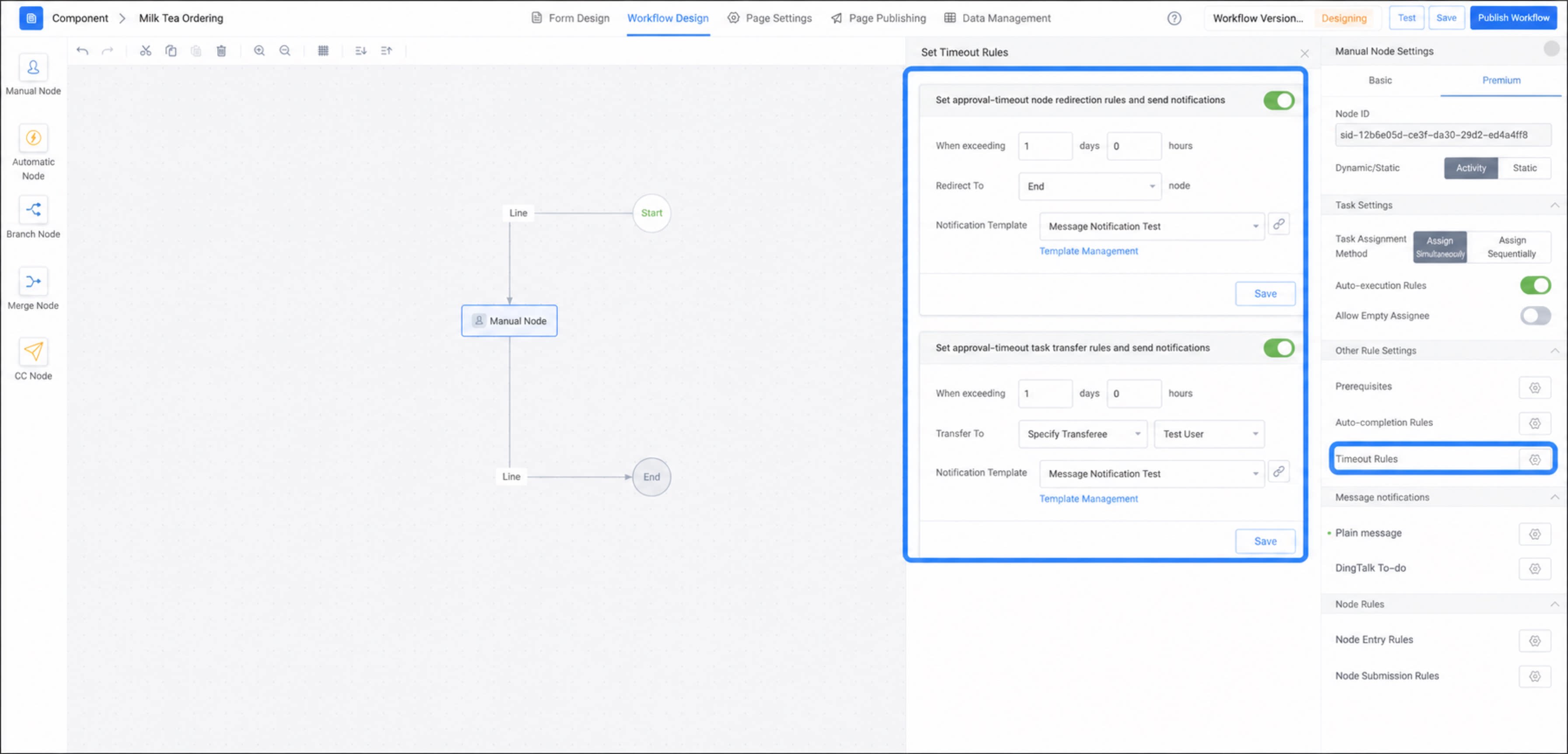
Timeout Rule
If an approver does not process the approval form for a long time, the step remains stuck and cannot proceed. To avoid affecting efficiency, configure a timeout rule to send a Work Notifications reminder to the approver, jump to another step, or transfer the task. Notification templates can be configured in template management.- Timeout step jump
- Timeout task transfer
Message Settings
To notify users other than the approver when the workflow reaches this step, add a message notifications. You can include a workflow link in the notification. However, users who are not workflow admins and do not have instance view permission cannot view the workflow. For details on selecting message templates, see Message templates**.**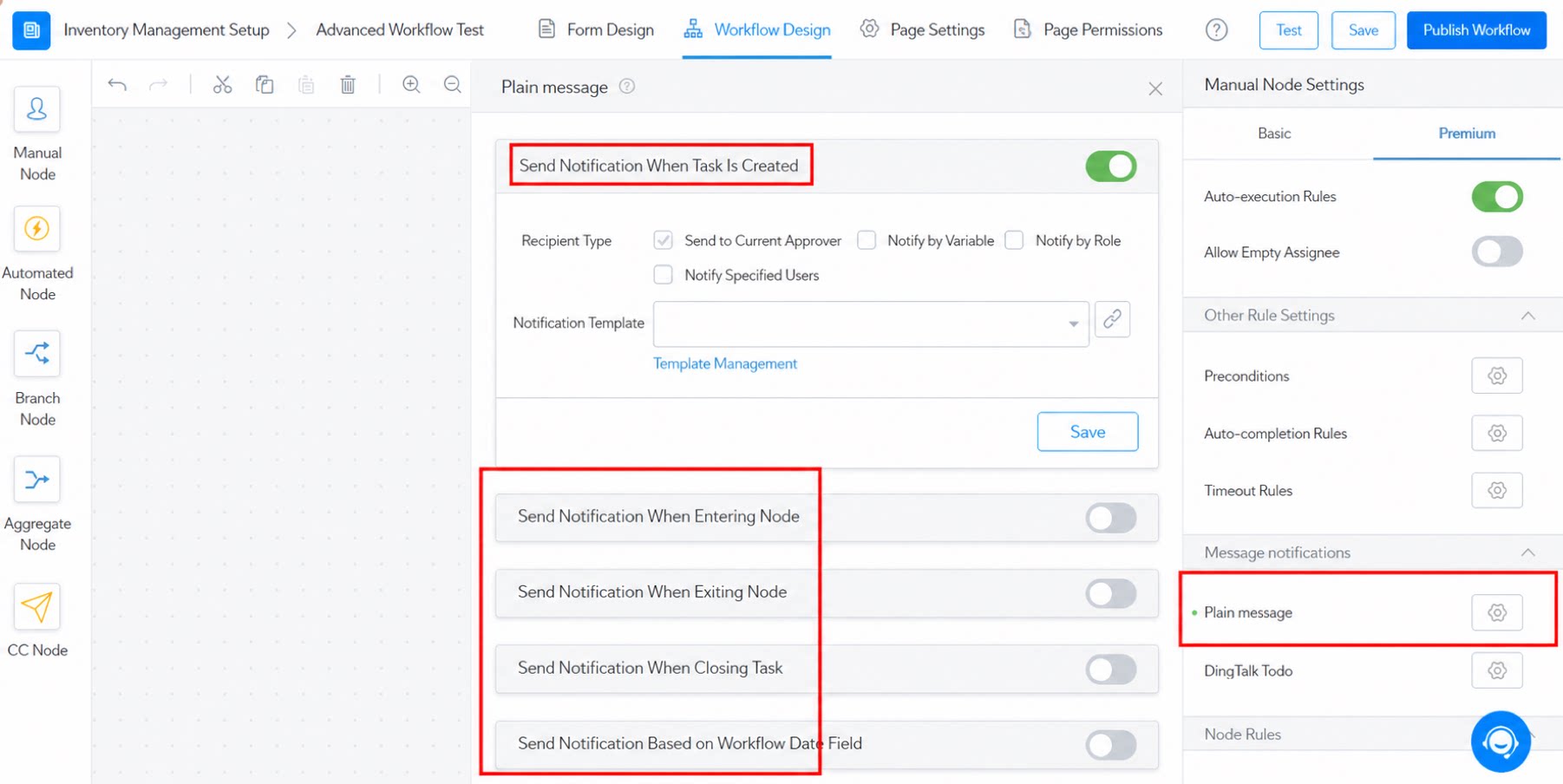
Step Entry Rule
The step entry rule is triggered when the manual step is entered. After selecting the corresponding service, the workflow automatically calls the associated service when it reaches this step.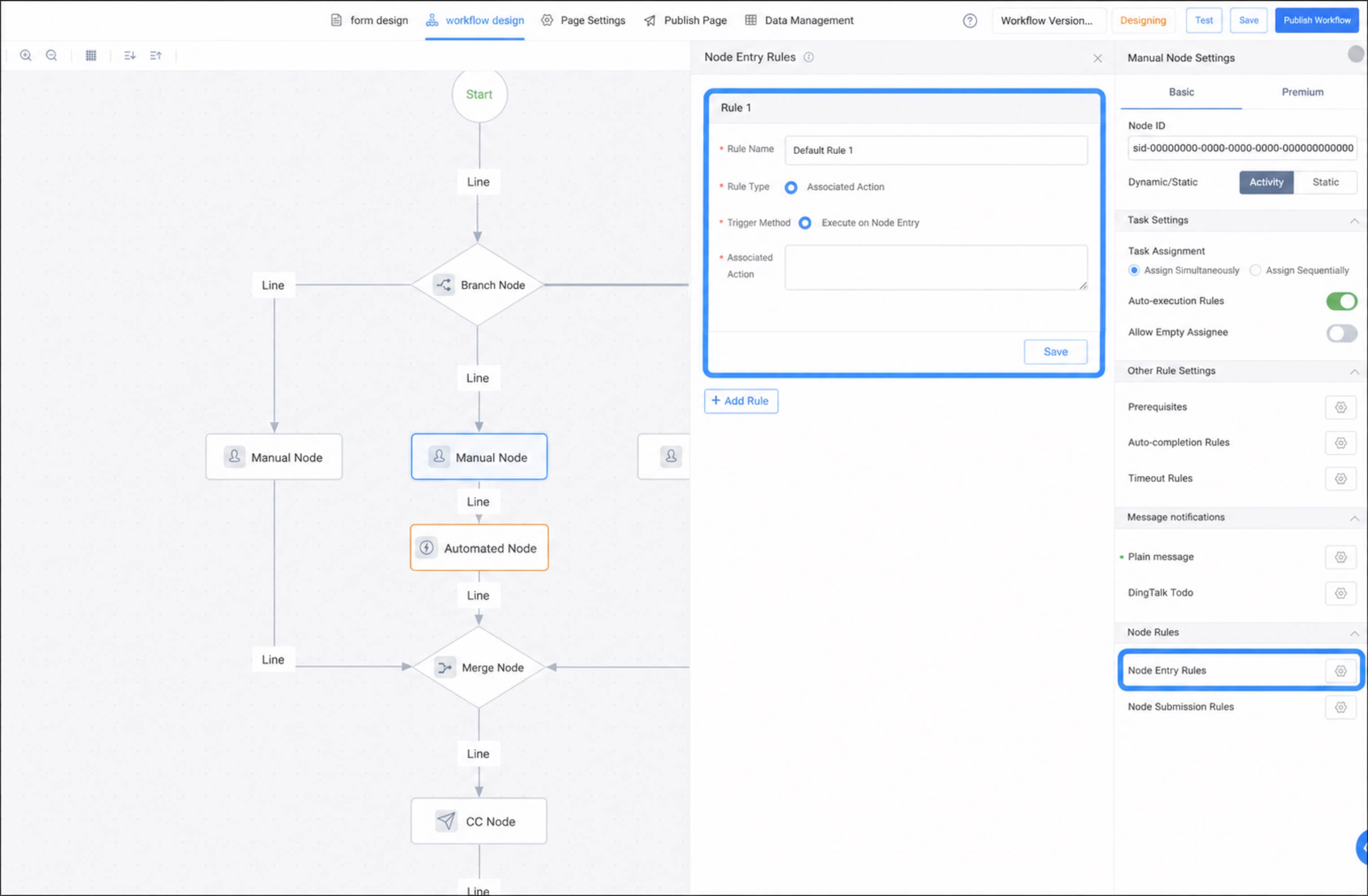
Step Submission Rule
The step submission rule uses formulas to validate whether the user can perform the action when submitting the workflow or when the approver processes the workflow. As shown below. (For specific formulas, see Formula module.)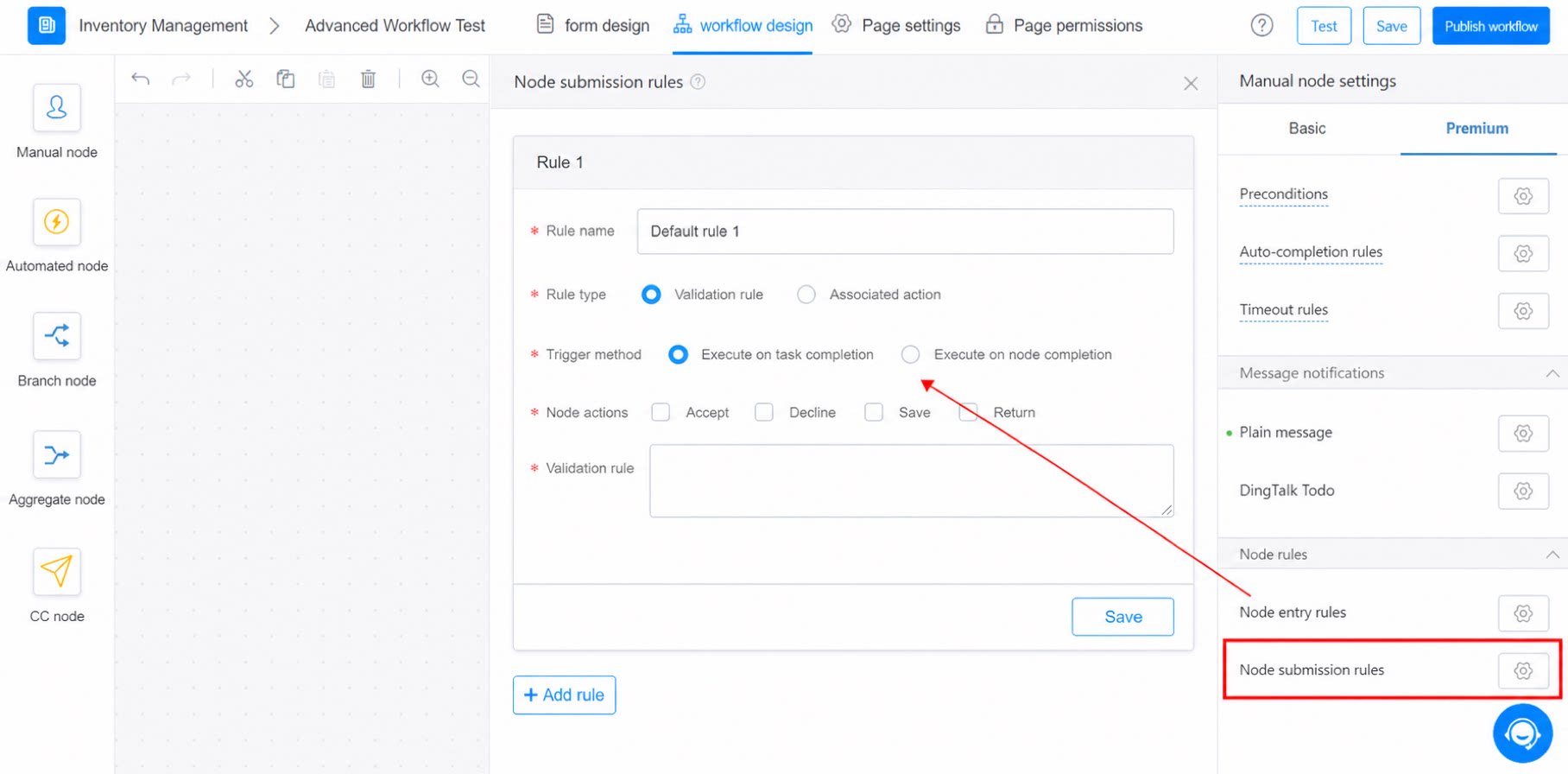
Use Case
Example: A team petty cash reimbursement system requires manager approval and finance approval (where the finance role is configured such that approval by any one finance member is sufficient) of the reimbursement amount. The following demonstrates the entire process from designing the workflow to running the approval: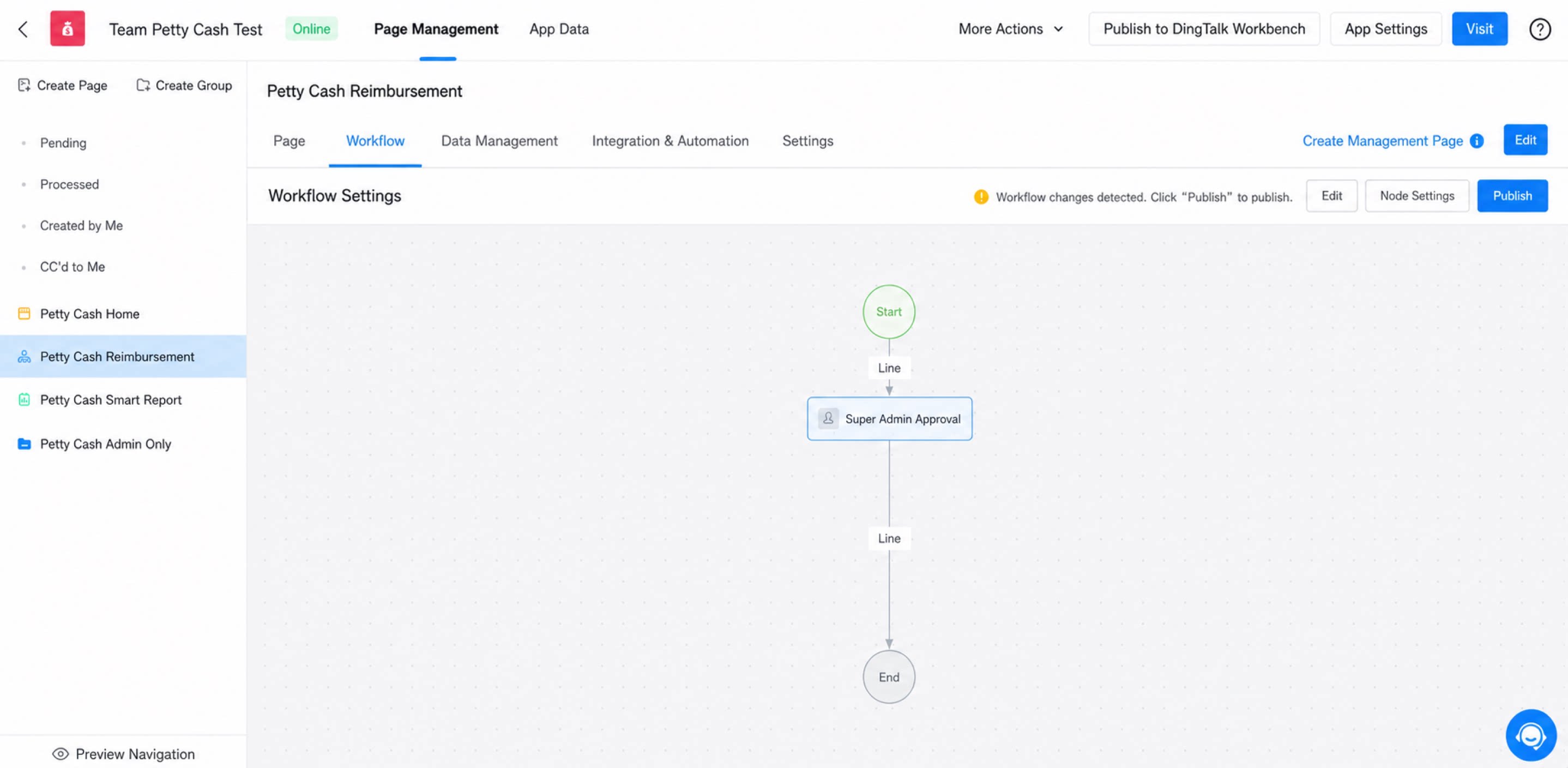
FAQ
- Q: Why can’t the Accept and Decline buttons be disabled?
- Q: When an approver returns the Approval form to the initiator for resubmission, do the previously approved intermediate steps need to be re-approved?
- Q: How many items can be approved at once with batch approval?