

 Chats
Chats Calendar
 Meetings
 Contacts
 Mail
Mail Docs
Docs Drive
Drive AI Table
 AI Minutes
 Attendance
 Approval
 YiDA
YiDA Admin Console
Add a Grid View Widget
In the upper-left, click Add chart. Pick Grid view.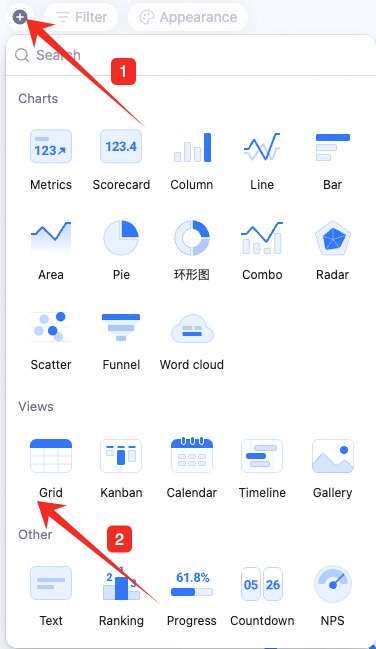
Configure the Grid View Widget
Configure type/data and custom style: Data: pick source — table and data range. All data enables filters.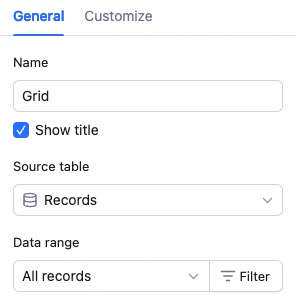 Grid config: groups, sorting, row height, fields shown and order.
 Custom style: background color.
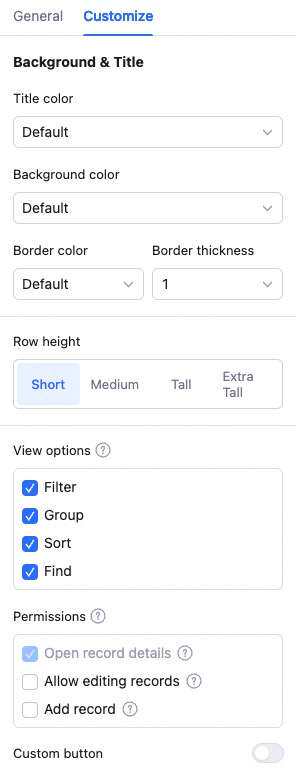
Manage the Grid View Widget
Hover over the widget — find the icon in the upper-right. Click for: configure, rename, copy, add to dashboard center, copy as image, export as image, delete.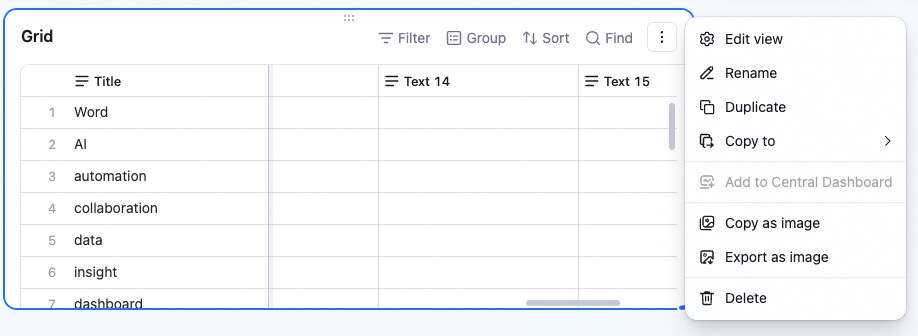 Drag the lower-right corner to resize. Drag the top to reposition.
Relationship to the Original Grid View
A grid view widget added to the dashboard relates to the original grid view as follows:- The widget is not editable.
- When you edit cells in the original grid view, the widget updates in sync. “Edit” = add/edit/delete record, add/edit/delete field.
- Their configs are independent. “Config” = filter, group, sort, row height, column width, field order, record order, etc.