

 Chats
Chats Calendar
 Meetings
 Contacts
 Mail
Mail Docs
Docs Drive
Drive AI Table
 AI Minutes
 Attendance
 Approval
 YiDA
YiDA Admin Console
Add a Countdown
In the upper-left, click Add chart. Pick Countdown.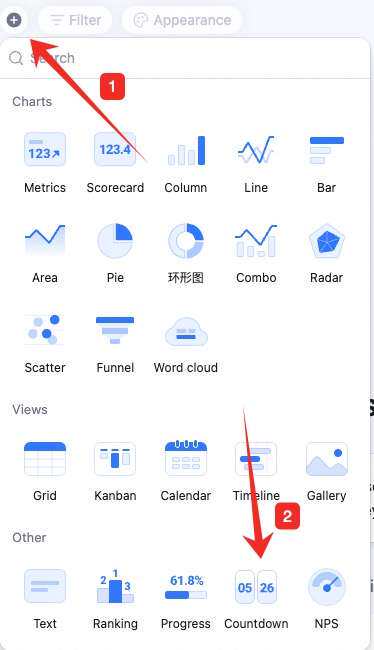
Configure the Countdown
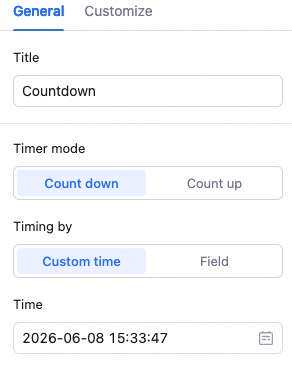
Configure chart type, countdown settings, unit, and style. Chart type: defaults to countdown — switch via the dropdown. Countdown settings: title and timing source. Timing source: Fixed value or Field. Fixed value: set the end timestamp.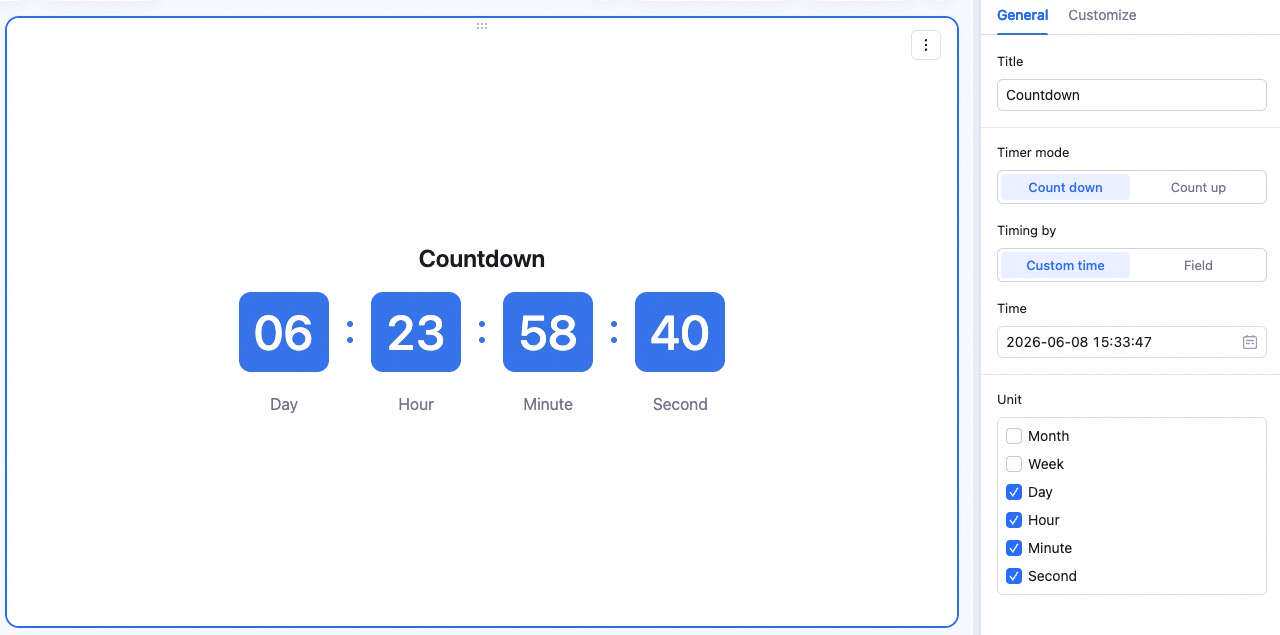 Field: configure table, data range, filter, and date field. Then pick earliest / latest from the field.
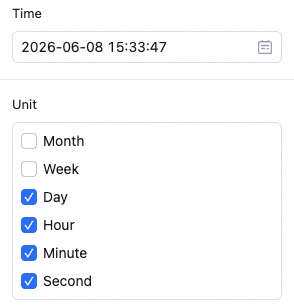
 Unit: set countdown units — how it displays.
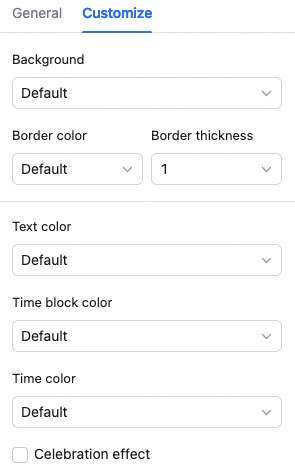
 Style: background, description color, time-block color, time color, and end animation.
Manage the Countdown
Hover over the widget — find the icon in the upper-right. Click for: configure, copy, add to dashboard center, copy as image, export as image, delete.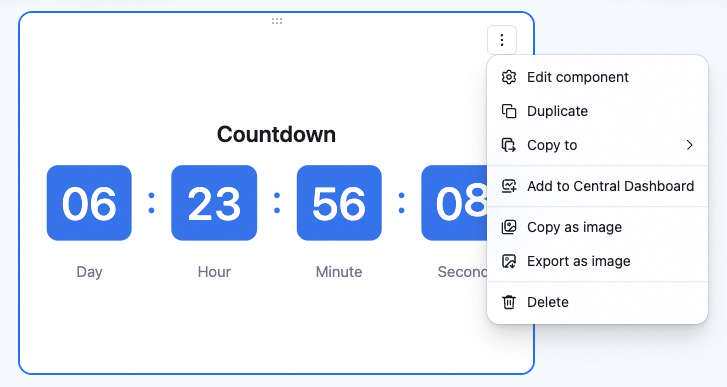 Drag the lower-right corner to resize. Drag the top to reposition.