

 Chats
Chats Calendar
 Meetings
 Contacts
 Mail
Mail Docs
Docs Drive
Drive AI Table
 AI Minutes
 Attendance
 Approval
 YiDA
YiDA Admin Console
Edition Notes
1. Introduction
1.1 Feature Overview
Sync AI Table / OA Approval form data to bridge AI Table / OA Approval with YiDA, so users can reference AI Table / OA Approval data directly on the YiDA side.1.2 Use Cases
- Event organizers can use AI Table / OA Approval to manage every stage of an event — attendee sign-up, scheduling, logistics, and more. Participants can submit feedback and requests through forms.
- Security managers can use AI Table sync forms to log safety inspection results, incident reports, and corrective actions. This helps prevent incidents and safeguard employee safety and well-being.
2. Steps
The steps are essentially the same for both types.2.1 Create a Page — Pick a DingTalk AI Table / OA Approval Form
1
Step 1
Sign in to the YiDA Workbench. Select the target app and open its page management screen.
2
Step 2
Click the icon  in the upper-left corner, and choose Sync DingTalk data to a form — DingTalk AI Table.
in the upper-left corner, and choose Sync DingTalk data to a form — DingTalk AI Table.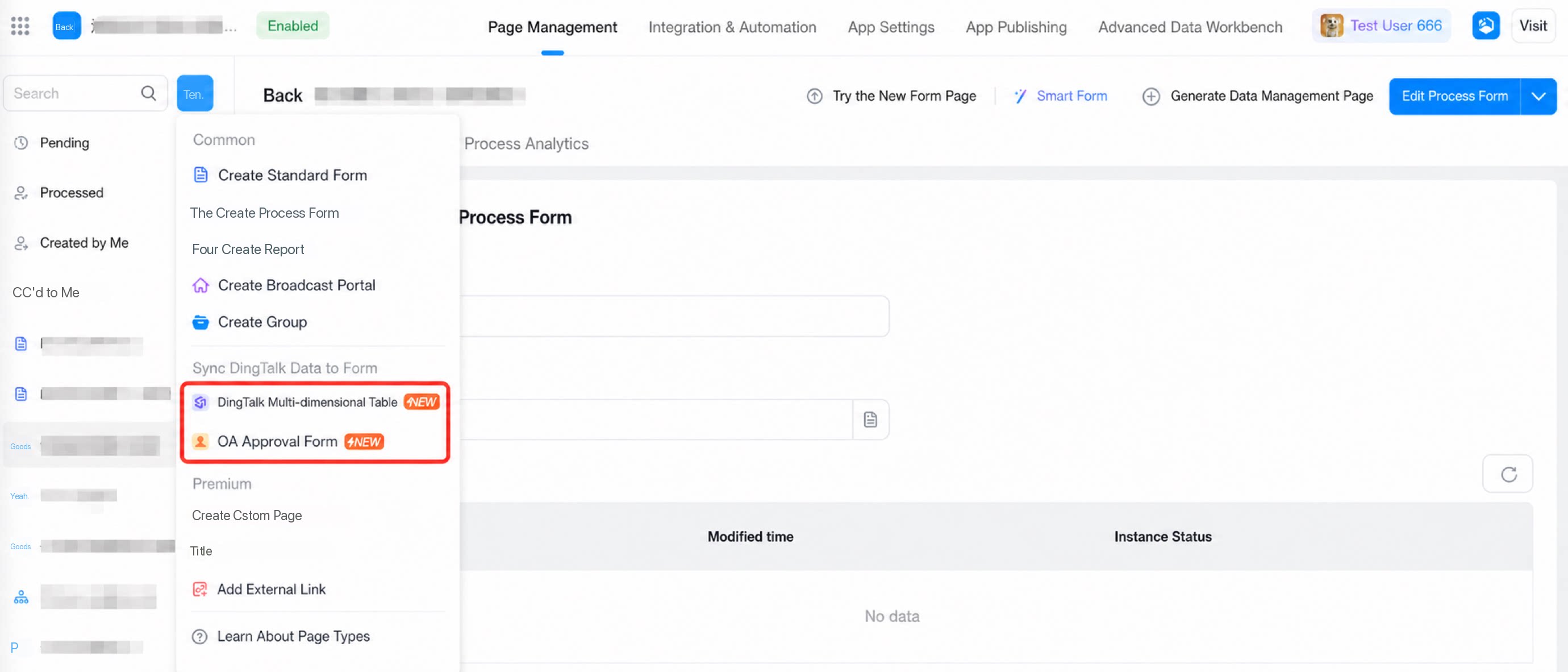
2.2 Pick the AI Table / OA Approval Form to Sync
| AI Table | OA Approval form |
|---|---|
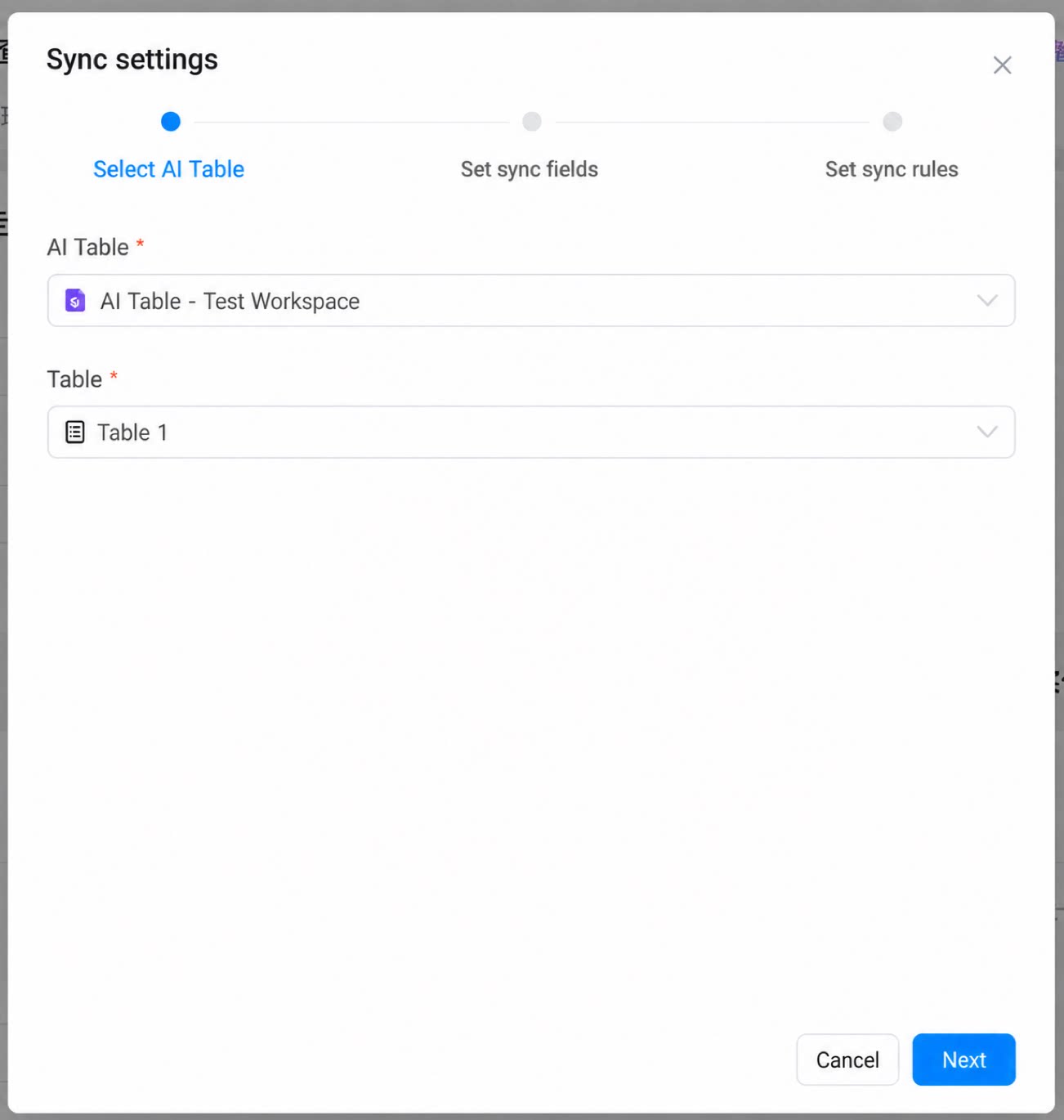 | 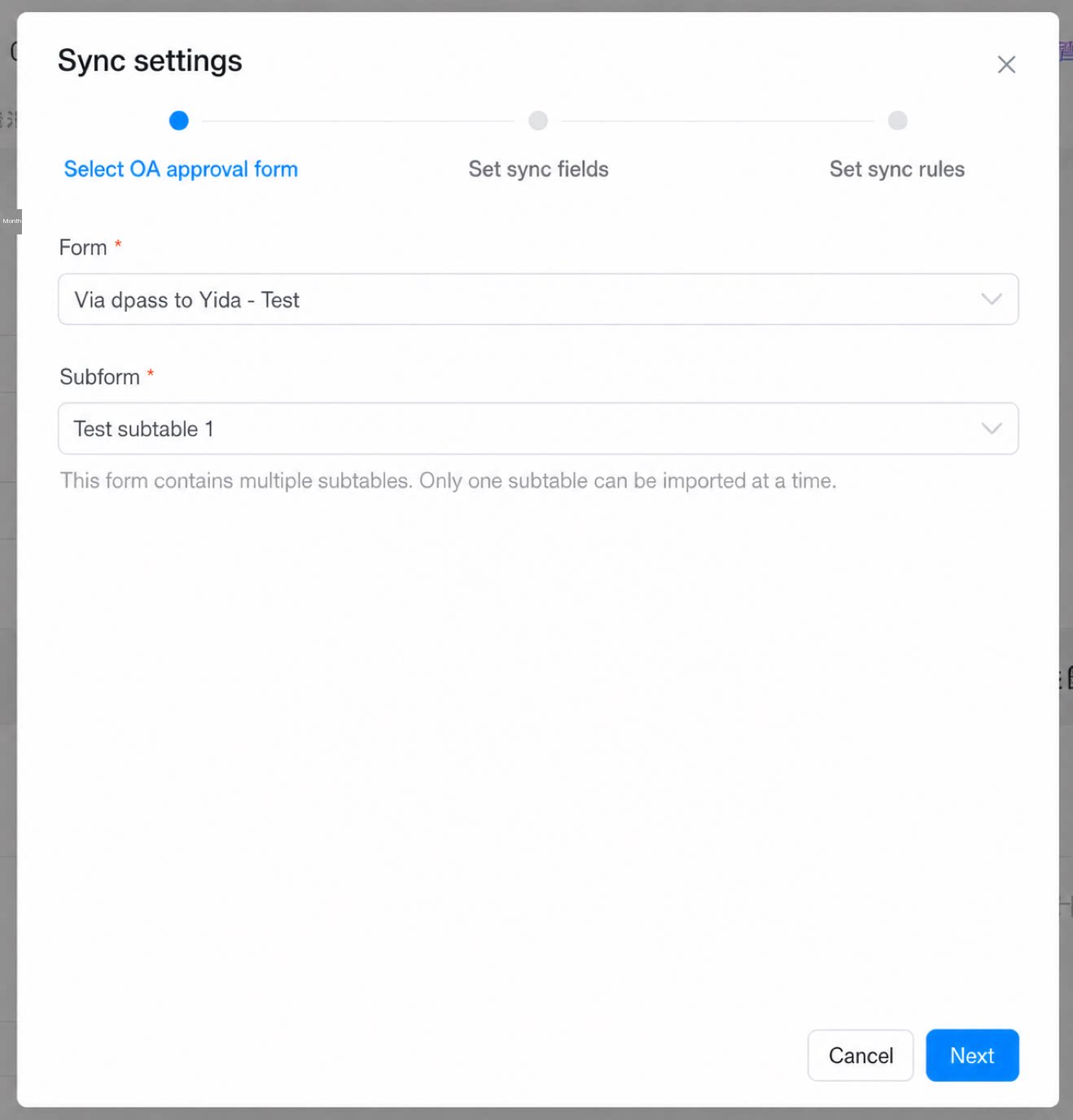 |
| AI Table selectable scope: 1. AI Tables in the Organization Knowledge Base for which the current user has management permissions. 2. AI Tables the current user has created in My Docs. | OA Approval form selectable scope: once the permission request is approved, all OA Approval forms in the organization can be pulled. Grant authorization with care. |
2.3 Configure Sync Fields
| Illustration | Setting | Description |
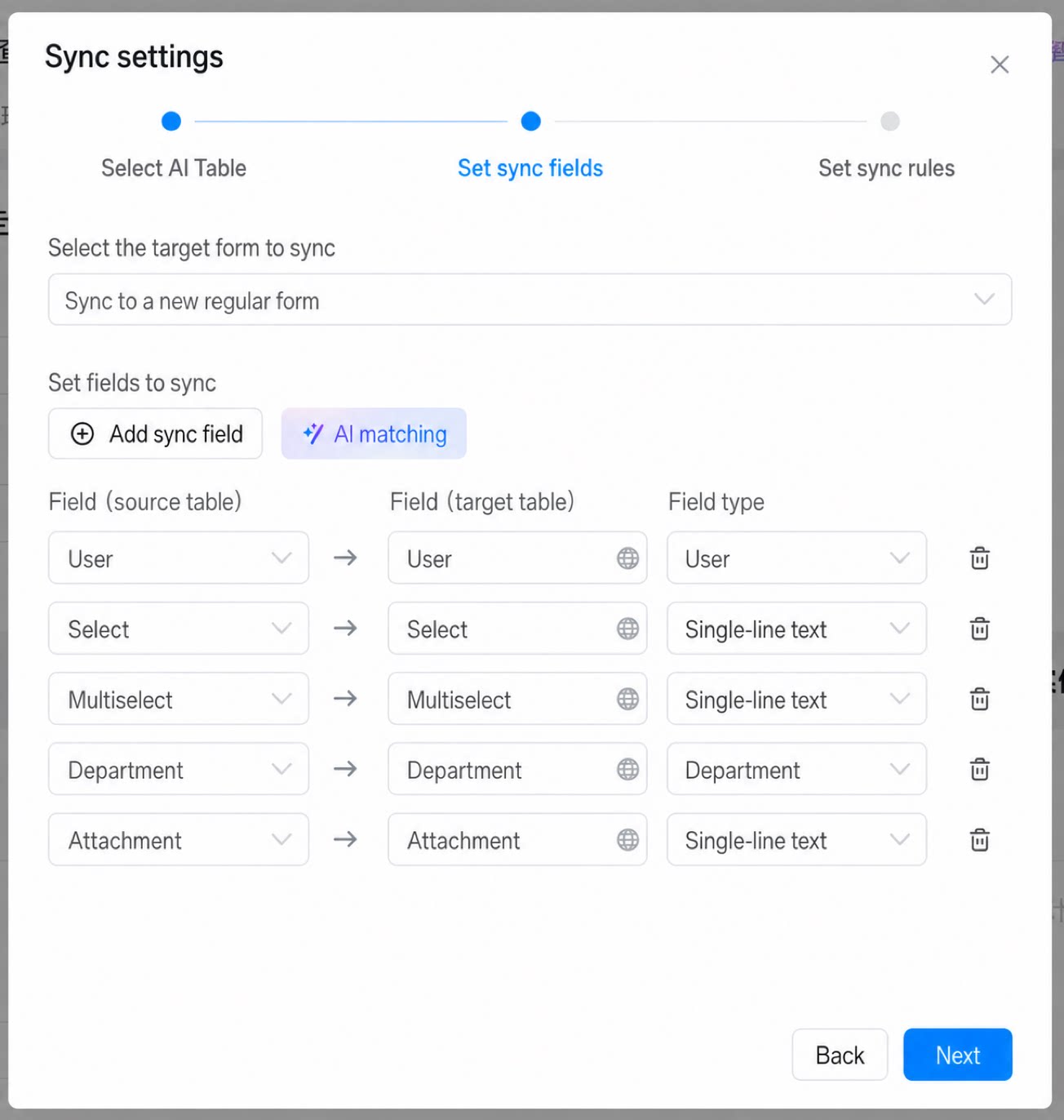 | Sync target form |
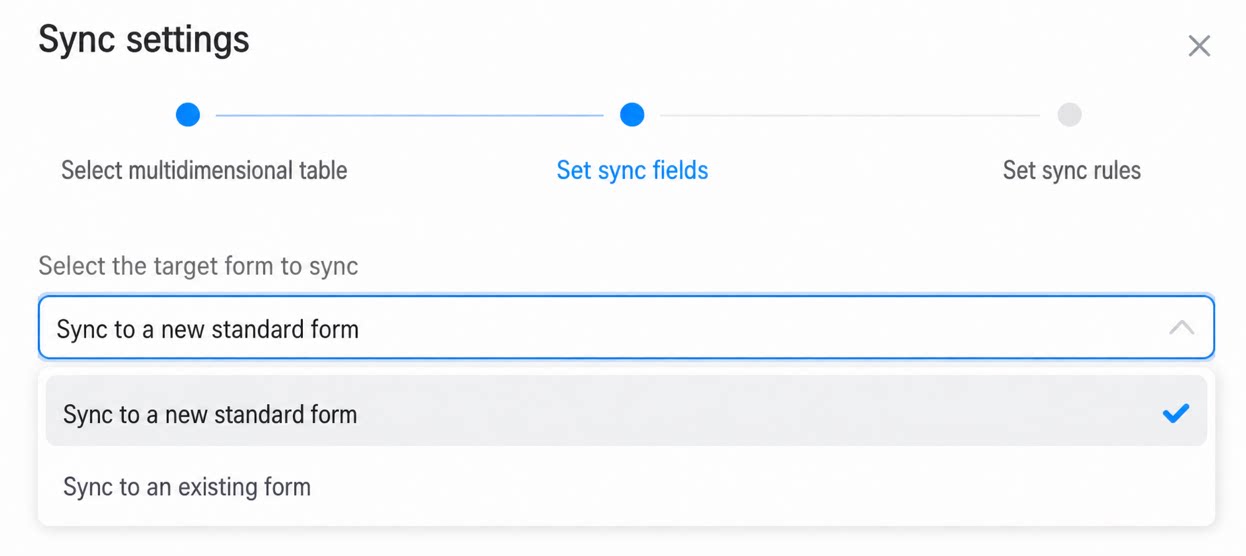 |
| Configure sync fields |
 |
2.4 Configure Sync Rules
| Illustration | Setting | Description |
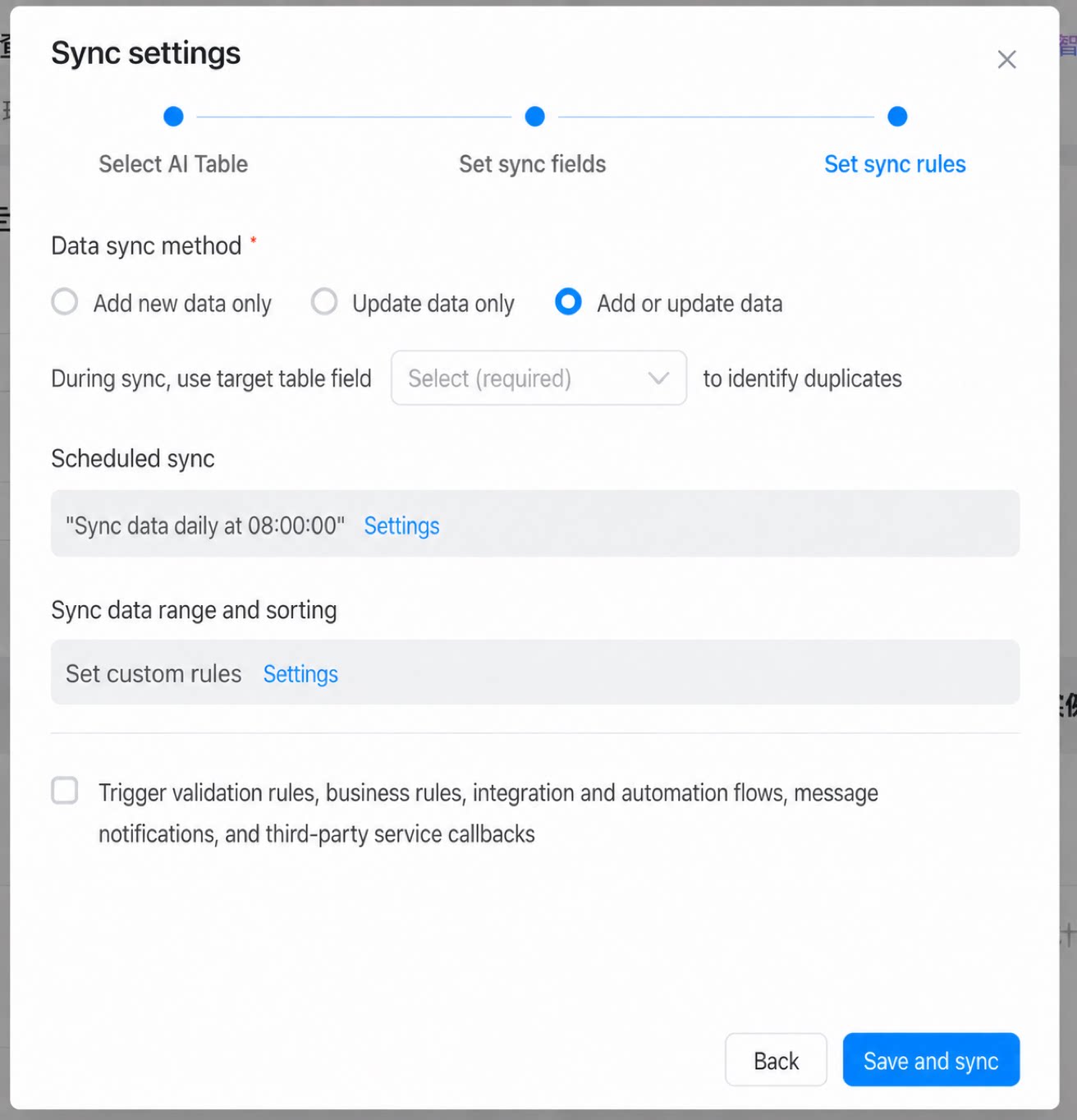  | Data sync mode | A deduplication primary key must be set when syncing data. In general, use a unique ID — or a composite primary key of several fields — to identify duplicates. Three sync modes are available:
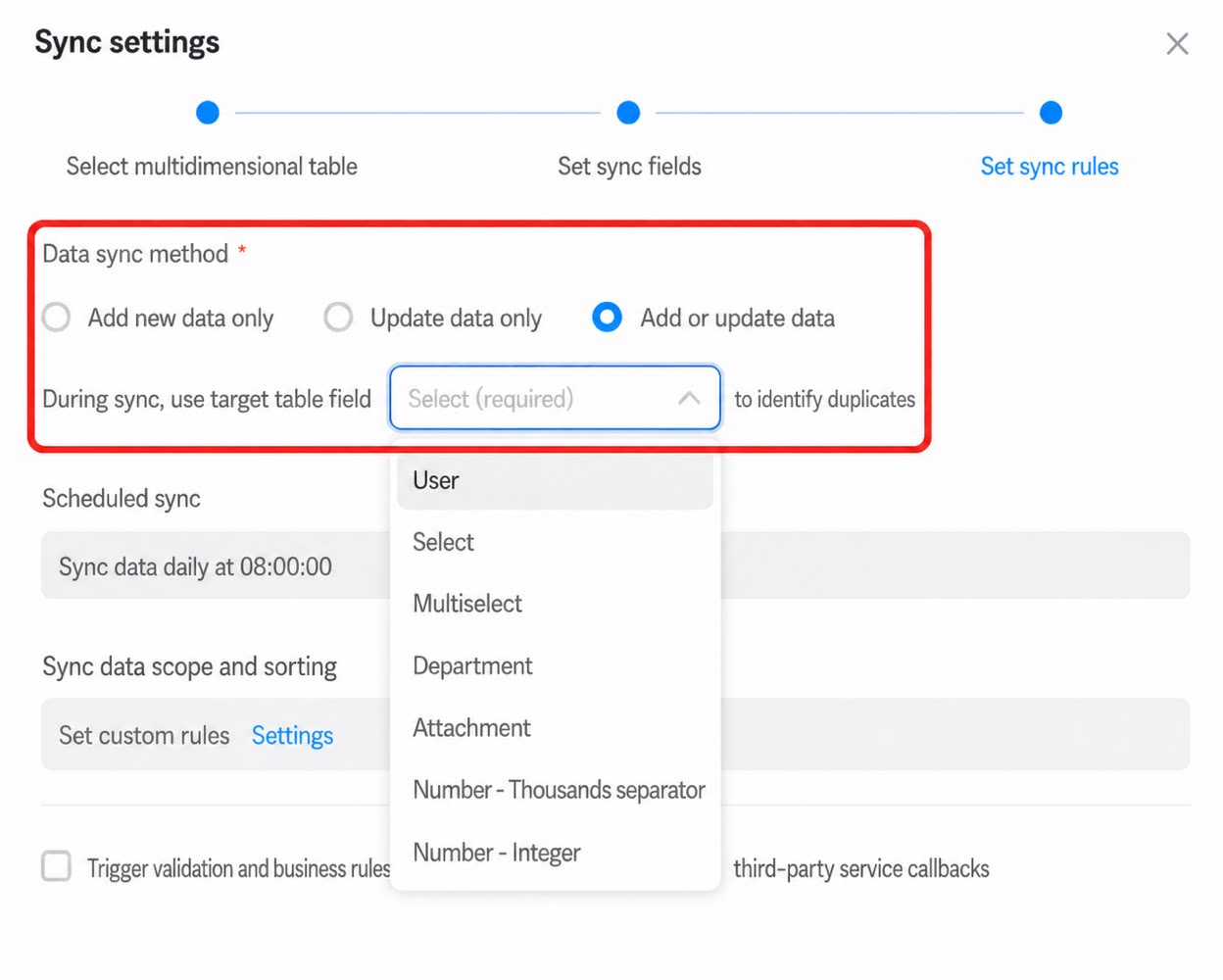 |
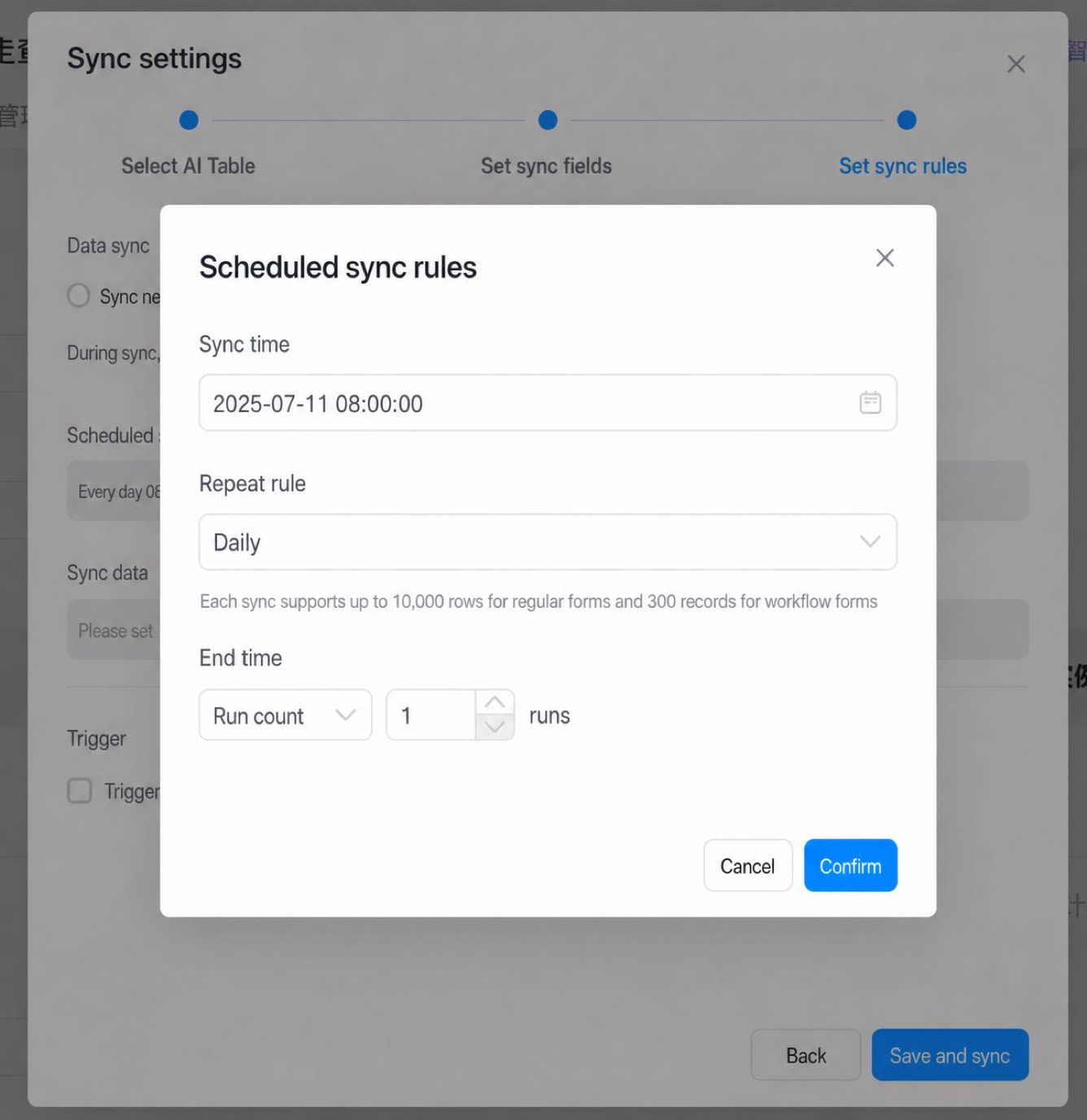
| Scheduled sync rules | Settings: Sync time: defaults to the current time; editable manually. | |
Repeat rule
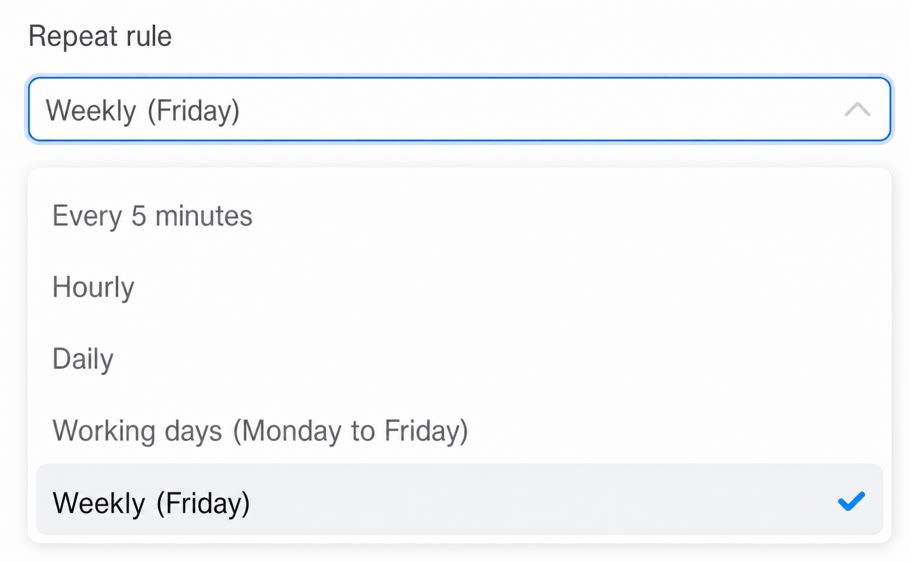 | ||
| End time: when to stop syncing. Two options:
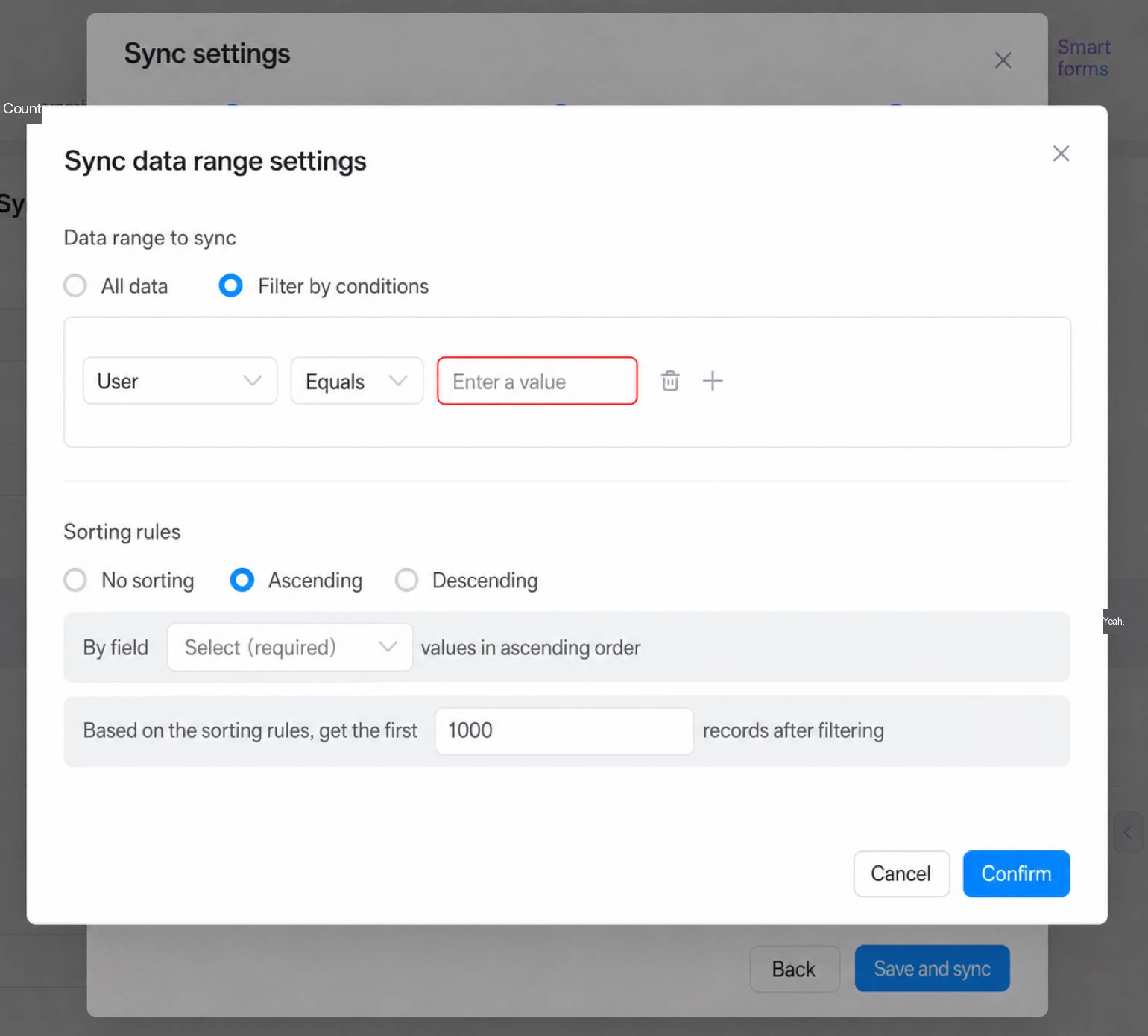  | ||
| Sync data range and Sort | Each sync currently pulls at most 10,000 records for a regular form and 300 records for a workflow form. When the data volume is large, use [filter conditions + Sort] to update a specific slice. Note: “regular form” and “workflow form” here refer to YiDA page types. When AI Table forms and OA Approval forms are first created in YiDA, they are all regular forms. A workflow form applies once a user manually converts a regular form via “Convert to workflow form in one click”. | |
| Other | Choose whether the data sync should trigger validation rules, business rules, integration & automation flows, message notifications, and third-party service callbacks. |
2.5 View the Data
Once created, you will see a new “regular form” in the app, along with a data set of the same name and type generated at the same time. The first sync after creation may take a few minutes — if the data does not match the source, wait a moment. Click “Dataset sync” to view the sync log. See the illustration below: After creation, if you need to edit the sync rules or manually refresh the data, find the entry points in the form’s dropdown action bar as shown below.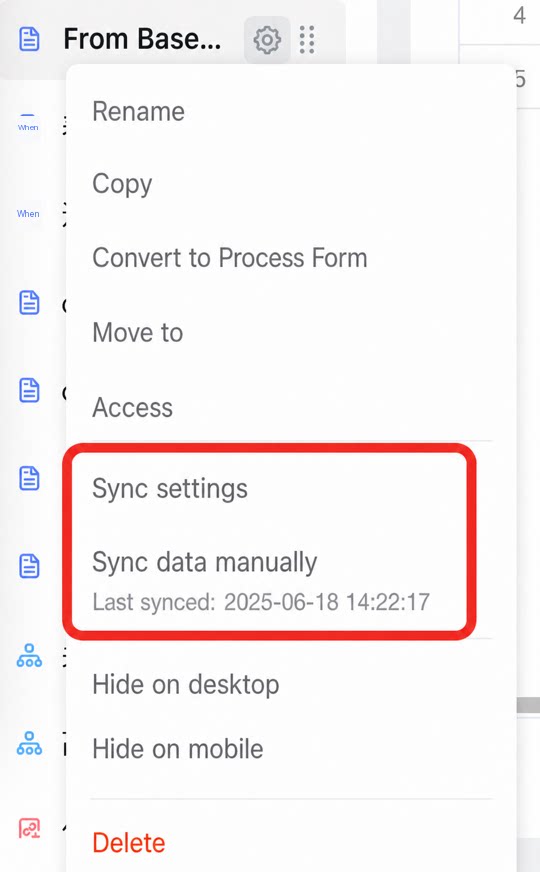
About the Sync data button:Free plan: only one click-to-sync per day.Paid editions: not unlimited — see the edition notes in section 1 for details.
3. Format Support
AI Table data sync — format support| Field type | Field name | AI Table data type | Sync supported? | Data type after sync | Notes |
| Common components | Text | Text |
| Text | |
| Multiselect | array |
| Text | The sync data type must be set to Text, otherwise data cannot be read. After sync, shows the option ID. | |
| group | array |
| Text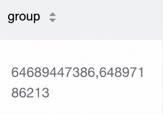 | After sync, shows the group ID. | |
| Date | Date |
| Date | ||
| Checkbox | boolean |
| Text | ||
| Link | Link |
| Text | ||
| Formula | Formula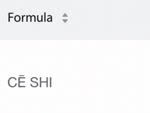 |
| Text | Data type must be set to Text, otherwise data cannot be read. | |
| Location | Map location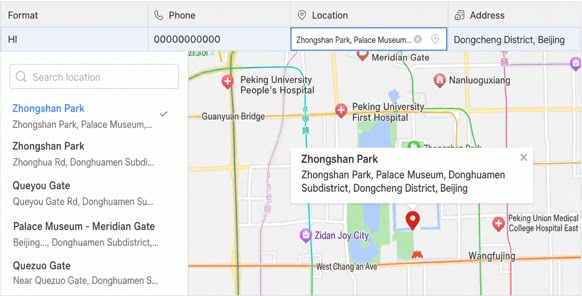 |
| Text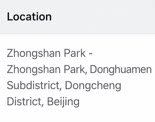 | Data type must be set to Text, otherwise data cannot be read. | |
| Phone | Phone, with validation |
| Text | Data type must be set to Text, otherwise data cannot be read. | |
| Rating | Rating component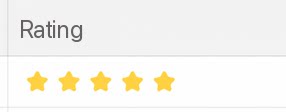 |
| Numerical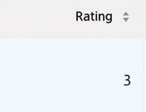 | ||
Text |
| Text | |||
| Signature | Image |
| Text | ||
| Select | Text |
| Text | After sync, shows the option ID. | |
| User | User |
| Text | The sync data type must be set to Text, otherwise data cannot be read. After sync, shows the user ID. | |
| Department | Department |
| Text | The sync data type must be set to Text, otherwise data cannot be read. After sync, shows the department ID. | |
| Number | Number |
| Numerical | ||
| Attachment | Attachment |
| Text | Data type must be set to Text, otherwise data cannot be read. | |
| Progress | Progress bar |
| Text | Data type must be set to Text, otherwise data cannot be read. | |
| Lookup | Search box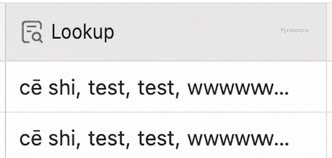 |
| Text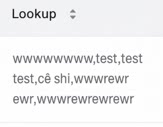 | ||
| Barcode | Text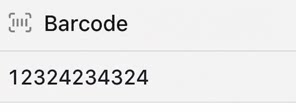 |
| Text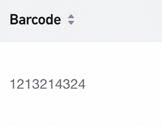 | ||
| Address | Cascader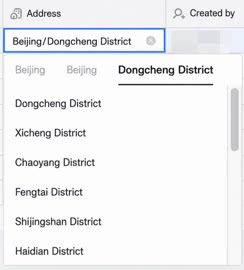 |
| Text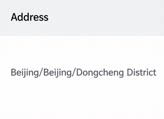 | Data type must be set to Text, otherwise data cannot be read. | |
| Currency | Number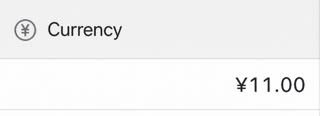 |
| Numerical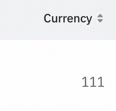 | ||
| ID card | ID card |
| Text | ||
| Premium components | Autonumber | Number | ❌ Not supported Neither Numerical nor Text is supported. |  | |
| One-way Link | Association component |
| Text | ||
| Related Lookup | Association component |
| Text | ||
| Last modified by | User | ❌ Not supported | Text | ||
| Last modified time | Date | ❌ Not supported | Text | ||
| Rich Text | Rich Text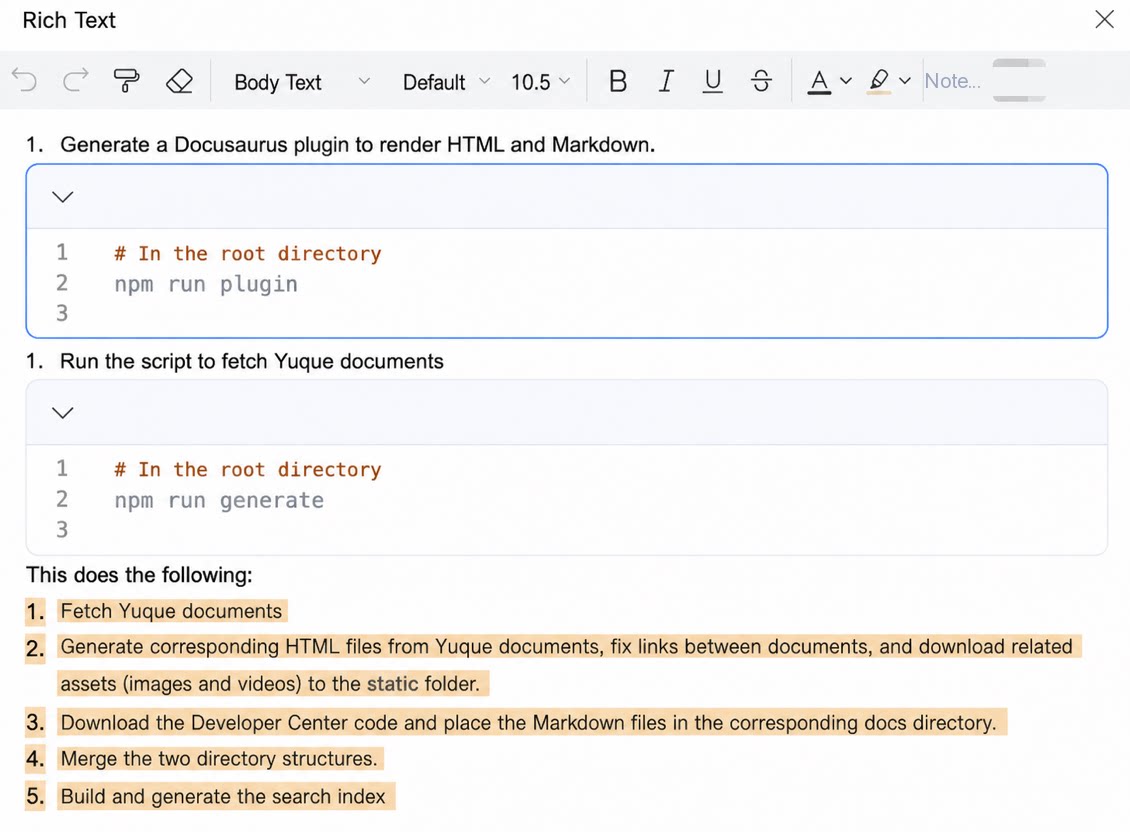 |
| Text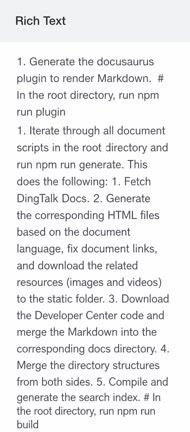 | ||
| Workflow | Workflow component |
| Text | Data type must be set to Text, otherwise data cannot be read. Shows the workflow ID. | |
| Both-way Link | Text |
| Text | ||
| Created by | User | ❌ Not supported | Text | Data type must be set to Text, otherwise data cannot be read. | |
| Created time | Date | ❌ Not supported | Text | Data type must be set to Text, otherwise data cannot be read. | |
| Button | Button component | ❌ Not supported Neither Single-line text nor Multi-line text is supported. |  |