Chats
Chats Calendar
 Meetings
 Contacts
 Mail
Mail Docs
Docs Drive
Drive AI Table
 AI Minutes
 Attendance
 Approval
 YiDA
YiDA Admin Console
What Is a Data Service?
A data service processes a dataset by selecting specific fields and exposing them as an API. Data services can currently be consumed only in Card nodes within integration & automation or workflow design.Notes:
- When you need multiple independent data metrics, maintain a separate data service for each and consume them individually in integration & automation.
- Only the Super Admin and data admins can view and manage data services.
- Permissions:
- Consumption scope: In the “Retrieve single Record” or “Retrieve multiple Records” nodes of integration & automation or the simplified workflow designer, set the data source to Data Factory > Data Service to consume the data defined by the data service.
Define a Data Service
1
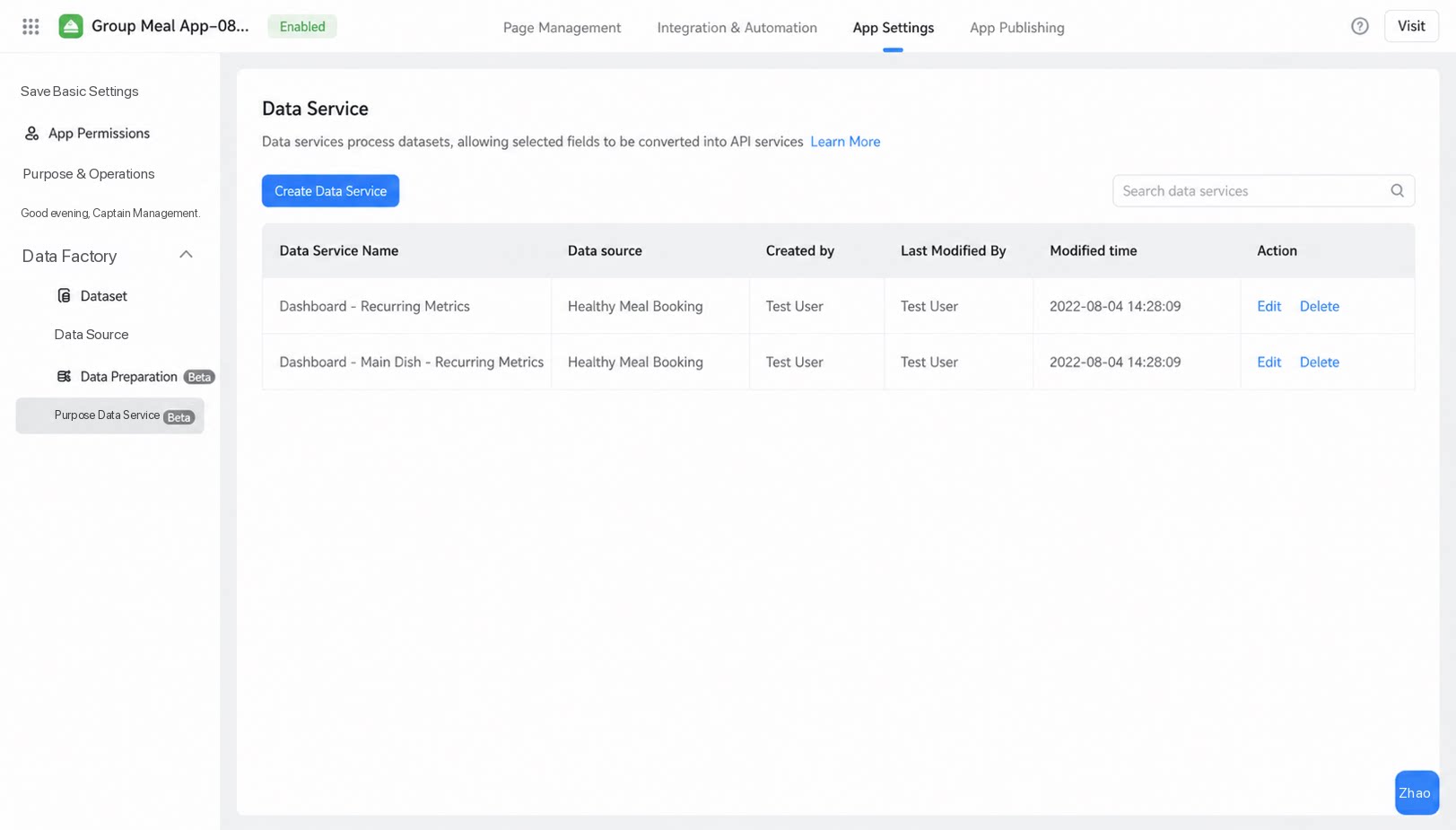
Go to Data Factory > Data Service and click Create Data Service to open the data service page.
2
Configure the service as described below.
| Type | Function |
|---|---|
| Text | No aggregation, Count (with or without deduplication) |
| Date | No aggregation, Count (with or without deduplication), Max, Min |
| Number | No aggregation, Count (with or without deduplication), Max, Min, Average, Sum |
| array (such as User or Department components) | Aggregation functions are not supported. Only “No aggregation” is available.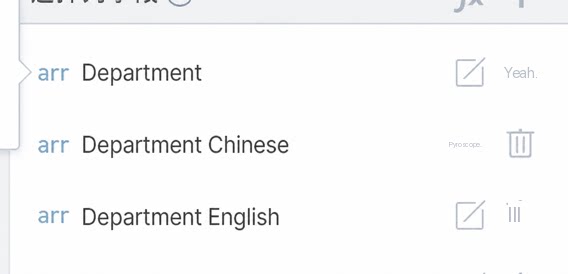 |
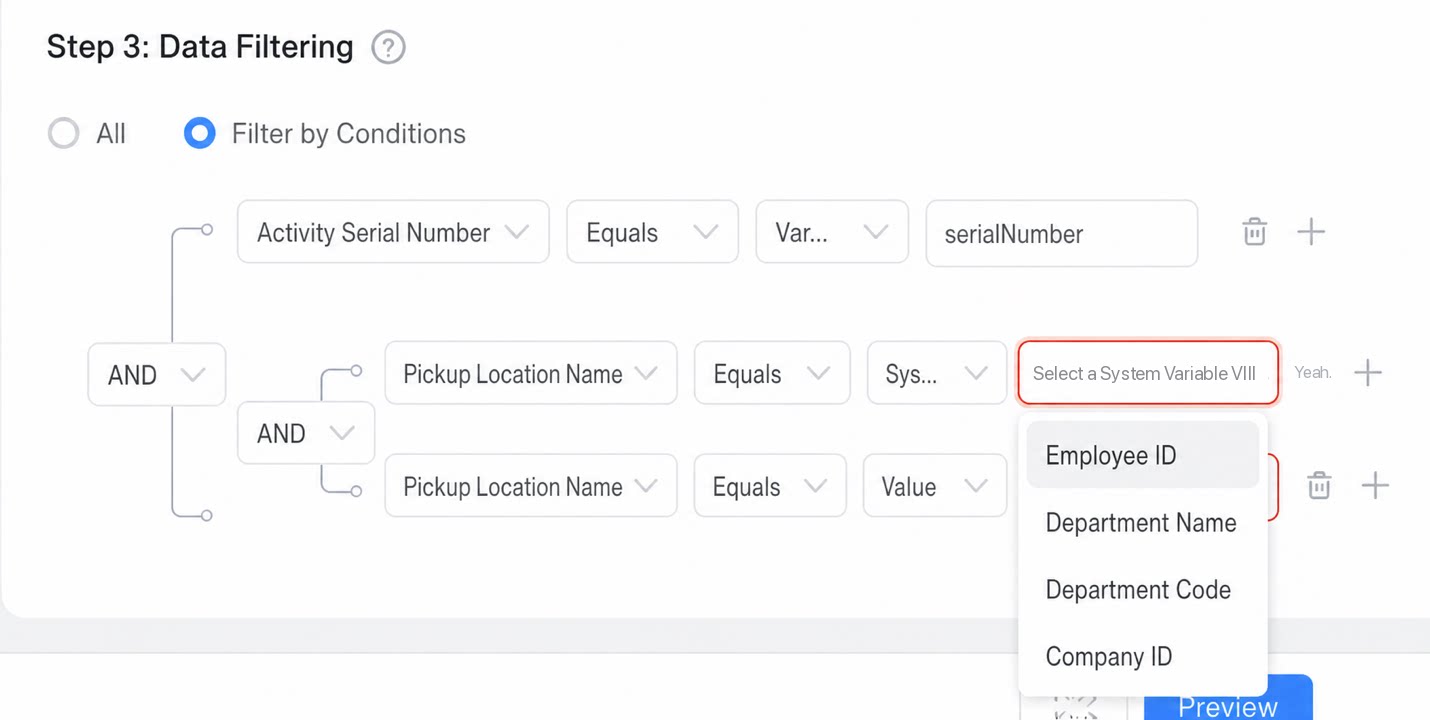
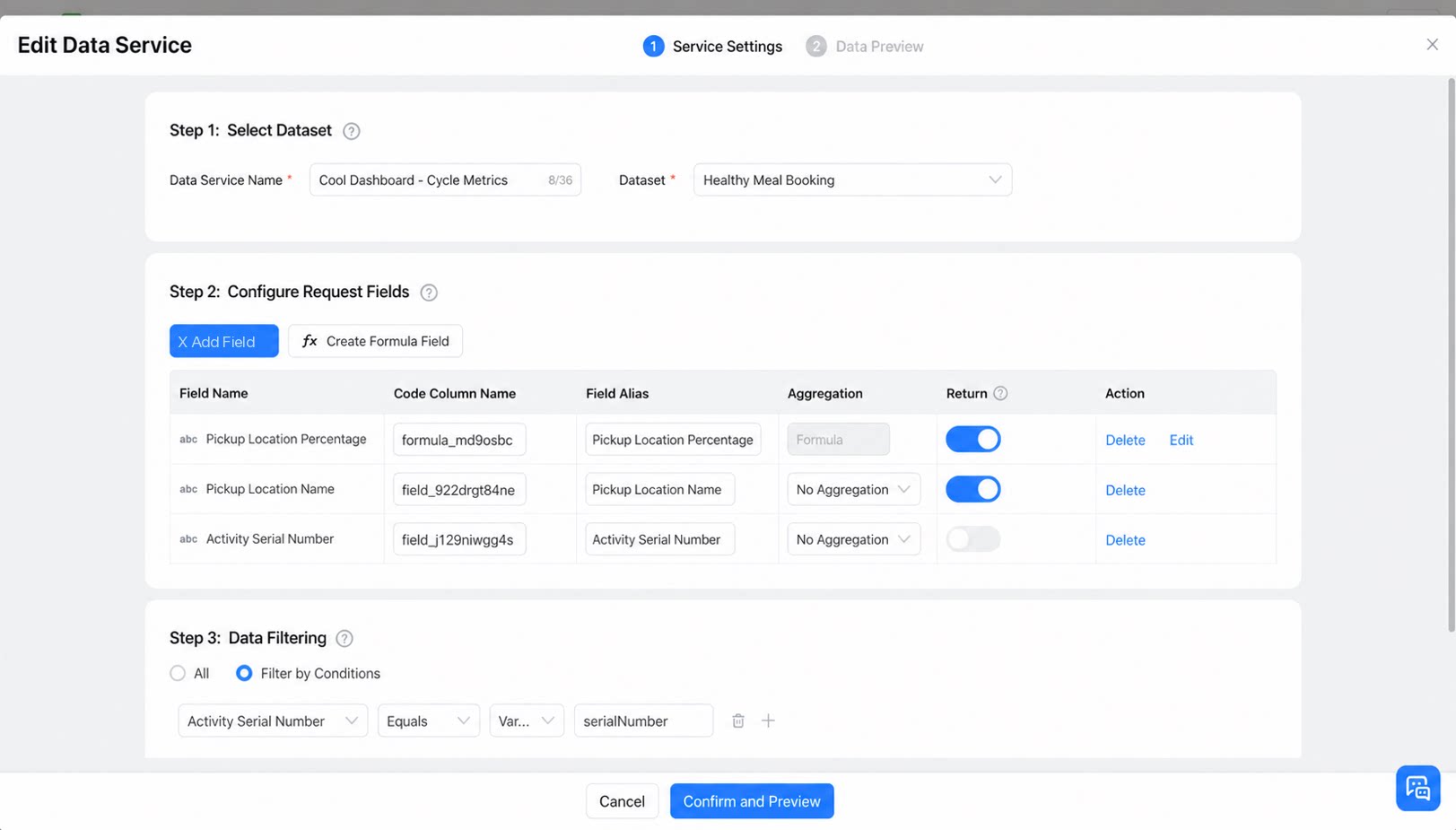
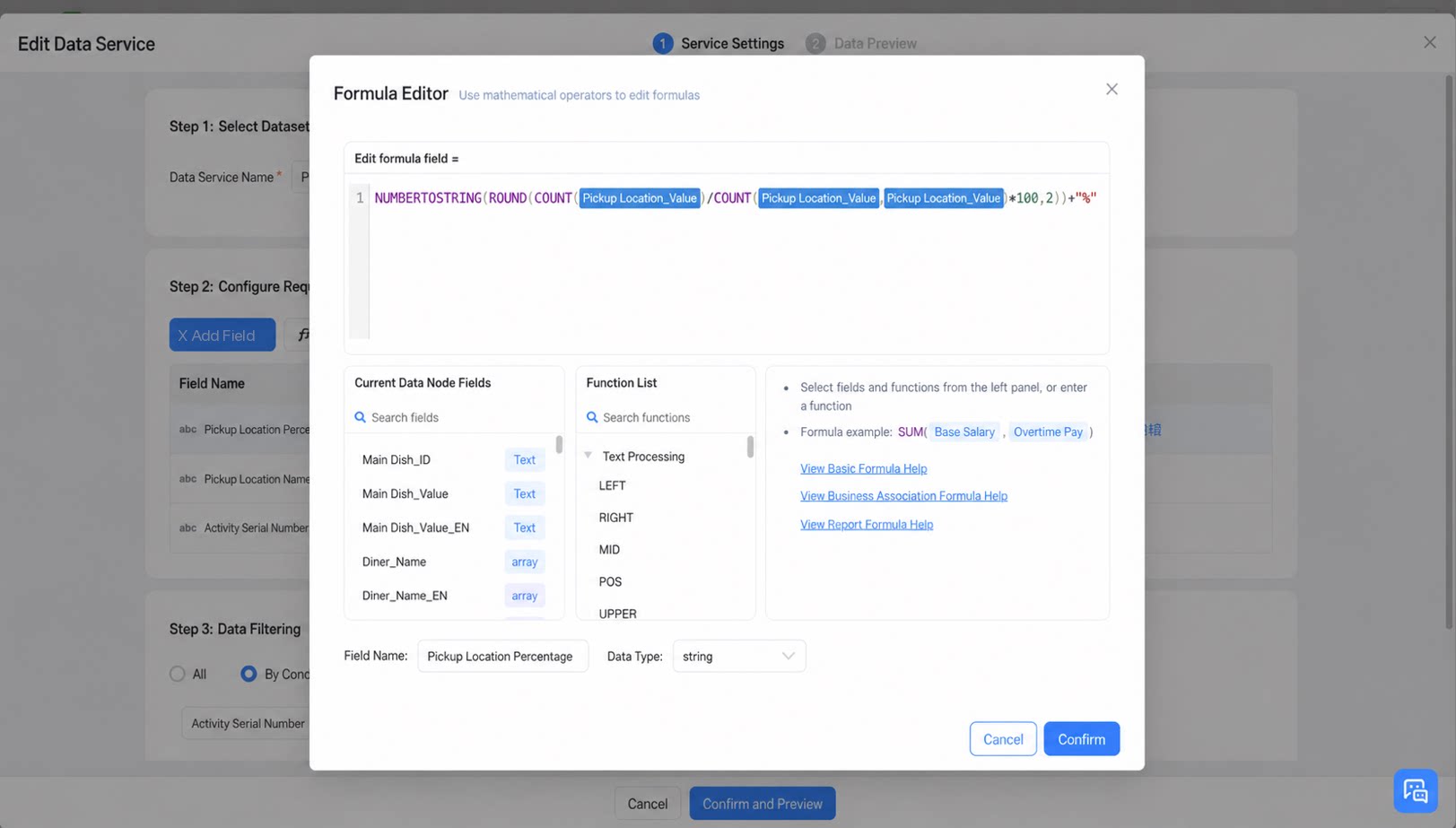
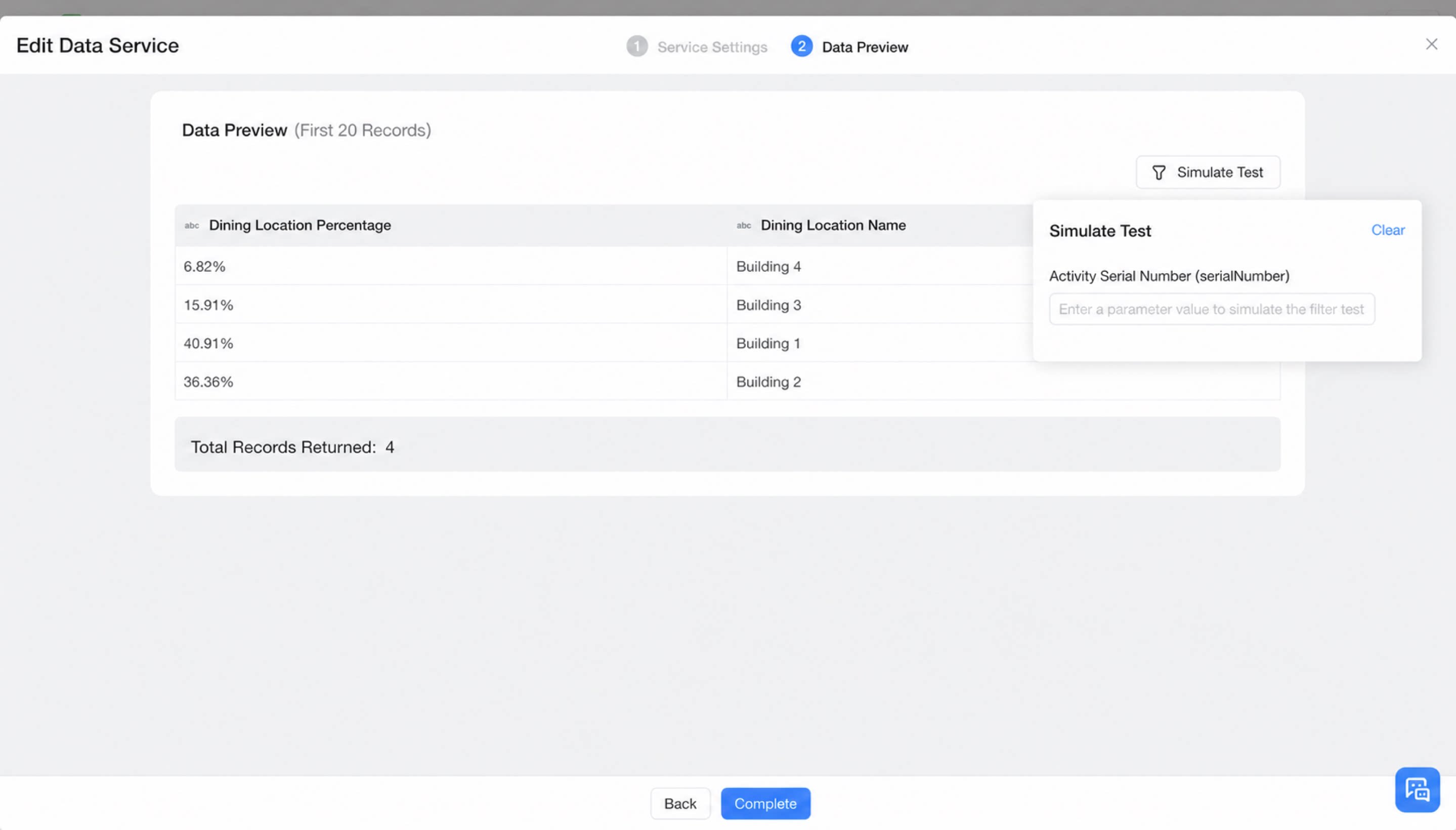
- Click Confirm and preview to verify the configuration.
Retrieve a Data Service
Entry point: Integration & Automation > Simplified Workflow Designer > Retrieve Multiple Records node > Retrieve Single Record node > From Data Factory > Data Service. Add a “Retrieve multiple Records” node in integration & automation. When the data source is set to Data Factory > Data Service, the node returns the aggregated data calculated by the data service.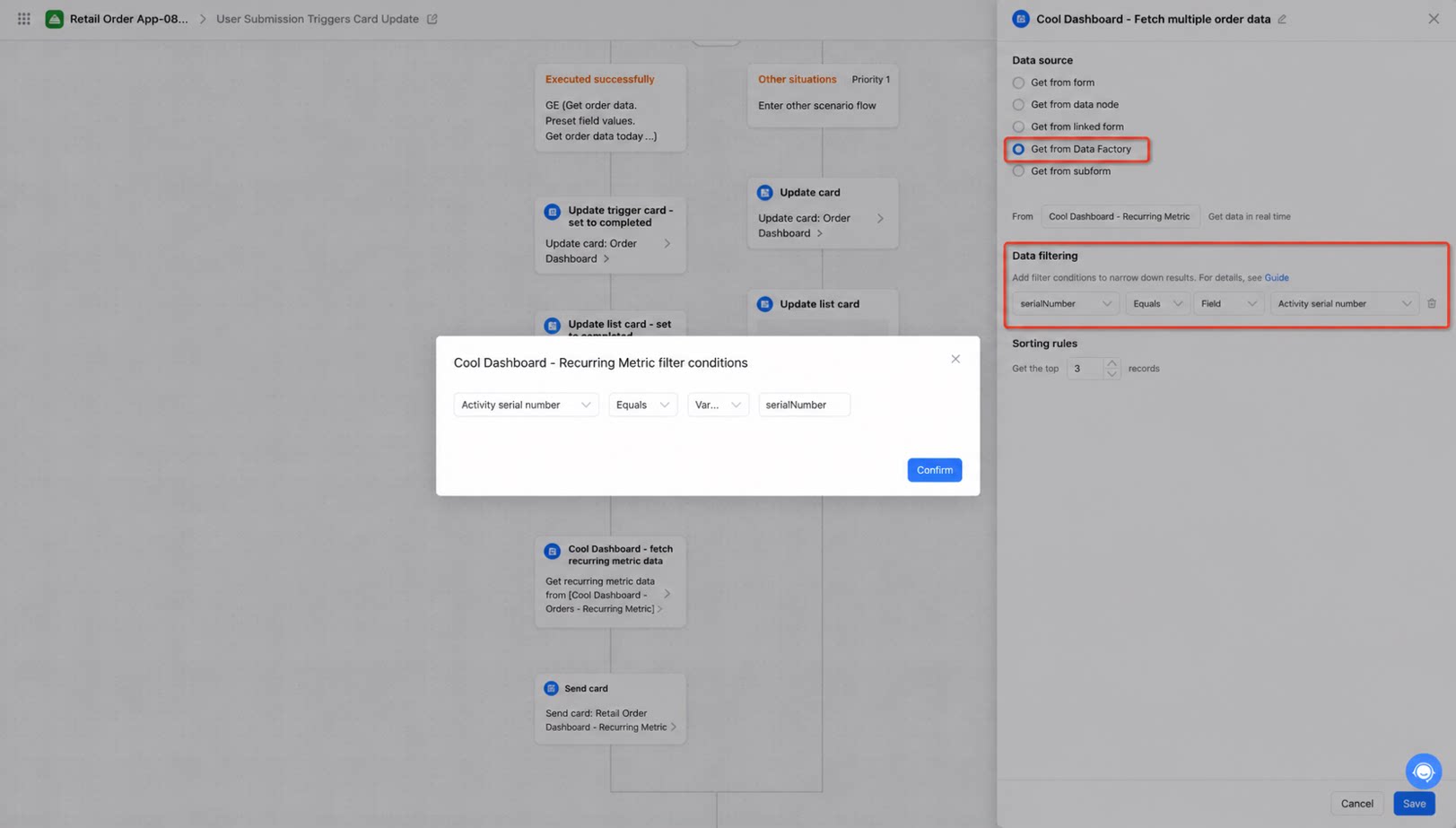
Consume a Data Service
Entry point: Send Card node or Update Card node in integration & automation or the simplified workflow designer. Bind the data returned by the data service to the card’s data source.
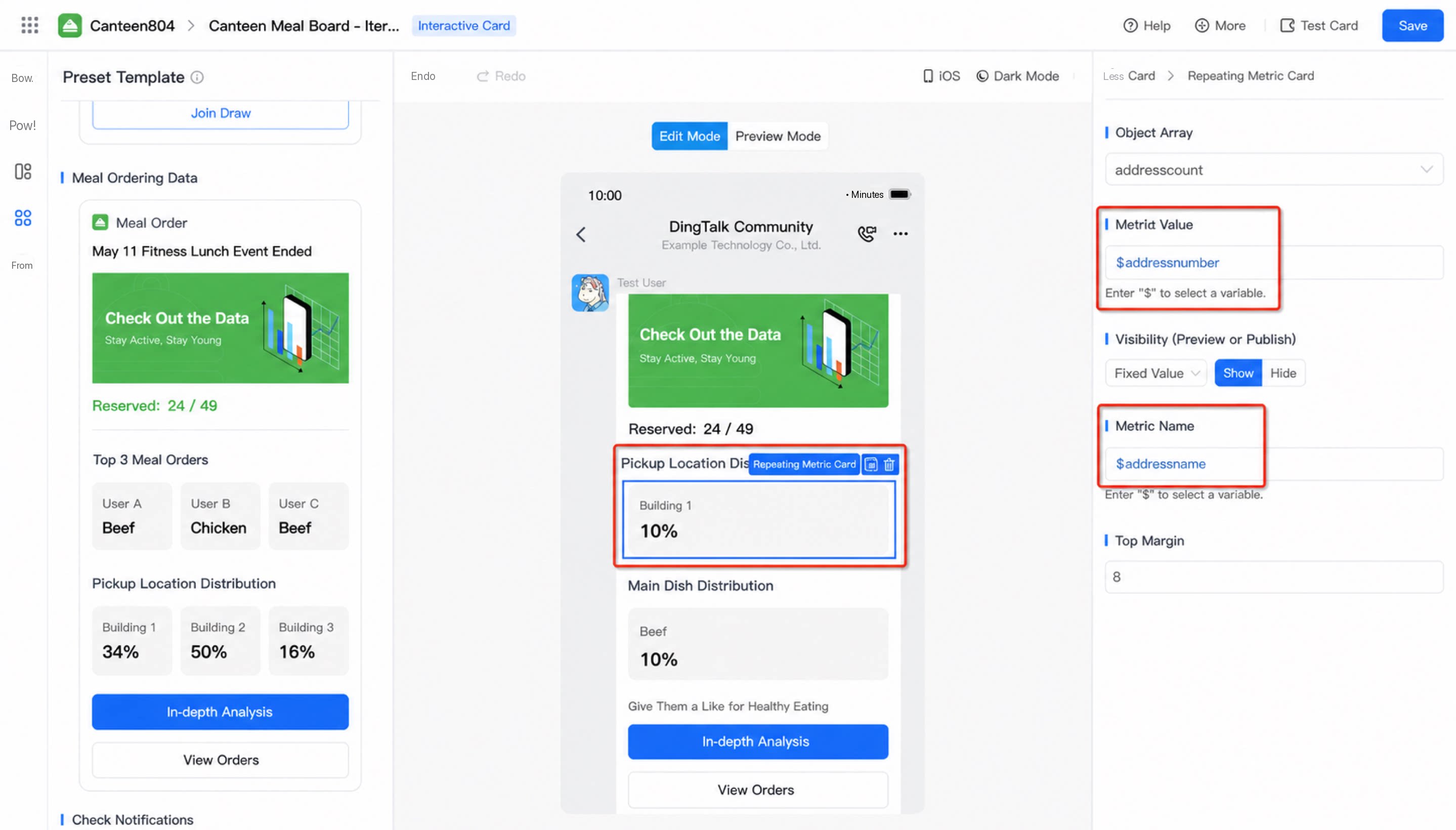
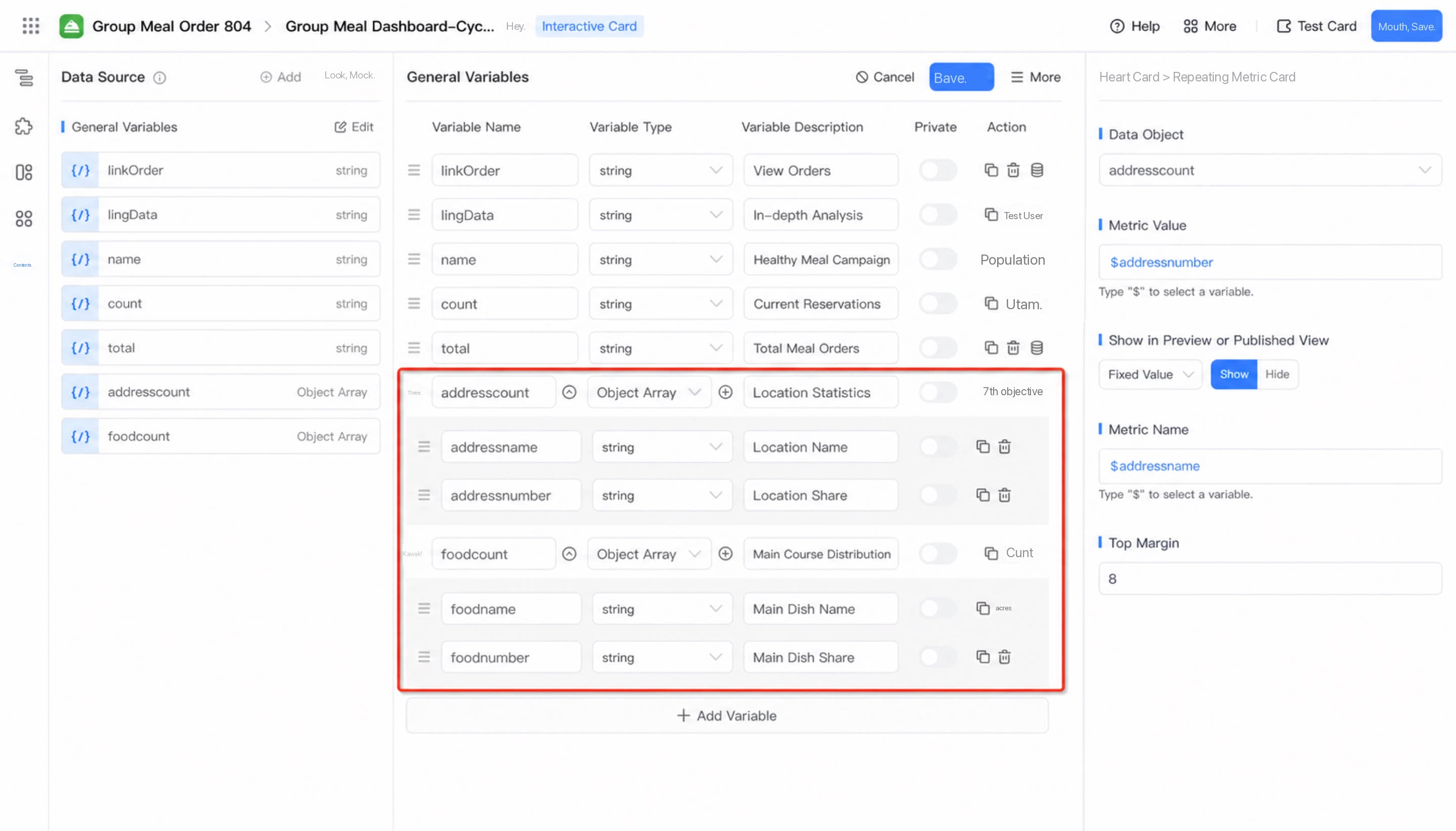
1
Open the card designer, select the loop metrics card, define the data source variable (an object array) and configure mock data. Then bind the metric value and metric name in the component attribute panel.
2
Step 2
Add a Send Card node in the integration & automation workflow, select the cool data card you defined, and set the card’s data source value to a field. The field can be sourced directly from the data returned by the “From Data Service” node in the previous step.