Chats
Chats Calendar
 Meetings
 Contacts
 Mail
Mail Docs
Docs Drive
Drive AI Table
 AI Minutes
 Attendance
 Approval
 YiDA
YiDA Admin Console
1. Overview
1.1 Feature Overview
Use the Text component to display basic text information.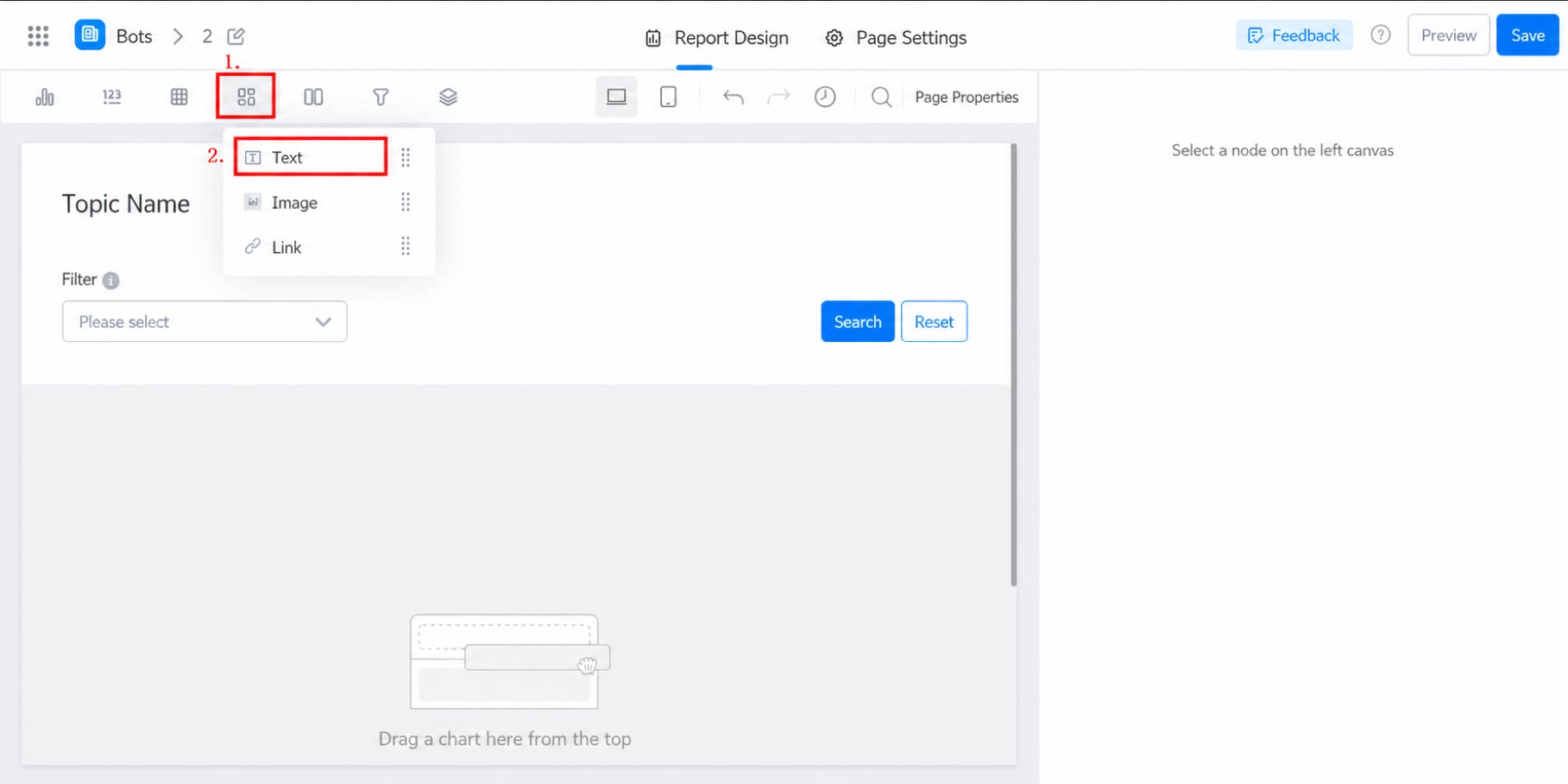
1.2 Use Cases
For example, when ranking students by exam scores, use the Text component to analyze the reasons behind lower-performing students and outline follow-up improvement plans.2. Steps
2.1 Select the Text Component
Select the component and drag it into the designer.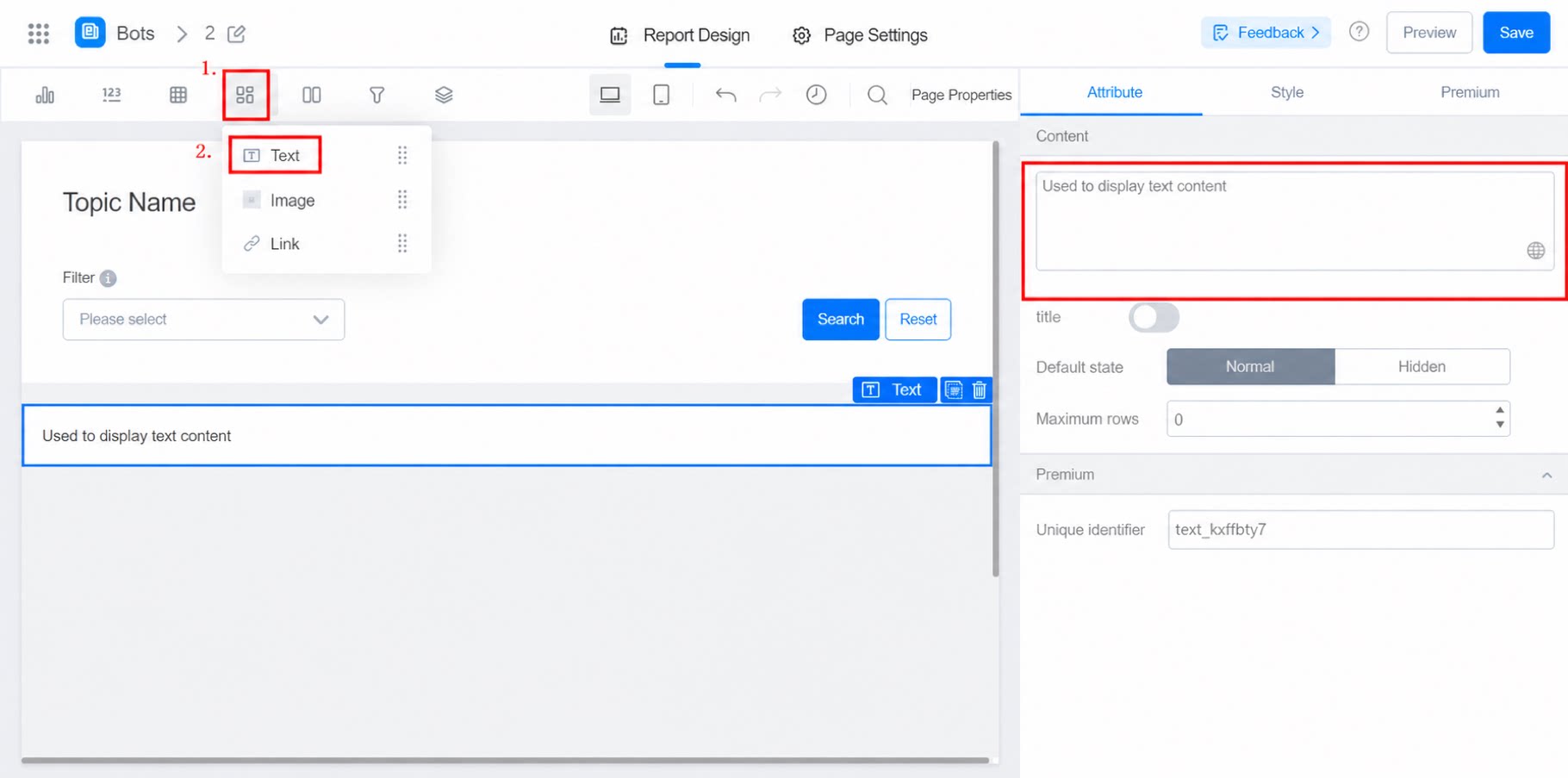
2.2 Configure Content
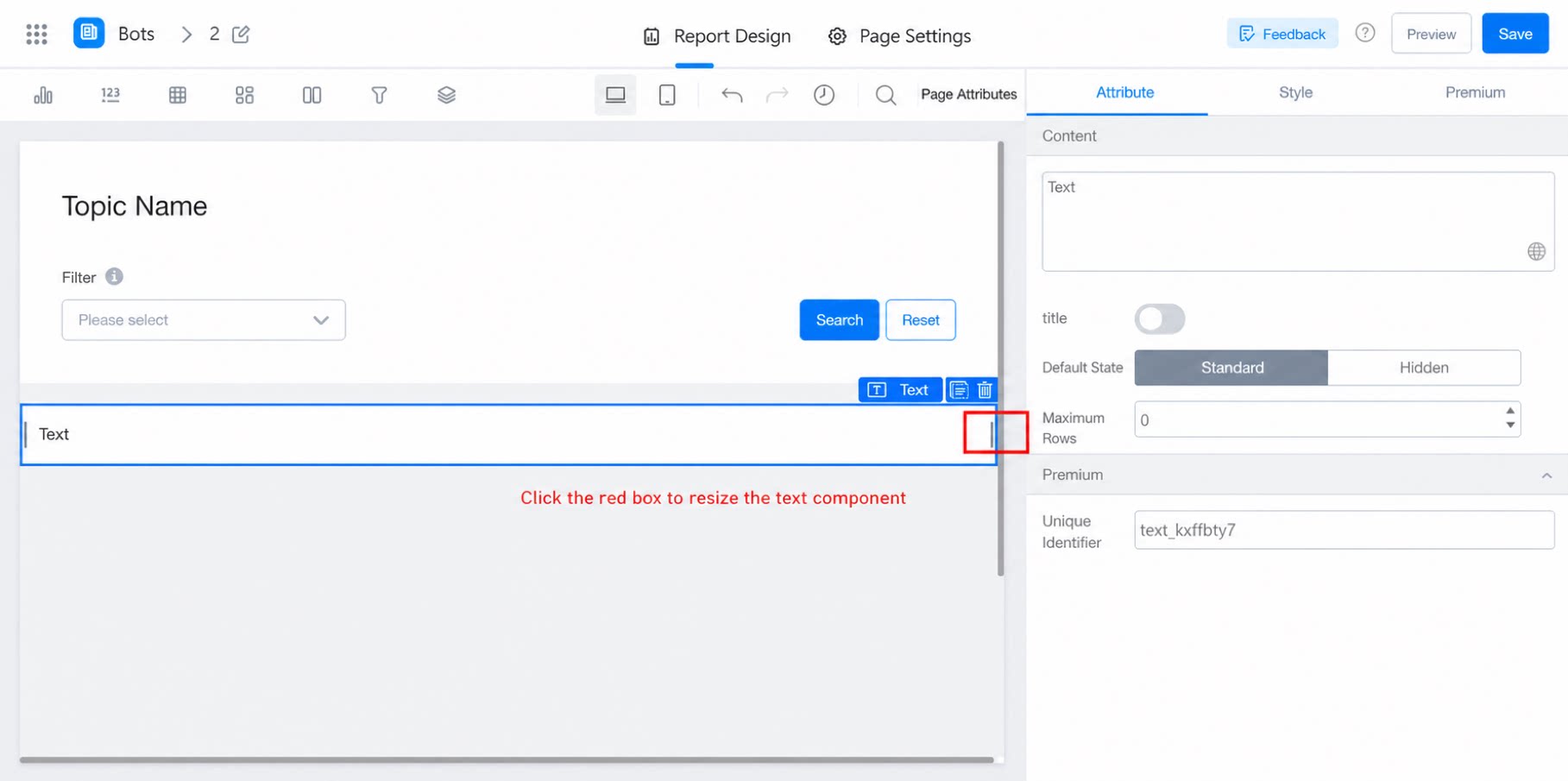
In Attribute, set the text content, title, default state, and maximum number of lines. Set the unique identifier in Premium settings.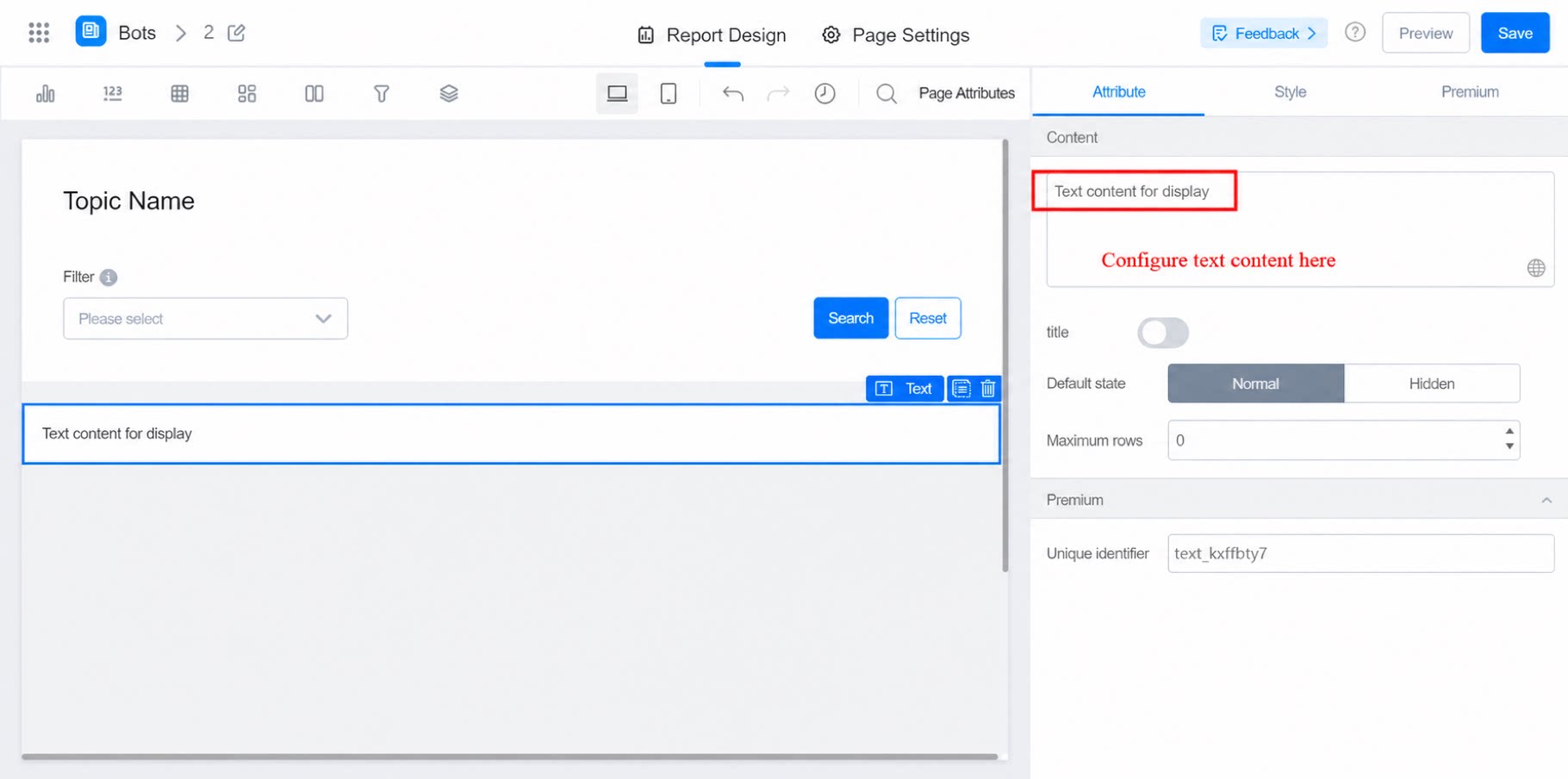
2.3 Configure Style
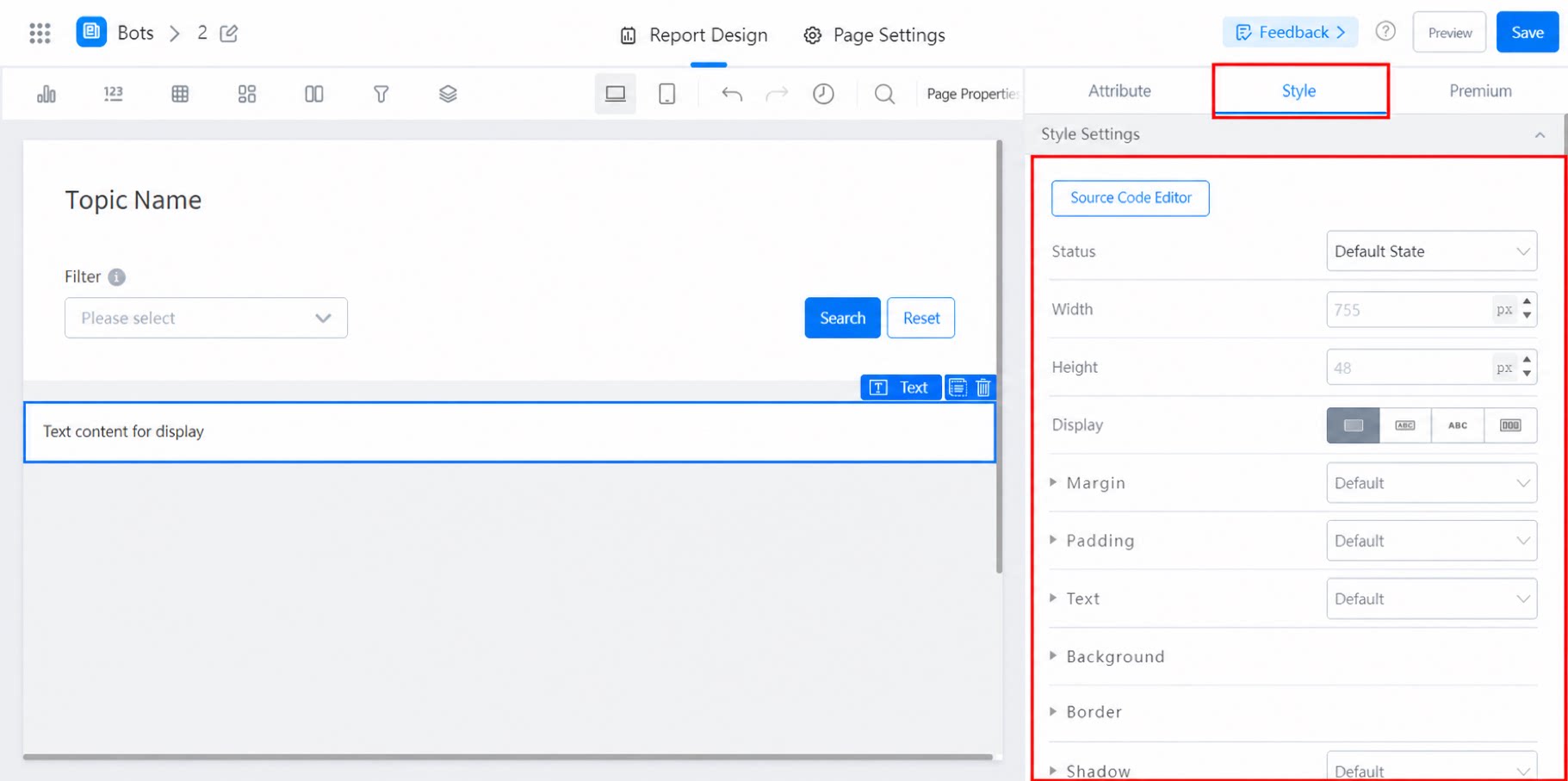
Adjust the default state and other style options.